

How to Connect BambooHR to SmoothHiring
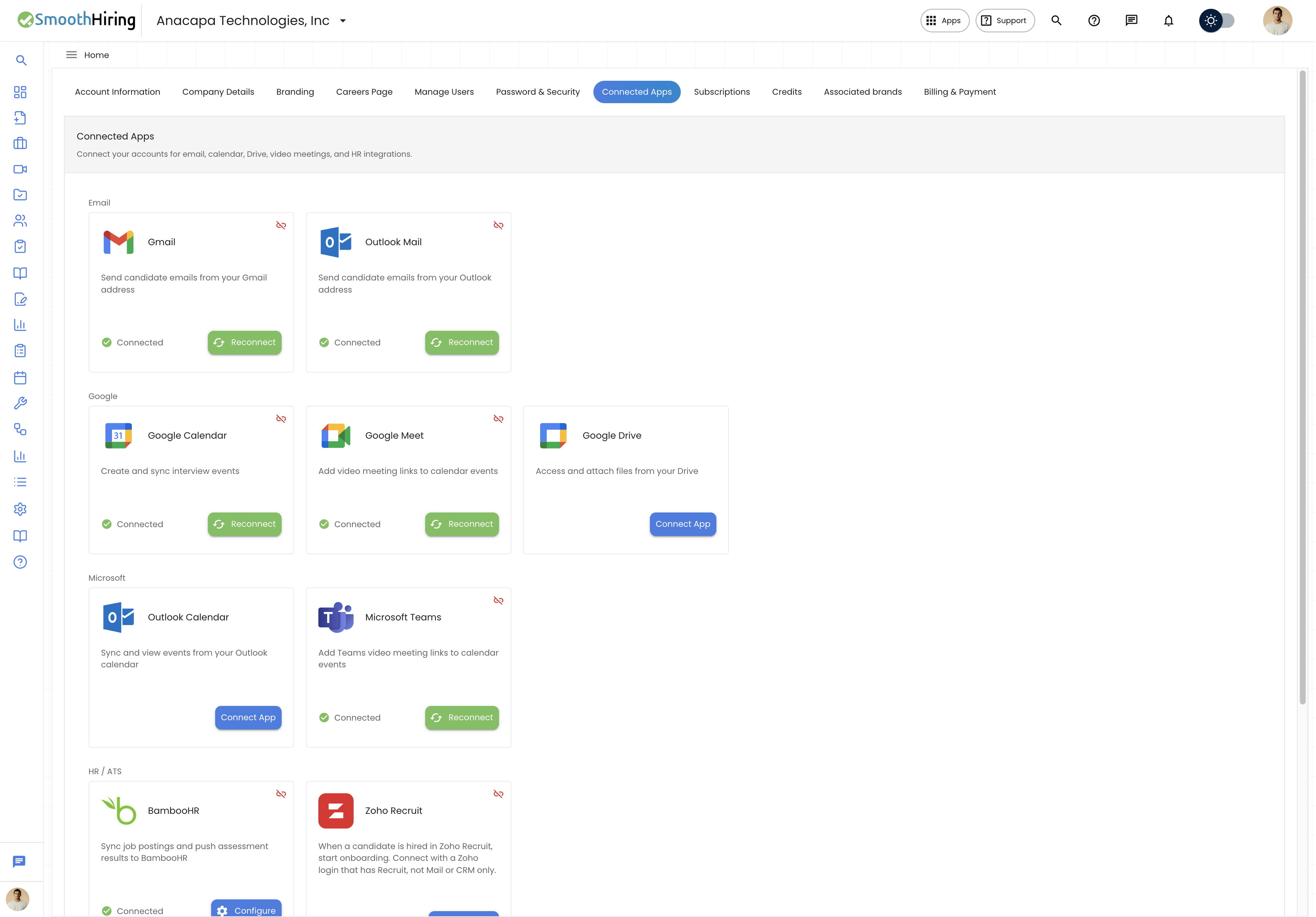
Adding the App
Prerequisites
- A SmoothHiring employer account with access to Settings → Account → Connected Apps
- An account with BambooHR and permission to authorize apps
Add the app from SmoothHiring
- Go to Settings → Account → Connected Apps.
- Find BambooHR under HR / ATS.
- Click Connect and enter only your BambooHR subdomain (for example,
acmefor acme.bamboohr.com). - Sign in to BambooHR and allow access.
- Return to SmoothHiring, then click Configure to set job sync and assessment mapping.
If adding the app fails, see Troubleshooting.
Usage
- Sync jobs between SmoothHiring and BambooHR
- Push assessment results into BambooHR
- Use Configure for Overview, Job Sync, and Assessment tabs
Removing the App
Remove from SmoothHiring
- Go to Settings → Account → Connected Apps.
- Find BambooHR under HR / ATS.
- Click Disconnect and confirm.
Remove from BambooHR
Follow your provider's connected-apps or third-party access settings and remove SmoothHiring.
Implications of removal
- Job and assessment sync stops
- Jobs and candidates already in SmoothHiring stay
How user data is handled after removal
- The BambooHR connection and stored credentials for that employer are removed
- Historical SmoothHiring records are not deleted
Troubleshooting
| Issue | What to do |
|---|---|
| Wrong subdomain | Enter only the subdomain, not the full BambooHR URL |
| Sync errors | Open Configure and confirm job sync settings |
Related Pages
Contact Support
- In-app chat in the bottom-right corner of SmoothHiring
- Email: support@smoothhiring.com
- First response: typically within 1 business day
- Hours: Monday–Friday, 9:00 AM – 6:00 PM Eastern Time
See Contact Support.