

What Are Assessment Insights? Reading Candidate Results
Assessment Insights is SmoothHiring's comprehensive analytics dashboard for monitoring and analyzing the performance of your pre-employment assessments. It provides real-time metrics, interactive charts, and detailed breakdowns to help you understand how assessments are performing and identify areas for improvement.
Accessing Assessment Insights
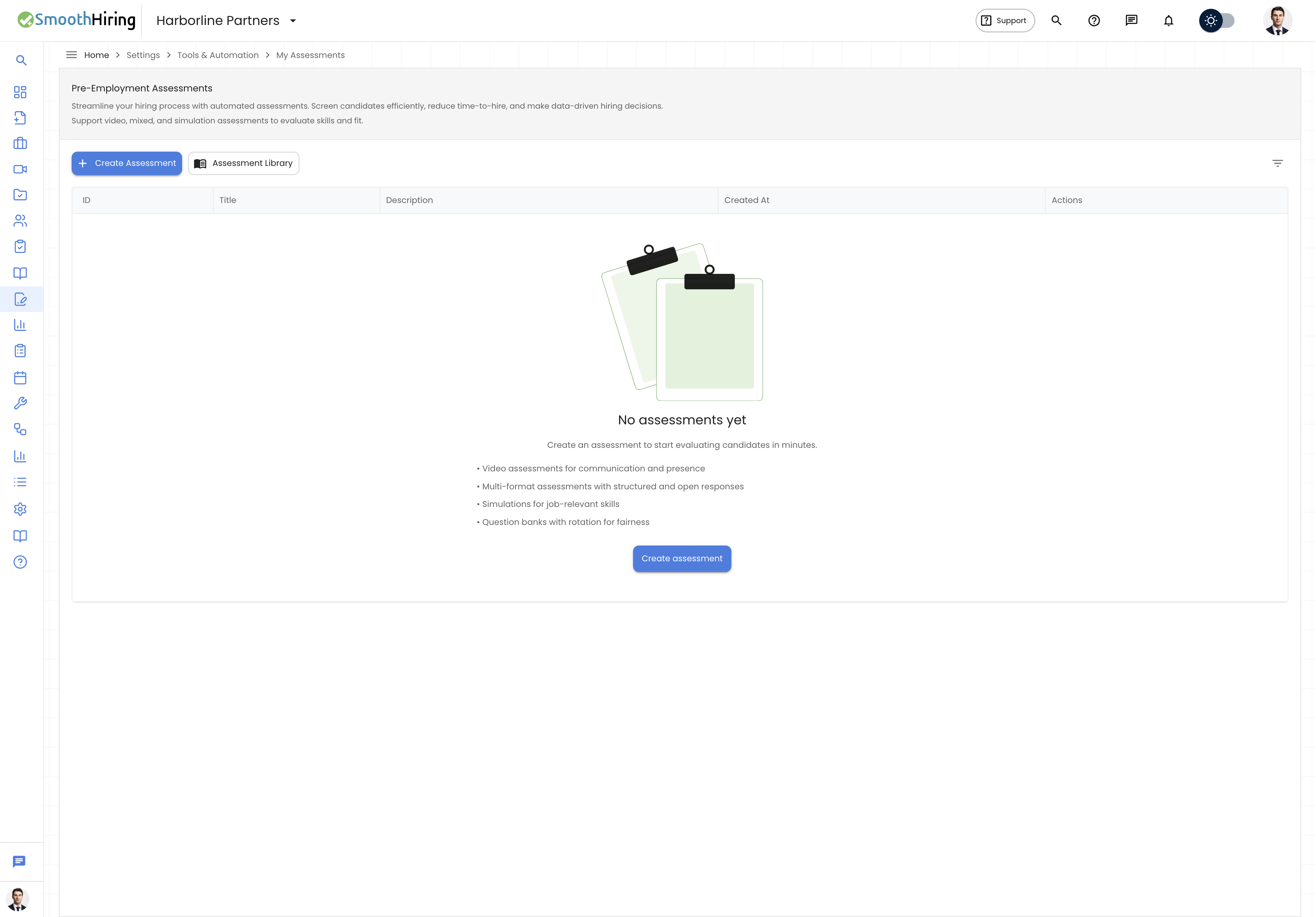
- Navigate to Settings → Tools & Automation → Assessments.
- Click the Insights tab (or navigate to the Assessment Insights section from the assessment header).
Dashboard Overview
The dashboard organizes analytics into four tabs, each focused on a different aspect of assessment performance:
| Tab | Icon | Focus |
|---|---|---|
| Overview | Dashboard | High-level KPIs, activity trends, conversion funnel, and timing |
| Candidate Performance | People | Score distributions, trait breakdowns, and top performers |
| Assessment Performance | Assessment | Per-assessment metrics in a detailed table |
| Integrity | Shield | Cheating detection, flag analysis, and flagged candidates |
Filtering & Time Ranges
Time Range Selection
Click Filters to open the filter drawer. The Time range section offers:
| Option | Description |
|---|---|
| 7D | Last 7 days |
| 30D | Last 30 days (default) |
| 90D | Last 90 days |
| 1Y | Last year |
| All | All time |
| Custom | Specify a custom start and end date using date pickers |
Assessment & Job Filters
- Assessments — multi-select typeahead to filter by specific assessments (grouped by type)
- Jobs — multi-select typeahead to filter by specific job postings (grouped by status: Active, Internal, Expired)
Applied filters appear as chips above the dashboard. Remove individual filters by clicking the × on each chip.
Overview Tab
KPI Cards
Five key performance indicators are displayed at the top:
| KPI | Description |
|---|---|
| Invited | Total candidates invited to take assessments, with period-over-period change percentage |
| Completed | Total assessments completed, with change indicator |
| Completion Rate | Percentage of invited candidates who completed their assessment |
| Average Score | Mean score across all completed assessments |
| Integrity Flagged | Number of candidates flagged for integrity concerns |
Activity Trend
A full-width line chart showing daily Invited and Completed counts over the selected time period, with the average score overlaid.
Conversion Sankey
A Sankey flow diagram visualizing the candidate journey from invitation through completion:
- Invited → Accessed → Started → Completed
- Drop-off rates between each stage are displayed
Conversion Funnel
A traditional funnel chart showing the same stages with counts and drop-off percentages between each level.
Completion Time
A histogram showing the distribution of how long candidates take to complete assessments, with average and median time statistics.
Time to Start
A histogram showing how long candidates wait between receiving the invitation and beginning the assessment.
Completion by Day
A bar chart showing which days of the week see the most assessment completions.
Candidate Performance Tab
Score Stream
A full-width stacked area chart showing the distribution of score bands (High, Medium, Low) over time.
Score Distribution
A grouped bar chart showing the number of candidates in each score range, with flagged candidates highlighted.
By Type
Breakdown of assessment performance by type (Multi-Format, Video, Simulation), showing invited, completed, completion rate, and average score.
By Category
Performance breakdown grouped by assessment category.
By Difficulty
Performance breakdown grouped by difficulty level (Easy, Medium, Hard).
Recruiter Recommendations
Distribution of AI-generated recruiter recommendations (e.g., Strong Hire, Hire, Hold, No Hire).
Recruiter Risk Level
Distribution of AI-assessed risk levels for candidates.
AI Match Type
Distribution of AI-determined match types.
Top Performers
A list of the highest-scoring candidates across all assessments, showing candidate name, assessment title, job name, and score.
Assessment Performance Tab
A detailed paginated table showing per-assessment metrics:
| Column | Description |
|---|---|
| Assessment | Assessment title |
| Type | Assessment type |
| Category | Assessment category |
| Difficulty | Difficulty level |
| Invited | Number of candidates invited |
| Completed | Number who completed |
| Completion Rate | Percentage completed |
| Avg Score | Average score |
| Integrity Flagged | Number flagged for integrity issues |
The table supports server-side pagination for large datasets.
Integrity Tab
Integrity Analysis
A full-width pie/donut chart breaking down integrity events:
- Clean — no integrity issues detected
- Tab Switches — candidates who switched browser tabs
- Fullscreen Exits — candidates who exited fullscreen mode
- Copy/Paste — candidates who attempted copy or paste operations
Integrity Events
A detailed breakdown of integrity event types and their frequencies.
Integrity Concerns
A list of flagged candidates showing:
- Candidate name
- Assessment title
- Score
- Specific integrity flags (tab switches, fullscreen exits, copy/paste events, total flags)
Dashboard Customization
Drag-and-Drop Reordering
All chart cards within each tab can be reordered by dragging the grip handle (six-dot icon) on each card header. Your custom layout is automatically saved and persists across sessions.
Card Sizing
Each card can be toggled between half-width and full-width using the expand/collapse icon button in the card header. Full-width cards span the entire dashboard width; half-width cards share a row with another card.
Reset Layout
Click the Reset layout icon (clock/restore icon) in the dashboard header to restore the default card arrangement and sizes.
Refresh Data
Click the Refresh icon to reload all dashboard data with the current filters.
Layout Persistence
Your dashboard layout (card order and sizes) is saved automatically to the server. The layout uses a version system — when SmoothHiring updates the default layout with new cards or reorganizations, your saved layout is merged with the new defaults to preserve your preferences while adding new features.