

Exporting & Downloading Applicants
SmoothHiring makes it easy to export your applicant data for offline analysis, record-keeping, team sharing, or compliance purposes. You can download candidate information as a CSV file or email applicant details to a colleague — all from the applicant list footer.
Table of Contents
- Overview
- Accessing the Export Feature
- Export as CSV
- Email Applicant Details
- Selecting Specific Applicants
- What Data Is Included
- Filtering Before Export
- Compliance & Data Privacy Considerations
- Best Practices
- Frequently Asked Questions
Overview
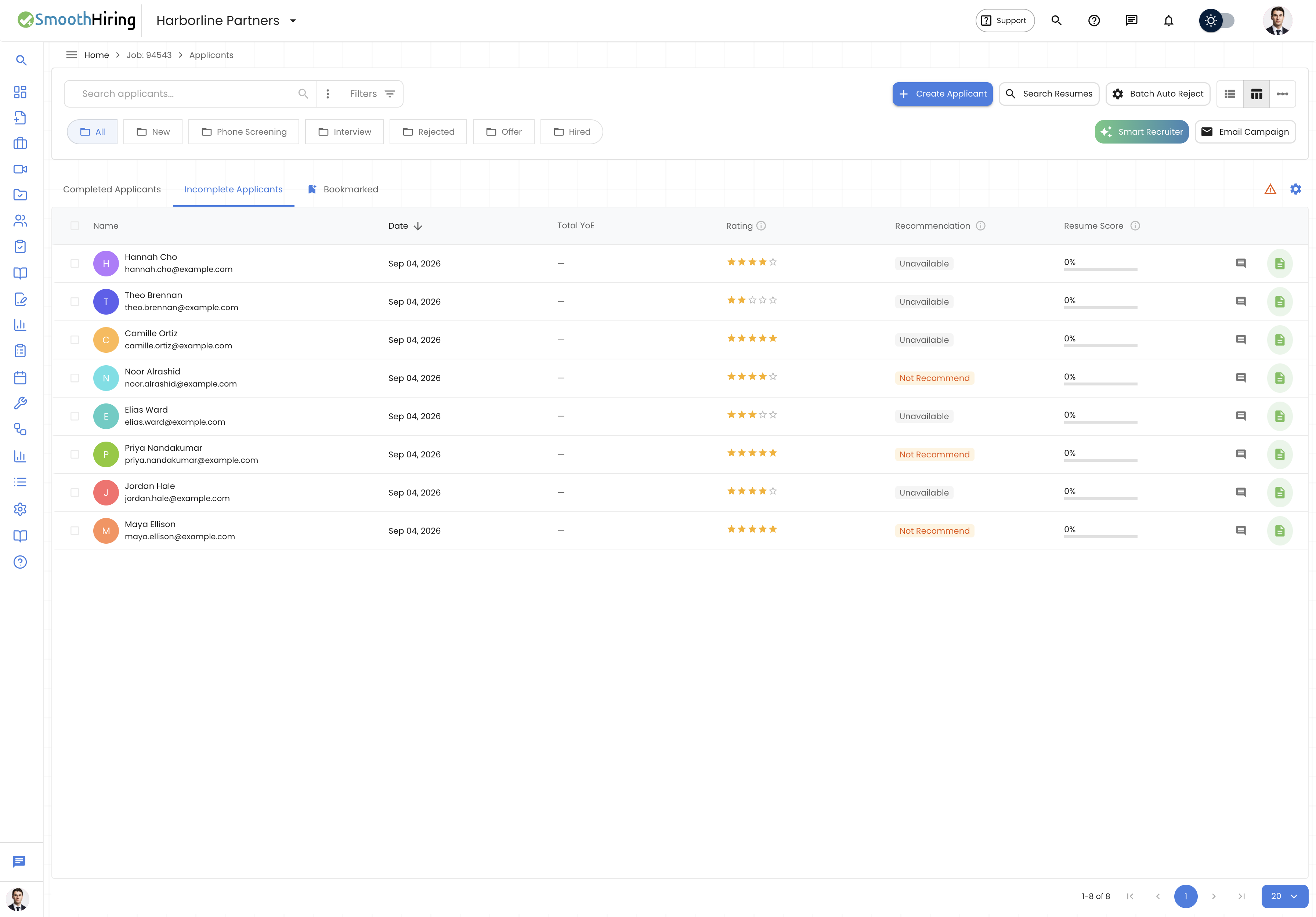
The export functionality is located in the applicant list footer under the More button. It provides two primary export options:
| Option | Format | Delivery | Use Case |
|---|---|---|---|
| Export as CSV | CSV file download | Instant browser download | Offline analysis, reporting, backups |
| Summary via email | Sent to specified email address | Sharing with external stakeholders |
Accessing the Export Feature
- Navigate to the Applicant List for any job.
- Scroll to the bottom of the list or look for the footer toolbar.
- Click the More button (with an upward arrow icon).
- A menu appears with the available export options.
Export as CSV
CSV (Comma-Separated Values) is the most common export format, compatible with Excel, Google Sheets, and virtually every spreadsheet or data analysis tool.
How to Export
- Open the applicant list for the job you want to export.
- (Optional) Apply any filters to narrow the export to specific candidates.
- (Optional) Select specific applicants by checking their boxes in the list.
- Click the More button in the footer toolbar.
- Select Export as CSV.
- While the export is being prepared, you'll see a "Downloading…" status on the button.
- When ready, the CSV file is automatically downloaded to your browser's default download location.
CSV File Contents
The exported CSV file typically includes the following columns for each applicant:
| Column | Description |
|---|---|
| Name | Candidate's full name |
| Candidate's email address | |
| Phone | Candidate's phone number (if provided) |
| Application Date | When the candidate completed the application |
| Stage | Current pipeline stage |
| Fit Score / Match Type | The automated fit assessment (Strong Fit, Fit, Weak Fit, Distortion) |
| Resume Score | The resume match percentage |
| Rating | Your team's star rating (1–5) |
| Status | Application status |
Note: The exact columns may vary based on the information available for each candidate and any custom fields configured for the job.
Working with the CSV
Once downloaded, you can:
- Open in Excel or Google Sheets for sorting, filtering, and analysis.
- Import into other HR tools that accept CSV data.
- Create charts and reports for stakeholder presentations.
- Archive for compliance purposes.
Email Applicant Details
You can also share applicant details via email directly from the platform.
How to Email Applicant Details
- Open the applicant list for the desired job.
- (Optional) Select specific applicants from the list.
- Click the More button in the footer toolbar.
- Select Email.
- An email dialog opens with a text field for the recipient's email address.
- Enter the email address of the person you want to share with.
- Click Done.
- The applicant details are compiled and sent to the specified email address.
Important Notes
- If you have selected specific applicants, only those candidates' details will be shared.
- If no applicants are selected, all applicants' details on the current page will be shared by default.
- A hint message in the dialog reminds you: "Every Applicant's details will be shared by default if none selected from the list."
Selecting Specific Applicants
Before exporting, you can select specific candidates to include:
- In the applicant list, use the checkboxes on each row to select individual candidates.
- You can select multiple candidates across the list.
- When you export or email, only the selected candidates will be included.
- If all candidates on the current page are selected, the system treats it as a full export.
When No Selection Is Made
If you do not select any specific applicants:
- CSV Export: All applicants for the job will be included (respecting any active filters).
- Email Share: All applicants on the current page will be included.
What Data Is Included
CSV Export
The CSV export provides a comprehensive snapshot of applicant data, including:
- Personal Information: Name, email, phone number.
- Application Data: Application date, completion status, source.
- Assessment Results: Fit score, match type, resume score.
- Team Inputs: Star rating.
- Pipeline Status: Current stage, status.
Email Summary
The emailed summary provides a formatted overview of each selected candidate suitable for quick review by the recipient. It includes key identifying information and assessment highlights.
Filtering Before Export
To export a targeted subset of candidates, apply filters before initiating the export:
- Use the Filters button in the applicant list toolbar.
- Filter by:
- Stage — e.g., only export candidates in the "Interview" stage.
- Fit Score — e.g., only export "Strong Fit" and "Fit" candidates.
- Rating — e.g., only export candidates rated 4 or 5 stars.
- Keywords — search for specific skills or qualifications.
- Apply the filters so the list shows only the candidates you want.
- Now export — the CSV will contain only the filtered results.
Tip: This is particularly useful for preparing interview shortlists, creating stage-specific reports, or generating compliance documentation for specific candidate groups.
Compliance & Data Privacy Considerations
When exporting applicant data, keep these important considerations in mind:
Data Handling
- Exported files contain personal information (names, emails, phone numbers). Handle them according to your organization's data protection policies.
- Store exported files securely and limit access to authorized personnel only.
- Delete exported files when they are no longer needed.
Regulatory Compliance
- GDPR: If you handle data for EU residents, ensure your export and storage practices comply with GDPR requirements.
- CCPA: For California residents, be aware of your obligations under the California Consumer Privacy Act.
- EEOC: The U.S. Equal Employment Opportunity Commission requires employers to retain hiring records for at least one year. Exports can help with this requirement, but ensure secure storage.
Best Practices for Data Security
| Practice | Recommendation |
|---|---|
| File storage | Use encrypted drives or secure cloud storage |
| Sharing | Share via secure channels, not unencrypted email |
| Access control | Limit who can access exported data |
| Retention | Delete exports after their purpose is fulfilled |
| Audit trail | Track who exported what and when |
Best Practices
Regular Reporting
- Export candidate data monthly or at the end of each hiring cycle for record-keeping.
- Use exports to create hiring funnel reports for leadership.
Pre-Meeting Preparation
- Before a hiring team meeting, export the shortlisted candidates and share the CSV so everyone comes prepared.
Archival
- When a job is closed, export the final applicant data for your records before moving on.
Stakeholder Communication
- Use the email share feature to quickly update stakeholders who do not have SmoothHiring accounts (e.g., department heads or executives).
Frequently Asked Questions
Can I export applicants from multiple jobs at once? Currently, exports are per-job. Navigate to each job's applicant list and export individually. If you need a consolidated view, export each job's CSV and merge them in a spreadsheet.
Is there an Excel export option? The primary export format is CSV, which can be opened directly in Microsoft Excel. CSV is a universal format supported by all spreadsheet applications.
Can I export resume files? The CSV export includes applicant data fields but not the actual resume files (PDFs, DOCs). To download individual resumes, visit the candidate's profile and use the resume download option.
Who can export applicant data? Export functionality is available to users with Administrator, Recruiter, and Hiring Manager roles. Observers may have limited export access depending on your account configuration.
Does the export include comments? Comments are not included in the CSV export. They remain accessible within the SmoothHiring platform.
Is there a limit to how many applicants I can export? There is no hard limit. The export includes all applicants for the job (or filtered subset) regardless of count.