

Password & Security
SettingsThe Password & Security page helps you protect your SmoothHiring account. Here you can change your password, enable two-step verification, and review your recent login activity.
Navigating to Password & Security
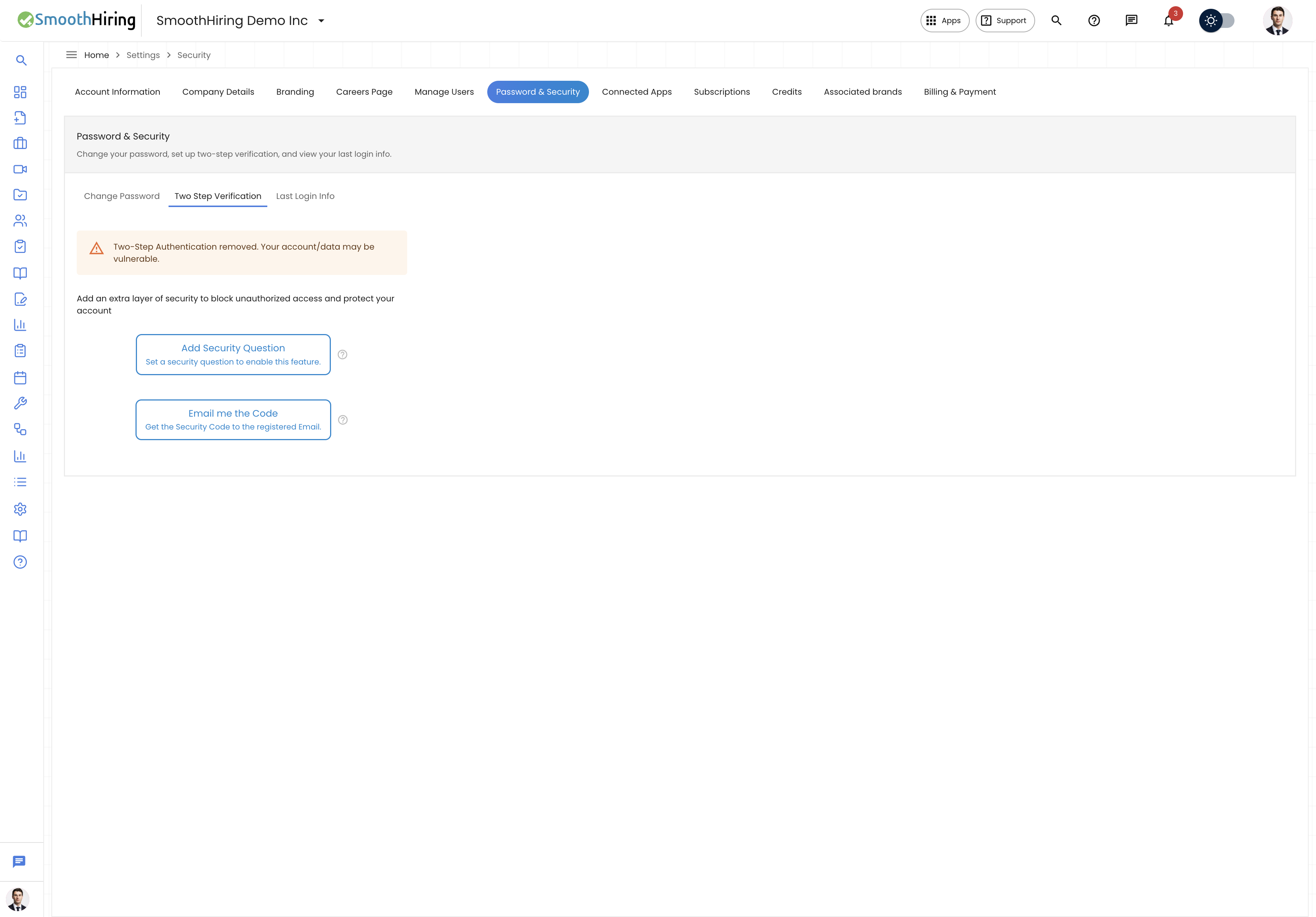
- Direct URL:
/employer/settings/account/security - Navigation: Click Settings in the left sidebar > Password & Security tab.
Page Sections
The Password & Security page is divided into three tabs:
| Tab | URL Fragment | Description |
|---|---|---|
| Change Password | #password-change |
Update your account password |
| Two Step Verification | #two-step |
Configure additional login security |
| Last Login Info | #login-info |
Review recent login activity |
Change Password
Step-by-Step
- Navigate to Settings > Password & Security (defaults to the Change Password tab).
- Enter your Current Password.
- Enter your New Password.
- Enter the new password again in Confirm New Password.
- Click Change Password.
Password Requirements
SmoothHiring enforces strong password standards. As you type your new password, a real-time Password Validator checks:
- Minimum length (typically 8+ characters)
- Contains uppercase letters
- Contains lowercase letters
- Contains numbers
- Contains special characters
- New password matches the confirmation field
The validator shows green checkmarks for met criteria and red X marks for unmet criteria.
Password Visibility Toggle
Each password field has an eye icon (👁) to toggle between hidden and visible text. Use this to verify you're typing correctly.
After Changing Your Password
- A success message confirms the change.
- Your next login will require the new password.
- Active sessions remain valid until they expire.
Important: If you forget your current password, use the "Forgot Password" link on the login page to reset it via email.
Two-Step Verification (2FA)
Two-step verification adds an extra layer of security to your account. Even if someone obtains your password, they cannot access your account without completing the second verification step.
Available Methods
| Method | Description |
|---|---|
| Email Code | A verification code is sent to your registered email each time you log in |
| Security Questions | You answer a pre-configured security question during login |
Enabling Email Verification
- Click the Two Step Verification tab.
- Click the button to enable Email Code verification.
- Confirm the change.
- From now on, each login will require entering a code sent to your email.
Setting Up Security Questions
- Click the Two Step Verification tab.
- Choose the Security Questions option.
- A dialog opens where you can:
- Select a security question from the list
- Provide your answer
- Save your security question and answer.
- Future logins will prompt you to answer this question.
Status Indicator
- A green checkmark (✓) appears on the Two Step Verification tab when any form of 2FA is active.
- On the Dashboard, if 2FA is not enabled, a warning icon appears on your profile avatar with the tooltip: "Two-Step Authentication is not enabled. Your account/data may be vulnerable!"
Disabling 2FA
You can disable two-step verification at any time from the same tab. Note that this reduces your account security.
Last Login Info
The Last Login Info tab shows details about your most recent login sessions, helping you detect any unauthorized access:
- Login date and time
- IP address
- Browser/device information
- Location (approximate, based on IP)
Tip: Review your login info periodically. If you see an unfamiliar location or device, change your password immediately and enable 2FA.
Security Best Practices
Tip: Enable two-step verification (either Email Code or Security Questions) to significantly reduce the risk of unauthorized access.
Tip: Use a unique password for SmoothHiring that you don't use on other websites.
Tip: Change your password every 90 days as a best practice, especially if multiple people share access to your hiring platform.
Tip: If you're an Admin or Owner, encourage all team members to enable 2FA for comprehensive account protection.
Troubleshooting
| Issue | Solution |
|---|---|
| "Changing password" stays pending | Check your internet connection and try again |
| Forgot current password | Use the "Forgot Password" link on the login page |
| Not receiving email verification codes | Check spam/junk folders; verify your email in Account Information |
| Security question answer rejected | Answers are case-sensitive; try the exact format you used during setup |
Related Pages
- Account Information — Verify your email is correct for 2FA
- Manage Users — Admins can view team members' security status
- Dashboard — 2FA warning badge appears if not enabled