

How to Connect Zoom to SmoothHiring
Connect the SmoothHiring Zoom app to create interview meetings on your Zoom account and send join links to candidates and interviewers.
Adding the App
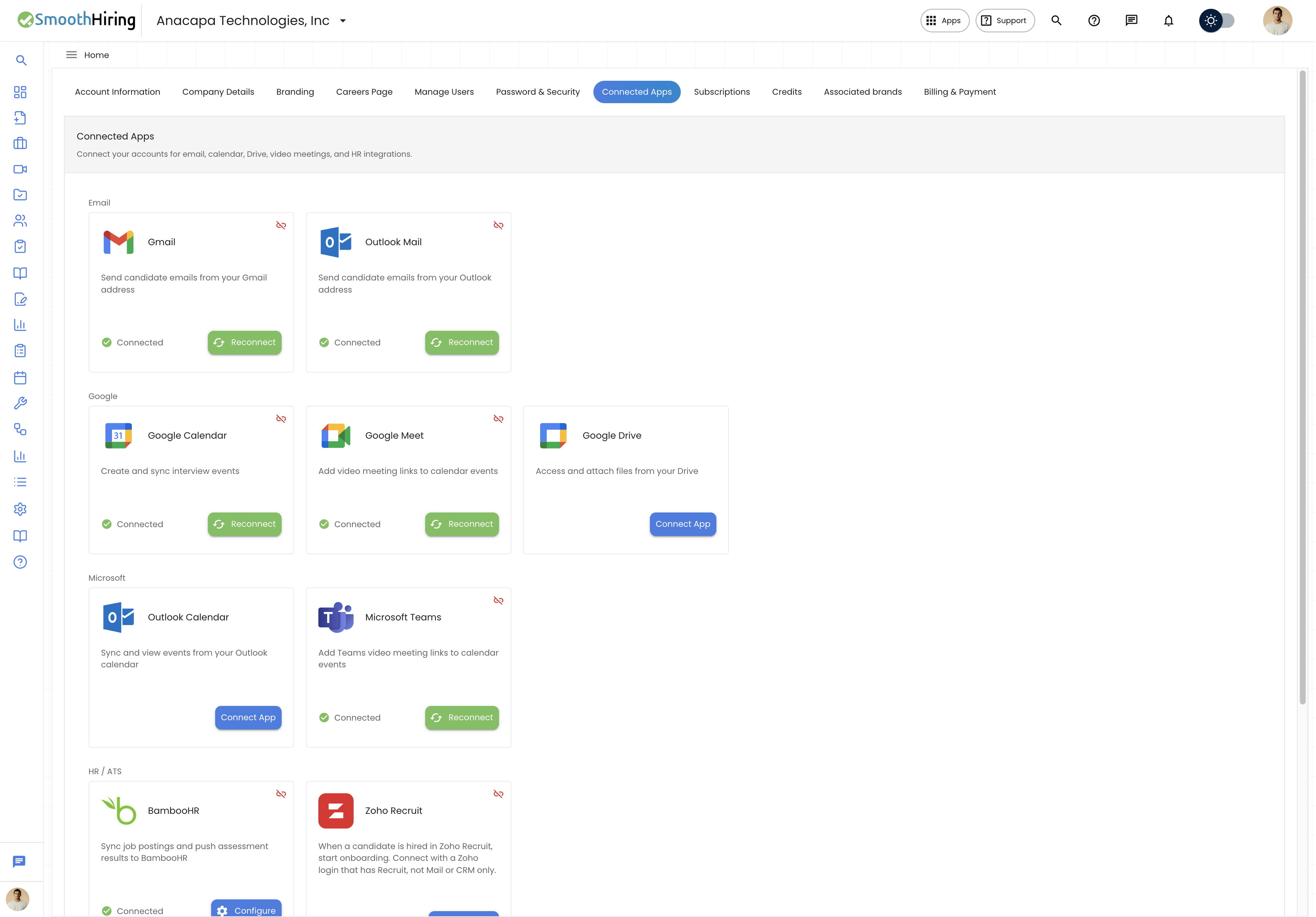
Add the SmoothHiring Zoom app so SmoothHiring can create interview meetings on your Zoom account.
Prerequisites
- A SmoothHiring employer account with access to Settings → Account → Connected Apps
- A Zoom account (free or paid)
- Permission in Zoom to authorize marketplace apps
Add the app from SmoothHiring
- Go to Settings → Account → Connected Apps.
- Find the Zoom integration under the Video & e-sign section.
- Click Connect and sign in to Zoom if prompted.
- Review the requested permissions and click Allow.
- You are returned to SmoothHiring. Zoom shows as Connected.
SmoothHiring never stores your Zoom password. After you authorize, only OAuth access and refresh tokens for your account are stored so SmoothHiring can create and update interview meetings.
If adding the app fails, see Troubleshooting.
Add the app from the Zoom App Marketplace
- Log in to your Zoom account and open the Zoom App Marketplace.
- Search for SmoothHiring.
- Open the SmoothHiring app and click Add or Visit Site to Add.
- Sign in to SmoothHiring if prompted, then complete the authorization steps above.
Usage
Use Zoom from SmoothHiring when you schedule video interviews.
Prerequisites
- The SmoothHiring Zoom app is connected for you or for the job's hiring manager
- You are scheduling a Video interview
Schedule a Zoom interview1. Open the candidate's Applicant Profile.
- Click Schedule Interview.
- Select Video as the interview type and Zoom as the meeting type.
- Set the date, time, duration, attendees, agenda, and an optional meeting password.
- Click Schedule.
SmoothHiring then:
- Creates a Zoom meeting for that interview
- Includes the Zoom join link (and password, if set) in the candidate invitation
- Adds the meeting to your connected calendar when Google Calendar or Outlook Calendar is connected
- Lets you join, reschedule, or cancel the interview from SmoothHiring
Zoom meeting features
- Automatic link generation — A Zoom join link is created when the interview is scheduled
- Calendar sync — The Zoom meeting appears on your connected calendar
- Candidate notifications — Candidates receive the Zoom link in the interview invitation email
- Meeting management — Reschedule or cancel in SmoothHiring to update or delete the Zoom meeting
If Zoom is not connected
The interview is still saved. The hiring manager receives an email that the Zoom meeting could not be created. Connect Zoom and reschedule, or add a meeting link manually.
Removing the App
Remove the SmoothHiring Zoom app from SmoothHiring, from your Zoom account, or both.
Remove from SmoothHiring
- Go to Settings → Account → Connected Apps.
- Find the Zoom integration under the Video & e-sign section.
- Click Disconnect and confirm.
Remove from a Zoom account
- Log in to your Zoom account and navigate to the Zoom App Marketplace.
- Click Manage → Added Apps, or search for the SmoothHiring app.
- Select the SmoothHiring app.
- Click Remove.
Implications of removal
- SmoothHiring will no longer create, update, or delete Zoom meetings
- Zoom will no longer appear as a meeting type until you add the app again
- Existing Zoom join links for interviews already scheduled stay valid until those meetings end or you delete them in Zoom
- Cancelling an interview in SmoothHiring only deletes the Zoom meeting if the app is still connected
How user data is handled after removal
- SmoothHiring revokes the Zoom OAuth tokens and deletes the stored Zoom connection for that user
- SmoothHiring stops calling Zoom APIs on that user's behalf
- Interview records, notes, and invitation history remain in SmoothHiring
- Meeting details already saved on a scheduled interview (join URL and password) remain so attendees can still join
- You can add the app again at any time from Connected Apps or the Zoom App Marketplace
Troubleshooting
| Issue | What to do |
|---|---|
| Connect fails or you return with an error | Sign out of Zoom in the browser, then connect again from Settings → Account → Connected Apps |
| Zoom is not listed | Confirm Zoom is enabled for your company, then refresh Connected Apps |
| Interview saved without a Zoom link | Connect Zoom, then reschedule or add a meeting link manually |
| Authorization expired | Disconnect Zoom in Connected Apps, then connect again |
| Cannot remove the app | Remove it from Zoom Marketplace Manage → Added Apps, then disconnect in SmoothHiring |
More interview-specific Zoom behavior is in Zoom Integration.
Contact Support
- In-app chat in the bottom-right corner of SmoothHiring
- Email: support@smoothhiring.com
- First response: typically within 1 business day
- Hours: Monday–Friday, 9:00 AM – 6:00 PM Eastern Time
See Contact Support for phone support, plan-based response times, and what to include in a request.
Related Pages
- Google Meet — Meet links via Google Calendar
- Microsoft Teams — Teams links via Outlook Calendar
- Email & Calendar Integration — Calendar sync
- Zoom Integration — Interview scheduling with Zoom