

The Assessment Library: Pre-Built Tests for Every Role
The Assessment Library is SmoothHiring's curated collection of pre-built, professionally validated assessment templates. Instead of building every assessment from scratch, you can browse the library, preview templates, and add them to your account with a single click — or configure timing, security, and question count before adding.
Accessing the Assessment Library
- Navigate to Settings → Tools & Automation → Assessments.
- Click the Assessment Library button in the toolbar (book icon).
- Alternatively, navigate directly to
/employer/settings/tools/assessment-library.
Library Overview
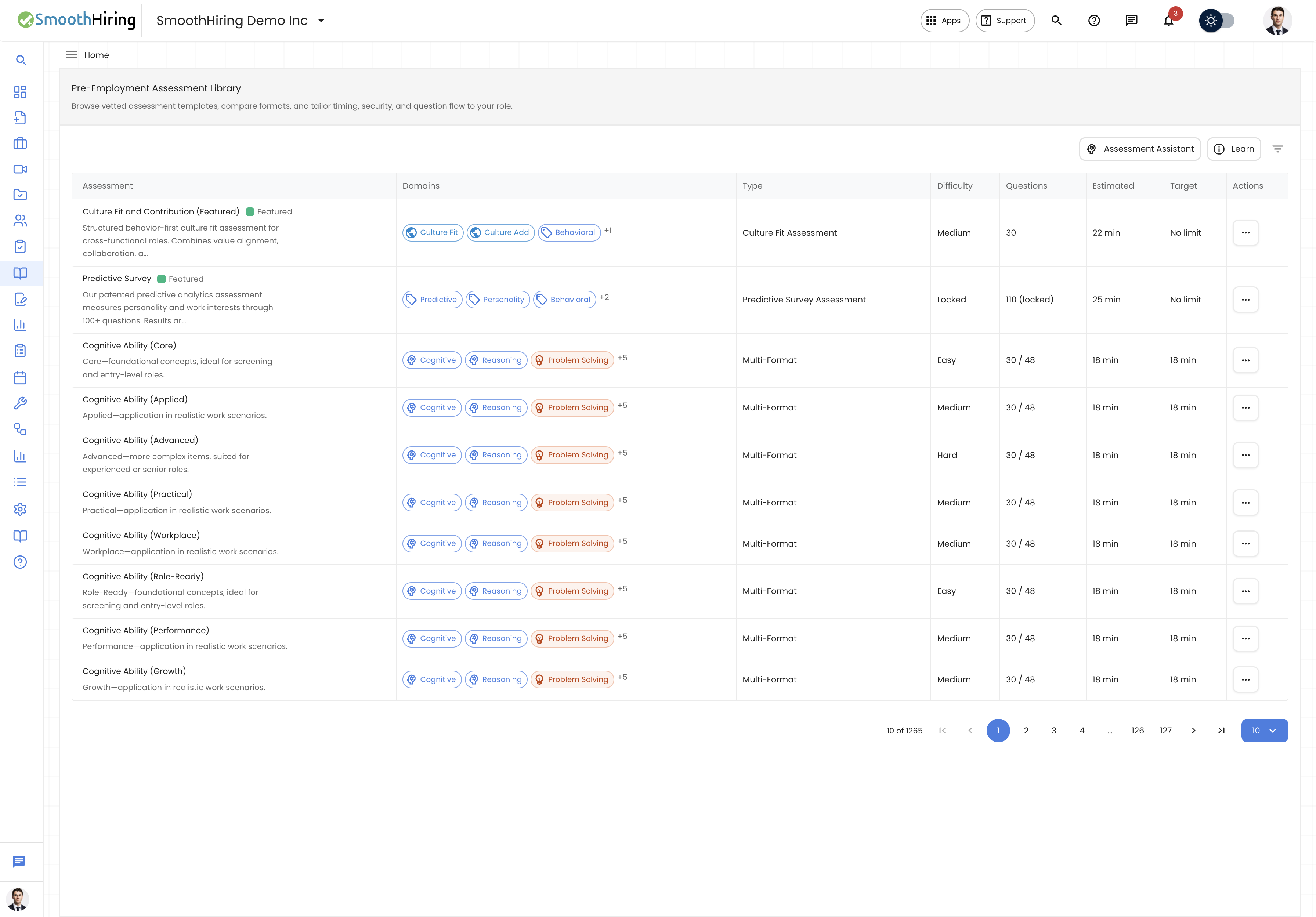
The library page is titled Pre-Employment Assessment Library and shows a subtitle: "Browse vetted assessment templates, compare formats, and tailor timing, security, and question flow to your role."
Three action buttons appear in the header:
| Button | Purpose |
|---|---|
| Assessment Assistant (green) | Opens the AI-powered assessment recommendation tool |
| Filters | Opens the filter drawer to narrow results |
| Learn | Opens a step-by-step guide explaining how library variants work |
Browsing Templates
Templates are displayed in a paginated table with the following columns:
| Column | Description |
|---|---|
| Assessment | Template title, description preview (truncated to 120 characters), and a "Featured" badge for highlighted templates |
| Domains | Skill domain tags displayed as color-coded chips (e.g., Cognitive, Communication, Leadership). Up to 3 tags shown; additional tags indicated with "+N" |
| Type | Assessment format: Multi-Format, Video, Simulation, Culture Fit, or Predictive Survey |
| Difficulty | Easy, Medium, or Hard (Predictive Surveys show "Locked") |
| Questions | Number of questions. Shows "X / Y" when the template uses a question bank larger than the delivered set. Simulation assessments show "N tasks" |
| Estimated | Average completion time in minutes based on candidate data |
| Target | Enforced time limit if set, otherwise "No limit" |
| Actions | Dropdown button with Add, Configure, and Preview options |
Pagination
Below the table, pagination controls let you navigate between pages and adjust the page size (10, 20, or 40 items per page). The total number of templates is displayed alongside the current page position.
Filtering Templates
Click Filters to open the filter drawer. Available filters include:
| Filter | Options |
|---|---|
| Search | Free-text search across template titles and descriptions with typeahead suggestions |
| Category | Filter by assessment category (populated dynamically from available templates) |
| Tag | Filter by skill domain tag |
| Type | All, Multi-Format, Video, Simulation, or Culture Fit |
| Difficulty | All, Easy, Medium, or Hard |
| Best for | Filter by role taxonomy (e.g., "Entry Level", "Manager", "Executive") |
After applying filters, active filter chips appear above the table. Click the × on any chip to remove that individual filter, or use Clear in the filter drawer to reset all filters.
Assessment Assistant (AI Recommendations)
The Assessment Assistant is an AI-powered tool that recommends the best templates for your specific hiring needs.
How to Use
- Click the green Assessment Assistant button.
- In the dialog, provide any combination of:
- Role or job title — the position you are hiring for
- Select an existing job — choose from your active job postings (the job description is loaded automatically)
- Job description — paste or edit the job description text
- Purpose — describe what you want the assessment to measure
- Challenges — describe specific hiring challenges you face
- Click Suggest to generate AI recommendations.
- The assistant returns a list of recommended templates, each with:
- The template details (title, type, question count)
- A reason explaining why this template is relevant
- Preview and Add buttons
Tip: The more context you provide (especially a job description), the more targeted the recommendations will be.
Adding a Template to Your Account
There are three ways to add a library template:
1. Add As-Is (Quick Add)
Click the Actions dropdown on any template row, then select Add as-is. The template is copied to your My Assessments list with default settings. A success notification confirms: "Assessment added to your library."
2. Configure & Add
Click Actions → Configure & add to open the Create Assessment dialog pre-populated with the template. This lets you customize:
- Assessment name — defaults to the template title
- Role or job title — optional context
- Description — pre-filled from the template
- Total questions — how many questions each candidate receives (for templates with question banks)
- Timing — Timed (with enforced countdown) or Untimed
- Time limit — if timed, set the maximum duration in minutes (up to 180)
- Security settings — toggle fullscreen required, tab tracking, copy/paste blocking, webcam checks, and IP tracking
3. Preview First
Click Actions → Preview to open a detailed preview dialog showing the full template description, all domain tags, question types breakdown, and configuration options — before deciding whether to add it.
Understanding Template Variants
The Learn dialog (accessed via the Learn button) explains how library templates are organized:
- Pick the skill area — Use Category, Domains, and Tags to choose what you want to measure (reasoning, communication, integrity, role skills, etc.).
- Choose the level — Variants like "Core" and "Applied" are different versions of the same skill area at different difficulty levels. Some overlap in questions is normal.
- Add and configure — Add as-is for the fastest setup, or Configure & add to tailor timing and security. Some templates (like Predictive Survey) are locked by design.
Special Template Types
Predictive Survey Templates
Predictive Survey assessments use a locked question set and scoring methodology. When browsing:
- Difficulty shows as "Locked"
- Questions show the count followed by (locked)
- Target time shows "No limit" with a tooltip: "No enforced time limit (time is tracked automatically)"
- Configuration options for timing, difficulty, and question count are disabled
Culture Fit Templates
Culture Fit assessments have calibrated scoring that preserves the integrity of the measurement. Featured Culture Fit templates display a "Featured" badge.
Simulation Templates
Simulation assessments present interactive spreadsheet-based tasks. Questions are displayed as "tasks" and include a tooltip: "Tasks are answered in the spreadsheet cells."