

Sending Rejection Letters in SmoothHiringRejection Letters in Smooth
Hiring are customizable email templates used to notify candidates that they have not been selected for a position. Well-crafted rejection letters maintain your employer brand, treat candidates with respect, and encourage strong applicants to apply for future openings.
Overview
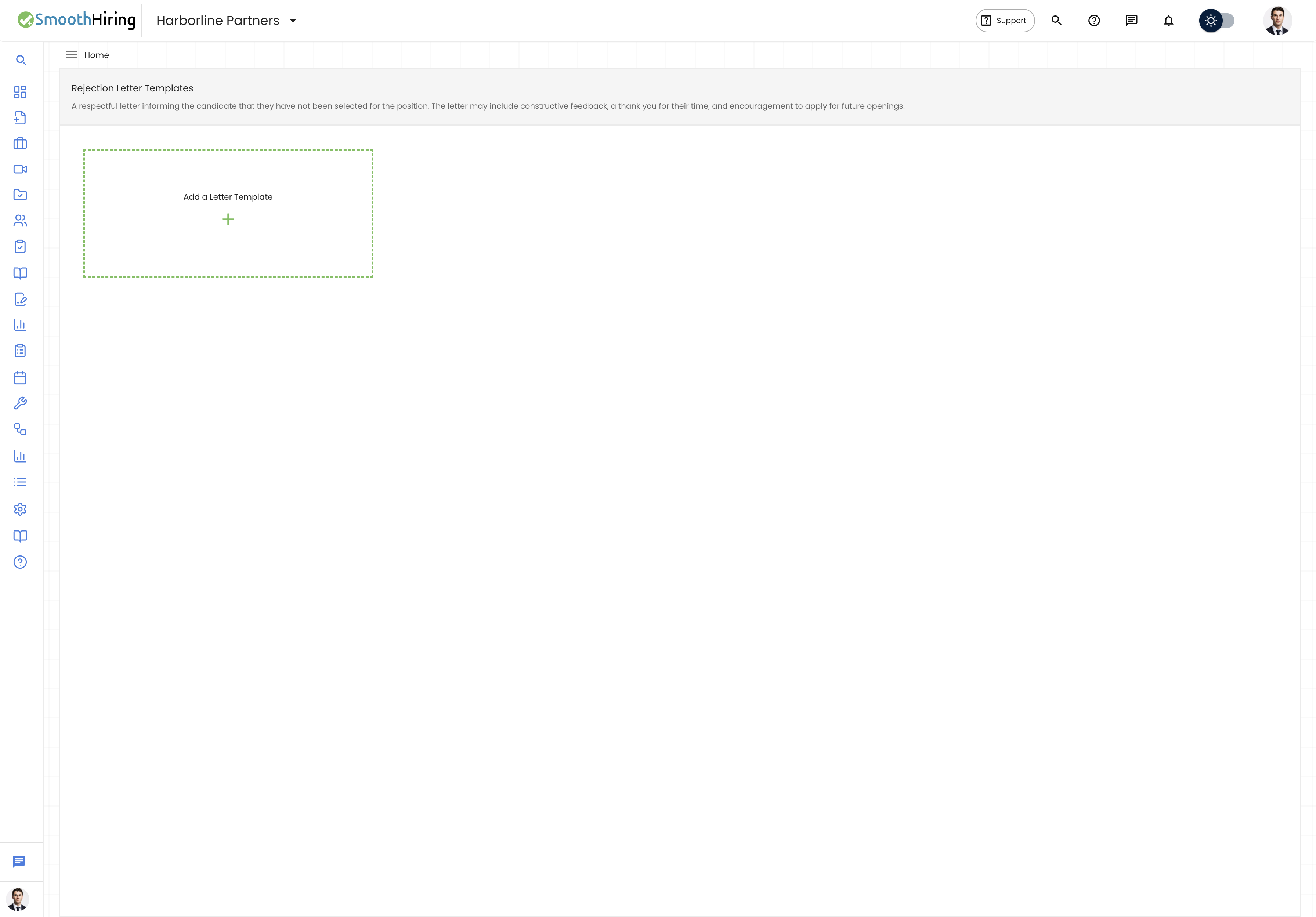
A Rejection Letter is a respectful email informing a candidate that they have not been selected for the position. The letter may include constructive feedback, a thank you for their time, and encouragement to apply for future openings.
SmoothHiring allows you to create multiple rejection letter templates tailored to different scenarios — for example, a general rejection, a post-interview rejection, or a rejection for a specific department. You can designate one template as Preferred so it serves as the default.
Navigating to Rejection Letters
- Click Productivity in the left sidebar.
- Expand Communication.
- Click Rejection Letters.
This takes you to /employer/settings/tools/templates/rejection-notification.
Alternatively, navigate via Settings → Tools & Automation → Templates → Rejection Letters.
Creating a Rejection Letter Template
- On the Rejection Letters page, click the Add a Letter Template card (dashed green border with the + icon).
- Fill in the template fields:
| Field | Description | Required |
|---|---|---|
| Template Name | A descriptive label (e.g., "Post-Interview Rejection") | Yes |
| Template Description | When this template should be used | Yes |
| Subject | The email subject line | Yes |
| CC Emails | Additional recipients to copy | No |
| Set as Preferred | Make this the default rejection template | No |
| Email Body | The full rejection message | Yes |
Use the rich text editor to compose your message with formatting options including bold, italic, lists, links, and more.
Insert merge fields to personalize each email:
- [CANDIDATE_NAME] — The candidate's full name
- [COMPANY_NAME] — Your company name
- [JOB_NAME] — The job title
Click Add to save.
Example Rejection Letter
Here is a sample rejection letter body you can adapt:
Dear [CANDIDATE_NAME],

Thank you for taking the time to apply for the [JOB_NAME] position at [COMPANY_NAME]. We truly appreciate your interest in joining our team.

After careful consideration, we have decided to move forward with other candidates whose experience more closely aligns with the requirements of this role.

We encourage you to apply for future openings at [COMPANY_NAME] that match your skills and experience. We wish you the very best in your career journey.

Warm regards,
The [COMPANY_NAME] Hiring Team
Editing a Rejection Letter
- Click on the template card you want to edit, or click the Edit (pencil) icon.
- Modify any fields as needed.
- Click Save Changes.
Deleting a Rejection Letter
- Click the Delete (trash) icon on the template card.
- The template is permanently removed.
Warning: If this template is attached to a pipeline automation action, the automation will no longer have a template to send. Update the automation before deleting.
Using Rejection Letters in Your Workflow
Rejection letters can be sent in several ways:
Manual Rejection
When rejecting a candidate from the applicant list, a rejection email dialog appears where you can select one of your saved rejection templates. The preferred template is pre-selected by default.
Automated Rejection via Pipeline
You can attach a rejection email action to the Rejected stage in your Custom Hiring Pipeline. When a candidate is moved to the Rejected stage, the system automatically sends the configured rejection email.
Batch Auto-Reject
When using the Batch Auto Reject feature (under Automation → Batch Auto Reject), candidates who meet the rejection criteria receive the preferred rejection letter automatically. See Automations for more details.
Setting a Preferred Rejection Letter
- Open the template you want to set as preferred (create or edit).
- Toggle the Set as Preferred switch to on.
- Save the template.
The preferred template:
- Appears at the top of the template list with a green border and star badge
- Is pre-selected when the rejection dialog opens
- Is used by automated rejection workflows
Best Practices
- Be timely. Send rejection letters promptly after making a decision. Candidates appreciate not being left in limbo.
- Be respectful and appreciative. Thank the candidate for their time and interest.
- Be honest but tactful. You do not need to provide specific reasons, but avoid generic language that feels impersonal.
- Encourage future applications. If a candidate was strong but not the right fit for this role, invite them to apply again.
- Create multiple templates. A rejection after a phone screen warrants a different tone than a rejection after a final interview.