

Managing Employee Referrals
Employee referrals are one of the most effective sources of quality hires. SmoothHiring helps you manage referred candidates within the same pipeline as all other applicants—ensuring they receive the same objective screening while tracking their referral source. This guide covers how to handle referrals, track referred candidates, and leverage your team's network.
How Referrals Work in SmoothHiring
Referred candidates enter your pipeline through two main paths:
- Employee shares the job link – The candidate applies directly through your Careers Page or job board posting, and the referral source is tracked.
- Recruiter adds the referral manually – Using the Create Applicant feature, a team member adds a referred candidate with their resume.
Once in the system, referred candidates go through the same screening, scoring, and pipeline stages as all other applicants.
Adding a Referred Candidate
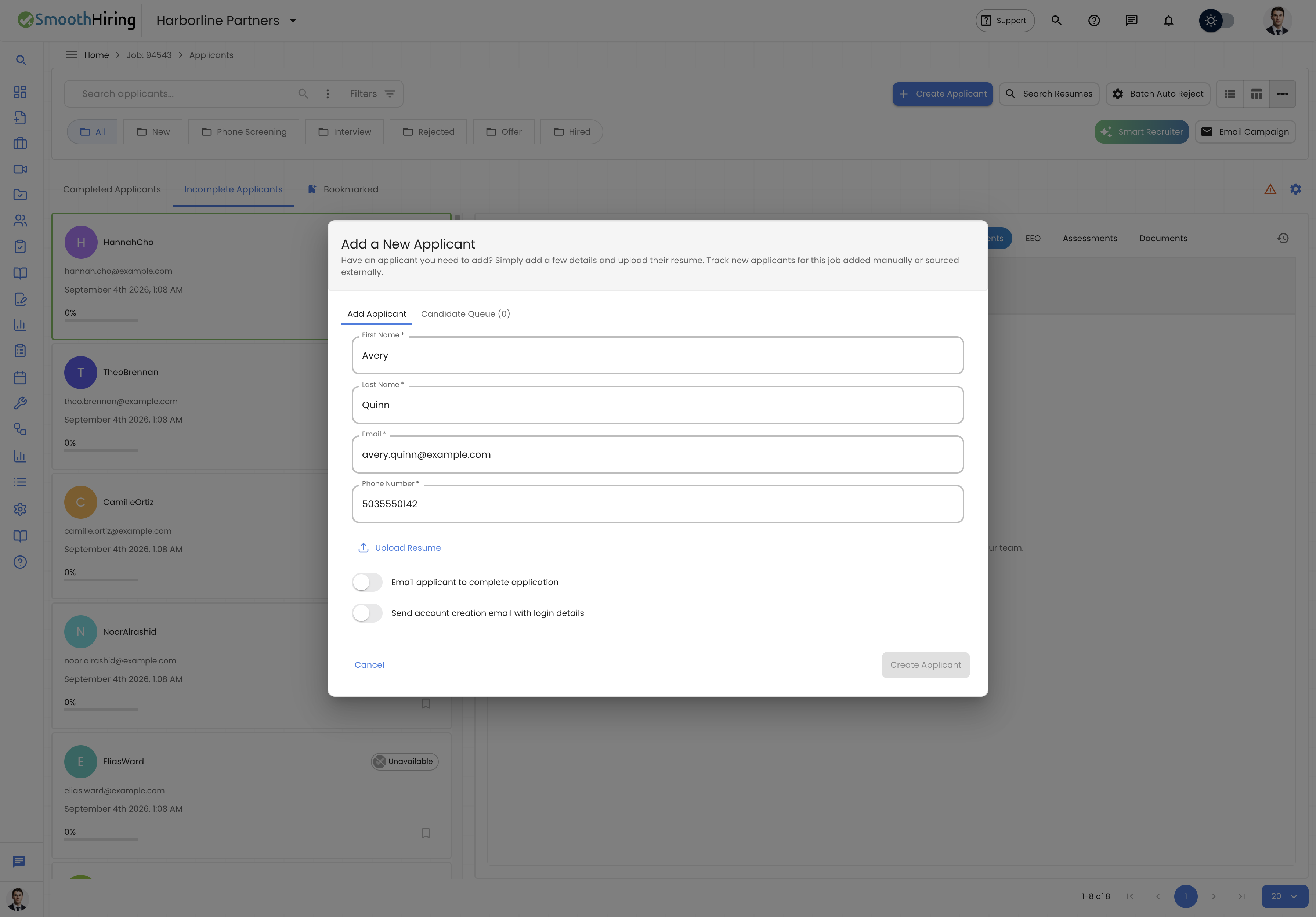
Method 1: Manual Entry
When an employee sends you a resume for a referral:
- Navigate to the relevant job posting → Applicants tab.
- Click Create Applicant in the toolbar.
- Enter the candidate's details:
- First Name, Last Name
- Email, Phone Number
- Upload their resume
- Enable Email applicant to complete application if you want them to take assessments and answer screening questions.
- Click Submit.
Tip: After adding, consider adding a tag (via Advanced Filters) like "Referral" or including the referring employee's name in a comment on the candidate's profile. This helps track referral sources.
Method 2: Shared Job Link
Share your job posting URL with employees to distribute to their networks:
- Go to the job posting in Jobs.
- Copy the job's Careers Page URL.
- Share with your team via email, Slack, or your internal referral system.
- When someone applies through the link, they appear in your pipeline as a standard applicant.
To track which candidates came through referrals via shared links, use comments or tags on the candidate profile after they appear.
Tracking Referred Candidates
Using Comments
The most flexible way to track referral information:
- Open the referred candidate's profile.
- Add a comment noting:
- Who referred them
- When the referral was made
- Any context the referrer provided
- Comments are visible to all team members with access to the job.
Using Tags
For more structured tracking:
- Use Advanced Filters → Text Filter → Tags field
- Add tags like:
referralreferred-by-john-smithinternal-referral
- Filter by tags later to see all referred candidates at a glance
Using the Candidate Queue
When you manually add a referred candidate, the Candidate Queue tab shows their processing status. Monitor this to confirm the referral has been successfully processed.
Screening Referred Candidates
Referred candidates receive the same objective evaluation as all other applicants:
Automated Scoring
- Resume Match Score – AI analyzes their resume against job requirements (no bias based on referral source)
- Job Fit Assessment – If they complete the behavioral assessment, they receive a fit score
- Smart Fingerprint – AI recommendation generated based on all available data
Assessment Completion
When you enable "Email applicant to complete application" during manual entry:
- The candidate receives a link to complete screening questions
- They can take any assessments configured for the job
- Their profile becomes fully complete with all scoring dimensions
Why This Matters
Important: Treating referred candidates with the same rigor as other applicants ensures fair hiring practices and helps you identify situations where a referral may not actually be a strong fit—protecting both the hiring quality and the referring employee's relationship.
Referral Workflow: Step by Step
For the Recruiter/HR Team
- Receive the referral – Employee sends a resume, LinkedIn profile, or recommendation
- Add to the system – Use Create Applicant to upload their resume
- Tag and comment – Note the referral source and any context
- Let the system score – Wait for automated analysis to complete
- Review objectively – Evaluate the candidate on their merits alongside other applicants
- Prioritize if strong – If scores are good, consider moving them through the pipeline faster
- Communicate – Keep the referring employee informed of progress (as appropriate per your policy)
For the Referring Employee
- Identify a potential candidate – Someone in their network who might be a fit
- Share the job link – Send the Careers Page URL or forward the job posting
- Or provide the resume – Send the candidate's resume to the recruiting team
- Follow up – Check in with the recruiting team for updates
Best Practices for Referral Programs
1. Make It Easy to Refer
- Keep your Careers Page up-to-date with current openings
- Share job links in internal channels regularly
- Make the Create Applicant process quick for your HR team
2. Maintain Objectivity
- Let the AI scoring run before making stage decisions
- Compare referred candidates against the same criteria as all others
- Use Batch Auto Reject criteria that apply equally (referred candidates with low scores should be evaluated honestly)
3. Communicate Transparently
- Use comments on the candidate's profile to track communication history
- If a referred candidate isn't a fit, prepare to have an honest conversation with the referring employee
- Celebrate successful referral hires to encourage more referrals
4. Track and Measure
- Tag all referrals consistently so you can filter and report on them
- Compare referral conversion rates vs. other sources in Analytics
- Track time-to-hire for referred vs. non-referred candidates
5. Protect Bookmarked Referrals
If a referred candidate needs more time for evaluation:
- Bookmark them to protect from batch auto-reject operations
- This gives you time to coordinate with the referring employee before making a decision
Referrals and the Hiring Pipeline
Stage Progression
Referred candidates move through the same stages as all applicants:
- New → Added to the system (manually or via application)
- Phone Screening → Initial conversation
- Interview → Formal interview scheduled
- Final Interview → Follow-up interview
- Offer → Job offer extended
- Hired → Officially onboarded
At each stage transition, any configured pipeline actions trigger normally (confirmation emails, assessments, scorecards).
Using Smart Recruiter for Referral Evaluation
Run the Smart Recruiter AI analysis to see how referred candidates rank against your custom criteria. This provides an additional data point beyond what the automated scoring captures.
Common Questions
Can I fast-track referred candidates?
While there's no separate "referral fast track" feature, you can:
- Move them directly to Phone Screening or Interview stage after adding
- Skip stages if your process allows it
- Use their resume score to justify expedited progression
How do I report on referral success?
Use the Analytics section combined with tags:
- Tag all referred candidates consistently
- Filter Analytics by tagged candidates
- Compare metrics like time-to-hire, offer rate, and retention
What if a referred candidate doesn't score well?
The system provides objective data. If a referred candidate has a low resume score or weak behavioral fit:
- Review the specific reasons (the AI provides explanations)
- Discuss with the referring employee if appropriate
- Consider whether the role requirements might be overly narrow
- Make your decision based on the complete picture, not just one data point
Related Pages
- Managing Candidates – Adding and managing all candidates
- Passive Candidates & Sourcing – Other sourcing approaches
- Candidate Screening – How all candidates are evaluated
- Fit Score & Ranking – Understanding referral candidate scores
- Custom Hiring Pipeline – Pipeline stages and automation