

Building a Custom Hiring Pipeline
The Custom Hiring Pipeline allows you to define and automate your organization's unique hiring workflow. Configure stages, attach automated actions (emails, assessments, scorecards), and create custom stages that reflect your exact process—from first contact to final hire.
Accessing Pipeline Settings
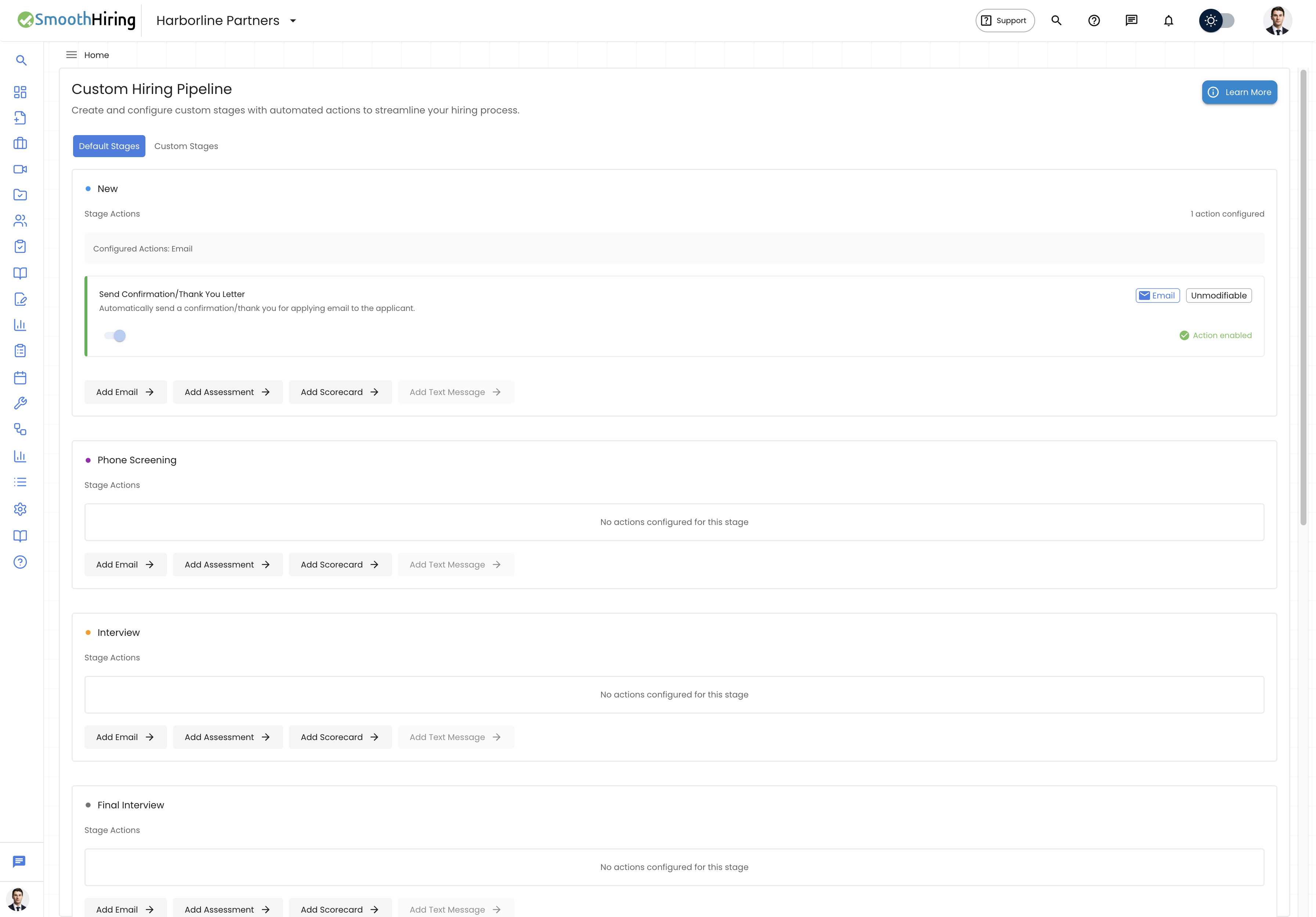
- From the left sidebar, click Settings.
- Navigate to Tools & Automation → Automation.
- Click Custom Hiring Pipeline.
Alternatively, navigate directly to /employer/settings/automation/custom-pipeline.
Understanding the Pipeline Structure
Your hiring pipeline consists of:
- Pipeline – The overall container (one per organization, named "Default Pipeline")
- Stages – Steps in the hiring process
- Stage Actions – Automated tasks triggered when a candidate enters a stage
Default Stages
Every pipeline comes pre-configured with these default stages:
| Order | Stage | Color | Purpose |
|---|---|---|---|
| 0 | New | Blue (#2196F3) | Newly applied candidates land here |
| 1 | Phone Screening | Purple (#9C27B0) | Candidates scheduled for a phone screen |
| 2 | Interview | Orange (#FF9800) | Scheduled for first interview |
| 3 | Final Interview | Red-Orange (#FF5722) | Scheduled for final/second interview |
| 4 | Job Offered | Green (#4CAF50) | Offer has been extended |
| 5 | Rejected | Red (#F44336) | Manually rejected candidates |
| 6 | Hired | Green (#00C853) | Officially hired |
| 7 | Auto Rejected | Grey (#757575) | Rejected by automated criteria |
Note: The "New" stage is unmodifiable—it always exists and has a built-in action to send a confirmation/thank-you email to applicants.
Pipeline Tabs
The pipeline configuration page has two tabs:
Default Stages Tab
Shows all built-in stages. For each stage you can:
- View and manage stage actions (emails, assessments, scorecards)
- Add new actions to trigger when candidates enter that stage
- Actions on the "New" stage's confirmation email are unmodifiable
Custom Stages Tab
Shows any stages you have created beyond the defaults. From here you can:
- Add new custom stages
- Edit existing custom stage names, descriptions, and colors
- Manage actions for each custom stage
- Reorder stages (affects display order in the stage dropdown)
Creating a Custom Stage
- Switch to the Custom Stages tab.
- Click the Add Stage button.
- Fill in:
- Stage Name – A descriptive name (e.g., "Technical Assessment", "Culture Interview", "Background Check")
- Description (optional) – Brief explanation of the stage's purpose
- Color – Choose a color for the stage dot indicator
- Click Save.
Your new stage immediately appears in the stage dropdown when moving candidates.
Stage Actions
Stage actions are automated tasks that trigger when a candidate is moved into a stage. They save time by eliminating repetitive manual work.
Action Types
| Action Type | What It Does |
|---|---|
| Send Email | Automatically sends an email to the candidate using a configured template |
| Invite to Assessment | Sends an assessment invitation email with a link to complete a specific assessment |
| Scorecard | Creates an interview scorecard for the hiring team to fill out |
Adding a Stage Action
- On the pipeline page, find the stage you want to configure.
- Click Add Action (or the + icon).
- Select the action type.
Email Action Configuration
| Field | Description |
|---|---|
| Action Name | Internal label (e.g., "Phone Screen Confirmation") |
| Description | What this email accomplishes |
| Subject | Email subject line |
| Email Body | The email content (supports rich text) |
| To | Recipient (defaults to the candidate's email) |
| CC | Carbon copy recipients |
| BCC | Blind carbon copy recipients |
Assessment Action Configuration
| Field | Description |
|---|---|
| Action Name | Internal label (e.g., "Send Cognitive Assessment") |
| Description | Purpose of the assessment |
| Assessment | Select from your assessment library |
| Email Subject | Subject line for the invitation email |
| Email Body | Body text explaining what the candidate needs to do |
| Email Prompt | Optional AI prompt to generate personalized email content |
Scorecard Action Configuration
| Field | Description |
|---|---|
| Action Name | Internal label |
| Scorecard Template | Select from configured scorecard templates |
| Required Interviewers | Team members who must complete the scorecard |
| Deadline (hours) | Time limit for completing the scorecard |
| Auto-create submissions | Automatically create scorecard entries for each interviewer |
| Notification emails | Additional people to notify when scorecard is needed |
How Actions Trigger
When a candidate is moved to a stage with actions:
- A Stage Transition Dialog appears showing all configured actions for that stage
- The dialog lists each action that will be triggered (name and description)
- Click Confirm to proceed and trigger all actions
- Or click Cancel to abort the stage change
Important: Actions only trigger via manual stage changes, not through auto-reject or bulk operations.
Enabling/Disabling Actions
Each action has an enable/disable toggle. Disabled actions will not trigger during stage transitions but remain configured for future use.
Unmodifiable Actions
Some actions are marked as unmodifiable (indicated by a lock icon). These are system-default actions that cannot be edited or deleted. The primary example is the "Send Confirmation/Thank You Letter" action on the New stage.
Interview Stage Behavior
When a candidate is moved to Interview or Final Interview stages:
- An Interview Scheduling Dialog automatically opens
- You can schedule the interview directly from the stage transition
- The interview appears in the Interview Dashboard
This happens regardless of whether additional stage actions are configured.
How Custom Stages Appear in the Application
In the Applicant List
When changing a candidate's stage via the dropdown:
- Default Stages appear in the left column
- Custom Stages appear in the right column (when at least one custom stage exists)
- Each stage shows its color dot for quick identification
- The current stage is highlighted
In the Pipeline View
Custom stages integrate into the Kanban-style pipeline view alongside default stages, allowing you to see candidates organized across your entire workflow.
Best Practices
Start with the default stages – They cover most common workflows. Only add custom stages when your process genuinely requires it.
Use meaningful names – Stage names should be clear to everyone on the team (e.g., "Skills Assessment" is better than "Stage 2").
Configure email actions thoughtfully – Every automated email reflects your employer brand. Keep them professional, informative, and concise.
Don't over-automate – Some stages (like "Offer") may benefit from a personal touch rather than automated emails.
Use assessment actions strategically – Attach assessments to stages where candidates have already passed initial screening to avoid assessment fatigue.
Set up scorecards early – Having scorecard actions on Interview stages ensures consistent evaluation across all interviewers.
Related Pages
- Managing Candidates – Moving candidates through stages
- Candidate Screening – Assessment configuration and screening criteria
- Batch Auto Reject – Automated rejection rules
- Fit Score & Ranking – Understanding scoring at each stage