

Managing Your Interview Scorecards
My Scorecards provides a centralized view of all interview scorecard submissions that are assigned to you or that you have access to review. Scorecards are structured evaluation forms that interviewers complete after interviewing a candidate, ensuring consistent and fair assessments across your hiring team.
Navigating to My Scorecards
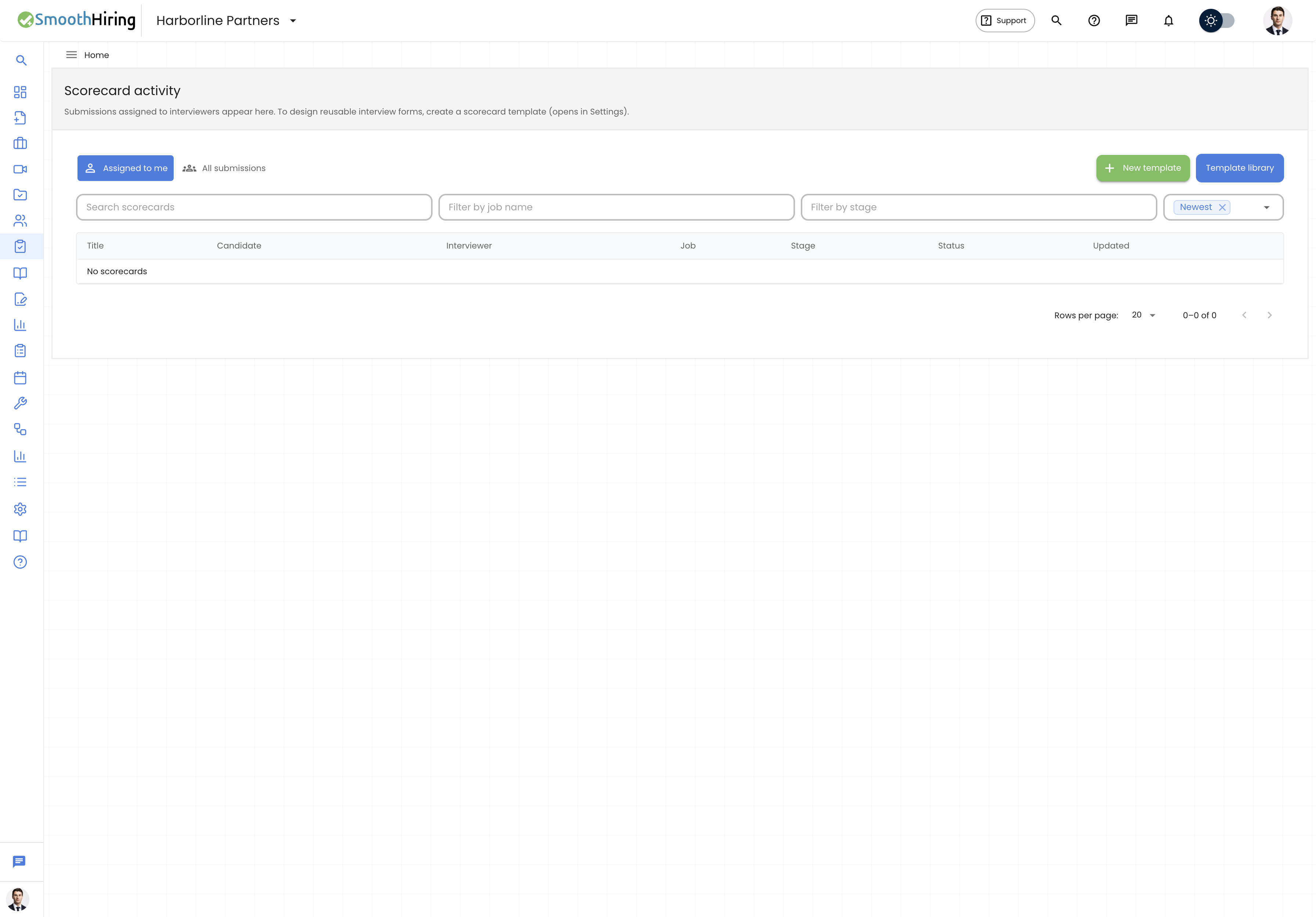
- Direct URL:
/employer/interview-dashboard(Scorecards tab) - Navigation: Click Interviews in the left sidebar, then select the Scorecards section.
- From a candidate profile: Open any applicant's profile and click the Scorecards tab.
Understanding Scorecards
A scorecard is a structured evaluation form that an interviewer fills out after meeting with a candidate. Each scorecard includes:
| Component | Description |
|---|---|
| Template | The evaluation criteria template (e.g., "Technical Interview", "Culture Fit") |
| Interviewer | The team member assigned to complete the scorecard |
| Candidate | The applicant being evaluated |
| Stage | The hiring pipeline stage (e.g., Interview, Phone Screening) |
| Deadline | When the scorecard must be completed |
| Overall Score | A numerical rating (out of 5.0) |
| Recommendation | Hire, No Hire, or Maybe |
Scorecard Statuses
| Status | Description |
|---|---|
| Draft | Scorecard has been created/assigned but not yet submitted |
| Submitted | Interviewer has completed and submitted their evaluation |
Viewing Scorecards for a Candidate
When viewing a candidate's profile, the Scorecards section shows:
Summary Card
At the top, an aggregated summary displays:
- Total number of submissions
- Completed vs. pending submissions
- Average overall score across all submitted scorecards
- Job information and preferred template
Tab Filters
Use the tabs to filter submissions:
| Tab | Shows |
|---|---|
| Pending | Scorecards in draft status awaiting completion |
| Completed | Scorecards that have been submitted |
| All | Every scorecard regardless of status |
Submitting a Scorecard
If a scorecard is assigned to you (indicated by the "Assigned to You" chip), you can complete it:
- Navigate to the candidate's profile.
- Click the Scorecards tab.
- Find your pending submission in the Pending tab.
- Click Submit Scorecard.
- Fill out each evaluation criterion with a score (1-5).
- Provide an overall score and recommendation (Hire / No Hire / Maybe).
- Add any notes or observations.
- Click Submit to finalize your evaluation.
Important: Once submitted, a scorecard cannot be edited. Review your scores carefully before submitting.
Starting a New Scorecard Submission
To create a new scorecard for a candidate:
- Click the Start Submission button.
- In the dialog that appears:
- Select Template — Choose from your organization's scorecard templates. If the job has a mandatory template, it will be pre-selected and locked.
- Self-Deadline (hours) — Set how many hours you have to complete it (default: 48 hours, max: 720 hours).
- Click Start Submission.
Mandatory vs. Recommended Templates
- Mandatory Template: If the hiring manager has set a required scorecard template for a job, you must use that specific template. The template selector will be disabled.
- Recommended Template: If a preferred template is set but not mandatory, you'll see an informational note recommending it, but you can choose a different template.
Warning: Using multiple different templates for the same candidate can skew metrics and create bias. SmoothHiring will display a warning if multiple templates are in use.
Viewing Submitted Scorecards
To review a completed scorecard:
- Find the submission in the Completed or All tab.
- Click View Details.
- The preview page shows:
- All evaluation criteria with scores
- Overall score (out of 5.0)
- Recommendation (Hire / No Hire / Maybe)
- Interviewer details
- Submission timestamp
Comments and Collaboration
Each scorecard submission supports threaded comments for team discussion:
Adding a Comment
- Click Show Comments (or Add Comment if no comments exist) on any submission.
- Click the Add Comment button.
- Type your comment in the dialog.
- Click Add Comment to post.
Replying to Comments
- Expand the comments section on a submission.
- Click Reply on any existing comment.
- Type your reply and click Reply to post.
Comments are visible to all team members who have access to the candidate's profile.
Scorecard Reminders
SmoothHiring automatically sends email reminders to interviewers with pending scorecards:
- Upcoming deadline reminders — Sent before the deadline expires
- Overdue reminders — Sent when a scorecard passes its deadline without being submitted
These reminders include the candidate name, job title, and a direct link to submit the scorecard.
Scorecard Templates
Scorecard templates are configured by Admins and Owners under Settings > Tools & Automation > Scorecard Templates. Templates define:
- Evaluation categories (e.g., Technical Skills, Communication, Culture Fit)
- Rating scale for each category
- Whether the template is active or inactive
- Which jobs use which templates
Best Practices
Tip: Complete scorecards as soon as possible after an interview while your impressions are fresh.
Tip: Use the recommendation field (Hire / No Hire / Maybe) to provide a clear signal to the hiring manager.
Tip: Add comments to highlight specific observations that the score alone doesn't capture, such as notable strengths or concerns.
Tip: If you see the "Multiple Templates" warning, coordinate with your hiring manager to standardize on a single template for fair comparisons.
Related Pages
- Dashboard — Quick access to upcoming interviews
- Calendar — View scheduled interview times
- My Analytics — See assessment performance metrics
- Manage Users — Manage who can create and submit scorecards