

Using the Careers Page Builder
Overview
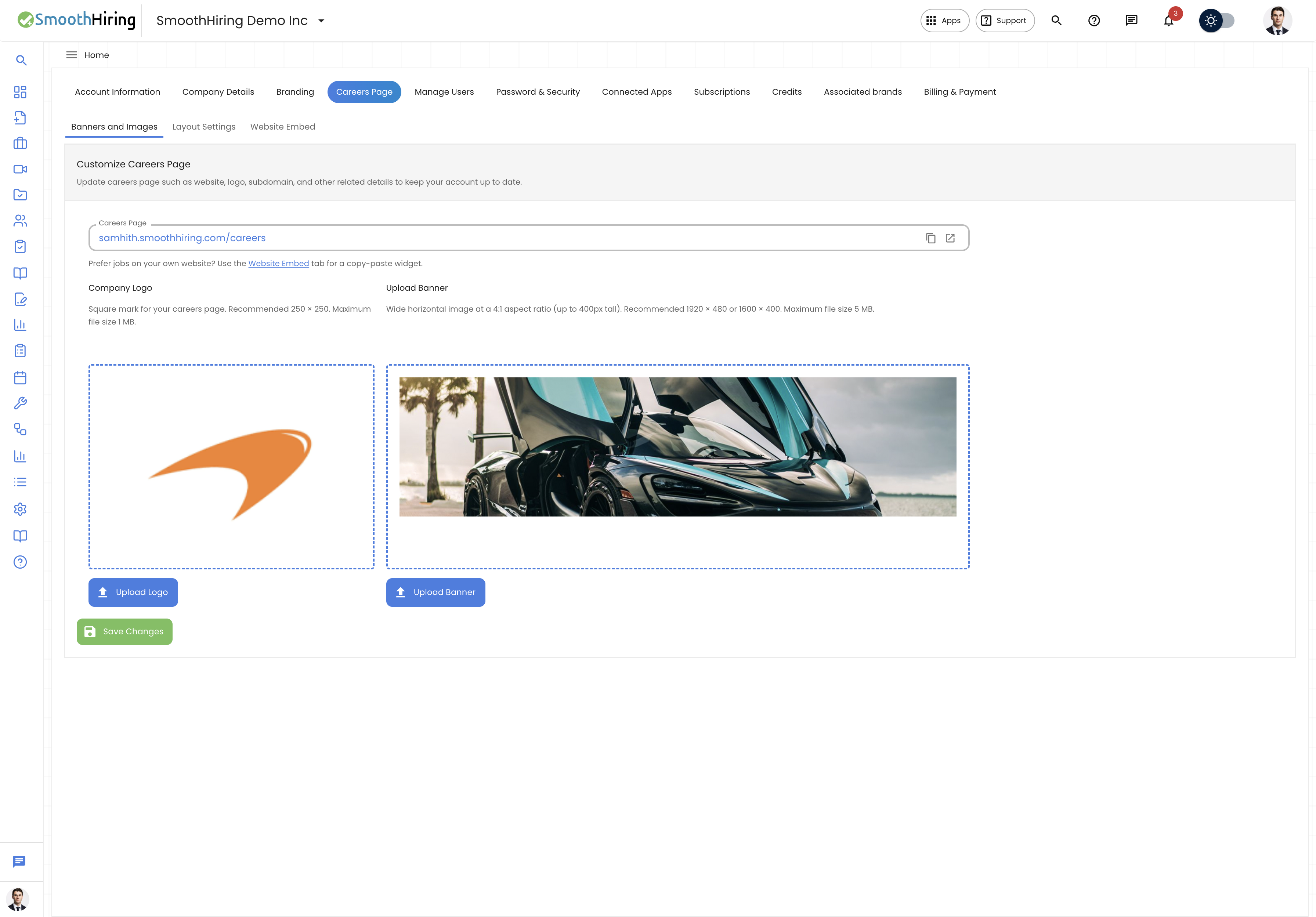
The Careers Page Builder is SmoothHiring's drag-and-drop visual editor for creating beautiful, branded careers pages without writing any code. Your careers page is often a candidate's first impression of your organization — the builder gives you complete control over the layout, design, and content to create an engaging, on-brand experience that attracts top talent.
The builder features a visual canvas, a library of pre-built content blocks, real-time live preview, and one-click publishing. Whether you're a designer or a hiring manager with no technical background, you can create a professional careers page in minutes.
Accessing the Builder
- Navigate to Settings → Account Settings → Careers Page
- Click Customize Page or Open Builder
- The builder interface opens with your current page layout (or a default template for new pages)
Builder Interface Overview
The Careers Page Builder has four main areas:
1. Block Palette (Left Sidebar)
The block palette contains all available content blocks organized by category. You drag blocks from here onto the canvas.
2. Builder Canvas (Center)
The central workspace where you arrange and organize your page blocks. This is your working area where you build the page structure.
3. Block Inspector (Right Sidebar)
When you select a block on the canvas, the inspector panel shows all configurable properties for that block — text content, images, colors, spacing, and more.
4. Live Preview (Toggle/Split View)
A real-time preview of how your careers page will look to candidates. Updates instantly as you make changes.
Available Block Types
The builder comes with a comprehensive library of content blocks designed specifically for careers pages.
Hero Blocks
| Block | Description |
|---|---|
| Hero Banner | Full-width banner with headline, subtext, and background image |
| Video Hero | Hero section with embedded video background |
| Animated Hero | Hero with subtle animation effects |
| Split Hero | Half image, half text layout |
Job Listing Blocks
| Block | Description |
|---|---|
| Job Board | Dynamic list of all open positions with search and filters |
| Featured Jobs | Highlighted positions you want to promote |
| Department Jobs | Jobs organized by department/team |
| Location Jobs | Jobs grouped by office location |
Content Blocks
| Block | Description |
|---|---|
| Rich Text | Free-form text with formatting (headings, lists, links) |
| Image + Text | Side-by-side image and text content |
| Video Embed | Embedded YouTube or Vimeo videos |
| Quote/Testimonial | Employee testimonials or company quotes |
| Statistics | Key numbers and metrics (employees, offices, etc.) |
Culture & Values Blocks
| Block | Description |
|---|---|
| Values Grid | Display company values with icons and descriptions |
| Team Gallery | Photo grid showcasing team members |
| Benefits List | Structured list of employee benefits and perks |
| Culture Photos | Instagram-style photo gallery of workplace life |
| Awards & Recognition | Display employer awards and certifications |
Navigation & Layout Blocks
| Block | Description |
|---|---|
| Section Divider | Visual separator between page sections |
| Spacer | Adjustable empty space for layout control |
| CTA Button | Call-to-action button (e.g., "View All Jobs") |
| Anchor Navigation | Sticky nav that links to page sections |
| Footer | Page footer with links and information |
Interactive Blocks
| Block | Description |
|---|---|
| FAQ Accordion | Expandable questions and answers about working at your company |
| Tab Panel | Tabbed content sections (e.g., by department or location) |
| Map | Interactive map showing office locations |
| Timeline | Visual timeline (company history, growth milestones) |
Building Your Page
Adding Blocks
- Browse the Block Palette on the left sidebar
- Find the block type you want to add
- Drag it from the palette onto the canvas
- Drop it in the desired position (a blue indicator shows where it will land)
- The block appears on the canvas ready for customization
Rearranging Blocks
- Drag and drop blocks up or down on the canvas to reorder them
- Use the move handle (grip icon) at the top of each block
- Blocks snap into position automatically
Removing Blocks
- Select a block and click the delete icon (trash can)
- Or right-click and choose Remove Block
- Confirm deletion when prompted
Duplicating Blocks
- Select a block and click the duplicate icon
- A copy appears directly below the original
- Useful for creating repeated sections with slight variations
Customizing Blocks with the Inspector
When you select a block on the canvas, the Block Inspector panel on the right shows all configurable properties.
Common Properties
All blocks share these basic properties:
| Property | Description |
|---|---|
| Background Color | Block background color (or transparent) |
| Padding | Internal spacing (top, bottom, left, right) |
| Margin | External spacing around the block |
| Max Width | Maximum content width within the block |
| Visibility | Show/hide on desktop and/or mobile |
| Custom CSS Class | Advanced: add custom styling classes |
Text Properties
Text-containing blocks offer:
- Font family selection
- Font size and weight
- Text color
- Alignment (left, center, right)
- Line height and letter spacing
Image Properties
Image blocks include:
- Image upload or URL
- Alt text for accessibility
- Aspect ratio control
- Object fit (cover, contain, fill)
- Border radius for rounded corners
- Overlay color and opacity
Layout Properties
Multi-column blocks offer:
- Column count
- Column gap
- Vertical alignment
- Responsive behavior (stacking on mobile)
Live Preview
The builder includes a real-time preview that shows exactly how your page will appear to candidates.
Preview Modes
- Desktop Preview — Full-width desktop view
- Tablet Preview — Medium-width tablet simulation
- Mobile Preview — Narrow mobile phone simulation
Using Preview
- Toggle preview mode using the eye icon in the toolbar
- Or use split view to see canvas and preview side by side
- Preview updates instantly as you make changes
- Scroll through the preview to check the full page flow
- Test interactive elements (accordions, tabs) in preview mode
Branding & Design
Brand Colors
The builder integrates with your account's brand settings:
- Primary color — Used for buttons, links, and accents
- Secondary color — Used for secondary elements and backgrounds
- Text colors — Heading and body text defaults
- Background colors — Page and section backgrounds
These are inherited from your brand settings but can be overridden per block.
Typography
- Choose from a library of web-safe and Google Fonts
- Set default heading and body fonts for consistency
- Adjust sizes for different screen breakpoints
Custom Logo & Images
- Upload your company logo for the page header
- Use high-quality images throughout (recommended: 1920px wide for hero images)
- The builder supports JPG, PNG, WebP, and SVG formats
Default Layouts
The builder includes pre-designed default layouts to help you get started quickly.
Available Templates
- Modern Minimal — Clean, spacious layout with focus on typography
- Visual Storytelling — Image-heavy layout perfect for showcasing culture
- Corporate Professional — Traditional, professional layout for enterprise organizations
- Startup Dynamic — Bold, energetic layout with vibrant colors
- Simple Job Board — Minimal layout focused primarily on job listings
Using a Template
- When opening the builder for the first time, select a starting template
- Or click Templates in the toolbar to reset to a template
- Templates can be fully customized after selection
- Your changes override template defaults
Warning: Switching to a new template will replace your current layout. Save your work first or use the template as a starting point for a fresh page.
Publishing Your Careers Page
Save & Publish Workflow
- Save Draft — Save your work without making it live (auto-saves every few minutes)
- Preview — Review the full page in preview mode
- Publish — Make your changes live for candidates to see
Publishing Options
- Publish Now — Changes go live immediately
- Schedule — Set a future date/time for changes to go live
- Revert — Roll back to the previously published version
After Publishing
- Your careers page is immediately accessible at your configured URL
- Changes propagate within minutes
- All existing links to your careers page continue to work
- Job listings update dynamically (no republishing needed when jobs change)
SEO & Performance
The builder automatically handles many SEO best practices:
- Meta tags — Set custom page title and meta description
- Open Graph — Configure social sharing image and description
- Semantic HTML — Blocks output proper heading hierarchy
- Mobile responsiveness — All blocks adapt to screen size
- Fast loading — Images are optimized and lazy-loaded
- Accessible — Blocks include proper ARIA labels and alt text
Tips & Best Practices
- Start with a template — Don't build from scratch if a template gets you 80% there
- Mobile-first mindset — Always check mobile preview; most candidates browse on phones
- Keep it scannable — Use clear headings, short paragraphs, and visual breaks
- Show, don't tell — Use photos and videos to showcase culture rather than just describing it
- Highlight what matters — Put your strongest selling points (benefits, culture, growth) above the fold
- Keep job listings prominent — Don't bury the job board; candidates come to apply
- Update regularly — Refresh photos, testimonials, and content quarterly
- Use testimonials — Real employee quotes build credibility
- Optimize images — Use appropriate sizes to keep the page fast
- Test on multiple devices — Check phone, tablet, and desktop views before publishing
Frequently Asked Questions
Q: Can I use my own custom domain for the careers page? A: Yes. Custom domains can be configured in your account settings. Contact support for DNS setup assistance.
Q: Will my page break if I update to a new template? A: Switching templates replaces the current layout. Always save your work before switching. You can revert to previous versions.
Q: How many blocks can I add to a page? A: There is no hard limit, but we recommend keeping pages focused and not overly long. Aim for 8-15 blocks for an optimal candidate experience.
Q: Can I add custom HTML or JavaScript? A: The custom CSS class feature allows advanced styling. For custom scripts (analytics, chatbots), contact support.
Q: Do job listings update automatically? A: Yes. The Job Board block dynamically shows your current open positions. No need to republish when you post or close jobs.