

How to Post a Job on SmoothHiring
Getting your job in front of the right candidates starts with creating a well-structured posting in SmoothHiring. This guide walks you through the entire job creation process from start to finish, covering every step, field, and option available to you.
Getting Started
There are several ways to begin creating a new job posting in SmoothHiring:
- Create a New Job from Scratch — Go to Jobs in the left sidebar, then click Post a Job. Select Create a New Job to start with a blank form.
- Copy an Existing Job — Select Copy an Existing Job to duplicate a previous posting. This carries over all job details, requirements, and settings, saving you time when hiring for similar roles.
- Re-post an Existing Job — From your Expired jobs tab, use the Re-post this Job action. You will be asked whether to carry over applicants from the original posting or start fresh.
- Create a Template Job — Select Create a Template Job to build a reusable template without location-specific details. Templates are ideal when you hire for the same role across multiple locations.
- Use a Template Job — Select Use a Template Job to create a new posting based on an existing template. You simply fill in the location and hiring manager details.
- Continue from a Saved Job — If you previously started a job but didn't finish, select Continue from saved job to pick up where you left off from your draft jobs.
Step 1: Job Title & Basic Information
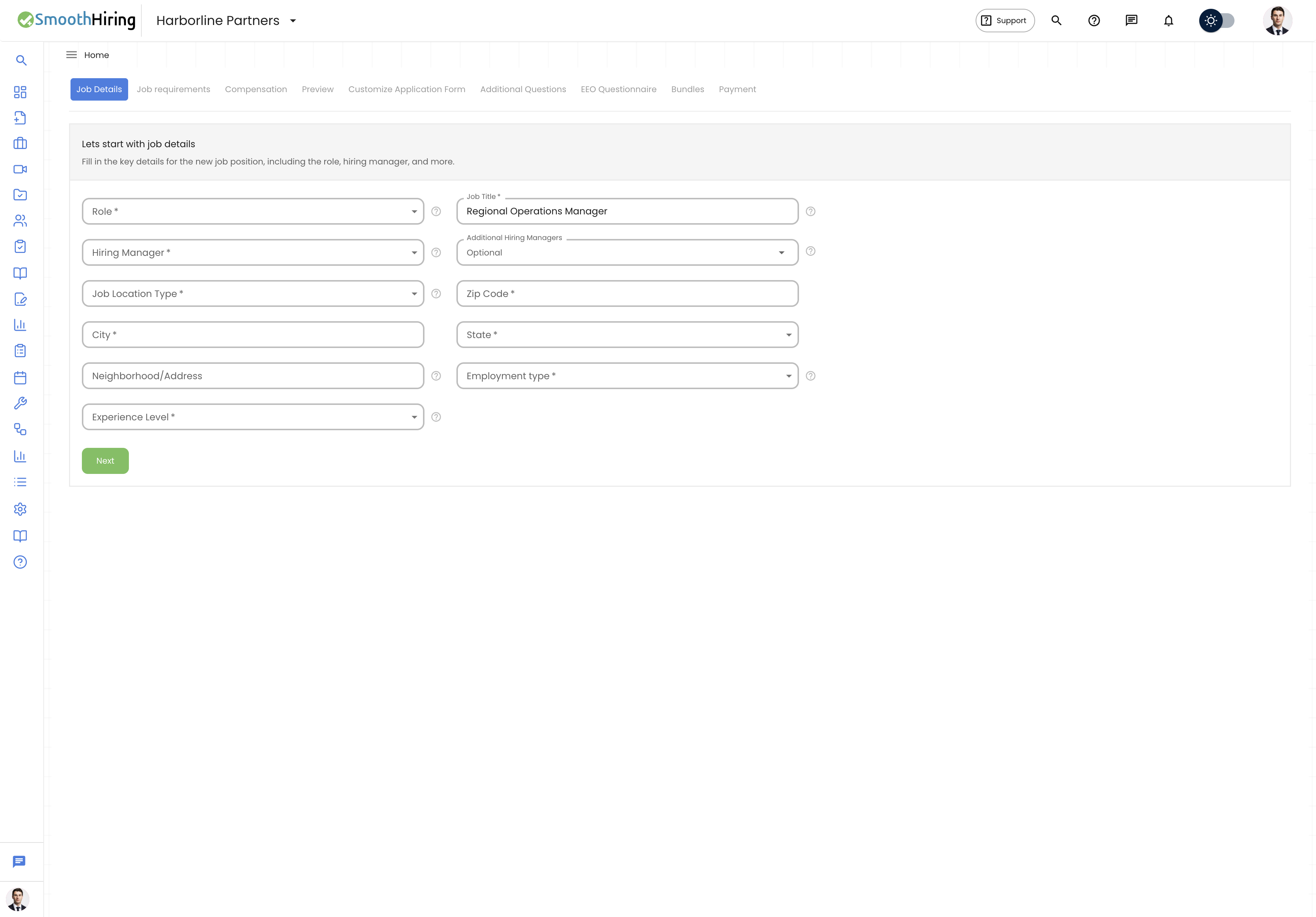
The first step collects the foundational details about your position. Navigate to this step at the route /employer/job/new/title.
Required Fields
| Field | Description |
|---|---|
| Role | Select a standardized job role from the dropdown, grouped by industry. This determines the behavioral assessment profile and pre-populated requirements. Pick the closest match if your exact title isn't listed. |
| Job Title | Enter the exact title you want candidates to see. Keep it simple and searchable — titles like "Marketing Manager" perform better than creative titles like "Marketing Ninja." |
| Hiring Manager | Select the team member responsible for this hire. They will receive notifications about new applicants. |
| Job Location Type | Choose from Remote, Onsite, or Hybrid. This affects which location fields are required and how the job appears on job boards. |
| Employment Type | Select the position type: Full-Time, Part-Time, Contractor (1099), Contractor (W2), Temporary, Internship, Casual, Contract, Work at Home, or Any. |
| Experience Level | Choose the seniority level: Internship, Entry Level, Mid Level, Experienced, Associate, Senior, Director, or Executive. |
Location Fields
| Field | Description |
|---|---|
| Zip Code | Enter the postal code for the job location. For US accounts, the system auto-populates city and state when you enter a valid 5-digit zip code. |
| City | The city where the position is based. Auto-filled from zip code for US accounts, or enter manually. |
| State/Province | The state (US) or province (Canada) for the job. Auto-filled from zip code for US accounts. |
| Neighborhood/Address | Optional. Specify a particular area of town or street address to help candidates understand the exact work location. |
Tip: Even fully remote jobs require a city, state, and zip code for job board compatibility. SmoothHiring recommends entering your company's main office location or a general location for remote positions.
Optional Fields
| Field | Description |
|---|---|
| Additional Hiring Managers | Add other team members who should receive applicant notifications and have visibility into this job's candidates. The primary hiring manager cannot be selected as an additional hiring manager. |
| Hours Per Week | Appears only for non-full-time positions. Enter the expected weekly hours (up to 3 digits). |
| Department | Assign the job to an organizational department for internal tracking and filtering. |
Click Next to save and proceed to Step 2.
Step 2: Job Details & Requirements
This step defines what you're looking for in candidates. The requirements you enter here directly power SmoothHiring's candidate matching and scoring.
Requirement Categories
SmoothHiring organizes job requirements into four categories. Each category requires at least one entry:
| Category | Description | Importance Level |
|---|---|---|
| Education | Minimum education requirements (e.g., "Bachelor's degree in Computer Science"). Be mindful — stricter requirements attract fewer candidates. | Must Have, Important, or Nice to Have |
| Qualifications | Yes/No screening questions for candidates (e.g., "Valid driver's license," "5+ years experience"). These are answered directly by applicants. | Must Have, Important, or Nice to Have |
| Job Duties | Day-to-day responsibilities for the role. Describe what a typical day looks like to sell the position to candidates. | N/A (no importance level) |
| Skills | Technical and soft skills needed (e.g., "Python programming," "Project management"). | Must Have, Important, or Nice to Have |
For each requirement (except Job Duties), you can set an importance level:
- Must Have — Candidates without this are automatically flagged
- Important — Strongly preferred but not disqualifying
- Nice to Have — A bonus, but not required
Use the + button to add more requirements within a category, and the − button to remove them. At least one entry per mandatory category is required.
Keywords
Keywords improve resume scoring and help identify better-matching candidates. You can:
- Type keywords manually and press Enter or click the + icon to add them
- Generate keywords with AI by clicking the sparkle (✨) icon — SmoothHiring's AI suggests relevant keywords based on your job role
- Delete keywords by clicking the × on any keyword chip
- Add up to 15 keywords per job
- Duplicates are automatically prevented
Tip: Adding 8 or more keywords significantly improves candidate matching quality. The system displays a helpful reminder if you have fewer than 8.
Editing After Applicants Have Applied
If you add new requirements after candidates have already applied, only new applicants will be asked the additional questions. Existing applicants' scores are not retroactively affected.
Click Next to proceed to Step 3, or Back to return to Step 1. Use Undo to revert any unsaved changes.
Step 3: Compensation & Benefits
This optional but recommended step lets you specify the total compensation package. Jobs with compensation details attract significantly more applicants.
Compensation
| Field | Description |
|---|---|
| Compensation | Enter the salary or pay rate (e.g., "25," "45k," "30k - 40k"). For non-remote jobs, click the AI sparkle icon to generate a salary range estimate based on the role, location, and experience level. |
| Compensation Type | Select how the compensation is measured: Per Hour, Per Day, Per Week, Biweekly, Per Month, or Per Year. This field is required if you enter a compensation amount. |
Additional Compensation
Select or add forms of supplemental pay such as bonuses, commissions, equity, profit-sharing, tips, or other incentives. Check the boxes next to applicable items, or type a custom compensation and press Enter to add it.
Benefits
Select from common benefits or add your own:
- Default options: Paid time off, Childcare, Disability and long term insurance, Training, Healthcare
- Custom benefits: Type and press Enter to add items like "Free coffee and snacks," "Gym membership," "401(k) matching," etc.
Tip: Benefits are often overlooked but can greatly impact the quality and quantity of applicants. Highlight everything you offer — even small perks like free snacks or flexible hours.
Click Next to proceed to the Job Description Preview.
Step 4: Job Description Preview
This step lets you review and customize the job description that candidates will see. You have three options for generating your job description:
Description Types
| Type | Description |
|---|---|
| Use SmoothHiring | Automatically generates a structured job description from your requirements, compensation, and company information. Includes sections for About Us, Job Duties, Skills, Education, Qualifications, Compensation, Position Type, Benefits, and Additional Compensation. |
| Customize this Description | Opens a rich text editor where you can write or paste your own job description. Supports formatting, bullet points, links, and more. |
| Generate & Use AI Job Description | Uses AI to create a professional job description based on your job details. You can regenerate it if you want a different version. |
AI Enhancement Tools (Custom Description)
When using a custom description, two AI-powered tools are available:
- Format with AI — Smartly reformats and structures your existing text for better readability
- Enhance with AI — Improves your description with AI suggestions, incorporating your job details for a more complete posting
The preview shows:
- Job Title and Company name at the top
- Location details (for non-template jobs)
- The full Job Description in your chosen format
Click Next to proceed to the Custom Application step, or Back to return to Compensation.
Step 5: Custom Job Application
Configure which additional fields candidates must fill out when applying. Standard fields (name, email, resume) are always collected. You can add optional fields such as:
- Middle name
- Mobile number
- State, City, Postal code, Address
For each field, you can mark it as required or optional on the application form.
Step 6: Additional Questions
Attach a custom questionnaire form to your job posting. This allows you to ask job-specific screening questions beyond the standard application. Forms are created in the Forms section and can be reused across multiple jobs.
Step 7: EEO Questionnaire (if enabled)
If your company has Equal Employment Opportunity (EEO) reporting enabled, you can select which voluntary EEO questions to include in the application. These questions are optional for candidates and are used solely for compliance reporting.
Step 8: Select Bundles & Packages
Choose your job posting package to determine where and how your job is distributed. See Job Advertising Budgets for detailed information about available packages.
Base Bundles
You must select one base bundle. Each bundle includes different levels of job board distribution and features. Bundles marked with a star are recommended. Pricing is displayed per job, and if you have credits in your inventory, they are applied automatically.
Add-On Bundles
Enhance your posting with optional add-ons for additional job boards and platforms (e.g., LinkedIn). Add-ons require a base bundle to be selected first. Select add-ons by clicking their checkbox or the Add to cart button.
Custom Job Budget
If enabled for your account, you can set a custom advertising budget amount for additional sponsored visibility on job boards.
Note: Jobs are active for 30 days from the posting date. A summary of selected packages and total cost appears in the sidebar.
Step 9: Payment
Complete your purchase using a saved payment method or by entering new payment details. Once payment is processed, your job goes live and is automatically distributed to job boards.
After Posting
Once your job is live, you can:
- Share it on social media — Post to LinkedIn, X (Twitter), and Facebook directly from the Share dialog
- Invite applicants via email
- View job board links — See where your job appears across all platforms
- Edit the job — Update details, requirements, or description at any time
- Publish to your Careers Page — Toggle visibility on your company's career site
- Enable Auto Job Post — Automatically repost the job when it expires
For more details on managing active jobs, see Job Posting & Management.