

Sending Interview Invitations in SmoothHiringInterview Letters in Smooth
Hiring are email templates used to invite candidates for interviews and notify them about interview scheduling details. These templates feature a unique split-editor design that separates your custom messaging from auto-generated interview logistics.
Overview
An Interview Invitation Letter is sent to candidates inviting them for an interview. It specifies the date, time, and location of the interview, along with any necessary instructions or information the candidate may need to prepare.
SmoothHiring's interview letter templates have a distinctive feature: a dedicated [INTERVIEW_DETAILS] placeholder that is automatically populated with the correct interview date, time, and location when the email is sent. This ensures interview logistics are always accurate while giving you full creative control over the introductory and closing portions of the email.
Navigating to Interview Letters
- Click Productivity in the left sidebar.
- Expand Communication.
- Click Interview Letters.
This takes you to /employer/settings/tools/templates/interview-notification.
Alternatively: Settings → Tools & Automation → Templates → Interview Letters.
Understanding the Split Editor
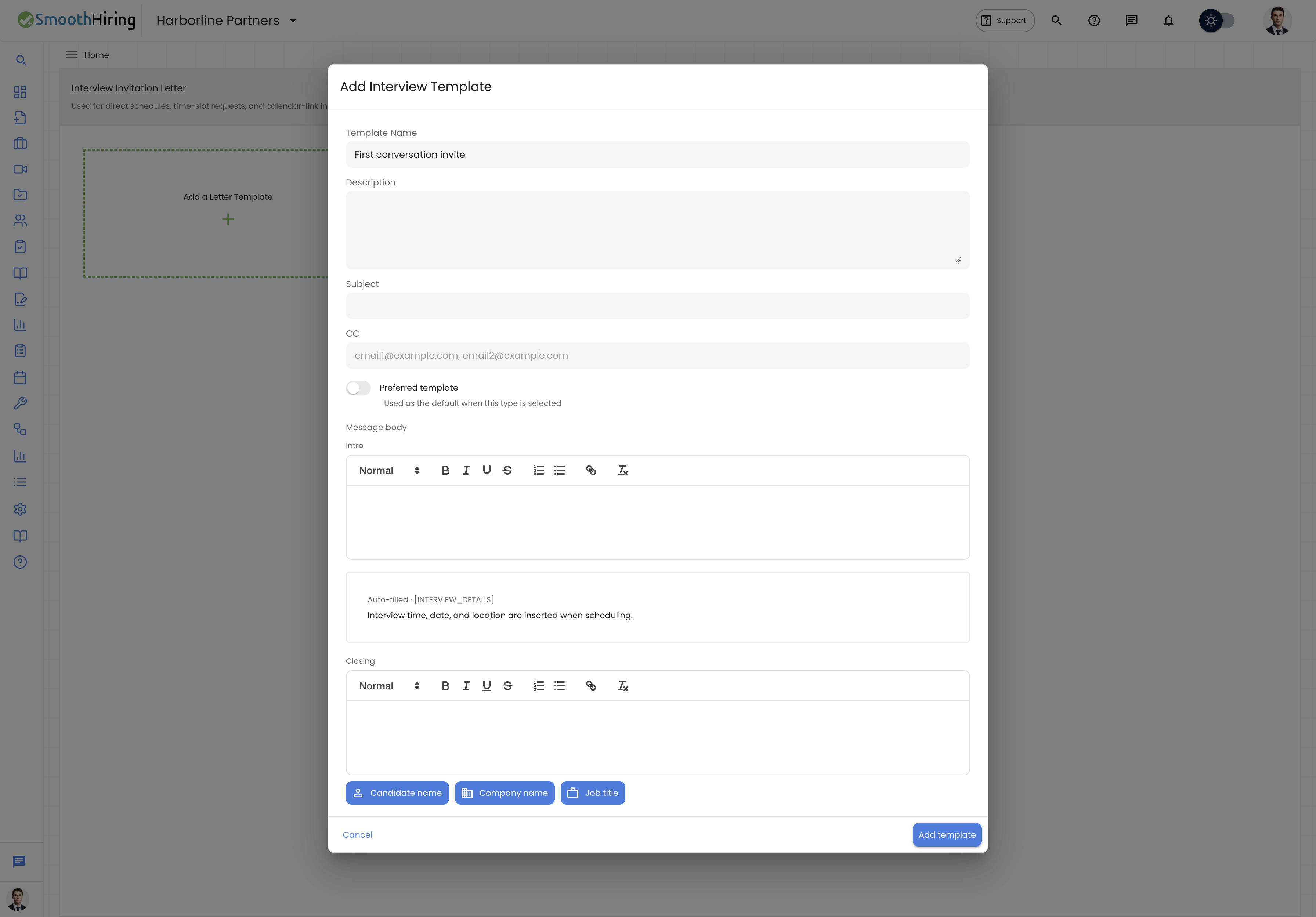
Unlike other template types, the Interview Letter editor is divided into three sections:
| Section | Description | Editable? |
|---|---|---|
| Intro Message | Your custom greeting and opening content | Yes |
| Interview Details (Auto-filled) | The [INTERVIEW_DETAILS] placeholder block, shown as a dashed gray box |
No (auto-populated at send time) |
| Closing Message | Your custom closing content, sign-off, and any additional instructions | Yes |
The [INTERVIEW_DETAILS] section is automatically populated with:
- Interview date
- Interview time
- Interview location or virtual meeting link
- Any other scheduling details from the interview booking
Tip: You do not need to manually type interview dates or times. The system fills these in from the interview record when the email is sent.
Creating an Interview Letter Template
- On the Interview Letters page, click the Add a Letter Template card.
- Fill in the standard template fields:
| Field | Description | Required |
|---|---|---|
| Template Name | A descriptive label (e.g., "First Round Interview Invite") | Yes |
| Template Description | Brief description of when to use this template | Yes |
| Subject | The email subject line | Yes |
| CC Emails | Additional recipients | No |
| Set as Preferred | Make this the default interview template | No |
Compose the Intro Message in the first rich text editor. This typically includes:
- A greeting with the candidate's name
- Congratulations on advancing to the interview stage
- Brief context about what to expect
The Interview Details block appears automatically between the two editors. You cannot edit this section.
Compose the Closing Message in the second rich text editor. This typically includes:
- What to bring or prepare
- Who the interviewer(s) will be
- Contact information for questions
- A warm sign-off
Insert merge fields where needed:
- [CANDIDATE_NAME] — The candidate's full name
- [COMPANY_NAME] — Your company name
- [JOB_NAME] — The job title
Click Add to save.
Example Interview Letter
Intro Message:
Dear [CANDIDATE_NAME],

We are pleased to inform you that you have been selected for an interview for the [JOB_NAME] position at [COMPANY_NAME]. We were impressed with your application and look forward to learning more about you.

Your interview details are as follows:
[INTERVIEW_DETAILS] — Auto-filled
Closing Message:
Please bring a copy of your resume and any relevant portfolio materials. The interview will last approximately 45 minutes.

If you have any questions or need to reschedule, please don't hesitate to reach out.

Best regards,
The [COMPANY_NAME] Hiring Team
Editing an Interview Letter
- Click on the template card or the Edit icon.
- The split editor opens with the current Intro Message, Interview Details block, and Closing Message.
- Modify the intro or closing sections as needed.
- Click Save Changes.
Deleting an Interview Letter
Click the Delete (trash) icon on the template card to permanently remove it.
Setting a Preferred Interview Letter
Toggle the Set as Preferred switch when creating or editing a template. The preferred template will be pre-selected when interview invitations are sent.
How Interview Letters Are Used
- Manual interview scheduling — When scheduling an interview through SmoothHiring, you can select an interview letter template to send to the candidate.
- Pipeline automation — Interview letters can be attached as email actions on interview-related stages in your Custom Hiring Pipeline.
- Bulk scheduling — When scheduling multiple candidates, the preferred interview template is used automatically.
Best Practices
- Include preparation instructions. Let candidates know what to expect — interview format, duration, who they'll meet.
- Provide contact information. Give candidates a way to reach someone if they need to reschedule.
- Create stage-specific templates. A first-round phone screen invite should differ from a final round in-person interview invite.
- Test the auto-fill. Send a test interview email to yourself to verify that
[INTERVIEW_DETAILS]populates correctly.