

Using Job Templates & Copy Jobs
Creating job postings from scratch every time can be repetitive, especially when you frequently hire for similar positions. SmoothHiring offers Job Templates and Copy Job functionality to streamline your job creation process — saving you time, ensuring consistency, and letting you leverage what has worked before.
Table of Contents
- Overview
- Job Creation Options
- Creating a Regular Job from Scratch
- Creating a Template Job
- Using a Template Job
- Copying an Existing Job
- Reposting an Expired Job
- Continuing from a Draft
- What Gets Copied or Templated
- Managing Templates
- Best Practices
- Frequently Asked Questions
Overview
SmoothHiring provides multiple paths to create a new job, each suited to different situations:
| Method | Best For | Starting Point |
|---|---|---|
| Create Regular Job | Unique positions, first-time roles | Blank slate |
| Create Template Job | Roles you hire for repeatedly | Blank slate, saved as template |
| Use a Template Job | Applying a previously saved template | Existing template |
| Copy an Existing Job | Duplicating any previous job | Any active, draft, or expired job |
| Repost an Expired Job | Re-opening a closed position | An expired job |
| Continue from Draft | Finishing an incomplete job | A saved draft |
Job Creation Options
When you click Create New Job (or the equivalent button), SmoothHiring presents a dialog asking: "What type of Job do you want to create?"
The available options are displayed as tiles, each with an icon, label, and description:
Option Tiles
| Tile | Description | Navigates To |
|---|---|---|
| Create a Regular Job | Create fully customized job posting from scratch | Job creation wizard |
| Copy an Existing Job | Duplicate an existing job to quickly create a new posting | Job selection dialog |
| Create a Template Job | Design tailored job templates to streamline your hiring process | Job creation wizard (template mode) |
| Use a Template Job | Use existing templates to simplify job posting and attract top talent | Template selection |
Note: The exact options available may vary based on your Access Level. Some options require Administrator or Recruiter roles.
Creating a Regular Job from Scratch
This is the standard job creation flow:
- Click Create New Job.
- Select Create a Regular Job.
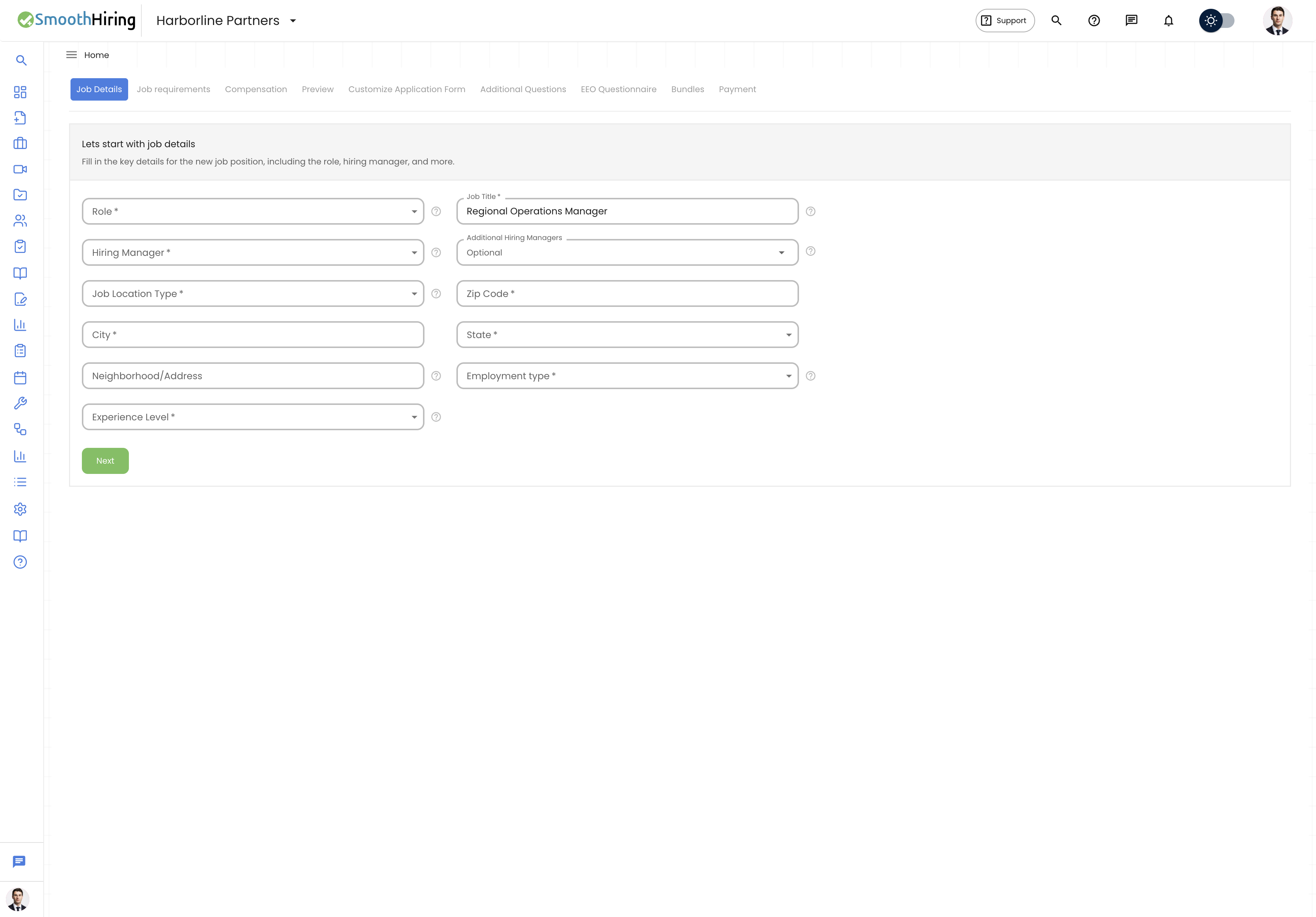
- Follow the multi-step job creation wizard:
- Job Title — Enter the position title and basic information.
- Job Details — Add the full job description, requirements, and specifications.
- Additional Questions — Configure prescreening questions for candidates.
- Preview — Review everything before posting.
- Payment — Select your posting plan and complete payment.
- Your job goes live and starts accepting applications.
For full details, see Job Posting.
Creating a Template Job
Template jobs are reusable configurations that you can apply to future postings. They are ideal for roles you hire for regularly.
How to Create a Template
- Click Create New Job.
- Select Create a Template Job.
- Follow the same job creation wizard as a regular job:
- Enter the job title, details, requirements, and questions.
- The system marks this job as a template.
- Once saved, the template appears in your template library.
What Makes It a Template
- Templates are not posted as live jobs — they are saved configurations.
- Templates include all job settings: title, description, requirements, prescreening questions, and more.
- Templates can be used unlimited times to create new postings.
Using a Template Job
When you have existing templates, you can use them to create new job postings:
- Click Create New Job.
- Select Use a Template Job.
- A Template Selection page appears, showing your saved templates.
- Browse or search for the desired template.
- Select a template.
- The job creation wizard opens pre-filled with the template's data.
- Make any modifications needed for this specific posting (e.g., update the start date, adjust requirements).
- Complete the wizard and post the job.
Tip: Templates are a starting point, not a rigid mold. Always review and customize template-generated jobs to match the specific needs of each posting.
Copying an Existing JobCopy Job duplicates any existing job (active, draft, or expired) to create a new posting with the same configuration.
How to Copy a Job
- Click Create New Job.
- Select Copy an Existing Job.
- The Copy Job Dialog opens, showing your jobs organized by status:
- Active — Currently live jobs.
- Draft — Jobs saved but not yet posted.
- Expired — Past jobs that are no longer active.
- Use the search bar to find a specific job by name.
- Use the tabs to switch between Active, Draft, and Expired jobs.
- Each job card shows:
- Job name
- Job ID
- Status badge (Active, Draft, Expired)
- Hiring manager (if assigned)
- Location (city, state)
- Date range
- Click on a job card to select it (highlighted with a colored border).
- Click Copy Job.
- The system creates a duplicate and navigates you to the job creation wizard with all fields pre-filled.
- Make any changes needed and complete the posting process.
Copy Job vs. Template Job
| Feature | Copy Job | Template Job |
|---|---|---|
| Source | Any existing job | Saved template |
| Includes applicants | No — fresh applicant pool | N/A — templates have no applicants |
| Includes history | No — clean start | N/A |
| Requires template creation | No | Yes — must create template first |
| Best for | One-off duplications | Recurring roles |
Reposting an Expired Job
For positions that need to be re-opened:
- Click Create New Job.
- Select Repost an Existing Job (available in the default option set).
- Browse your expired jobs.
- Select the job to repost.
- The job is re-opened without carrying over previous candidates.
This is different from Copy Job in that reposting specifically targets expired positions and may reuse the existing job listing rather than creating a completely new one.
Continuing from a Draft
If you started creating a job but did not finish:
- Click Create New Job.
- Select Continue from Saved Job.
- Browse your draft jobs.
- Select the draft to continue.
- The job creation wizard opens where you left off.
What Gets Copied or Templated
When you copy a job or use a template, the following data is carried over:
| Data | Copied/Templated |
|---|---|
| Job Title | ✅ |
| Job Description | ✅ |
| Requirements & Qualifications | ✅ |
| Job Details (type, location, salary range) | ✅ |
| Prescreening Questions | ✅ |
| Job Fingerprint Configuration | ✅ |
| Job Board Distribution Settings | ✅ |
| Applicant Data | ❌ |
| Interview Records | ❌ |
| Comments & Ratings | ❌ |
| Analytics & Reports | ❌ |
Managing Templates
Viewing Templates
Your saved templates are accessible through:
- The Use a Template Job flow in the job creation dialog.
- Your jobs list, filtered by template status.
Editing Templates
You can modify existing templates:
- Navigate to your template jobs.
- Open the template you want to edit.
- Make your changes.
- Save the updated template.
Future jobs created from this template will use the updated configuration.
Template Best Practices
- Name templates clearly: e.g., "Sales Representative — Entry Level" or "Software Engineer — Remote".
- Keep templates current: Review and update templates quarterly to reflect changes in job requirements, company benefits, or market conditions.
- Start with your most-hired roles: Create templates for positions you fill most often first.
Best Practices
Choose the Right Method
| Your Situation | Recommended Method |
|---|---|
| Hiring for a new, unique role | Create Regular Job |
| You hire this role every quarter | Create Template Job, then use it |
| A similar job was posted recently | Copy Existing Job |
| Need to re-open a closed position | Repost Expired Job |
| Started a posting but didn't finish | Continue from Draft |
Maintain a Template Library
- Create templates for all standard positions.
- Review templates before each use — requirements may have changed.
- Retire outdated templates to keep the library clean.
Customize After Copying
When copying a job, always:
- Update the posting date.
- Review and refresh the job description.
- Verify prescreening questions are still relevant.
- Confirm the hiring manager and team assignments.
Frequently Asked Questions
How many templates can I create? There is no limit to the number of job templates you can create and save.
Can I create a template from an existing job? Yes, you can effectively use Copy Job to duplicate an existing job and then save the new version as a template during the creation process.
Are template jobs charged? Creating a template job itself is not a posted job, so it does not consume a job credit. Charges apply only when you use a template to create and post a live job.
Can other team members use my templates? Yes. Templates are shared across your organization. Any team member with the appropriate role can use existing templates to create new job postings.
What happens to the original job when I copy it? Nothing. The original job remains completely unchanged. Copying creates a new, independent job posting.
Can I copy a job from a different employer account? No. Copy Job only works within your own organization's jobs.