

How to Manage Interviews in SmoothHiring
SmoothHiring's interview management system gives you a centralized hub to schedule, track, and complete interviews across all your open positions. From the initial scheduling request through completion, every interview is tracked with full visibility for your hiring team.
Accessing the Interviews Page
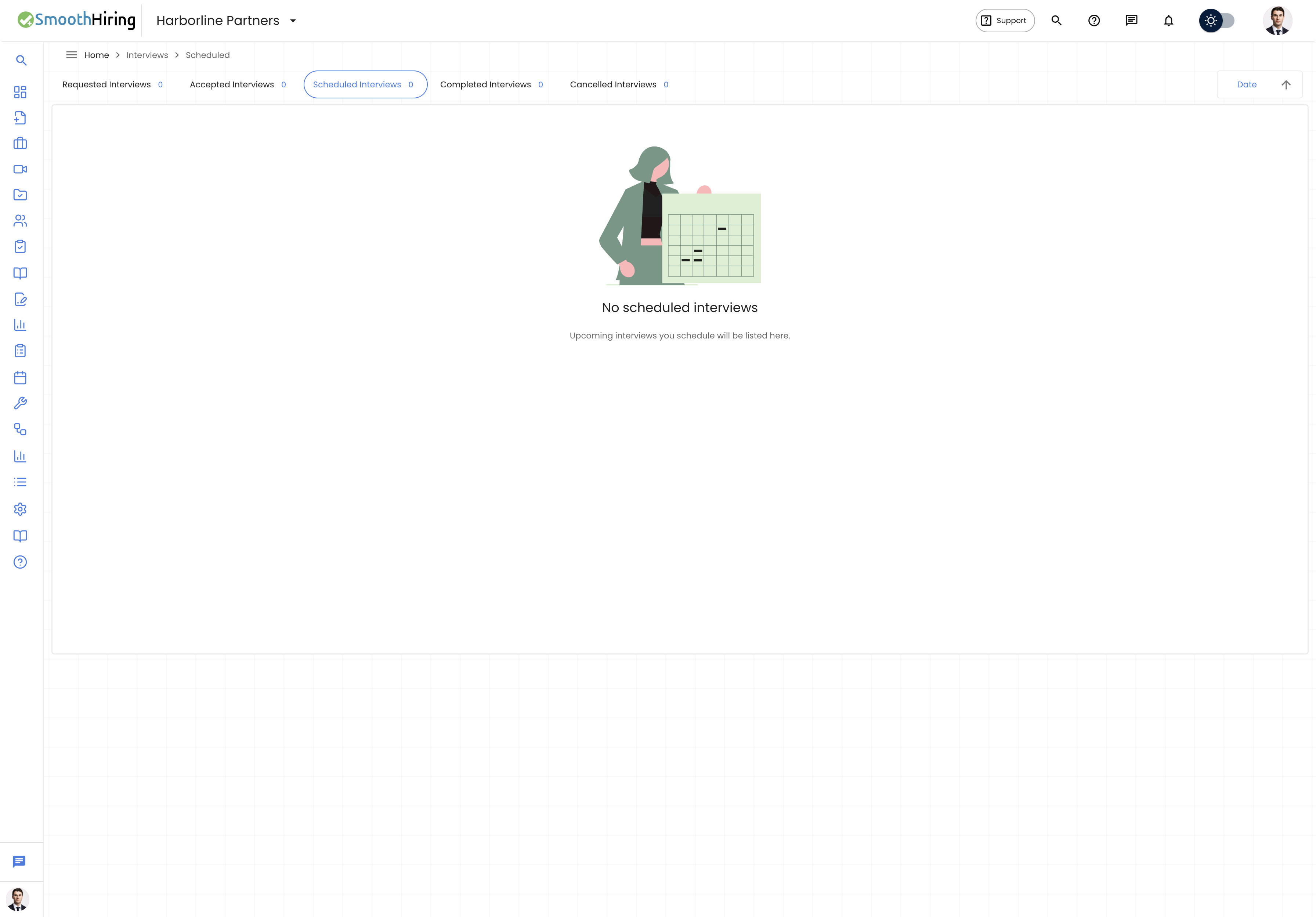
Navigate to Interviews from the left sidebar of your employer dashboard. The interviews page is available at Sidebar → Interviews.
The Interviews page displays all interviews across every job in your account, organized by status tabs. Each tab shows a count badge so you can see at a glance how many interviews fall into each category.
Interview Status Tabs
The toolbar at the top of the Interviews page provides five status tabs. Click any tab to filter the list:
| Tab | What It Shows |
|---|---|
| Requested Interviews | Interviews where you've sent time-slot options to a candidate and are awaiting their selection. Includes interviews with the status "Requested" or "RequestedByCandidate". |
| Accepted Interviews | Interviews where the candidate has chosen a preferred time slot but the interview has not yet been formally scheduled. These require your action to finalize. |
| Scheduled Interviews | Interviews that have a confirmed date, time, and meeting details. These are ready to go. |
| Completed Interviews | Interviews that have been marked as completed, including feedback and ratings. |
| Cancelled Interviews | Interviews that were cancelled by the employer, with optional cancellation comments. |
Each tab shows a count badge indicating the number of interviews in that status.
Interview List View
Interviews are displayed in a table with the following columns:
| Column | Description |
|---|---|
| Name | Candidate's full name with an avatar. A warning flag icon appears if the interview has been rescheduled more than 3 times. |
| Interview Type | A chip showing whether the interview is Video, Phone, or In-person. |
| Job Title | The position the candidate applied for. |
| Timestamp | For scheduled interviews, shows the created date. For other statuses, shows the last updated date. For accepted interviews, shows the accepted time slot date. |
| Interview Time | Displays the scheduled time range. For requested interviews, shows all proposed time slots. For accepted/scheduled interviews, shows the confirmed slot. |
| Actions | Action buttons that vary by interview status (see below). |
| View Profile | A Profile button that opens the candidate's full applicant profile. |
| View Interview Kits | A View Interview Kits button that navigates to the candidate's AI-generated interview questions. |
Sorting
Use the sort controls in the top-right corner of the toolbar to organize your list:
- Sort by Title — Alphabetical order by candidate name
- Sort by Date — Chronological order by date
- Click the arrow icon to toggle between ascending and descending order
Scheduling a New Interview
You can schedule an interview from a candidate's applicant profile. Navigate to any candidate and click the Schedule Interview button to open the Interview Scheduling Dialog.
The 6-Step Interview Stepper
The scheduling dialog walks you through six steps:
Step 1: Setup
Choose the interview type, meeting tool, and scheduling method.
Interview Type — Select one:
- In-person — Requires a physical address (street, city, building, floor)
- Phone — Requires a phone number to call
- Video — Opens additional meeting software options
Meeting Software (Video interviews only) — Select one:
- Zoom — Automatically creates a Zoom meeting if your account is connected. When connected, you'll see a green "Connected" badge with your Zoom email. Enter a meeting Agenda (required, e.g., "Introduction, experience discussion, Q&A") and an optional Password.
- Google Meet — Automatically generates a Meet link when Google Calendar is connected. If not connected, you can manually enter a Meet link.
- Other — Paste any video conferencing link (Microsoft Teams, Webex, etc.)
Scheduling Method — Choose one:
- Direct Assignment — You pick a specific date and time for the interview
- Request Time Slots — You propose multiple time slots and the candidate picks their preferred option (see Self-Scheduling)
Step 2: Date & Time
Configure when the interview will take place.
For Direct Assignment:
- Interview Duration — Choose from preset durations: 15 Minutes, 30 Minutes, 60 Minutes, 90 Minutes, or Custom (enter any number of minutes, from 5 to 480)
- Availability View — A visual calendar showing your availability to help you pick a conflict-free slot
- Date — Select the interview date
- Time — Choose start and end times
- Timezone — Select the appropriate timezone
For Request Time Slots:
- Add one or more proposed time slots, each with its own date, start time, end time, and timezone
- The candidate will receive a link to choose from these options
Step 3: Attendees
Add interviewers or observers who should receive the interview invitation.
- Click Add Attendees (or Change Attendees if some are already added)
- Select team members from your account or enter custom email addresses
- Your own email is automatically included
- Each attendee appears as a chip that can be removed individually
Step 4: Details
Add final notes and optionally attach a scorecard.
- Notes — Free-text field for instructions, preparation tips, or other information the candidate should know
- Scorecard — Optionally select a scorecard template from your library. If you have templates configured (via Settings → Tools → Templates → Scorecard Templates), choose one from the dropdown. The scorecard will be automatically assigned to all attendees for evaluation. If no templates exist, a link to create one is provided.
Step 5: Preview
Review all interview details before sending. This shows a summary of everything configured in the previous steps. Click Preview for a full preview of the email that will be sent.
Step 6: Finalize
The final step shows your Google Calendar connection status. If connected, the interview will automatically:
- Create a calendar event
- Generate a Google Meet link (if applicable)
- Send calendar invites to all attendees
Click Schedule Interview to confirm. You'll see a success dialog with links to:
- View Emails — Go to the candidate's inbox to see the sent invitation
- View Scorecards — Check assigned scorecards (if a template was attached)
Interview Actions by Status
Different actions are available depending on the interview's current status:
| Status | Available Actions |
|---|---|
| Requested / RequestedByCandidate | View details, Edit the request (update time slots or resend), Cancel |
| Accepted | Schedule the interview (finalize the accepted slot), Cancel |
| Scheduled | Complete the interview, Cancel |
| Completed | View details and feedback |
| Cancelled | No actions available |
Completing an Interview
When you mark a scheduled interview as complete, a dialog asks for:
- Date and time of completion — Defaults to the current date and time; adjust if needed
- Rating — A 1–5 star rating with labels: Very Poor, Poor, Average, Good, Excellent
- Interview Feedback — Free-text notes about the interview
- Share Feedback — Optionally share your feedback with team members (Owners, Admins, Hiring Managers, Recruiters)
Tip: If there are pending scorecards for the candidate, you'll see an alert listing the interviewers who haven't yet submitted their scorecard. Consider waiting for all scorecards before completing.
Click Complete Interview to save.
Cancelling an Interview
When cancelling, you can add an optional Comment explaining the reason. Click Cancel Interview to confirm. If a Google Calendar event exists for this interview, it will be automatically deleted.
Viewing Interview Details
Click the View (eye icon) button on any interview to open a detail dialog showing:
- Candidate Name and Job Title
- Status with a color-coded chip
- Interview Type — Video, Phone, or In-person, with the specific platform noted (Zoom, Google Meet, Other)
- Date & Time details with timezone
- Zoom Meeting Link — A clickable link to join the Zoom meeting (for Zoom interviews)
- Attendees — All additional attendees listed as chips
- Interview Rating — Star rating and label (for completed interviews)
- Feedback — Written feedback from the interviewer (for completed interviews)
Interview Cards on the Dashboard
Interviews also appear as cards on your main Dashboard (under Upcoming Interviews) and on the dedicated Interview Dashboard. Dashboard cards show:
- Status chip (color-coded)
- Candidate name and avatar
- Job title
- Interview type chip
- Date and time (for scheduled interviews)
- Action buttons matching the interview's current status
Tip: The dashboard filters out past interviews automatically, only showing today's and future interviews.
Rescheduling Interviews
When you reschedule an interview (by editing and saving new times), the system:
- Increments the reschedule counter for that interview
- Sends a rescheduled interview invitation email to the candidate
- CCs the hiring manager and additional attendees
- Creates a new calendar event if Google Calendar is connected
If an interview has been rescheduled more than 3 times, a warning flag icon appears next to the candidate's name to alert your team.
Email Notifications
SmoothHiring automatically sends emails at key points in the interview lifecycle:
| Event | Who Receives It |
|---|---|
| Interview scheduled (direct) | Candidate (with .ics attachment), hiring manager (CC), all attendees (CC) |
| Interview request sent | Candidate (with scheduling link) |
| Candidate accepts a time slot | Hiring manager, all attendees |
| Candidate requests new times | Hiring manager |
| Interview rescheduled | Candidate (with updated .ics), hiring manager (CC) |
| Zoom meeting reminder | Candidate (CC to scheduler) |
| Zoom creation failure | Hiring manager (urgent notification) |
All interview emails are also saved to the candidate's inbox within their applicant profile for a complete audit trail.
Related Pages
- Self-Scheduling — How candidates choose from your proposed time slots
- Interview Reminders — Automatic reminder notifications
- Zoom Integration — Connecting and using Zoom for video interviews
- Scorecard Templates — Creating evaluation scorecards for interviewers
- Email Templates — Customizing interview invitation emails
- Calendar — Viewing interviews on your calendar