

How to Purchase Assessment Credits
Assessment credits are the currency that powers SmoothHiring's pre-employment assessment platform. Every time a candidate receives and completes an assessment, one credit is consumed from your account balance. This guide explains how to view your balance, purchase additional credits, monitor usage, and forecast your needs.
Navigating to Credits
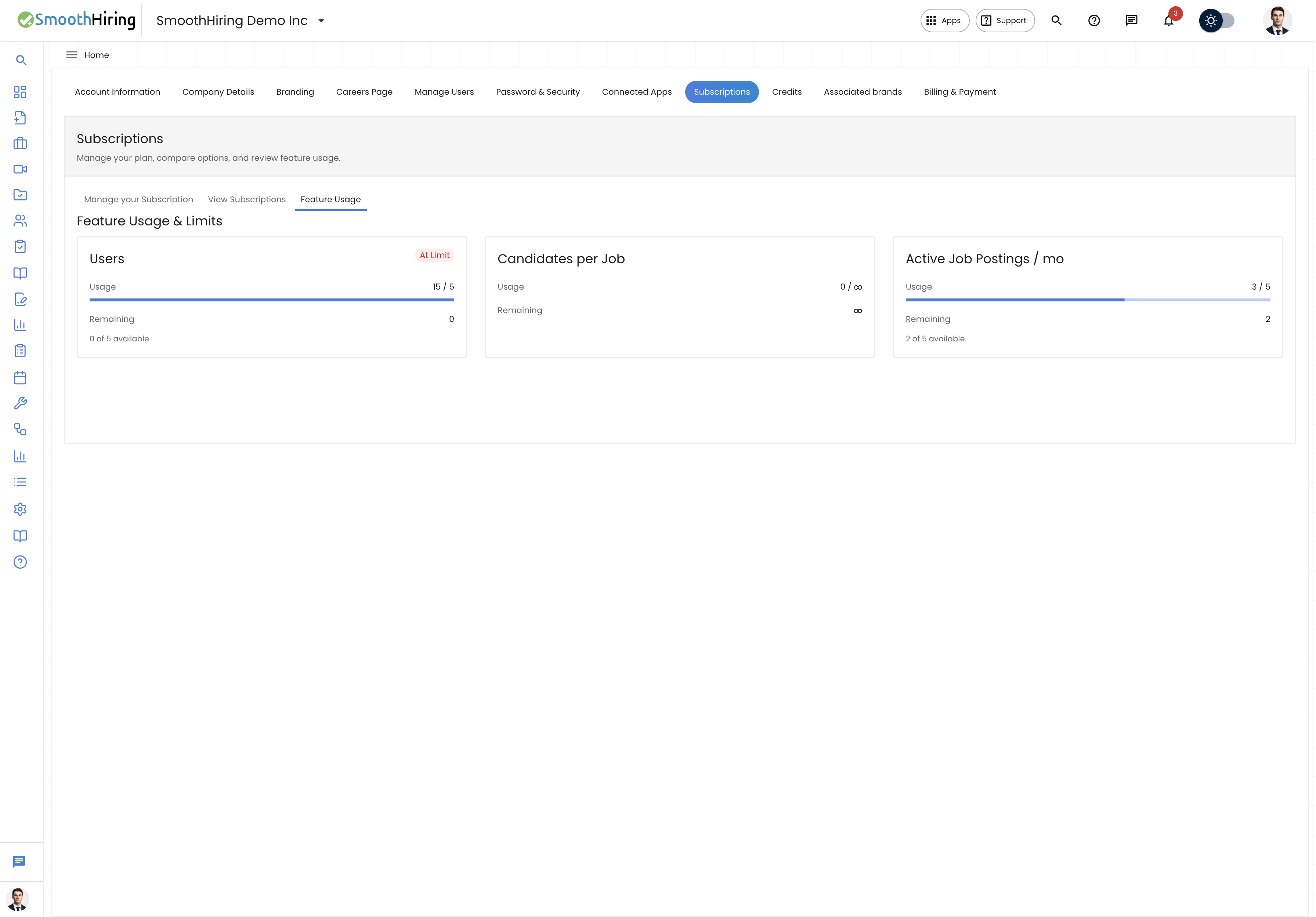
- Click the gear icon in the left sidebar to open Settings.
- Under Account Settings, select Credits.
- You will land on the Balance & Buy tab by default.
The Credits page has two tabs:
| Tab | Purpose |
|---|---|
| Balance & Buy | View your current balance and purchase new credit packs |
| Usage & Analytics | Review recent credit consumption, monthly usage, and forecasting |
Understanding Your Balance
At the top of the Balance & Buy tab, the Your balance section displays one card per credit type your account supports. Each card shows:
- Credit type label — for example, "Assessment Credits"
- Balance number — the total credits currently available, displayed as a large number
- "credits available" — confirmation label beneath the balance
If you have never purchased credits, you will see a placeholder message: "No credits yet — Purchase a pack below to get started."
Tip: Credits are shared across your entire employer account. All team members with assessment permissions draw from the same pool.
Buying Credits
Below the balance section, the Buy credits panel lets you purchase additional credits.
Key Rules
- Credits must be purchased in bundles of 5 (minimum 5, maximum 1,000 per transaction).
- The quantity field automatically rounds up to the nearest multiple of 5.
- Credits are added to your account immediately after successful payment.
Step-by-Step Purchase
- In the Buy credits section, locate the credit type you want to purchase.
- Each credit type card shows:
- Label — the credit type name (e.g., "Assessment Credits")
- Price per credit — displayed in USD (e.g., "$2.00 per credit")
- Total price — calculated dynamically based on your quantity selection
- Enter the desired Quantity in the number field (minimum 5, increments of 5).
- Click Buy now.
- You will be redirected to a Stripe checkout page to complete payment.
- After successful payment, you are redirected back to SmoothHiring with a success notification: "Payment successful. Your credits have been added."
If you cancel the payment on the Stripe checkout page, you will return to the Credits page with an informational banner: "Payment was cancelled."
Payment Errors
If checkout fails, an error alert appears in the Buy credits section with details about what went wrong. Common issues include expired payment methods or insufficient funds.
Usage & Analytics
Switch to the Usage & Analytics tab for a detailed view of how credits are being consumed.
Analytics Summary Cards
Three summary cards appear at the top:
| Card | Description |
|---|---|
| Current balance | Total credits remaining across all credit types |
| Used this month | Number of credits consumed in the current calendar month |
| Forecast | Estimated days your balance will last at the current usage rate. Shows "~N days" when usage data exists, "30+ days" when you have credits but no recent usage, or "—" when your balance is zero |
Recent Credit Usage Table
Below the analytics cards, a table lists every credit consumption event with the following columns:
| Column | Description |
|---|---|
| Date | When the credit was consumed (date and time) |
| Job | The job posting associated with the assessment (links to the applicant profile when available) |
| Candidate | The candidate name or email address |
| Assessment | The assessment title that consumed the credit |
| Link | A dropdown with quick links to View applicant and/or the Assessment detail |
If no credits have been used yet, you will see: "No usage recorded yet. Credits are consumed when candidates complete pre-employment assessments."
When Are Credits Consumed?
Credits are deducted when an assessment invitation is sent to a candidate. The specific trigger depends on your configuration:
- Manual send — when you click Send Assessment from an applicant profile or the Assessments table
- Auto send — when a candidate applies to a job with Auto Send Assessments enabled
- Pipeline action — when a candidate moves into a hiring pipeline stage that has an assessment action configured
- Email test — sending a test assessment email also consumes a credit
Important: If your credit balance reaches zero, assessment sending is disabled. You will see a "Limit Reached" dialog prompting you to purchase more credits. Auto-send and pipeline-triggered assessments will also stop until credits are replenished.
Access Requirements
The Credits page is only available to accounts with the pre-employment assessment feature enabled. If your subscription does not include assessments, you will see an error message: "You don't have access to product credits, or there was an error loading."
Only users with Admin or Account Owner access levels can purchase credits. All users with assessment permissions can view the balance and usage analytics.