

Using Smart Resume Search
Smart Resume Search lets you search through the full text of every applicant's resume for a specific job. Whether you need to find candidates with a particular skill, certification, technology, or prior employer, the search scans parsed resume content and returns relevant matches with highlighted snippets.
Accessing Resume Search
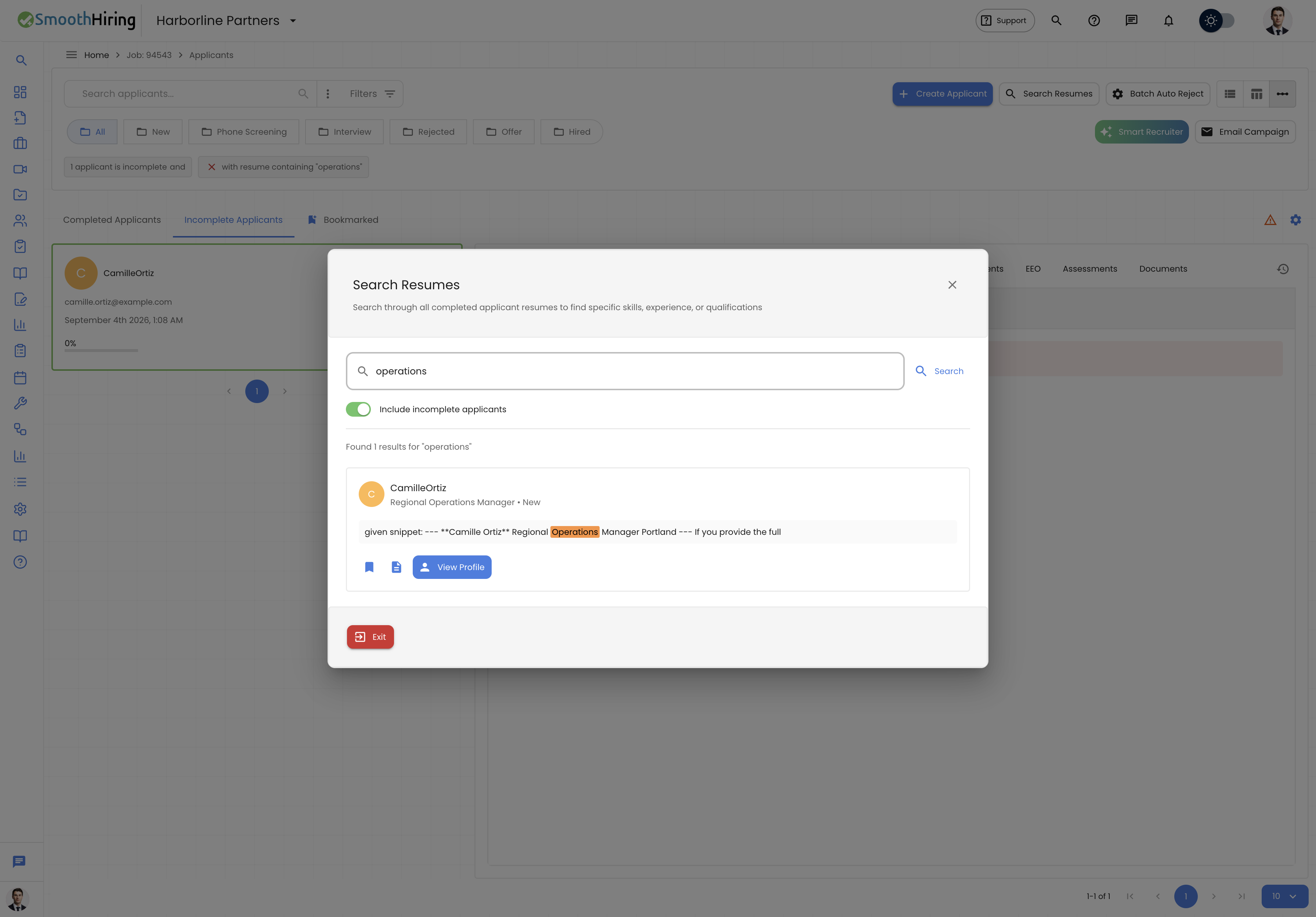
- Navigate to any job's Applicants list.
- Click the Search Resumes button in the toolbar (top-right area).
- The Resume Search dialog opens as a full-width overlay.
How to Search
Basic Search
- Type your search query in the text field (minimum 3 characters required).
- Press Enter or click the Search button.
- Results appear below showing matching candidates.
Search Query Tips
| Query Type | Example | What It Finds |
|---|---|---|
| Single skill | Python |
Any resume mentioning Python |
| Technology stack | React Node.js |
Resumes containing React and/or Node.js |
| Certification | PMP certified |
Project Management Professional certification |
| Company name | Google |
Candidates who worked at Google |
| Education | MBA Stanford |
MBA graduates from Stanford |
| Years | 5 years management |
References to 5 years of management experience |
Note: The search performs full-text matching on the parsed resume content. It is not case-sensitive and matches partial words.
Include Incomplete Applicants
Toggle the Include incomplete applicants switch to also search through resumes from candidates who started but haven't completed their full application. This is useful for:
- Finding candidates who may have dropped off during the process
- Sourcing from a wider pool when positions are hard to fill
Understanding Search Results
Each result card shows:
Candidate Header
- Avatar – Color-coded initials
- Full Name – Candidate's name (clickable to view profile)
- Current Job Title – Their most recent position
- Stage – Current pipeline stage (e.g., "New", "Interview", "Rejected")
Matched Snippet
- A text excerpt from the resume showing where the match was found
- The matched text is highlighted for quick identification
- Shows surrounding context to help you evaluate relevance
Actions
For each result, you can:
| Action | Icon | Description |
|---|---|---|
| Bookmark | Ribbon icon | Add/remove from bookmarks directly from search results |
| View Resume | Document icon | Opens the full resume PDF in a new browser tab |
| View Profile | Person icon | Navigates to the candidate's full profile page |
Search Behavior
How Results Are Ranked
Results are returned in most recent first order (by application date), showing the 10 most relevant matches. The search uses the searchResumeText parameter which performs full-text matching against stored resume content.
Minimum Character Requirement
You must enter at least 3 characters to search. This prevents overly broad queries that would return too many results. If you try to search with fewer than 3 characters, a warning message appears.
Result Limit
The search returns up to 10 results per query. If you need to find more candidates, try refining your search terms to be more specific.
Search vs. Filters
Understanding when to use Resume Search vs. Advanced Filters:
| Feature | Resume Search | Advanced Filters |
|---|---|---|
| Searches | Full resume text | Structured fields (skills, title, stage, etc.) |
| Best for | Finding specific keywords, phrases, or experience | Filtering by score ranges, stages, dates |
| Returns | Highlighted text snippets | Full applicant list with all columns |
| Scope | All resumes for the job | Active applicant list |
| Interaction | Dialog overlay | Inline filter panel |
Tip: Use Resume Search to discover candidates with specific qualifications, then use Advanced Filters to narrow down from a structured perspective.
Practical Use Cases
Finding Candidates for a New Requirement
Your hiring manager just added "Kubernetes experience" as a requirement:
- Open Resume Search
- Search for
Kubernetes - Bookmark candidates whose resume mentions Kubernetes
- Use the bookmark filter to pull them up in the main list
Checking for Specific Certifications
Need a CPA for a finance role:
- Search for
CPAorCertified Public Accountant - Review snippets to confirm the certification (vs. just a mention)
- View profiles of confirmed CPAs to prioritize them
Evaluating Industry Experience
Looking for candidates with healthcare background:
- Search for
hospitalorhealthcareormedical - Toggle "Include incomplete applicants" to widen the search
- Reach out to promising matches who may not have completed their application
Identifying Internal Transfers
If a former applicant for another role might fit the current opening:
- Search for a specific skill or technology
- Review their current stage (they may have been rejected from a different role but be perfect for this one)
Bookmarking from Search
You can bookmark candidates directly from search results without navigating away:
- Click the ribbon icon on any result card
- A filled ribbon indicates the candidate is bookmarked
- Click again to remove the bookmark
- Bookmarks persist and are visible in the main applicant list
This is especially useful for quickly marking several candidates during a search session, then returning to the main list to process them together.
Limitations
- Search only covers resumes for the current job (not across all jobs)
- Maximum of 10 results per search query
- Minimum 3 characters required for a search
- Resume must be successfully parsed; corrupted or image-only PDFs may not be searchable
- Search matches literal text, not semantic meaning (searching "coding" won't find "programming" unless both terms appear)
Related Pages
- Managing Candidates – Navigating and filtering the applicant list
- Fit Score & Ranking – Understanding how resume scores are calculated
- Passive Candidates & Sourcing – Using search to identify sourcing targets
- Batch Auto Reject – Combining search insights with bulk actions