

Job Advertising Budgets
& BundlesUnderstanding and managing your job advertising budget in SmoothHiring helps you maximize hiring results while controlling costs. This guide covers the bundle pricing system, credit inventory, custom budgets, payment processing, and strategies for getting the most value from your advertising spend.
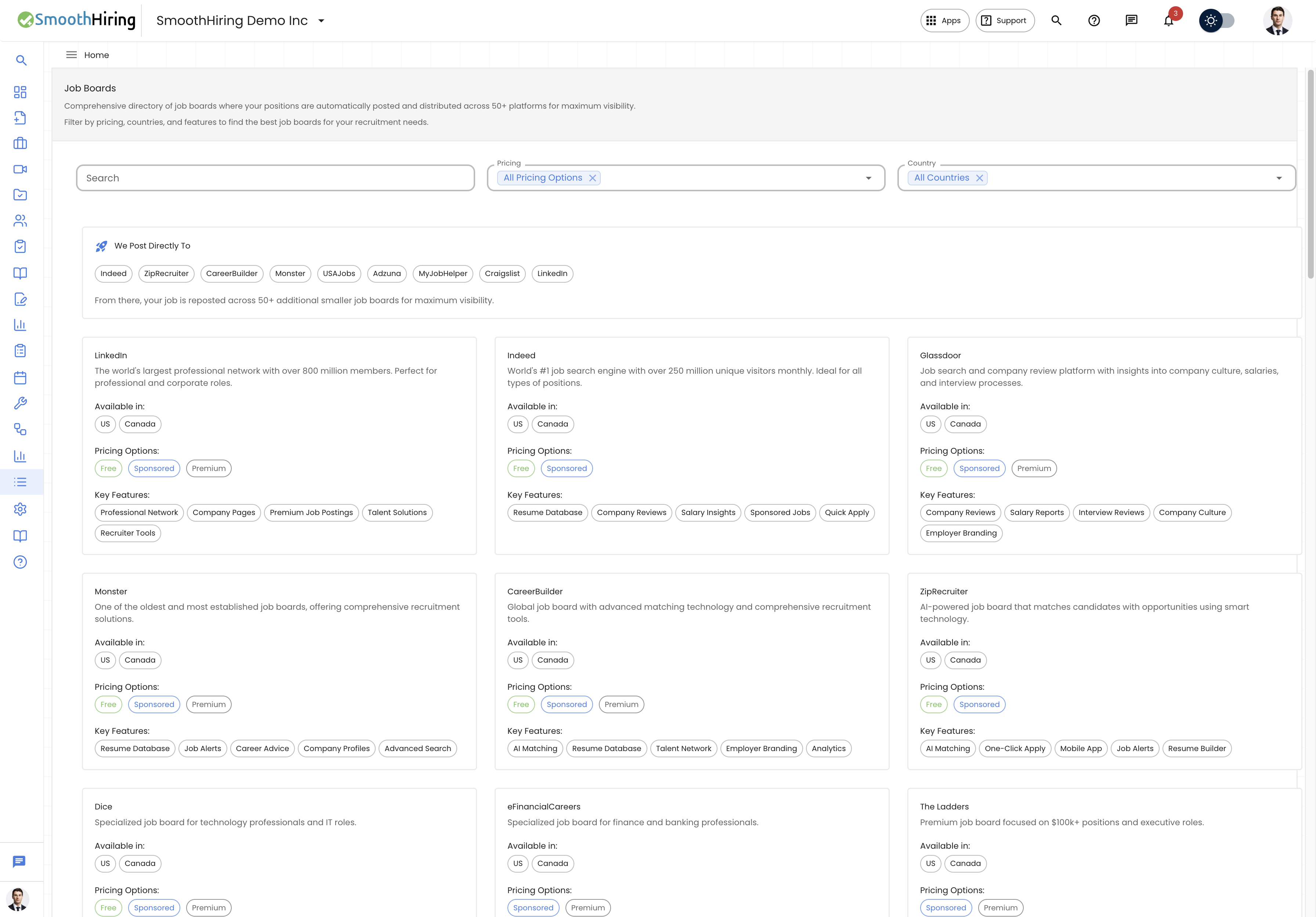
How Job Advertising Works in SmoothHiring
SmoothHiring uses a bundle-based pricing model for job advertising. Rather than charging per job board or per click, bundles package together distribution, sponsorship, and features into easy-to-compare tiers. This simplifies budgeting and ensures consistent distribution across your postings.
Key Concepts
| Concept | Description |
|---|---|
| Base Bundle | Required for every posting. Determines your core job board distribution and sponsorship level. One base bundle per job. |
| Add-On Bundle | Optional enhancements for specific platforms or features. Multiple add-ons can be selected per job. |
| Inventory Credits | Pre-purchased posting credits that are automatically applied during checkout. |
| Custom Job Budget | An optional additional advertising spend amount for enhanced visibility (if enabled for your account). |
| Job Validity | All jobs are active for 30 days from the posting date. |
Selecting Bundles During Job Creation
The Bundles step appears during the job creation process, after you've completed your job details, requirements, compensation, and description.
Base Bundles
Base bundles are displayed as vertical cards with the following information:
- Bundle Name — The name of the package tier
- Price — Cost per job posting (or credit usage if applicable)
- Description — Summary of what's included
- Features — A detailed checklist showing:
- ✓ Included features (green checkmarks)
- ✗ Excluded features (red X marks)
- Recommended Badge — Bundles with a ⭐ star badge are recommended for optimal results
To select a base bundle, click on the card or the Add to cart button. Click again to deselect. You can only select one base bundle at a time.
Add-On Bundles
Add-on bundles are displayed as horizontal rows below the base bundles. Each row shows:
- Bundle Name and Price
- Description of the add-on's purpose
- Included Features list
- Checkbox for selection
- Add to cart button
Add-ons require a base bundle to be selected first (the checkbox is disabled until you choose a base bundle). You can select multiple add-ons.
Important: If you proceed without selecting any add-on bundles, a confirmation dialog appears: "No job posting package selected. If you're not looking to post or promote a job, click 'Continue'. Otherwise, please click 'back' to select a package."
Pricing and Costs
Per-Job Pricing
Each bundle has a per-job price displayed on the card. The total cost is calculated by summing:
- Base bundle price
- All selected add-on bundle prices
- Custom job budget amount (if applicable)
The Selected Packages summary panel (displayed on the right side) shows a real-time breakdown of:
- Each selected bundle with its price
- Bundle subtotal
- Custom budget amount (if any)
- Grand total
Inventory Credits
If your account has pre-purchased credits, they are applied automatically:
- When a bundle matching your credit inventory is selected, the pricing displays "1 of X credits" instead of a dollar amount
- Credits are deducted from your inventory upon checkout
- If you have multiple credits, each posting uses one credit
- The total cost only includes bundles that are not covered by credits
Subscription Pricing
Accounts on subscription plans see a different pricing interface (Bundles Subscription) with subscription-specific options and pricing tiers. Subscription pricing groups have their own bundle configurations tailored to the plan level.
Custom Job Budget
For accounts with the custom job budget feature enabled, you can set a per-job advertising budget that goes beyond the standard bundle pricing:
How It Works
- After selecting your bundles, a Custom Job Budget section appears below the add-ons
- Enter your desired budget amount in dollars
- The amount is added to your bundle total
- This budget provides additional sponsored visibility on job boards
When to Use Custom Budgets
- High-priority hires where you want maximum visibility
- Competitive markets where standard sponsorship may not be enough
- Executive or specialized searches that benefit from additional advertising reach
- Volume hiring campaigns where you need to generate a high volume of applications quickly
Note: Free trial accounts typically do not see the custom job budget section.
Payment Processing
After selecting your bundles and any custom budget, the Payment step handles the financial transaction:
Payment Methods
- Saved Payment Methods — Use a credit card or payment method already on file
- New Payment Method — Enter new payment card details during checkout
- Credits — Inventory credits are applied automatically before any card charge
Checkout Flow
- Review your selected bundles and total cost in the summary
- The system adds your selections to a cart and generates an order
- If applicable, discounts (percentage or fixed amount) are applied
- Choose or enter your payment method
- Complete the purchase
- Your job goes live and distribution begins immediately
Payment History
View all past transactions in Settings > Billing & Payment > Payment History. Each entry shows:
| Field | Description |
|---|---|
| Transaction ID | Unique identifier for the payment |
| Amount | Total charged |
| Currency | Payment currency |
| Status | Successful, Pending, or Failed |
| Date | When the transaction occurred |
| Invoice | Downloadable invoice link (if available) |
| Refunds | Any refund details associated with the transaction |
Budgeting Strategies
For Small Businesses (1–5 hires per month)
- Select the recommended base bundle for optimal coverage
- Add LinkedIn only for professional/management roles
- Skip custom budget — standard bundles provide sufficient reach
- Consider purchasing credit packs if you hire consistently
For Mid-Size Companies (5–20 hires per month)
- Use a mid-tier base bundle for consistent quality distribution
- Add LinkedIn and other relevant add-ons for hard-to-fill roles
- Purchase credit packs to reduce per-job costs
- Set custom budgets selectively for priority positions
For Enterprise (20+ hires per month)
- Evaluate subscription plans for the best per-job pricing
- Use credits extensively to manage costs
- Set custom budgets for executive and specialized searches
- Leverage Auto Job Post to maintain continuous visibility
- Track spending through payment history for budget management
Managing Costs with Auto Job Post
When using Auto Job Post to automatically repost expiring jobs, budget considerations include:
- Bundle selection — Choose which bundles to include in automatic reposts via Advanced Settings
- Include/exclude sponsorship — Toggle whether sponsored bundles are included in automatic reposts
- Payment method — A saved payment method must be on file for automatic billing
- Cost preview — The repost preview in Advanced Settings shows:
- Which bundles will be charged
- The total estimated cost
- Whether credits will be applied
- Any card charges after credits
This helps you forecast recurring costs and avoid unexpected charges.
Discounts and Promotions
SmoothHiring may offer promotional discounts during checkout:
- Coupon codes — Enter a coupon code during the payment step for a discount
- Percentage discounts — A percentage off your total order
- Fixed amount discounts — A dollar amount off your total order
- Bundle-specific promotions — Some bundles may be temporarily discounted or offered at special rates
Discounts are displayed in your order summary before completing the purchase.
Frequently Asked Questions
Q: How long does a job posting last? A: All job postings are active for 30 days from the posting date. After that, the job expires unless Auto Job Post is enabled.
Q: Can I change my bundle after posting? A: The selected bundle applies for the duration of the 30-day posting period. To change bundles, you would need to repost the job with a different selection.
Q: What happens if my payment fails? A: If payment fails, your job will not be posted. You can retry with a different payment method from the payment step.
Q: Do credits expire? A: Credit expiration policies depend on your account terms. Check with your account manager or SmoothHiring support.
Q: Can I get a refund? A: Refund eligibility depends on your service agreement. Refund details for any transaction appear in your Payment History.
Q: Is there a free option? A: SmoothHiring offers free trial packages for new accounts, and some base bundles may include free job board distribution. Check your available bundles during the posting process.