

How to Set Up Hiring Automations
Automations in SmoothHiring allow you to streamline your hiring process by defining actions that trigger automatically when candidates move through your pipeline stages. From sending emails and assessments to auto-rejecting unqualified candidates, automations reduce manual work and ensure a consistent candidate experience.
Overview
SmoothHiring's automation system has two primary components:
- Custom Hiring Pipeline — Define stages in your hiring process and attach automated actions that trigger when candidates enter each stage.
- Batch Auto-Reject — Set criteria to automatically reject candidates who don't meet minimum requirements.
Together, these tools let you build a fully automated hiring workflow where candidates receive the right communication at the right time, assessments are sent automatically, and scorecards are assigned to interviewers — all without manual intervention.
Navigating to Automations
Custom Hiring Pipeline
- Click Productivity in the left sidebar.
- Expand Automation.
- Click Custom Hiring Pipeline.
This takes you to /employer/settings/tools/templates/hiring-pipeline.
Batch Auto-Reject
- Click Productivity in the left sidebar.
- Expand Automation.
- Click Batch Auto Reject.
This takes you to /employer/settings/automation/auto-reject/criteria.
Custom Hiring Pipeline
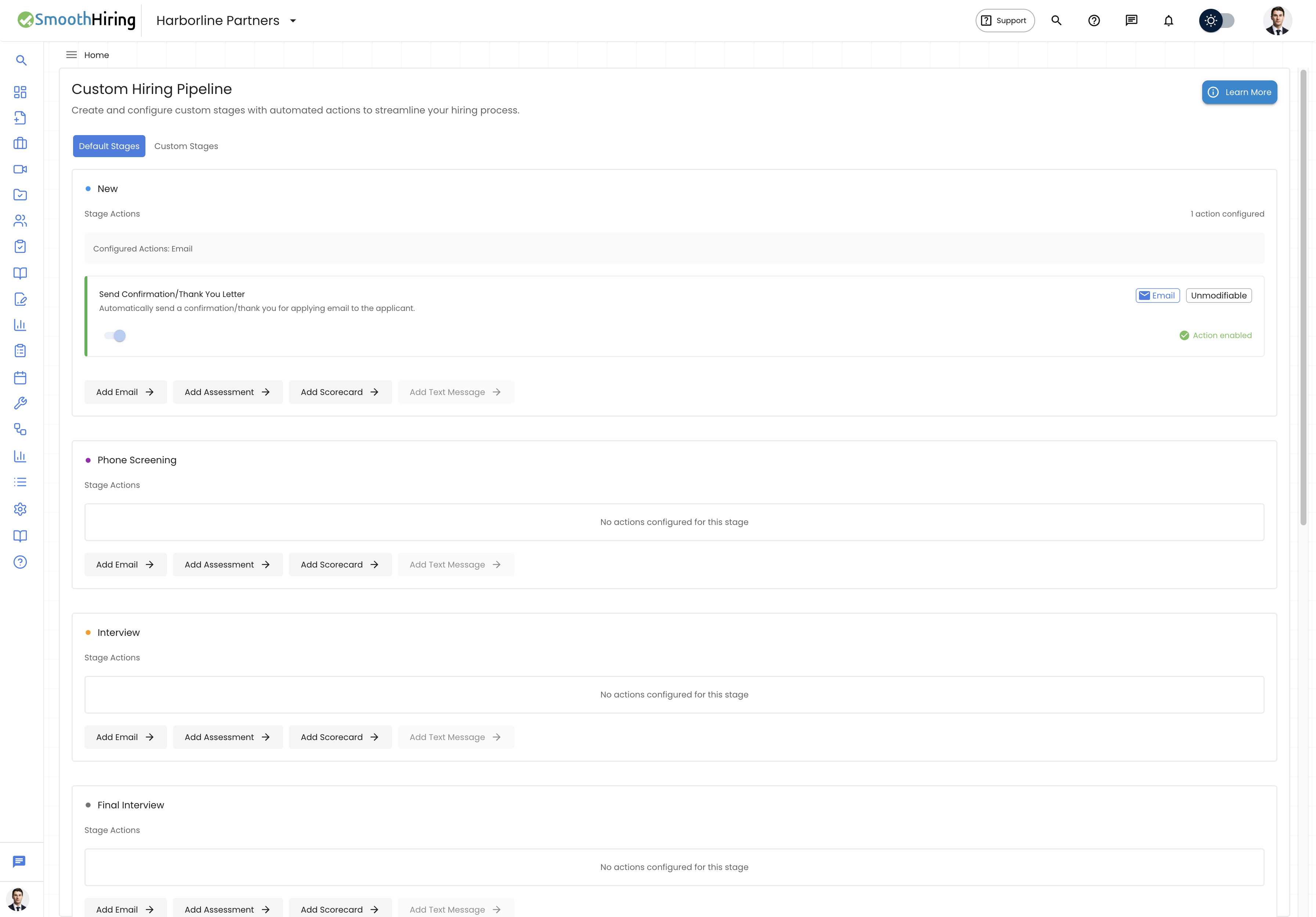
The Custom Hiring Pipeline lets you define the stages candidates move through and the automated actions that happen at each stage.
Pipeline Structure
Your pipeline has two types of stages:
| Stage Type | Description | Editable? |
|---|---|---|
| Default Stages | Pre-built stages that form the core hiring workflow | Actions can be added; stages cannot be renamed or deleted |
| Custom Stages | Stages you create for unique workflow needs | Fully editable |
Default Stages
SmoothHiring provides the following default stages:
| Stage | Icon | Purpose |
|---|---|---|
| New | Person+ | New applicants who just applied |
| Phone Screening | Phone | Candidates being phone screened |
| Interview | Assignment | Candidates in the interview process |
| Final Interview | Person Assignment | Candidates in final interview rounds |
| Job Offered | Briefcase | Candidates who received an offer |
| Rejected | Cancel | Candidates who were rejected |
| Hired | Checkmark | Successfully hired candidates |
| Auto Rejected | Block | Candidates rejected by automation |
Stage Actions
Each stage can have multiple automated actions. When a candidate enters a stage, all enabled actions on that stage execute automatically.
Action Types
| Action Type | Description | Multiple Per Stage? |
|---|---|---|
| Sends an email to the candidate | Yes | |
| Assessment | Sends an assessment invitation to the candidate | No (one per stage) |
| Scorecard | Creates a scorecard submission for interviewers | No (one per stage) |
| Text Message | Sends an SMS to the candidate | Coming soon |
Adding an Email Action
- On any stage, click Add Email.
- In the Email Action Dialog, configure:
| Field | Description |
|---|---|
| Action Name | A descriptive name (e.g., "Welcome to Phone Screening") |
| Description | What this action does |
| Subject | The email subject line |
| CC | Carbon copy recipients |
| BCC | Blind carbon copy recipients |
| To | Locked to the candidate's email |
| Email Body | Rich text content with merge field support |
Insert merge fields:
- [CANDIDATE_NAME] — The candidate's full name
- [COMPANY_NAME] — Your company name
- [JOB_NAME] — The job title
Click Save.
Note: You can add multiple email actions to a single stage. Each email is sent when a candidate enters the stage.
Adding an Assessment Action
- On any stage, click Add Assessment.
- In the Assessment Action Dialog, configure:
| Field | Description |
|---|---|
| Action Name | A descriptive name |
| Description | What this action does |
| Assessment(s) | Select one or more assessments from your library |
| Email Subject | The subject of the assessment invitation email |
| Email Body | The body of the assessment invitation email |
- Click Save.
Note: Only one assessment action is allowed per stage. The button is disabled with a tooltip message if an assessment action already exists.
Adding a Scorecard Action
- On any stage, click Add Scorecard.
- In the Scorecard Action Dialog, configure:
| Field | Description |
|---|---|
| Action Name | A descriptive name (default: "Interview Scorecard") |
| Description | What this action does (default: "Complete interview scorecard evaluation") |
| Scorecard Template | Select from your active scorecard templates |
| Deadline (hours) | Time interviewers have to complete the scorecard (1-720 hours, default: 48) |
| Auto-create Submissions | When on, submissions are automatically created for preselected interviewers |
| Preselected Interviewers | Team members who are auto-assigned scorecards |
| Notification Emails | Email addresses notified when scorecards are assigned or completed |
- Click Save Action.
Tip: The dialog shows details of the selected template, including the number of categories and questions.
Managing Stage Actions
Each configured action on a stage displays:
- Name and description — What the action does
- Type badge — Color-coded label (Email, Assessment, Scorecard)
- Enable/Disable toggle — Turn actions on or off without deleting them
- Preview button — View the full action configuration
- Edit button — Modify the action settings
- Delete button — Remove the action permanently
Actions with a green left border are enabled; gray indicates disabled.
Some default stage actions are marked as Unmodifiable — these are system actions that cannot be edited or disabled.
Custom Stages
Create custom stages to add unique steps to your pipeline:
- Switch to the Custom Stages tab.
- Click Add Stage.
- Configure the stage name and description.
- Add actions (Email, Assessment, Scorecard) as needed.
Custom stages appear between the default stages and can be reordered.
Batch Auto-Reject
The Batch Auto-Reject feature lets you define criteria to automatically reject candidates who don't meet minimum job requirements.
Navigating to Batch Auto-Reject
- Click Productivity → Automation → Batch Auto Reject.
- This takes you to
/employer/settings/automation/auto-reject/criteria.
Creating Auto-Reject Criteria
- Click the + button to add new criteria.
- Configure:
| Field | Description | Required |
|---|---|---|
| Criteria Name | A descriptive name (e.g., "Minimum Resume Score 60%") | Yes |
| Criteria Description | What this criteria evaluates | Yes |
| Resume Score Threshold | Candidates below this score (0-100%) are rejected | Yes |
| Reject a Job Fit | Select fit categories to reject (e.g., Poor Fit, Below Average) | No |
| Set as Preferred | Use these criteria as the default | No |
- Use the slider or input field to set the resume score threshold.
- Check the fit categories you want to reject.
- Click Add to save.
How Batch Auto-Reject Works
Important: Candidates are only rejected when you manually initiate the batch reject action from the applicant list. This is not a fully automatic process — it requires human confirmation.
- Define your rejection criteria in the settings.
- When viewing applicants for a job, initiate the batch reject action.
- The system identifies candidates who match the rejection criteria.
- Matched candidates are moved to the Auto Rejected stage.
- Rejection emails (using your preferred Rejection Letter template) are sent.
Editing Auto-Reject Criteria
Click on any criteria card to open the edit dialog. Modify the threshold, fit categories, or description and save.
Deleting Auto-Reject Criteria
Click the Delete (trash) icon on any criteria card to permanently remove it.
Best Practices
- Start simple. Configure email actions on the most impactful stages first: New (confirmation), Interview (invite), Rejected (rejection letter).
- Test your pipeline. Create a test candidate and move them through each stage to verify emails are sent correctly.
- Use the enable/disable toggle. Don't delete actions you might need later — disable them temporarily instead.
- Set appropriate deadlines. For scorecard actions, give interviewers enough time (48-72 hours) but not so much that evaluations are forgotten.
- Review auto-reject criteria carefully. Set thresholds that filter out genuinely unqualified candidates without accidentally rejecting strong applicants.
- Leverage multiple email actions. On the Interview stage, you might want separate emails: one to the candidate with interview details and another to the hiring manager with the candidate's resume summary.