

Using Your Email Inbox in SmoothHiring
The Email Inbox in SmoothHiring centralizes all candidate email communication into one searchable, organized view. Instead of switching between your email client and the ATS, you can read, search, and track every email sent to and from candidates directly within the platform.
Overview
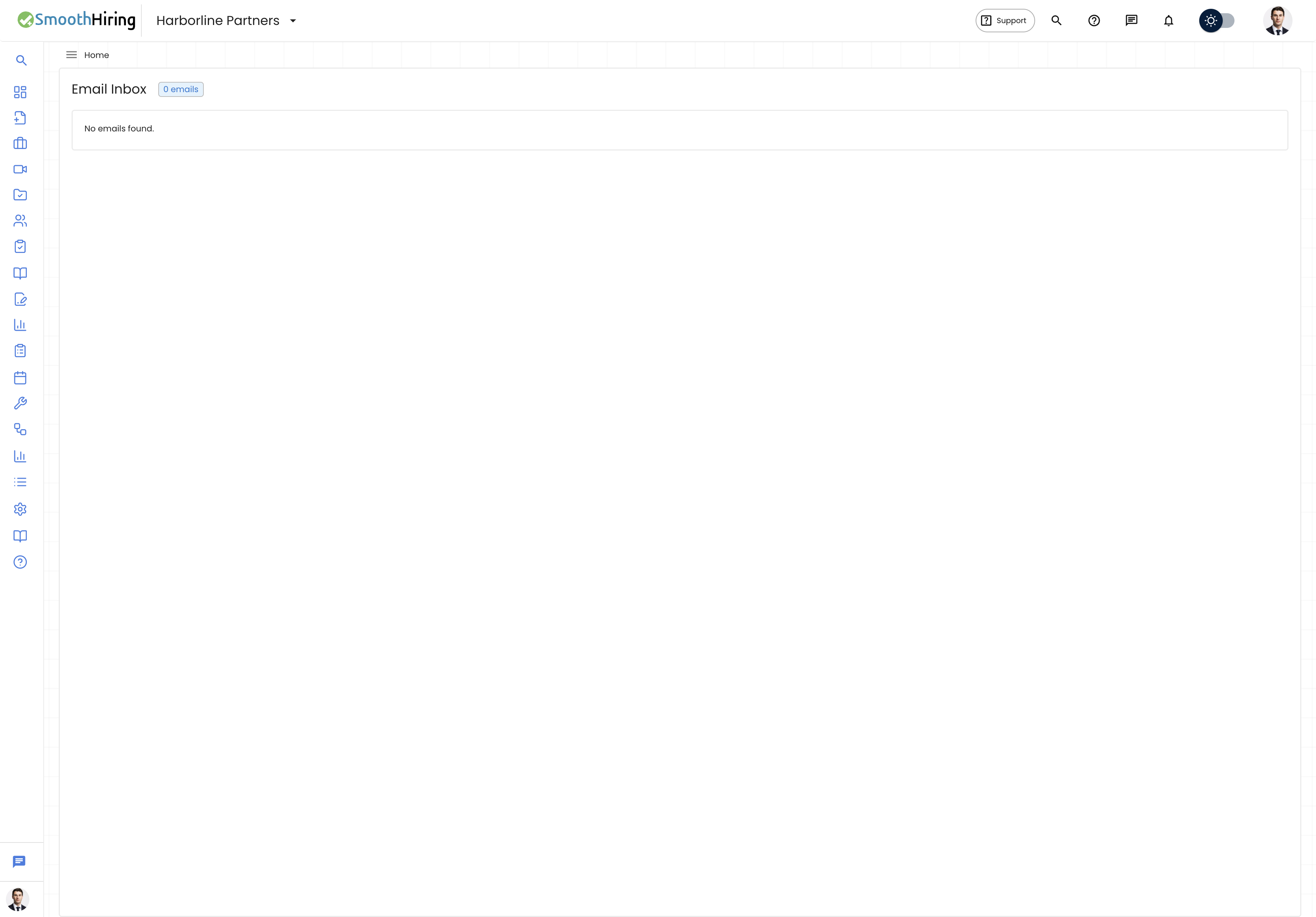
The Email Inbox provides a unified view of all email correspondence related to your hiring activities. Each email is automatically linked to the candidate and job it pertains to, giving you full context without leaving SmoothHiring.
Key capabilities include:
- Centralized email view — All hiring-related emails in one place
- Candidate and job linking — Each email is associated with a specific candidate and job posting
- Search — Find emails by keyword, candidate name, or subject
- Read/unread tracking — See which emails have been viewed
- Favorites — Star important emails for quick access
- Pagination — Navigate through large volumes of email efficiently
Navigating to the Email Inbox
- Click Productivity in the left sidebar.
- Expand Communication.
- Click Email Inbox.
This takes you to /employer/settings/tools/email-inbox.
Understanding the Inbox Layout
The Email Inbox uses a split-panel layout:
| Panel | Description |
|---|---|
| Left panel — Message list | Shows a scrollable list of email messages with sender name, subject, and a preview snippet |
| Right panel — Message detail | Displays the full content of the selected email |
Message List
Each item in the message list shows:
- Sender name — The candidate's full name (first and last), or the sender email address if no candidate profile exists
- Subject line — The email subject
- Preview text — The first ~60 characters of the email body, stripped of HTML formatting
- Timestamp — When the email was received
Click any message to view its full content in the right panel.
Message Detail
The detail panel displays:
- Sender name and email — The candidate's full name and email address
- Timestamp — Formatted date and time (e.g., "June 15, 2025 at 2:30 PM")
- Associated job — The job posting the candidate applied to
- Full email body — The complete HTML-rendered email content
Searching Emails
Use the search bar at the top of the message list to find emails:
- Type a keyword, candidate name, or subject into the Search emails field.
- Results update automatically as you type.
- The search queries across email subjects, sender information, and body content.
To clear the search, delete the text from the search field.
Pagination and Page Size
For inboxes with many emails, use the pagination controls at the bottom:
- Show dropdown — Choose how many emails to display per page: 10, 20, 50, or 100
- Page navigation — Use the numbered pagination bar to jump between pages
- First/Last buttons — Jump directly to the first or last page
- Total count — A chip at the top shows the total number of emails (e.g., "342 emails")
Filtering Emails
The inbox supports several filter parameters:
| Filter | Description |
|---|---|
| Job | Filter emails for a specific job posting |
| Candidate | Filter emails for a specific candidate |
| Read/Unread | Show only read or unread messages |
| Favorites | Show only starred/favorite messages |
| Date range | Filter emails within a specific date window |
Note: Some advanced filters may be configured through the backend filter system. The core search functionality is available directly from the inbox interface.
Email Context and Candidate Linking
Every email in the inbox is automatically linked to:
- The candidate's profile — Including their first name, last name, and email address
- The job posting — The specific job (by name) that the candidate applied for
This linking means you can see exactly which job and candidate each email relates to without any manual tagging or sorting.
Best Practices
- Check the inbox regularly. Candidate emails may contain questions, availability updates, or document submissions that need timely responses.
- Use search to find specific conversations. Rather than scrolling through pages, use keywords from the candidate's name or email subject.
- Leverage job context. When reviewing an email, note the associated job name to ensure your response addresses the correct position.
- Adjust page size for efficiency. If you process many emails, increase the page size to 50 or 100 to reduce page switching.