

What Are Candidate Questionnaires?
Questionnaires in Smooth
Hiring allow you to create custom sets of screening questions that candidates must answer when applying for a job. These questions help you gather critical information upfront, filter candidates based on specific requirements, and even automatically reject applicants who don't meet minimum criteria.
Overview
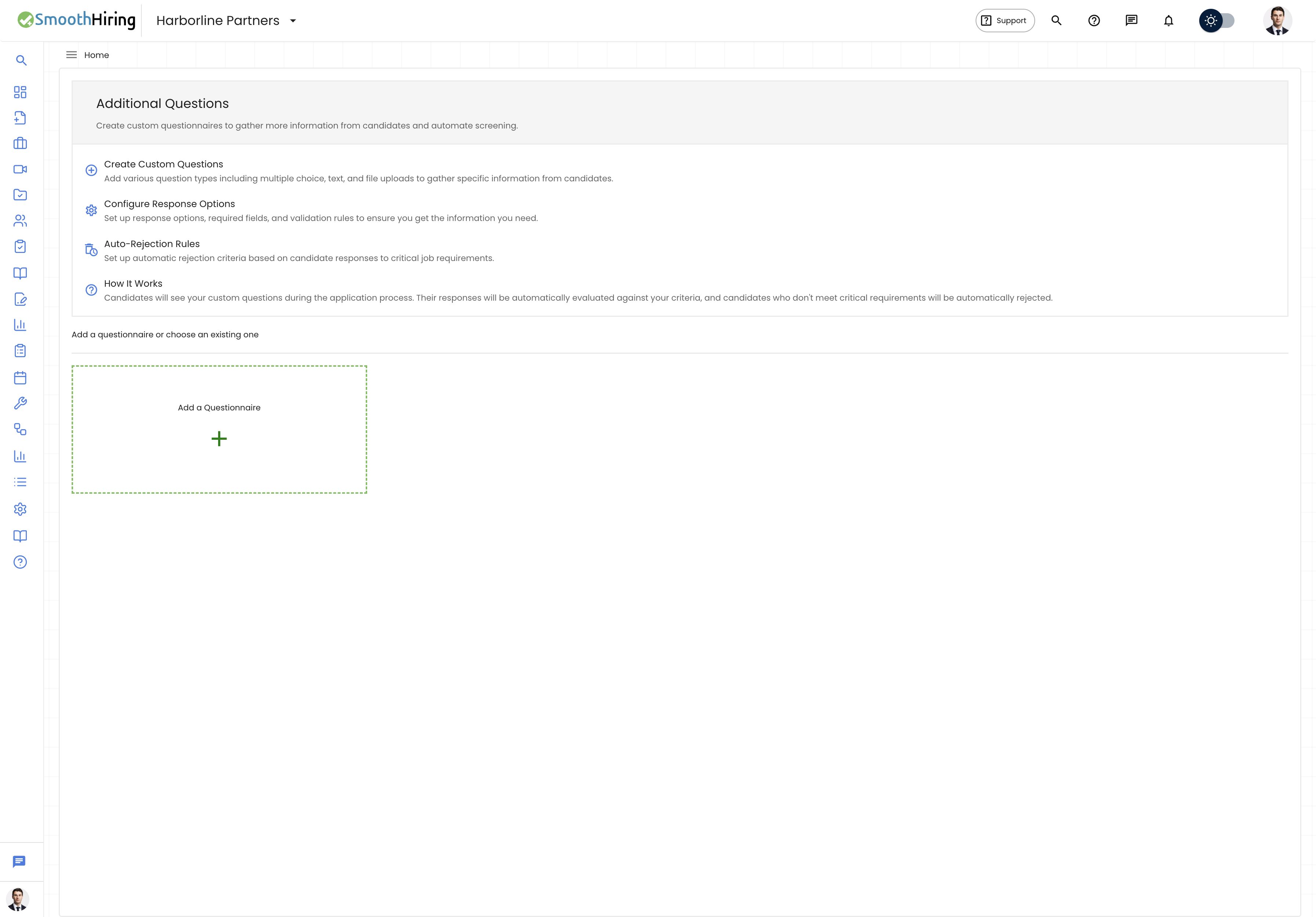
Questionnaires (also called Form Templates) are reusable sets of custom questions that you attach to job postings. When a candidate applies for a job with an attached questionnaire, they must answer the questions as part of the application process.
Key capabilities include:
- 10 question types for different data collection needs
- Auto-reject options on individual answer choices
- Drag-and-drop reordering of questions
- Suggested question library for quick setup
- Reusable templates that can be attached to multiple jobs
- Preferred template designation for default selection
- Preview mode to see how candidates will experience the questionnaire
- OCR support for file upload questions
Navigating to Questionnaires
- Click Productivity in the left sidebar.
- Expand Automation.
- Click Questionnaires.
This takes you to /employer/settings/tools/templates/form-templates.
Alternatively: Settings → Tools & Automation → Questionnaires.
Understanding Question Types
SmoothHiring supports 10 question types:
| Type | Label | Description | Supports Options | Auto-Reject |
|---|---|---|---|---|
textfield |
Short Answer | Single-line text input | No | No |
textarea |
Paragraph | Multi-line text input | No | No |
radio |
Choose | Single selection from options | Yes | Yes |
checkbox |
Select all that apply | Multiple selection from options | Yes | Yes |
yesNo |
Yes/No | Binary choice (Yes or No) | Built-in | Yes |
dropdown |
Select from a list/dropdown | Dropdown selection | Yes | Yes |
date |
Date | Date picker | No | No |
number |
Number | Numeric input | No | No |
noOldDate |
Date (No old dates) | Date picker that only allows future dates | No | No |
fileUpload |
File Upload | File attachment upload with optional OCR | No | No |
Creating a New Questionnaire
Method 1: From Settings
- Navigate to Questionnaires (
/employer/settings/tools/templates/form-templates). - Click the Add a Questionnaire card (dashed green border with + icon), or click the Add a Questionnaire button.
- You are taken to the questionnaire editor at
/employer/settings/tools/templates/form-templates/new.
Method 2: From Job Creation
When creating or editing a job, you can access questionnaires from the Additional Questions step. You can create a new questionnaire or select an existing one.
The Questionnaire Editor
The editor page has the following sections:
Header Area
| Element | Description |
|---|---|
| Back button | Returns to the questionnaire list |
| Questionnaire Title | The name of your questionnaire (required) |
| Preferred Template toggle | Sets this as the default questionnaire |
| Suggested button | Opens the suggested questions library |
| Add Question button | Opens the dialog to add a new custom question |
| Jump to question dropdown | Quick navigation for long questionnaires |
| Create/Update Questionnaire button | Saves the questionnaire |
Questions Area
Each question card displays:
- Drag handle (green grip icon) — Drag to reorder questions
- Question number and text — e.g., "Question 1"
- Edit button — Opens the edit question dialog
- Delete button — Removes the question (with confirmation)
- Required badge — Orange chip if the question is mandatory
- Type badge — Blue chip showing the question type (e.g., "Choose", "Short Answer")
- OCR badge — Green chip for file upload questions with OCR enabled
- Expand/Collapse — For questions with options, toggle to show or hide the options list
Options Management
For question types that support options (Choose, Select all that apply, Dropdown):
- Click Expand on the question to reveal options.
- Each option has:
- A text field for the option label
- A Delete button to remove the option
- An Auto Reject toggle — When enabled, candidates who select this option are automatically flagged for rejection
- Click Add Option to add more choices.
For Yes/No questions, the options (Yes and No) are pre-set and cannot be modified, but you can toggle Auto Reject on either option.
Adding Questions
Custom Questions
Click Add Question in the header.
In the dialog, configure:
- Question text — The question candidates will see
- Question type — Select from the 10 available types
- Required — Whether the question must be answered
- Options — For applicable types, add answer choices
- Auto Reject — Toggle on specific options to auto-reject candidates who select them
- OCR enabled — For file upload questions, enable Optical Character Recognition
Click Add to append the question to your questionnaire.
Suggested Questions
- Click the Suggested button in the header.
- Browse pre-built question templates organized by common screening needs.
- Click to add a suggested question to your questionnaire.
- Customize the added question as needed.
Editing Questions
- Click the Edit (pencil) icon on any question card.
- Modify the question text, type, options, or settings in the edit dialog.
- Click Update to save changes.
Reordering Questions
Questions can be reordered via drag-and-drop:
- Grab the drag handle (green grip icon) on the left side of any question.
- Drag the question to its new position.
- Release to drop it in place.
The new order is reflected immediately and saved when you click Create Questionnaire or Update Questionnaire.
Deleting Questions
- Click the Delete (red circle X) icon on the question card.
- Confirm the deletion in the confirmation dialog.
Warning: Deleting a question is permanent and cannot be undone after saving.
Auto-Reject Feature
The Auto-Reject feature on individual answer options allows you to automatically flag candidates who give disqualifying answers:
- On any option-based question (Choose, Dropdown, Checkbox, Yes/No), toggle Auto Reject next to a specific option.
- When a candidate selects that option, the system marks them for auto-rejection.
- This works in conjunction with the Batch Auto Reject automation feature.
Tip: Use Auto-Reject for hard requirements like "Are you legally authorized to work in this country?" where a "No" answer is an immediate disqualifier.
Attaching Questionnaires to Jobs
Questionnaires can be attached to jobs in two ways:
During Job Creation
- In the job creation flow, navigate to the Additional Questions step.
- Your existing questionnaires appear with toggle switches.
- Toggle on the questionnaire you want to attach.
- You can also preview, edit, or create new questionnaires from this step.
From Settings
- Navigate to the Questionnaires page.
- Create or edit a questionnaire and set it as Preferred.
- The preferred questionnaire is automatically suggested when creating new jobs.
Previewing a Questionnaire
Click the Preview (eye) icon on any questionnaire card to see how candidates will experience the questions. The preview dialog shows the questions in the exact format candidates will see.
Validation
Before saving, the system validates:
- Title is required — You must provide a questionnaire name.
- Options are required — For dropdown, choose, and select-all-that-apply questions, at least one option must be defined.
- If validation fails, affected questions are highlighted in red, and the system scrolls to the first invalid question.
Best Practices
- Keep questionnaires focused. Ask only essential screening questions. Too many questions can discourage candidates from completing applications.
- Use Auto-Reject strategically. Apply auto-reject only to firm requirements that cannot be waived.
- Order questions logically. Start with the most important screening questions so critical disqualifiers are caught early.
- Create role-specific templates. Different positions need different screening questions.
- Test with the preview. Always preview your questionnaire before attaching it to a live job posting.
- Use file uploads with OCR. For certifications or licenses, enable OCR to automatically extract text from uploaded documents.