

Adding Notes & Comments on Applicants
Effective hiring is a team sport. SmoothHiring's Comments feature lets you and your team members leave notes, share observations, and have threaded conversations directly on any candidate's profile — so every insight stays connected to the person it's about, and nothing gets lost in email or chat.
Table of Contents
- Overview
- Where to Find Comments
- Adding a Comment
- Replying to Comments (Threaded Conversations)
- @Mentioning Team Members
- Deleting Comments
- Quick Comments from the Applicant List
- Comments in Shared Candidate Reviews
- Comment Visibility & Privacy
- Best Practices for Team Collaboration
- Frequently Asked Questions
Overview
Comments in SmoothHiring are the primary way your hiring team communicates about individual candidates. Rather than switching to email or a separate messaging app, you can keep all candidate-specific discussions attached to the profile where they belong.
Key capabilities:
- Add free-form text comments to any applicant profile.
- Reply to existing comments to create organized threaded conversations.
- @mention team members to notify them and draw their attention.
- Delete your own comments when needed.
- Leave quick comments directly from the applicant list without opening the full profile.
- Comment on shared candidates during the review process.
Where to Find Comments
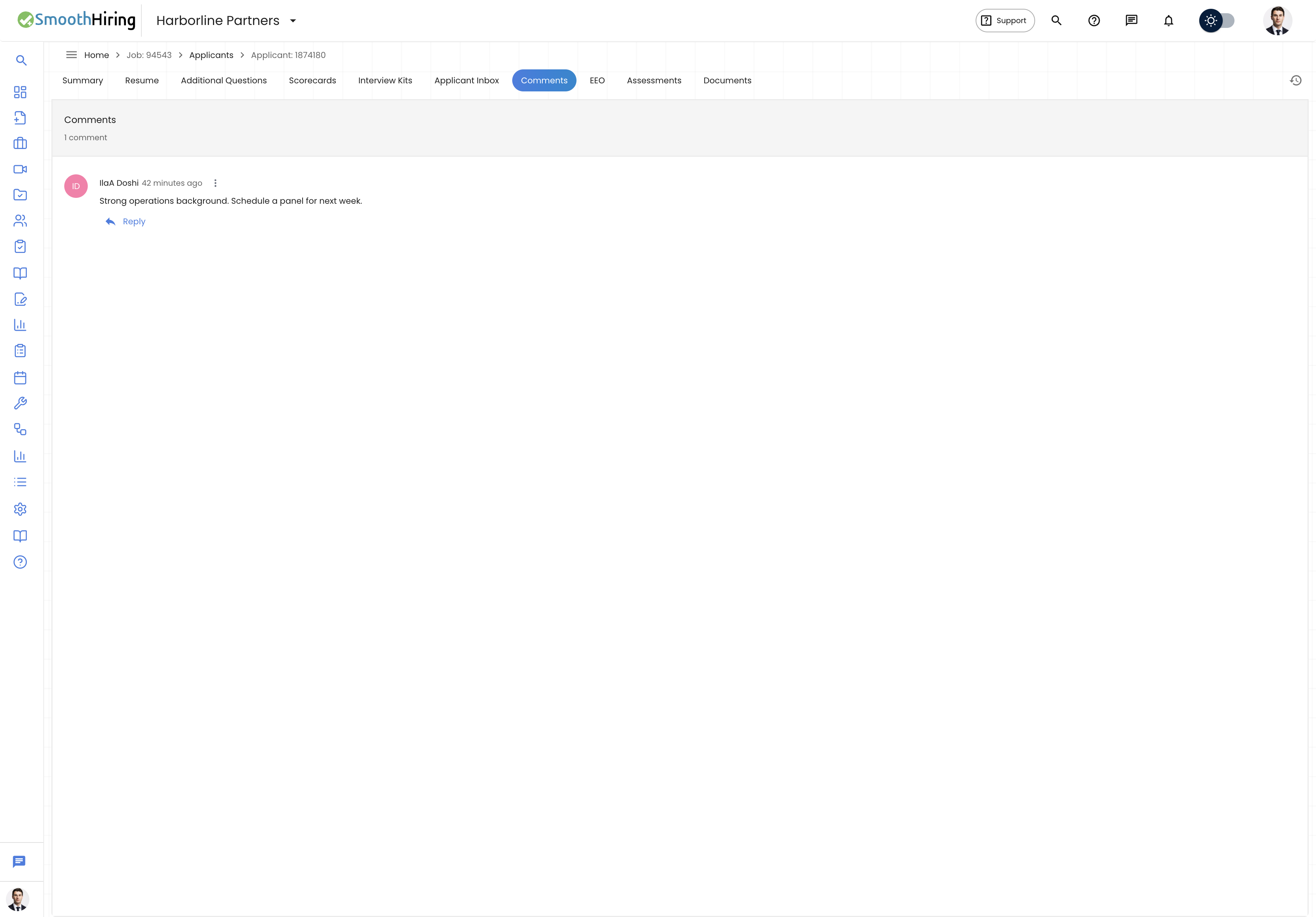
Comments appear in two primary locations:
1. Applicant Profile — Comments Section
When you open a candidate's full profile, scroll down to the Comments section. This section displays:
- A header showing Comments and the total comment count.
- A text input area with the placeholder "Add a comment… Type @ to mention a team member."
- All existing comments in chronological order, each showing the author's name, avatar, timestamp, and the comment body.
- Threaded replies nested under their parent comments.
2. Applicant List — Quick Comment Button
In the applicant list view, each candidate row includes a Comment icon button. Clicking this button opens a quick comment dialog where you can add a comment without navigating to the full profile. This is ideal for rapid note-taking while reviewing multiple candidates.
3. Shared Applicants — Review Queue
When candidates have been shared with you for review, the Your Review Queue page displays a Comment button on each row. This lets you add feedback directly while reviewing shared candidates.
Adding a Comment
From the Applicant Profile
- Navigate to the candidate's profile by clicking their name in the applicant list.
- Scroll to the Comments section.
- Click into the text area that reads "Add a comment… Type @ to mention a team member."
- Type your comment. You can write as much as needed — the text area expands automatically.
- Click the Add Comment button.
- Your comment appears immediately, with your name, avatar, and a timestamp.
From the Applicant List (Quick Comment)
- In the applicant list, locate the candidate you want to comment on.
- Click the Comment icon (speech bubble) or the Comment button on that row.
- A dialog opens with a text area labeled Add Comment.
- Your name and avatar are shown as the author.
- Type your note and click Add Comment.
- The dialog closes and your comment is saved.
Tip: Quick comments from the list view are perfect for capturing first impressions during an initial candidate review pass.
Replying to Comments (Threaded Conversations)
SmoothHiring supports threaded replies, allowing focused sub-conversations under any comment.
How to Reply
- Open the candidate's profile and navigate to the Comments section.
- Under any existing comment, click the Reply button.
- A reply text area appears directly beneath the comment, pre-indented to show it is a reply.
- Type your response. You can @mention teammates in replies too.
- Click Reply to post, or Cancel to discard.
Thread Structure
- Replies appear nested under the parent comment with a visual thread indicator (indented with a connecting line).
- Each reply shows its own author avatar, name, and timestamp.
- You can reply to replies, creating deeper threads if needed.
- The parent comment displays a count like "3 replies" so you can see at a glance how much discussion has occurred.
Deleted Parent Comments
If a parent comment is deleted but has replies, those replies are preserved. The parent is replaced with a placeholder showing "Deleted By User" so the conversation context remains intact.
@Mentioning Team Members
One of the most powerful collaboration features is the ability to @mention team members directly in comments.
How to @Mention
- While typing a comment or reply, type the @ symbol.
- A dropdown list of your team members appears.
- Select the person you want to mention, or continue typing their name to filter the list.
- The mention is highlighted in the comment text so it stands out visually.
What Happens When You @Mention Someone
- The mentioned team member receives a notification that they have been mentioned in a comment on a specific candidate.
- The mention is visually styled differently in the comment body so readers can quickly identify who was tagged.
- Mentioned team members can click the notification to navigate directly to the candidate's profile and the relevant comment.
Who Can Be @Mentioned
You can @mention any team member who has an account on your SmoothHiring company account, regardless of their role (Administrator, Recruiter, Hiring Manager, or Observer).
Tip: Use @mentions to ask specific colleagues for input. For example: "@Jane Smith — could you review this candidate's technical experience? Their background in Python looks strong."
Deleting Comments
You can delete comments that you have authored.
How to Delete
- Locate your comment in the Comments section.
- Click the three-dot menu (⋮) that appears next to your name on comments you authored.
- Select Delete from the dropdown menu.
- The comment is removed. If it had replies, a "Deleted By User" placeholder appears in its place.
Important Notes
- You can only delete your own comments — you cannot delete comments made by other team members.
- Deletion is permanent and cannot be undone.
- If a deleted comment had replies, those replies remain visible under a "Deleted By User" placeholder to preserve the conversation thread.
Quick Comments from the Applicant List
The applicant list provides streamlined access to the comment feature:
| Location | How to Access | Best For |
|---|---|---|
| Table View | Click the Comment icon on a candidate row | Quick notes during list review |
| Pipeline View | Use the candidate card actions | Notes while working through the pipeline |
| Shared Applicants | Click the Comment button on each row | Adding review feedback |
The quick comment dialog shows:
- Your author identity (name and avatar).
- A text area for entering your comment.
- Cancel and Add Comment action buttons.
- Status messages (Saving, Success, or Error).
Comments in Shared Candidate Reviews
When candidates are shared with team members for review, comments become a critical part of the review workflow:
- During Review: Reviewers can leave comments directly from the review queue to share their assessment.
- Collaborative Feedback: Multiple reviewers can comment on the same candidate, creating a structured feedback loop.
- Decision Support: Hiring managers can read all review comments before making a decision on the candidate.
Comment Visibility & Privacy
All comments on a candidate profile are visible to every team member in your organization who has access to the applicant list for that job. There are no private or restricted-visibility comments.
| Aspect | Detail |
|---|---|
| Who can see comments | All team members with access to the job |
| Who can add comments | All team members with access to the job |
| Who can delete comments | Only the comment author |
| Who can reply to comments | All team members with access to the job |
| Comment notifications | Sent to @mentioned team members |
Note: Comments are tied to the specific candidate-job application. If a candidate is ported to another job, the comments on the original profile remain with the original application.
Best Practices for Team Collaboration
Structure Your Notes
Use comments strategically at different stages of the hiring process:
- Initial Screening: Note first impressions of the resume and application.
- After Interviews: Summarize key takeaways and impressions.
- Reference Checks: Record findings from reference checks.
- Decision Stage: Share your recommendation (hire, pass, or hold).
Use @Mentions Effectively
- Tag the hiring manager when a candidate is ready for their review.
- Tag the recruiter with scheduling requests or questions.
- Tag technical team members when you need expertise on a candidate's skills.
Keep It Professional
- Remember that all team members can see every comment.
- Be constructive and specific in your feedback.
- Focus on job-related qualifications and observations.
- Avoid personal opinions unrelated to job performance.
Leverage Threaded Replies
- Use replies to respond to specific points rather than starting new top-level comments.
- This keeps conversations organized and easy to follow.
- Reference earlier observations when adding new information.
Frequently Asked Questions
Can I edit a comment after posting it? Currently, comments cannot be edited after posting. You can delete your comment and post a new one with the corrected text.
Are comments included in exported data? Comments are part of the candidate's application record. They are stored internally and accessible to your team but are not included in CSV exports.
Will comments carry over if I port a candidate to another job? No. When you port a candidate to another job, a new applicant profile is created under the target job. Comments remain attached to the original application profile.
Can I add comments to incomplete applicants? Comments are available on profiles that have completed the application process. Incomplete applicants do not have comment functionality.
Is there a limit to how many comments I can add? There is no limit to the number of comments you can add to a candidate profile.