

Sourcing Passive Candidates in SmoothHiring
Not every great hire comes from an active applicant. SmoothHiring supports sourcing passive candidates—people who haven't applied but whose qualifications make them potential fits for your open roles. This guide covers how to add sourced candidates, manage talent pools, and leverage the platform's tools to engage passive talent.
What Are Passive Candidates?
Passive candidates are professionals who haven't actively applied to your job posting but may be excellent fits. They can come from:
- Recruiter sourcing – Found through LinkedIn, job boards, or networking
- Previous applicants – Strong candidates from past job postings
- Referrals – Recommended by current employees (see Employee Referrals)
- Career events – Met at job fairs, conferences, or networking events
- Internal transfers – Existing employees who may fit a new role
Adding Passive Candidates
Create Applicant (Manual Entry)
The primary way to add a sourced candidate is through the Create Applicant feature:
- Navigate to the job posting where you want to add the candidate.
- Click Create Applicant in the applicants toolbar.
- Fill in their details:
| Field | Required | Description |
|---|---|---|
| First Name | Yes | Candidate's first name |
| Last Name | Yes | Candidate's last name |
| Yes | Primary email address | |
| Phone Number | Yes | Contact phone number |
| Resume | Yes | Upload their resume (PDF or Word) |
Configure notification options:
- Email applicant to complete application – Send them a link to fill out any remaining application steps (assessments, screening questions). Enable this when you want the candidate to go through your standard screening process.
- Email applicant of account creation – Simply notify them that a profile has been created. Use this for a lighter touch.
Click Submit.
What Happens After Adding
The system processes the candidate through three automated steps:
- Account Creation – A candidate profile is created in the system
- Resume Analysis – AI extracts skills, experience, education, and other structured data
- Score Calculation – The resume is scored against the job requirements
The candidate then appears in your applicant list at the New stage, just like any other applicant—but with their sourced resume already analyzed and scored.
Monitoring Processing
Switch to the Candidate Queue tab in the Add Applicant dialog to monitor:
- How many candidates are pending processing
- How many are currently being analyzed
- Status of each individual candidate (pending, processing, completed, failed)
This is especially useful when adding multiple candidates in succession.
Talent Dashboard
The Talent Dashboard provides a cross-job view of your candidate pipeline, organized by stage:
| Section | What It Shows |
|---|---|
| Hired Stage | Candidates who have been hired |
| Offer Stage | Candidates with active offers |
| Final Interview | Candidates in final interviews |
| Interview | First-round interview candidates |
| Phone Screening | Candidates in phone screen stage |
| New Stage | Recently applied/added candidates |
| Rejected Stage | Rejected candidates (potential future sourcing pool) |
Accessing the Talent Dashboard
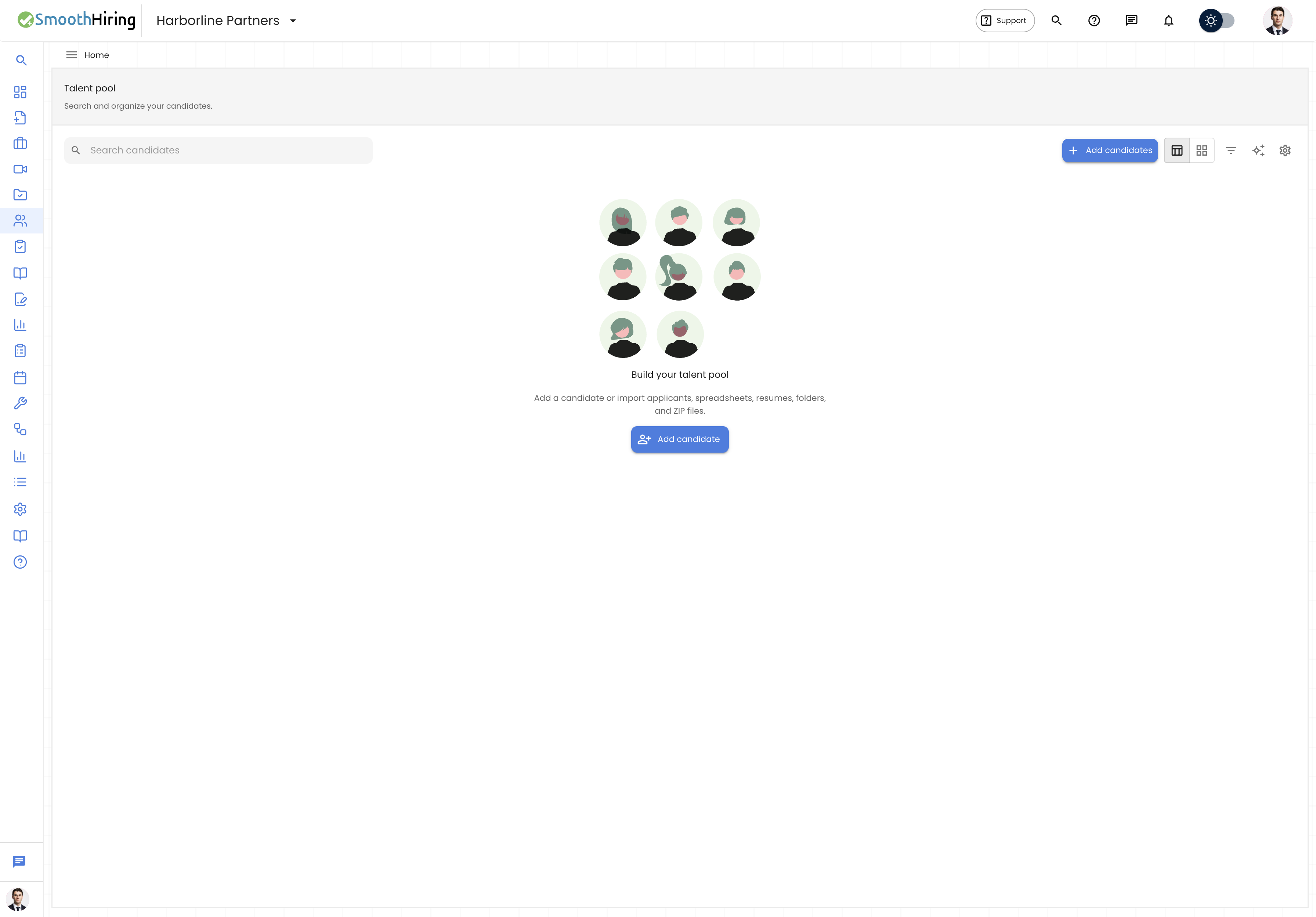
Navigate to the Talent Dashboard from the main sidebar navigation.
Tip: The Talent Dashboard is your sourcing goldmine for internal candidates. Previous applicants who were strong but didn't get an offer for one role may be perfect for another opening.
Sourcing Workflow: Best Practices
Step 1: Identify Targets
Before adding candidates to the system:
- Search LinkedIn, GitHub, or industry forums for professionals matching your requirements
- Review past applicants in the Talent Dashboard who scored well but weren't hired
- Check with team members for referral suggestions
Step 2: Add to the System
Use Create Applicant to add each sourced candidate with their resume. Choose your notification approach:
- Fully engaged sourcing: Enable "Email applicant to complete application" so they can take assessments and answer screening questions—giving you a complete profile to evaluate.
- Quiet evaluation: Don't send any notifications. Simply upload their resume to get an automated score and fit assessment. Reach out personally later if they look promising.
- Soft touch: Enable "Email applicant of account creation" to let them know you're interested without requiring immediate action.
Step 3: Evaluate
Once processed, the candidate has:
- A resume match score (comparing their background to your job requirements)
- Parsed resume data (skills, experience, education)
- A position in your applicant list alongside active applicants
Review them using the same tools you use for any other candidate.
Step 4: Engage
For promising passive candidates:
- Use the Email functionality on their profile to reach out personally
- Move them to Phone Screening stage to trigger any configured stage actions
- Use Email Campaigns to reach multiple sourced candidates with a single outreach
Leveraging Past Applicants
Cross-Job Talent Pool
Previous applicants who showed strong potential can be sourced for new roles:
- Use the Talent Dashboard to find strong candidates from past jobs
- Note candidates in the "Interview" or "Final Interview" stages who weren't ultimately hired
- Review their profiles and scores
- If they're a fit for a new role, use Create Applicant on the new job to add them (or use Invite Applicants if available)
Resume Search for Discovery
Use Smart Resume Search to find hidden gems:
- Open Resume Search on your current job
- Search for specific skills or experience
- You may discover candidates already in your "New" stage whose resumes contain relevant experience you hadn't noticed in a quick scan
Tracking Sourcing Activity
How to Identify Sourced Candidates
Manually added candidates appear with the same interface as organic applicants. To track sourcing activity:
- Use Tags – Apply a tag like "Sourced" or "LinkedIn" via Advanced Filters to categorize manually-added candidates
- Check Application Date – Sourced candidates will have a creation date matching when they were added, not when they applied organically
- Use the Candidate Queue – The processing queue shows recently added candidates and their status
Sourcing Metrics
Track your sourcing effectiveness through the Analytics section:
- Compare conversion rates between sourced vs. organic candidates
- Track time-to-hire for passive candidates
- Monitor which sourcing channels produce the best-scoring candidates
Inviting Passive Candidates
The Invite Applicants feature allows you to send invitation emails to potential candidates:
- Access the invite functionality from the job's applicant management area
- Enter the candidate's details
- They receive an email with a link to apply to your job
- When they complete the application, they appear in your pipeline with full scoring
This is ideal when you want the candidate to go through the complete application experience rather than just uploading their resume on their behalf.
Tips for Effective Passive Sourcing
Personalize your outreach – Passive candidates respond better to personalized messages that reference specific aspects of their background.
Score before reaching out – Upload their resume first to confirm the AI scoring supports your instinct. This saves time reaching out to candidates who may not actually be a fit.
Use the full pipeline – Don't skip stages for sourced candidates. Moving them through Phone Screening and Interview stages ensures consistent evaluation.
Bookmark high-potential candidates – If you're building a pipeline for a future role, bookmark sourced candidates so they're easy to find later and protected from batch operations.
Maintain your talent pool – Regularly review the Talent Dashboard to keep promising past candidates on your radar.
Related Pages
- Managing Candidates – Working with your applicant list
- Employee Referrals – Another source of passive candidates
- Smart Resume Search – Finding specific skills in your existing pool
- Candidate Screening – How sourced candidates are evaluated
- Fit Score & Ranking – Understanding automated scoring for sourced candidates