

SmoothHiring Integrations Directory
SmoothHiring integrates with the tools your team already uses — from email and calendars to video meetings and HR systems. Connect your accounts in just a few clicks to create a seamless hiring workflow without switching between apps.
Accessing Connected Apps
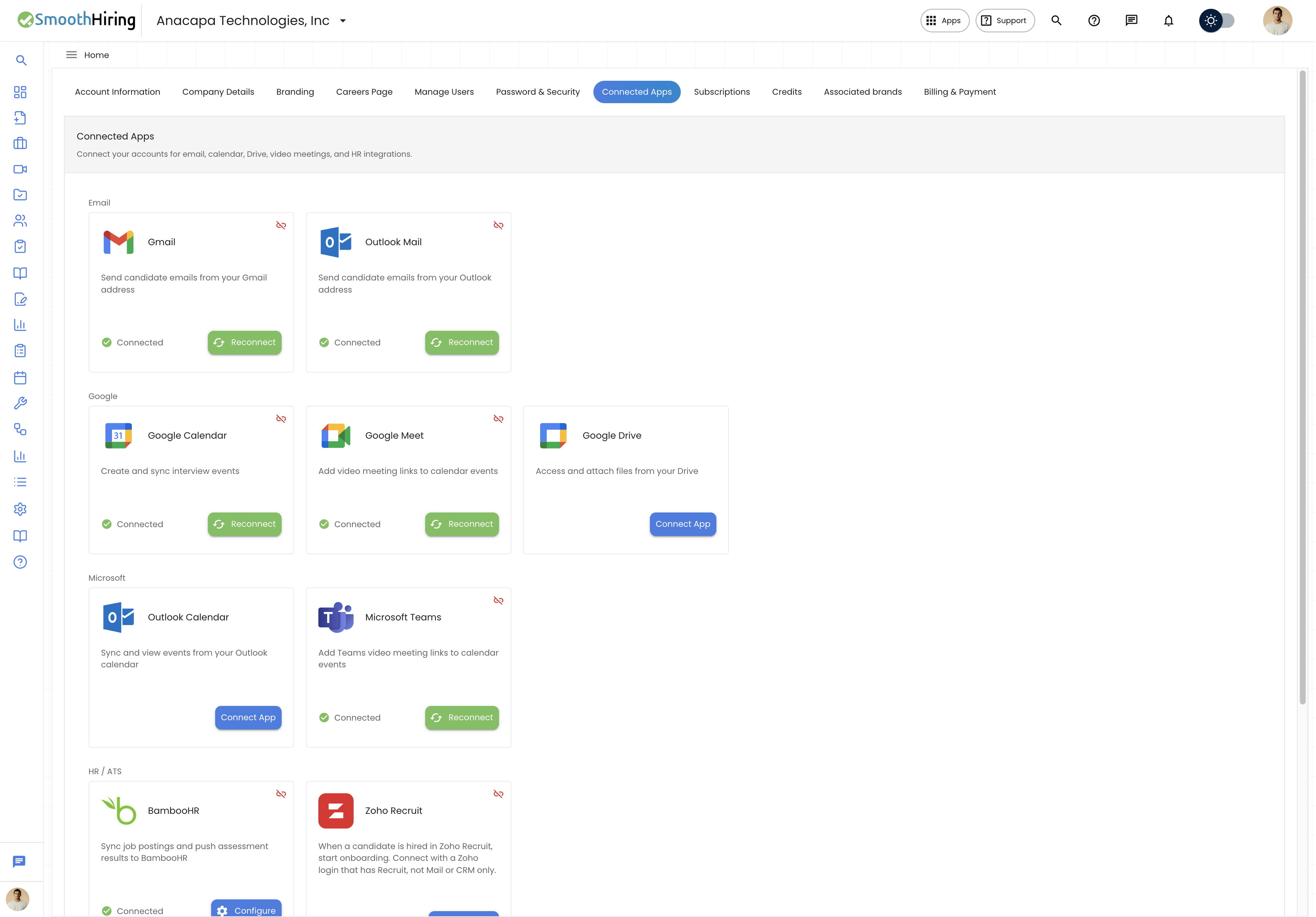
- Navigate to Settings in the left sidebar.
- Click Account Settings.
- Select the Connected Apps tab.
The Connected Apps page shows all available integrations organized by category, with status indicators showing which services are connected.
Available Integrations
Email Integrations
| Integration | Description |
|---|---|
| Gmail | Send candidate emails directly from your Gmail address |
| Outlook Mail | Send candidate emails from your Outlook/Office 365 address |
Google Workspace
| Integration | Description |
|---|---|
| Google Calendar | Create and sync interview events with Google Calendar |
| Google Meet | Add Google Meet video meeting links to calendar events |
| Google Drive | Access and attach files from your Google Drive |
Microsoft 365
| Integration | Description |
|---|---|
| Outlook Calendar | Sync and view events from your Outlook calendar |
| Microsoft Teams | Add Microsoft Teams video meeting links to calendar events |
Video & E-Sign
| Integration | Description |
|---|---|
| Zoom | Schedule and join Zoom video meetings for interviews |
| DocuSign | Electronic signatures for offer letters and documents |
HR / ATS
| Integration | Description |
|---|---|
| BambooHR | Sync job postings and push assessment results to BambooHR |
Connecting an Integration
The process for connecting any integration is similar:
- Go to Settings → Account → Connected Apps.
- Find the integration you want to connect.
- Click the Connect button on the integration card.
- You'll be redirected to the service's authorization page (e.g., Google, Microsoft, Zoom).
- Log in and authorize SmoothHiring to access your account.
- You'll be redirected back to SmoothHiring with a success confirmation.
- The integration card will now show a green Connected indicator.
Tip: You must be logged into the correct account (e.g., your work Gmail, not personal) before authorizing the integration.
Integration Details
Gmail Integration
What it does:
- Send emails to candidates directly from your Gmail address
- Emails appear as sent from your Gmail, maintaining a personal touch
- Track email opens and responses within SmoothHiring
How to connect:
- Click Connect on the Gmail card.
- Sign in to your Google account.
- Grant SmoothHiring permission to send emails on your behalf.
Outlook Mail Integration
What it does:
- Send candidate emails from your Outlook/Office 365 address
- Maintain professional email communication through your work email
How to connect:
- Click Connect on the Outlook Mail card.
- Sign in to your Microsoft account.
- Authorize SmoothHiring.
Google Calendar Integration
What it does:
- Automatically create calendar events for scheduled interviews
- Two-way sync keeps SmoothHiring and Google Calendar in sync
- Check interviewer availability before scheduling
How to connect:
- Click Connect on the Google Calendar card.
- Authorize with your Google account.
- Once connected, interview events will appear in both SmoothHiring and your Google Calendar.
For more details, see Email & Calendar Integration.
Google Meet Integration
What it does:
- Automatically add Google Meet video links to interview calendar events
- Candidates and interviewers can join with one click
How to connect:
- Connect Google Calendar first (required).
- Click Connect on the Google Meet card.
- Meet links will be automatically added to new interview events.
Outlook Calendar Integration
What it does:
- Sync interview events with your Outlook calendar
- View availability across your Microsoft 365 calendar
How to connect:
- Click Connect on the Outlook Calendar card.
- Sign in with your Microsoft account.
- Grant calendar access permissions.
Microsoft Teams Integration
What it does:
- Add Microsoft Teams meeting links to interview calendar events
- Candidates and interviewers can join Teams meetings directly
How to connect:
- Click Connect on the Microsoft Teams card.
- Authorize with your Microsoft account.
Zoom Integration
See Zoom & Video Meetings for detailed Zoom setup instructions.
DocuSign Integration
What it does:
- Send offer letters for electronic signature
- Track signature status (pending, signed, completed)
- Legally binding e-signatures
How to connect:
- Click Connect on the DocuSign card (under the Video & e-sign section).
- Log in to your DocuSign account.
- Authorize SmoothHiring.
For more details, see Offer Management.
BambooHR Integration
What it does:
- Sync job postings between SmoothHiring and BambooHR
- Push assessment results to BambooHR
- Streamline data flow between your ATS and HRIS
How to connect:
- Click Connect on the BambooHR card.
- Enter your BambooHR subdomain (e.g., if your URL is
acme.bamboohr.com, enteracme). - Click Connect to authorize.
- Once connected, click Configure to set up sync preferences.
Configuration options (after connecting):
- Overview Tab — Connection status and basic settings
- Job Sync Tab — Configure how jobs sync between systems
- Assessment Tab — Configure assessment result syncing
Note: BambooHR integration is a feature-flagged integration. Contact support if you don't see it in your Connected Apps.
Managing Connected Apps
Checking Connection Status
Each integration card shows its current status:
| Status | Indicator |
|---|---|
| Connected | Green "Connected" badge |
| Not Connected | "Connect" button displayed |
| Connecting | Loading spinner |
Disconnecting an Integration
To disconnect a previously connected integration:
- Go to Settings → Account → Connected Apps.
- Find the connected integration.
- Click Disconnect or manage the connection through the integration's settings.
Reconnecting
If an integration loses its connection (e.g., password change, token expiry):
- Go to Settings → Account → Connected Apps.
- Click Reconnect on the affected integration.
- Re-authorize your account.
Related Pages
- Zoom & Video Meetings — Video meeting setup
- Email & Calendar Integration — Email and calendar details
- Offer Management — DocuSign integration for offers
- Compliance & Security — Data security in integrations