

Viewing Activity Logs & Audit Trail
SmoothHiring automatically tracks every significant action taken on candidate applications, creating a comprehensive audit trail for your hiring process. Activity logs give you full visibility into who did what, when, and for which candidate—supporting transparency, compliance, and team coordination.
This guide explains what activity logs track, how to view and filter them, and how to use them for compliance and reporting.
Overview
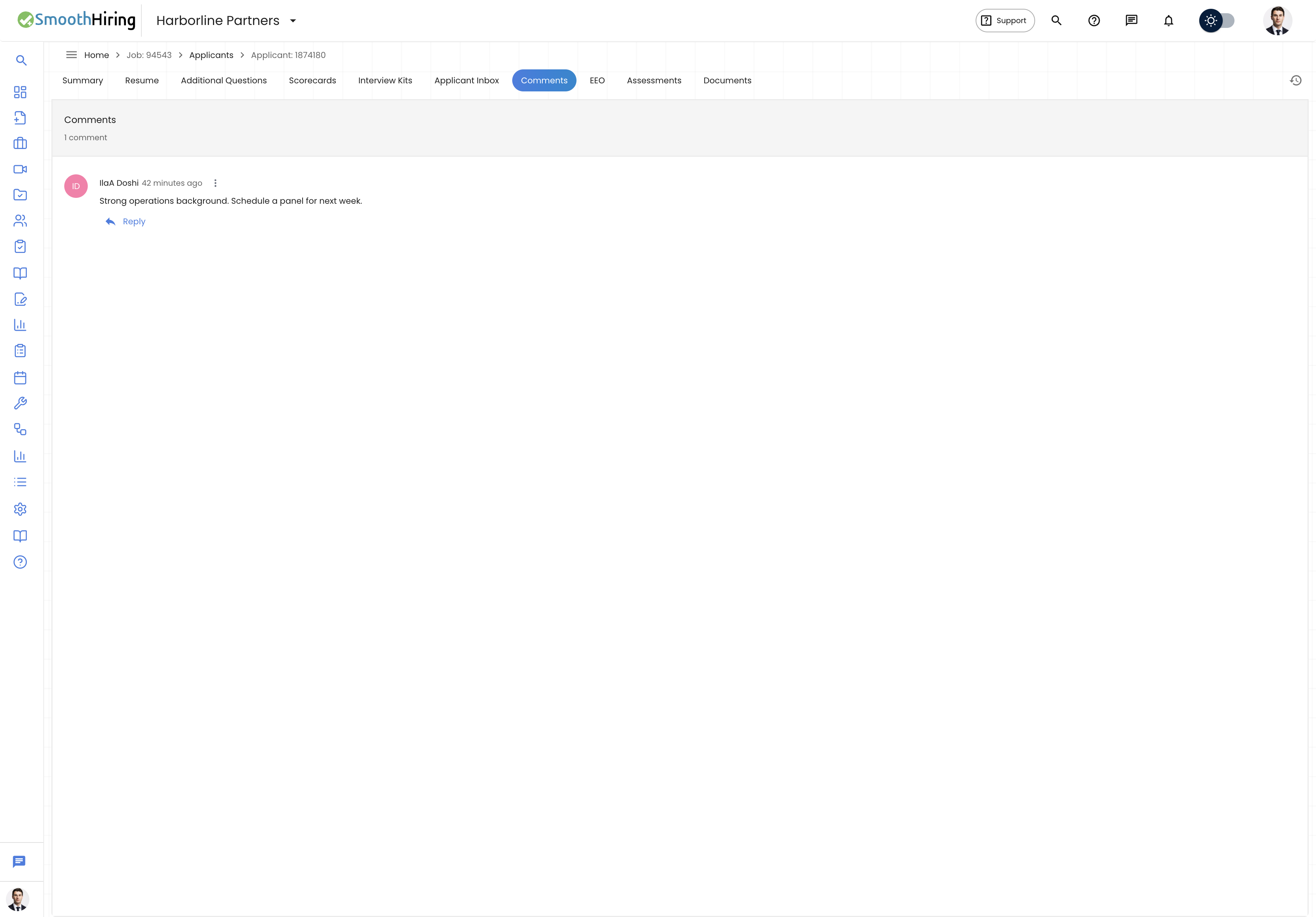
Activity logs in SmoothHiring capture a timestamped record of actions throughout the hiring lifecycle. Every time a team member moves a candidate through a pipeline stage, leaves a comment, rates an applicant, downloads a resume, or performs other key actions, the system creates a log entry with full context.
Key features include:
- Automatic logging — All tracked events are logged automatically without any manual effort.
- Full context — Each log entry includes who performed the action, what was done, which candidate and job were involved, and when it happened.
- Filtering — Logs can be filtered by candidate, job, employer, stage, and team member.
- Pagination — Large activity histories are paginated for performance.
- Sorting — Logs can be sorted by creation or update date, in ascending or descending order.
What Activity Logs Track
SmoothHiring tracks nine distinct types of activities across the hiring process:
1. Account/Profile Views (Activity Type 1)
Triggered when: An employer or team member views a candidate's profile.
Example log entry:
"Jane Smith has viewed your profile on 2026-05-15T14:30:00Z."
Details captured:
- Employer/viewer name
- Candidate ID
- Job ID
- Timestamp
2. Stage Changes (Activity Type 2)
Triggered when: A candidate is moved from one pipeline stage to another.
Example log entry:
"Jane Smith moved John Doe from Applied to Phone Screen on 2026-05-15T15:00:00Z."
Details captured:
- Who moved the candidate
- Candidate name
- Previous stage (e.g., "Applied")
- New stage (e.g., "Phone Screen", "Interview", "Offer", "Hired")
- Job title
- Timestamp
This is one of the most important log types for tracking pipeline progression and identifying bottlenecks.
3. Job Application Logs (Activity Type 3)
Triggered when: A candidate applies to a job.
Example log entry:
"You have applied for Software Engineer associated with Jane Smith on 2026-05-15T10:00:00Z."
Details captured:
- Job title
- Employer/company name
- Candidate ID
- Timestamp
4. Comments (Activity Type 4)
Triggered when: A team member leaves a comment on a candidate's application.
Example log entry:
"Jane Smith has commented on application for Software Engineer as 'Great communication skills, recommend for interview.' on 2026-05-16T09:15:00Z."
Details captured:
- Commenter name
- Comment text (body)
- Job title
- Comment ID
- Timestamp
5. Ratings (Activity Type 5)
Triggered when: A team member rates a candidate's application.
Example log entry:
"Jane Smith rated application a score of 4 out of 5 for Software Engineer on 2026-05-16T10:00:00Z."
Details captured:
- Rater name
- Rating score (out of 5)
- Job title
- Timestamp
6. Hiring Guide Downloads (Activity Type 6)
Triggered when: A team member downloads the hiring guide for a candidate.
Example log entry:
"Jane Smith downloaded your hiring guide applied for Software Engineer on 2026-05-16T11:30:00Z."
Details captured:
- Downloader name
- Job title
- Timestamp
7. Rejection Emails (Activity Type 7)
Triggered when: A rejection email is sent to a candidate.
Example log entry:
"Jane Smith sent rejection email for the application of Software Engineer on 2026-05-17T08:45:00Z."
Details captured:
- Sender name
- Job title
- Timestamp
This log type is critical for compliance—proving that candidates were properly notified of their application status.
8. Resume Downloads (Activity Type 8)
Triggered when: A team member downloads a candidate's resume.
Example log entry:
"Jane Smith downloaded your resume applied for Software Engineer on 2026-05-16T14:00:00Z."
Details captured:
- Downloader name
- Job title
- Timestamp
9. Applicant Profile Sharing/Assignment (Activity Type 9)
Triggered when: A team member assigns or shares a candidate's profile with another team member.
Example log entry:
"Jane Smith assigned this applicant to Mike Johnson on 2026-05-16T16:00:00Z."
Details captured:
- Assigner name
- Assignee name(s)
- Candidate ID
- Job ID
- Assigner account ID
- Assignee account ID
- Timestamp
Viewing Activity Logs
Accessing Activity History
Activity logs for a specific candidate can be viewed within their applicant profile:
- Navigate to Applicants and select the relevant job.
- Open the candidate's Applicant Profile.
- Look for the Activity section or tab.
- The activity history displays all logged events in reverse chronological order.
Understanding Log Entries
Each activity log entry includes:
| Field | Description |
|---|---|
| Message | A human-readable description of what happened |
| Activity type | The category of action (1–9 as described above) |
| Candidate | The candidate the action relates to |
| Job | The job posting the action relates to |
| Employer | The employer/company |
| Stage | The pipeline stage (for stage change logs) |
| Timestamp | When the action occurred |
Filtering Activity Logs
Activity logs support several filtering options to help you find specific events:
Available Filters
| Filter | Description | Example |
|---|---|---|
| Candidate ID | Show logs for a specific candidate | candidate_id=456 |
| Activity Type | Filter by type of activity (1–9) | activity_feed_id=2 (stage changes only) |
| Job ID | Show logs for a specific job | employerjob_id=123 |
| Employer ID | Show logs for a specific employer | employer_id=1 |
| Stage | Filter by pipeline stage | stage=Interview |
| Assignee | Filter by who a candidate was assigned to | assignee_account_id=10 |
| Assigned By | Filter by who made the assignment | assigned_by_account_id=5 |
Sorting Options
Logs can be sorted by:
- Created date (default) — When the log entry was created.
- Updated date — When the log entry was last modified.
Both ascending (oldest first) and descending (newest first) sort orders are supported.
Pagination
Activity logs are paginated to maintain performance:
- Default page size: 10 entries per page.
- Navigate through pages to see older activity.
- Adjust the page size as needed for your workflow.
Using Activity Logs for Compliance
EEOC and Discrimination Claims
Activity logs provide an objective record that can help defend against discrimination claims:
- Stage change logs document every pipeline movement, showing consistent treatment of all candidates.
- Rating logs record objective scoring, demonstrating that hiring decisions are based on qualifications.
- Rejection email logs prove that candidates were properly notified.
- Comment logs capture the reasoning behind hiring decisions.
Audit Trail Best Practices
To maintain a robust audit trail:
- Encourage comments — Ask your team to leave comments explaining why candidates advance or are rejected. These comments are logged and provide valuable context.
- Use consistent stages — Move candidates through pipeline stages systematically so the log reflects a fair, consistent process.
- Rate all candidates — Apply ratings consistently across all applicants for a given role to demonstrate objective evaluation.
- Review logs periodically — Regularly review activity logs to ensure your team is following your hiring process.
Record Retention
Activity logs are retained as long as the associated candidate and job records exist in SmoothHiring. Federal guidelines generally recommend:
- EEOC: Retain employment records for at least 1 year from the date of the hiring decision.
- Federal contractors (OFCCP): Retain records for at least 2 years.
- ADEA: Retain applications and related records for 1 year.
Consult with your legal counsel to determine the appropriate retention period for your organization.
Activity Log Data Model
Each activity log record contains the following fields:
| Field | Type | Description |
|---|---|---|
| id | Integer | Unique identifier for the log entry |
| candidate_id | Integer | The candidate involved |
| activity_feed_id | Integer | The type of activity (1–9) |
| employerjob_id | Integer | The job posting involved |
| employer_id | Integer | The employer/company |
| stage | String | The pipeline stage (if applicable) |
| comment_id | Integer | Associated comment (if applicable) |
| assignee_account_id | Integer | Who was assigned (for sharing logs) |
| assigned_by_account_id | Integer | Who made the assignment |
| message | String | Human-readable description of the event |
| created_at | Timestamp | When the log was created |
| updated_at | Timestamp | When the log was last updated |
Common Use Cases
Investigating a Candidate's Journey
Want to understand how a candidate progressed through your hiring pipeline? Filter activity logs by candidate ID to see every interaction, from initial application to final decision.
Reviewing Team Activity
Filter by job ID to see all actions taken on applicants for a specific role. This helps managers ensure their team is actively reviewing and processing candidates.
Tracking Assignments
Use the assignee and assigned_by filters to see how candidate profiles are being distributed across your team. This is useful for balancing workloads and ensuring timely follow-up.
Compliance Documentation
Export or review activity logs as part of your compliance documentation. The timestamped, detailed entries provide an objective record of your hiring process.
Frequently Asked Questions
Q: Can I delete activity log entries? A: No. Activity logs are append-only records that cannot be edited or deleted. This ensures the integrity of the audit trail.
Q: Are activity logs visible to candidates? A: No. Activity logs are only visible to employer-side users with appropriate access to the SmoothHiring dashboard.
Q: Do activity logs track who logged in? A: Activity logs focus on candidate-related actions (profile views, stage changes, comments, etc.), not general system logins.
Q: How far back do activity logs go? A: Activity logs are retained for the lifetime of the candidate and job records. There is no automatic expiration.
Q: Can I export activity logs? A: Activity logs can be accessed through the API for export and analysis. Contact support for assistance with bulk exports.
Q: Do bulk actions create individual log entries? A: Yes. If you move multiple candidates at once, each candidate receives their own individual activity log entry for the stage change.