

SmoothHiring Zoom Integration: Set Up Zoom for Interviews
SmoothHiring integrates with Zoom to automatically create video meetings when you schedule interviews. Once connected, Zoom meetings are generated with a single click — no need to switch to Zoom, create a meeting, and copy-paste links. This guide covers setup, usage, troubleshooting, and best practices.
Overview
The Zoom integration allows SmoothHiring to:
- Automatically create Zoom meetings when scheduling video interviews
- Include Zoom join links in candidate interview invitation emails
- Attach meeting passwords for secure interviews
- Set meeting agendas so candidates know what to expect
- Send Zoom-specific reminders with direct join links
- Delete Zoom meetings when interviews are cancelled
The integration uses Zoom's official OAuth 2.0 authorization flow, meaning your credentials are never stored by SmoothHiring — only secure access tokens that can be revoked at any time.
Connecting Your Zoom Account
Prerequisites
- A Zoom account (free or paid)
- Admin or Owner access in SmoothHiring
Step-by-Step Connection
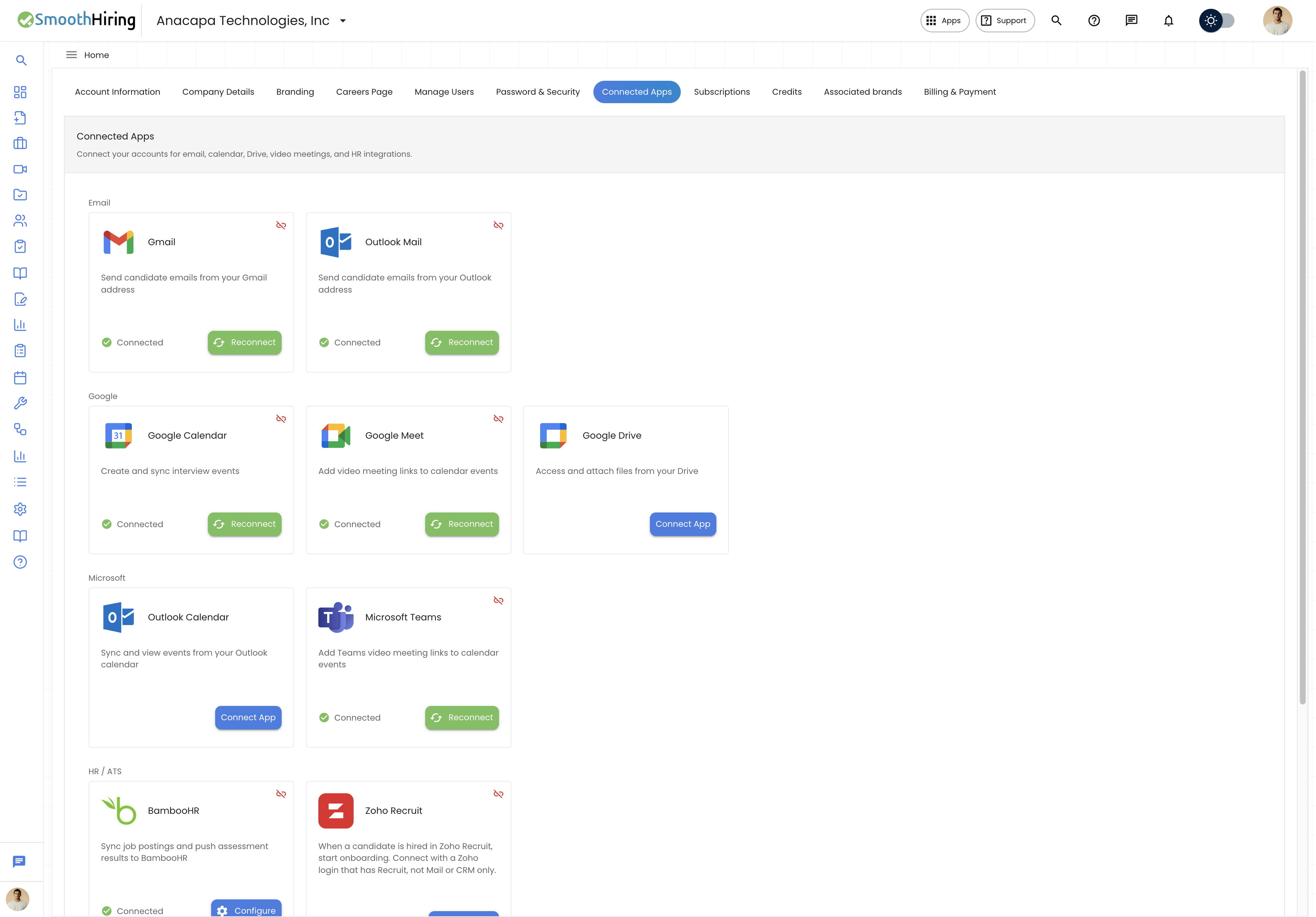
- Navigate to Settings → Account → Connected Apps
- Find the Zoom card under the Video & e-sign section
- Click Connect
- You'll be redirected to Zoom's authorization page
- Sign in with your Zoom account (if not already signed in)
- Review the permissions requested and click Allow
- You'll be redirected back to SmoothHiring with a confirmation
After a successful connection, you'll see a "Connected" badge next to Zoom, along with the email address associated with your Zoom account.
Important: Each user in SmoothHiring connects their own Zoom account. When a meeting is created, SmoothHiring first tries to use the hiring manager's Zoom account. If the hiring manager hasn't connected Zoom, it falls back to the scheduler's (your) Zoom account.
What Happens During Connection
When you authorize SmoothHiring with Zoom:
- SmoothHiring receives an authorization code from Zoom
- This code is exchanged for an access token and refresh token
- The tokens are stored securely and associated with your SmoothHiring account
- Access tokens are automatically refreshed before they expire (tokens are refreshed 5 minutes before expiration)
- You are redirected back to Settings → Account → Connected Apps with a
?zoom=connectedconfirmation
Using Zoom in Interview Scheduling
Once connected, Zoom is available as a meeting software option during interview scheduling.
Scheduling a Zoom Interview
- Open the Schedule Interview dialog for any candidate
- In Step 1: Setup, select Video as the interview type
- In the Meeting Software dropdown, select Zoom
- If connected, you'll see a green "Connected" badge with your Zoom email
- If not connected, a warning message appears with a link to connect
- Fill in the Zoom meeting details:
- Agenda (required) — Describe the meeting structure, e.g., "Introduction, experience discussion, Q&A". This is included in the Zoom meeting invite.
- Password (optional) — Set a custom meeting password. Leave blank to use Zoom's auto-generated password.
- Continue through the remaining steps (Date & Time, Attendees, Details, Preview, Finalize)
- Click Schedule Interview
What Happens Automatically
When you click Schedule Interview with Zoom selected:
Zoom meeting is created via the Zoom API with these settings:
- Meeting type: Scheduled meeting
- Topic: "[Job Title] Interview"
- Agenda: Your custom agenda text
- Start time and duration: Matching your selected interview slot
- Timezone: As selected in the scheduling form
- Host video: Enabled
- Participant video: Enabled
- Join before host: Enabled
- Mute upon entry: Disabled
- Audio: Both (computer and phone)
- Auto-recording: None
Meeting details are stored and linked to the interview record
Invitation email is sent to the candidate with:
- The Zoom join URL (clickable link)
- The meeting password (if set)
- An .ics calendar file with the meeting details
A Zoom meeting reminder is queued to be sent to the candidate
Hiring manager and attendees are CC'd on the invitation email
Zoom Meeting Details in the Application
In Interview Details View
When viewing an interview that has a Zoom meeting attached, you'll see a dedicated Zoom section showing:
- The Zoom icon for easy identification
- "Join Zoom Meeting" heading
- A clickable join URL that opens in a new tab
- The meeting password (if applicable)
In Interview Cards
Interview cards (on the Interviews page and Dashboard) show a Video type chip. The interview details popup shows whether the video source is Zoom, Google Meet, or another platform.
In the Scheduling Dialog
When scheduling an accepted interview (after a candidate chooses a time slot), the Zoom details from the original request are preserved and pre-filled, including the agenda and password.
Zoom Account Fallback Logic
SmoothHiring uses intelligent fallback logic when creating Zoom meetings:
- First attempt: Create the meeting using the hiring manager's Zoom account
- If the hiring manager hasn't connected Zoom: Fall back to the current user's (scheduler's) Zoom account
- If neither has connected Zoom: The interview is still created, but without a Zoom meeting. The hiring manager receives an urgent email notification about the Zoom creation failure.
Tip: For the smoothest experience, ensure that the hiring manager for each job has connected their Zoom account. This way, meetings are hosted under the correct person's account.
Zoom Failure Handling
If Zoom meeting creation fails for any reason, SmoothHiring handles it gracefully:
- The interview is still scheduled — The interview record is created and saved even if Zoom fails
- The invitation email is still sent — Candidates receive the interview invitation, though without a Zoom link
- An urgent notification is sent — The hiring manager receives an email with the subject "URGENT: Zoom Meeting Creation Failed - Interview: [Job Title]" alerting them to provide an alternative video link
- The failure is logged — Details are captured in the system for troubleshooting
Common Failure Reasons
| Issue | Solution |
|---|---|
| Zoom not connected | Connect Zoom via Settings → Account → Connected Apps |
| Token expired and refresh failed | Disconnect and reconnect Zoom in Connected Apps |
| Zoom API rate limit | Wait a few minutes and try again |
| Invalid Zoom API credentials | Contact your administrator to verify ZOOM_API_CLIENT_ID and ZOOM_API_CLIENT_SECRET |
| Insufficient Zoom scopes | Reconnect Zoom to grant updated permissions |
Managing Zoom Meetings
Editing a Zoom Meeting
When you reschedule an interview that has a Zoom meeting, the Zoom meeting is updated automatically with the new date and time. The system:
- Updates the meeting via the Zoom API
- Refreshes the stored meeting data
- Sends a rescheduled invitation email with the updated Zoom link
Deleting a Zoom Meeting
When you cancel an interview that has a Zoom meeting:
- The Zoom meeting is deleted from your Zoom account via the API
- The meeting reference is removed from the interview record
- If a Google Calendar event exists, it is also deleted
Google Meet as an Alternative
In addition to Zoom, SmoothHiring also supports Google Meet for video interviews. When Google Calendar is connected:
- A Google Meet link is automatically generated when you schedule a video interview with Google Meet selected
- The Meet link is included in the interview invitation email
- A calendar event is created with the Meet link attached
To use Google Meet, connect your Google Calendar via Settings → Account → Connected Apps → Google Calendar.
You can also select Other as the video platform and manually paste any video conferencing link (Microsoft Teams, Webex, GoTo Meeting, etc.).
Connected Apps Settings
The Zoom integration is managed through the Connected Apps page:
Settings → Account → Connected Apps
On this page, you can:
- See your current Zoom connection status (connected/disconnected)
- View the email associated with your connected Zoom account
- Connect or disconnect your Zoom account
- Manage other integrations (Google Calendar, Google Meet, Gmail, Outlook, etc.)
Other Video & Calendar Integrations
| Integration | Purpose |
|---|---|
| Google Calendar | Sync interview events, auto-create calendar entries |
| Google Meet | Auto-generate Meet links for video interviews |
| Outlook Calendar | Sync events from Outlook calendar |
| Microsoft Teams | Add Teams meeting links to calendar events |
Security & Privacy
- SmoothHiring uses OAuth 2.0 for Zoom authorization — your Zoom password is never shared
- Access tokens are automatically refreshed before expiration
- Tokens are stored securely and associated with your individual account
- You can revoke access at any time by disconnecting in Connected Apps or from your Zoom account settings
- Each user connects their own Zoom account — no shared credentials
- OAuth state verification is used to prevent CSRF attacks during the authorization flow
Troubleshooting
"Zoom not connected" Warning During Scheduling
If you see a warning that Zoom is not connected when scheduling a video interview:
- Open Settings → Account → Connected Apps in a new tab
- Click Connect on the Zoom card
- Complete the authorization flow
- Return to the scheduling dialog — the status should update automatically
Zoom Meeting Not Created
If an interview was scheduled but the Zoom meeting wasn't created:
- Check if you received the "URGENT: Zoom Meeting Creation Failed" email
- Verify your Zoom connection in Settings → Account → Connected Apps
- Try disconnecting and reconnecting Zoom
- Manually create a Zoom meeting and share the link with the candidate
Calendar Events Not Appearing
If interview events aren't showing on your calendar:
- Ensure Google Calendar is connected in Connected Apps
- Check that you authorized calendar permissions during the Google OAuth flow
- Look for the event in the correct calendar (primary calendar)
Related Pages
- Manage Interviews — Complete guide to scheduling and managing interviews
- Interview Reminders — Automatic reminder notifications
- Self-Scheduling — How candidates choose from proposed time slots
- Connected Apps — Managing all your integrations
- Calendar — Viewing interviews on your calendar