

Using the Applicant Pipeline View (Kanban)
SmoothHiring offers a Pipeline View for your applicant list — a visual, side-by-side layout that combines a scrollable candidate list on the left with a full candidate profile on the right. This layout lets you quickly scan through applicants while keeping the detailed profile always visible, creating an efficient workflow for reviewing candidates.
Table of Contents
- Overview
- Accessing the Pipeline View
- Pipeline View Layout
- Candidate Cards
- Navigating Between Candidates
- Toolbar & Filters
- Filtering in Pipeline View
- Sorting in Pipeline View
- Searching in Pipeline View
- Bookmarking from Pipeline View
- Pipeline View vs. List View
- When to Use Each View
- Best Practices
- Frequently Asked Questions
Overview
The Pipeline View provides a split-panel interface:
- Left panel: A scrollable list of candidate cards with key information at a glance.
- Right panel: The full candidate profile for the currently selected candidate.
This layout eliminates the need to navigate back and forth between the list and individual profiles, making candidate review faster and more fluid.
Accessing the Pipeline View
- Navigate to the applicant list for any job.
- Look for the layout toggle in the toolbar.
- Switch from the default List view to Pipeline view.
- The view changes to the split-panel layout.
You can also access the pipeline view directly via the URL pattern:
/employer/applicants-pipeline/{jobId}Pipeline View Layout
Left Panel — Candidate List
The left panel displays a vertical stack of candidate cards, each showing:
- Avatar with the candidate's initials (color-coded).
- Full name (if available).
- Email address.
- Application date (formatted as "Month Day Year, Time").
- Match type chip — Strong Fit, Fit, Weak Fit, or Distortion.
- Resume score gauge — visual indicator of resume match quality.
- Bookmark icon — toggle to bookmark/unbookmark the candidate.
Each card is outlined with a border. The currently selected candidate's card is highlighted with a green border so you can always see which profile is displayed on the right.
Right Panel — Candidate Profile
The right panel shows the full candidate profile, including all tabs and details:
- Personal information and contact details
- Assessment results and Fit score breakdown
- Resume content
- Interview kit
- Comments
- Documents
- And all other profile sections
This panel updates automatically when you click on a different candidate card in the left panel.
Candidate Cards
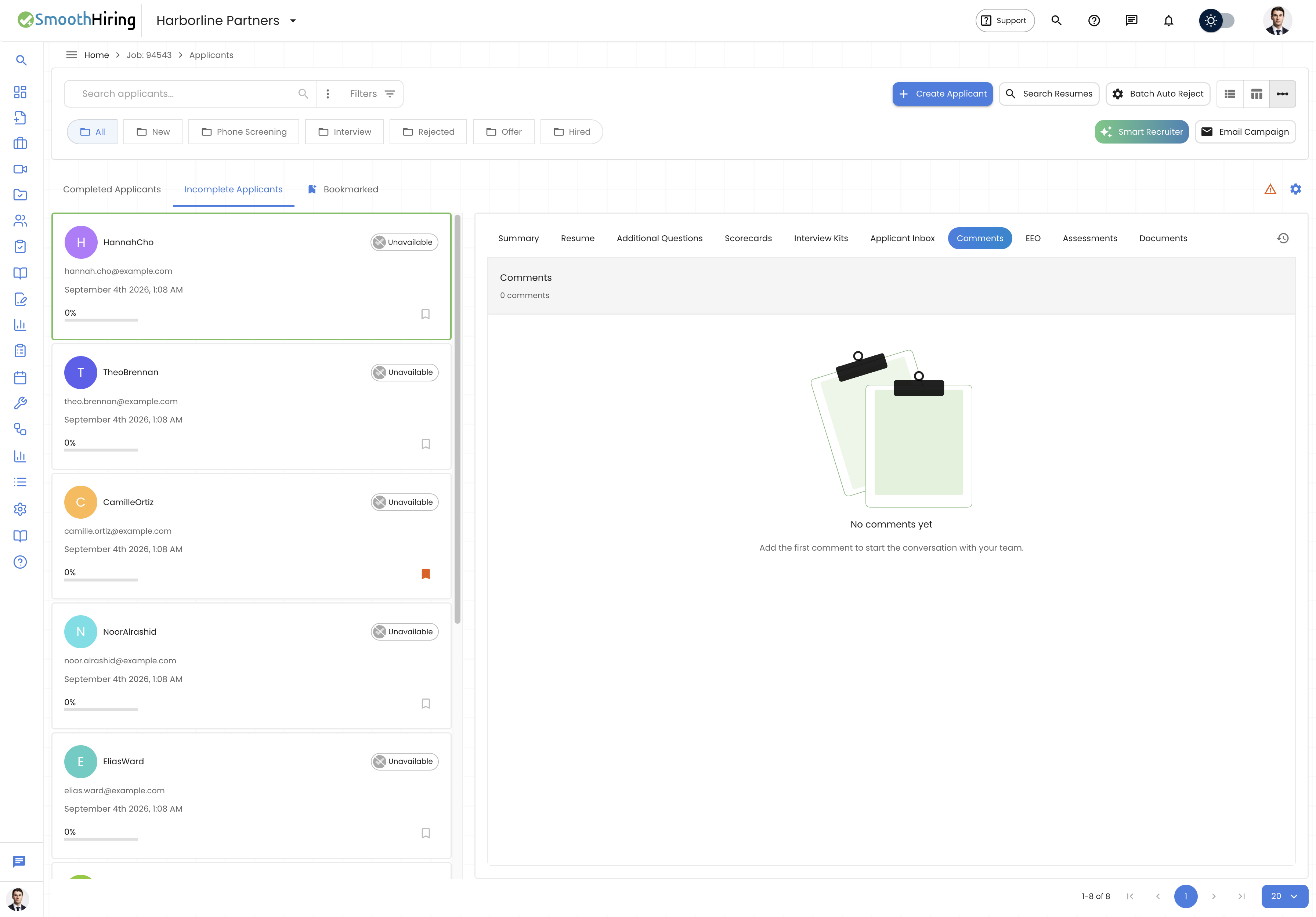 Each candidate card in the left panel is designed for quick scanning:
Card Layout
┌─────────────────────────────────────┐
│  [Avatar] Candidate Name   [Match]  │
│           email@example.com         │
│                                     │
│  January 15th 2025, 2:30 PM        │
│                                     │
│  [Resume Score Gauge]    [Bookmark] │
└─────────────────────────────────────┘
Match Type Chips
Each card displays the candidate's match type as a color-coded chip:
| Match Type | Color | Meaning |
|---|---|---|
| Strong Fit | Green | Meets or exceeds requirements |
| Fit | Light Green | Meets most requirements |
| Weak Fit | Yellow/Orange | Significant gaps |
| Distortion | Red | Inconclusive results |
Resume Score Gauge
A visual gauge showing the resume match percentage. Higher scores indicate better alignment between the candidate's resume and the job requirements.
Navigating Between Candidates
Click Navigation
Click on any candidate card in the left panel to load their full profile in the right panel. The selected card's border turns green to indicate it is the active profile.
Auto-Selection
When you first open the Pipeline View, the first candidate in the list is automatically selected, and their profile loads in the right panel.
Smooth Scrolling
When you navigate to a candidate (for example, via a link or search), the left panel automatically scrolls to bring that candidate's card into view.
Toolbar & Filters
The Pipeline View includes a collapsible toolbar at the top with the same filtering, sorting, and search capabilities as the regular list view.
Collapsing the Toolbar
- Click the chevron icon (arrow) in the top-right corner to collapse or expand the toolbar.
- Collapsing the toolbar gives you more screen space for the candidate cards and profile.
Filtering in Pipeline View
All standard applicant filters are available:
| Filter | Options |
|---|---|
| Stage | New, Screening, Interview, Offer, Hired, etc. |
| Fit Score | Strong Fit, Fit, Weak Fit, Distortion |
| Rating | 1–5 stars |
| Keywords | Free-text search within candidate data |
Applying Filters
- Click the filter controls in the toolbar.
- Select your desired filter criteria.
- The candidate list updates to show only matching candidates.
- Active filters appear as chips that you can remove individually.
Sorting in Pipeline View
Sort the candidate list by:
| Sort Column | Description |
|---|---|
| Application Date | When the candidate applied (default: newest first) |
| Name | Alphabetical by candidate name |
| Fit Score | By assessment match quality |
| Rating | By your star rating |
Click a sort option to toggle between ascending and descending order.
Searching in Pipeline View
Use the search bar in the toolbar to find specific candidates:
- Type a name, email, or keyword.
- The candidate list filters in real-time.
- Clear the search to restore the full list.
Bookmarking from Pipeline View
You can bookmark candidates directly from the Pipeline View:
- Find the bookmark icon at the bottom-right of any candidate card.
- Click to toggle the bookmark on (filled gold icon) or off (outlined icon).
- Bookmarks are saved immediately — no need to open the full profile.
Pipeline View vs. List View
| Feature | Pipeline View | List View |
|---|---|---|
| Layout | Split panel (list + profile) | Full-width table |
| Profile access | Inline (right panel) | Click to navigate |
| Candidate cards | Visual cards with key info | Table rows with columns |
| Multi-select | Not supported | Checkbox selection |
| Bulk actions | Not available | Available via footer |
| Export | Not available directly | Available via footer |
| Screen usage | Best for wide screens | Works on all screens |
| Review speed | Very fast (no navigation) | Requires click-through |
When to Use Each View
Use Pipeline View When:
- Deep reviewing — You need to look at each candidate's full profile carefully.
- Sequential review — You want to go through candidates one by one.
- Comparing candidates — Quick switching between profiles without losing your place.
- Interview prep — Reviewing candidate profiles before interviews.
- Decision making — Reading through profiles to make hiring decisions.
Use List View When:
- Quick scanning — You need an overview of many candidates at once.
- Bulk operations — You want to select multiple candidates for actions.
- Exporting data — You need to export or email applicant data.
- Sorting and comparing — You want to compare data points across many candidates in a table.
- Mobile access — The table view adapts better to smaller screens.
Best Practices
Efficient Review Workflow
- Start in Pipeline View with candidates sorted by application date (newest first).
- Work through the list from top to bottom.
- Use the bookmark icon to flag standout candidates as you go.
- Add comments in the right panel for candidates that warrant discussion.
- After your review pass, switch to List View and filter by bookmarked candidates.
Maximize Screen Space
- Collapse the toolbar when you do not need filters.
- Use the Pipeline View on a wide monitor for the best experience.
- The candidate cards panel is scrollable, so you can work through long lists efficiently.
Combine with Filters
- Apply a Stage filter to focus on candidates at a specific point in the pipeline.
- Apply a Fit filter to review only Strong Fit candidates during a shortlisting session.
- Use Rating filters to revisit candidates you have already rated.
Frequently Asked Questions
Can I drag and drop candidates between stages in the pipeline view? The current Pipeline View is a split-panel layout focused on efficient candidate review. Stage changes can be made from within the candidate's profile in the right panel.
Is the Pipeline View available on mobile? The Pipeline View is optimized for larger screens. On smaller screens, the layout adapts but the List View may provide a better experience.
Does the Pipeline View remember my position? When you navigate away and come back, the view reloads from the beginning. Use bookmarks or filters to quickly return to where you left off.
Can I resize the panels? The panel sizes are fixed by default, with the candidate cards on the left and the full profile on the right.
Are all the same candidate actions available in Pipeline View? Yes. All actions available in the regular profile view (email, share, comment, rate, etc.) are accessible from the right panel.