

Sending Candidate Thank-You Letters
Thank You Letters — also known as Application Confirmation Letters — are automated emails sent to candidates confirming that their application has been successfully received. These letters set expectations about the hiring process and create a positive first impression of your company.
Overview
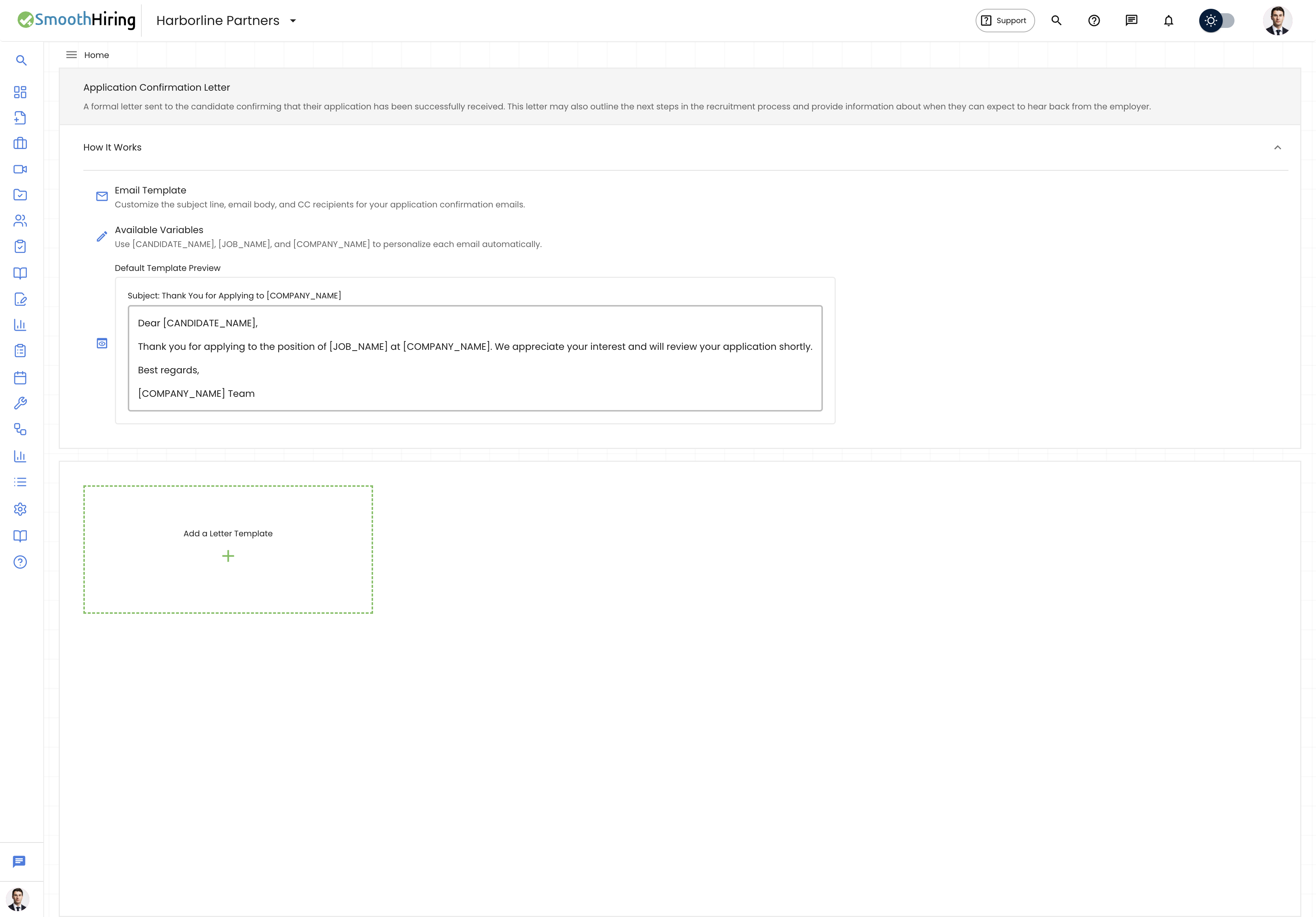
An Application Confirmation Letter is a formal email sent to candidates confirming that their application has been successfully received. This letter may also outline the next steps in the recruitment process and provide information about when they can expect to hear back from the employer.
Every strong employer brand starts with the first touchpoint. A well-crafted thank you letter assures candidates their application was received, sets expectations for next steps, and reinforces your company's professionalism.
Navigating to Thank You Letters
- Click Productivity in the left sidebar.
- Expand Communication.
- Click Thank You Letters.
This takes you to /employer/settings/tools/templates/application-received.
Alternatively: Settings → Tools & Automation → Templates → Thank You Letters.
How It Works
The Thank You Letters page includes an expandable How It Works section at the top that explains the three core concepts:
| Concept | Description |
|---|---|
| Email Template | Customize the subject line, email body, and CC recipients for your application confirmation emails |
| Available Variables | Use [CANDIDATE_NAME], [JOB_NAME], and [COMPANY_NAME] to personalize each email automatically |
| Default Template Preview | A preview of the system-provided default template so you can see the expected format |
Default Template
SmoothHiring provides a built-in default template:
Subject: Thank You for Applying to [COMPANY_NAME]
Body:
Dear [CANDIDATE_NAME],

Thank you for applying to the position of [JOB_NAME] at [COMPANY_NAME]. We appreciate your interest and will review your application shortly.

Best regards,
[COMPANY_NAME] Team
This default is used when no custom templates have been created, or when no preferred template is set.
Creating a Custom Thank You Letter
- Below the How It Works section, click the Add a Letter Template card.
- Fill in the template fields:
| Field | Description | Required |
|---|---|---|
| Template Name | A descriptive label (e.g., "Engineering Application Received") | Yes |
| Template Description | Brief description of when to use this template | Yes |
| Subject | The email subject line | Yes |
| CC Emails | Additional recipients to copy | No |
| Set as Preferred | Make this the default confirmation template | No |
| Email Body | The full confirmation message | Yes |
Use the rich text editor to compose your message.
Insert merge fields:
- [CANDIDATE_NAME] — The candidate's full name
- [COMPANY_NAME] — Your company name
- [JOB_NAME] — The job title
Click Add to save.
Example Thank You Letter
Dear [CANDIDATE_NAME],

Thank you for your application to the [JOB_NAME] role at [COMPANY_NAME]! We're excited to review your qualifications.

Here's what you can expect next:

1. Our hiring team will review your application within 5-7 business days.
2. If your qualifications match our requirements, we'll reach out to schedule a phone screening.
3. You can check the status of your application at any time by logging into your candidate portal.

We appreciate your interest in joining [COMPANY_NAME] and look forward to learning more about you.

Warm regards,
The [COMPANY_NAME] Talent Acquisition Team
Editing a Thank You Letter
- Click on the template card or the Edit (pencil) icon.
- Modify any fields.
- Click Save Changes.
Deleting a Thank You Letter
Click the Delete (trash) icon on the template card to permanently remove it.
When Thank You Letters Are Sent
Thank You Letters are typically triggered when:
- A candidate submits an application — The system can automatically send the preferred confirmation letter.
- Pipeline stage entry — The "New" stage in your Custom Hiring Pipeline can have an application confirmation email action configured.
- Manual send — You can manually send confirmation emails from the applicant list.
Setting a Preferred Template
Toggle the Set as Preferred switch when creating or editing a template. The preferred template is:
- Highlighted with a green border and star badge
- Used automatically for new application confirmations
- Listed first in any template selection dialogs
Best Practices
- Send immediately. Application confirmation emails should be sent as soon as possible after the candidate applies. Configure this as an automated pipeline action for instant delivery.
- Set realistic timelines. If your review process takes two weeks, say so. Candidates appreciate honesty over vague promises.
- Include next steps. Tell candidates what happens after they apply — this reduces follow-up emails asking about status.
- Maintain your brand voice. This is often the first email a candidate receives from you. Make it reflect your company culture.
- Use role-specific templates. A tech company might want a different tone for engineering vs. marketing roles.