

How to Use the SmoothHiring Calendar
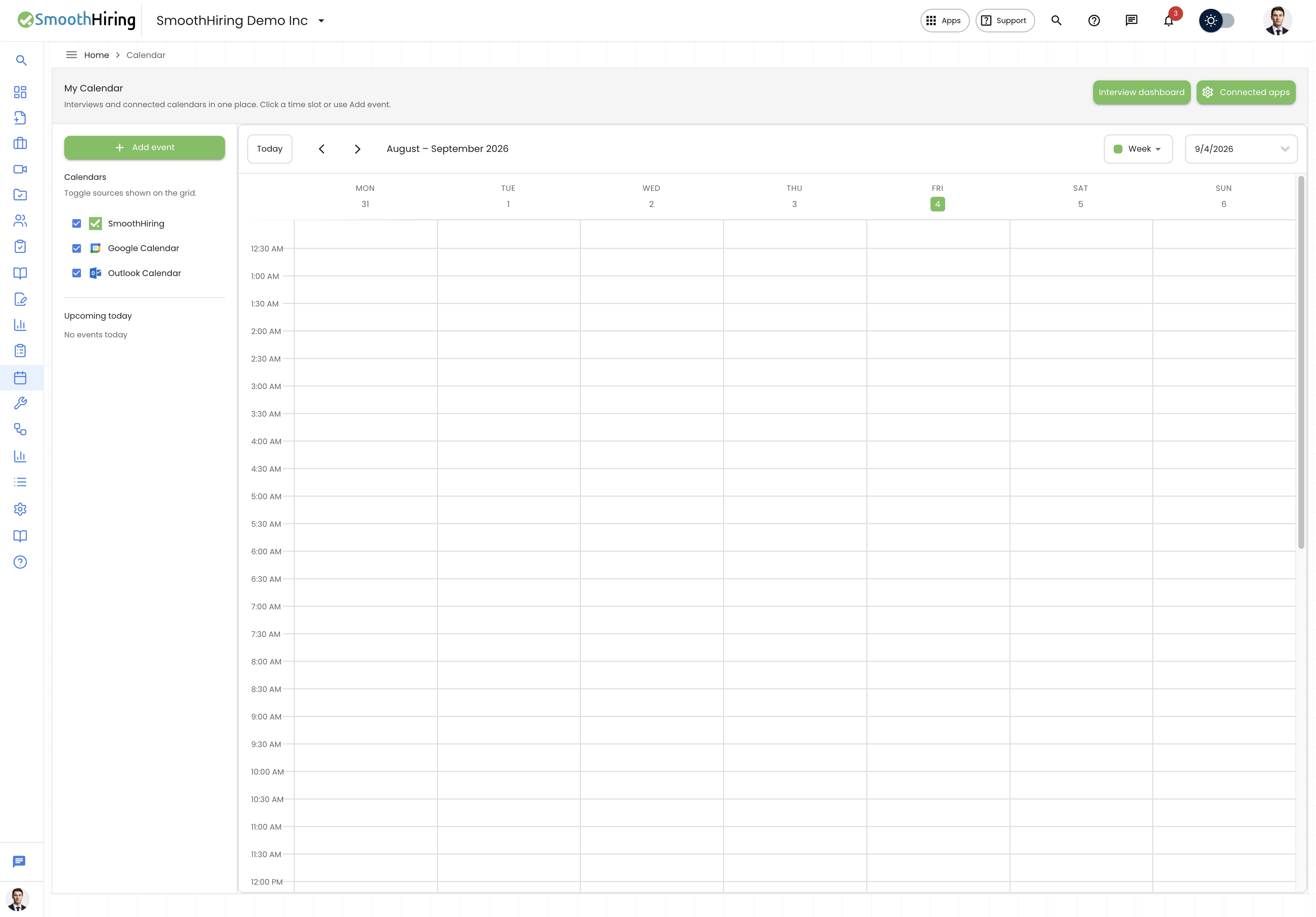
The Calendar in SmoothHiring provides a unified view of all your hiring-related events, interviews, and meetings. It integrates with Google Calendar and Outlook Calendar so you can see everything in one place without switching between apps.
Navigating to the Calendar
- Direct URL:
/employer/calendar - Navigation: Click Calendar in the left sidebar.
- From Dashboard: Click the Calendar quick action tile, or use the embedded calendar widget.
Calendar Overview
The Calendar displays events from up to three sources simultaneously:
| Source | Color | Description |
|---|---|---|
| SmoothHiring | Green | Interviews scheduled through SmoothHiring, plus custom events |
| Google Calendar | Blue | Events from your connected Google Calendar |
| Outlook Calendar | Dark Blue | Events from your connected Outlook Calendar |
Calendar Views
Use the view selector in the calendar header to switch between different layouts:
| View | Description |
|---|---|
| Day | Detailed hour-by-hour view of a single day |
| Week | Seven-day grid showing all events across the week |
| Month Grid | Traditional monthly calendar with events on each day |
| Month Agenda | Month view with an agenda-style event list |
| List | Chronological list of upcoming events |
Tip: Use the Month Grid view for a high-level overview, then switch to Day or Week when planning specific interview slots.
Sidebar Panel
When viewing the full Calendar page (not the embedded Dashboard version), a sidebar panel appears on the left with:
Calendar Toggles
Check or uncheck calendars to show/hide their events:
- SmoothHiring — Your interviews and custom hiring events
- Google Calendar — Synced Google events (only shown if connected)
- Outlook Calendar — Synced Outlook events (only shown if connected)
Upcoming Today
A compact list showing up to 8 events happening today, with:
- Source icon (SmoothHiring, Google, or Outlook)
- Event title
- Start and end time
Interview Events
SmoothHiring automatically displays interview events on your calendar:
Event Types
| Type | Title Format | Description |
|---|---|---|
| Scheduled Interview | "Scheduled Interview: [Candidate Name]" | Confirmed interviews with a set date and time |
| Requested Slot | "Requested Slot: [Candidate Name]" | Time slots proposed to a candidate |
| Accepted Slot | "Accepted Slot: [Candidate Name]" | Time slots the candidate has accepted |
Clicking an Event
When you click any event on the calendar, a popover appears showing:
- Event title
- Job name — Links to the job if available
- Candidate name — Links to the candidate's profile
- Meeting link — Direct link to Google Meet, Microsoft Teams, or Zoom (if a video link is attached)
Creating Events
You can create events directly from the calendar:
- Click any date/time slot on the calendar grid.
- An Add Event dialog opens with the clicked time pre-filled.
- Fill in the event details:
- Title — Name of the event
- Start Time — When the event begins
- End Time — When the event ends
- Description — Optional notes or agenda
- Attendees — Email addresses of people to invite
- Destination — Where to create the event:
- SmoothHiring Calendar
- Google Calendar (if connected)
- Outlook Calendar (if connected)
- Click Create Event.
The event will immediately appear on your calendar and sync to the chosen destination.
Connecting External Calendars
To see and create events on external calendars, connect them via Connected Apps:
Google Calendar
- Go to Settings > Connected Apps.
- Find Google Calendar under the Google section.
- Click Connect and authorize SmoothHiring to access your calendar.
- Once connected, your Google Calendar events appear automatically on the SmoothHiring calendar.
Outlook Calendar
- Go to Settings > Connected Apps.
- Find Outlook Calendar under the Microsoft section.
- Click Connect and authorize through Microsoft.
- Your Outlook events will sync and appear on the calendar.
Calendar Sync Details
- Sync Range: Events are fetched for a 4-year window (2 years in the past to 2 years in the future).
- Auto-Refresh: Calendar data refreshes each time you navigate to the Calendar page.
- Event Filtering: Only events with valid start and end times are displayed.
Video Meeting Links
When interviews include a video conferencing link, the calendar event will display it:
| Service | Label |
|---|---|
| Google Meet | "Google Meet" |
| Microsoft Teams | "Teams" |
| Zoom | "Zoom" (if configured) |
Click the meeting link directly from the event popover to join the call.
Tips for Using the Calendar
Tip: Toggle off external calendars temporarily when you want to focus only on SmoothHiring interviews.
Tip: Use the "Upcoming Today" sidebar list for a quick glance at today's schedule without scanning the full calendar grid.
Tip: Create events directly on Google or Outlook Calendar through SmoothHiring to keep all your hiring activity in sync across platforms.
Tip: If an event doesn't appear, verify that the correct calendar source is toggled on in the sidebar.
Related Pages
- Dashboard — Embedded calendar widget on your home screen
- Connected Apps — Set up Google Calendar and Outlook integrations
- My Scorecards — Complete scorecards after interviews