

Feature Usage & Limits
in Your Plan## Overview
The Feature Usage Dashboard helps you monitor how your organization is consuming SmoothHiring's resources relative to your subscription plan's limits. Understanding your usage ensures you can plan ahead, avoid disruptions, and make informed decisions about when to upgrade.
Every SmoothHiring plan includes specific allocations for features like job postings, assessments, AI analysis credits, and more. The Feature Usage Dashboard provides real-time visibility into these allocations.
Accessing the Feature Usage Dashboard
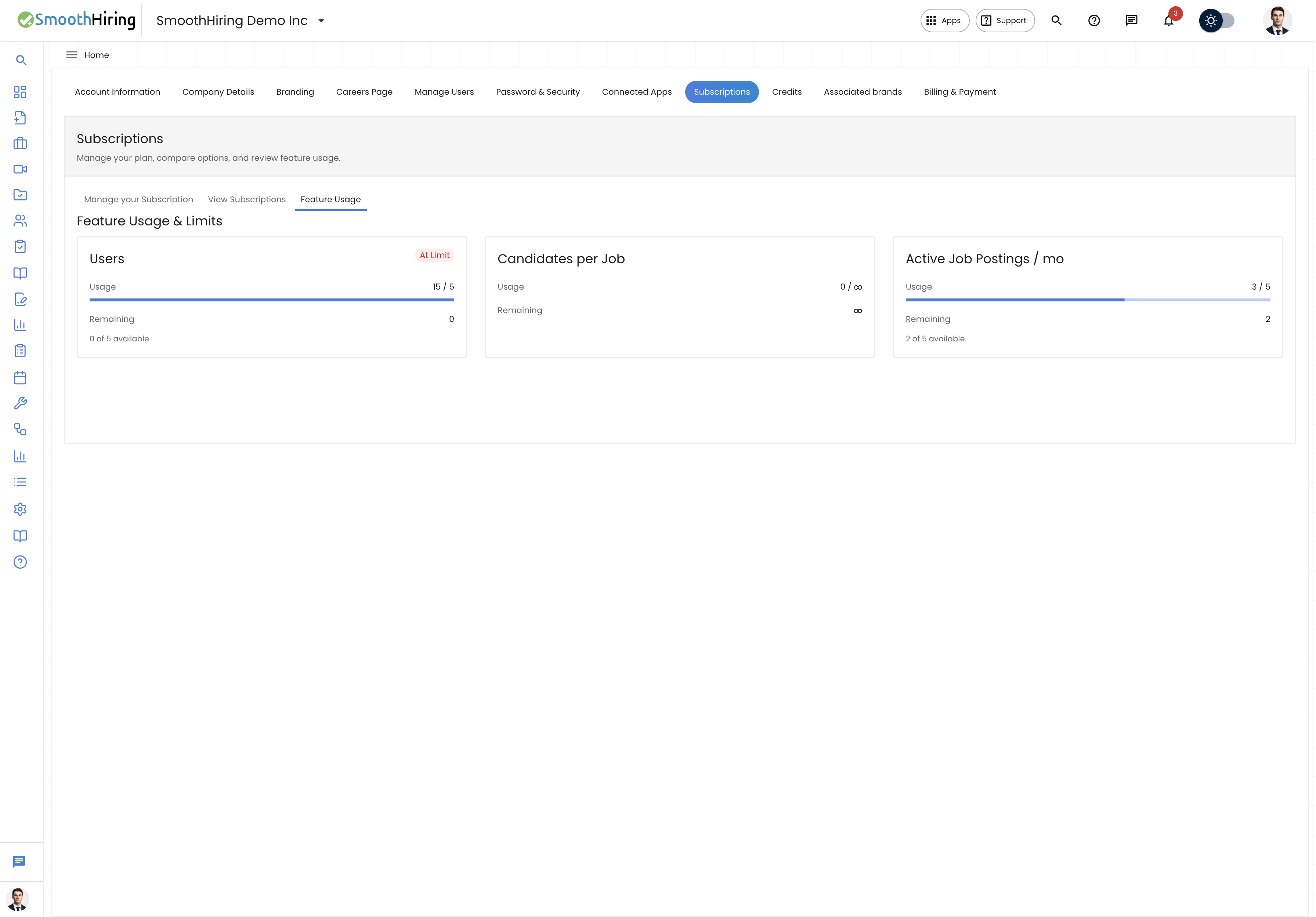
- Navigate to Settings → Account Settings → Subscription
- Click on the Feature Usage tab
- The dashboard displays all tracked features with current usage
Alternatively, you may see usage warnings in other parts of the application when you're approaching limits.
Understanding the Dashboard
Dashboard Layout
The Feature Usage Dashboard presents your usage data in a clear, visual format:
- Feature cards — Each tracked feature has its own card
- Progress bars — Visual indicators showing usage against limits
- Numerical counters — Exact numbers (e.g., "23 of 50 used")
- Status indicators — Color-coded status (green, yellow, red)
- Billing period — Shows the current billing cycle dates
Status Colors
| Color | Meaning | Action |
|---|---|---|
| Green | Under 70% used | No action needed |
| Yellow | 70-90% used | Consider planning for increased usage |
| Red | Over 90% used | Approaching limit, consider upgrading |
| Gray | Limit reached | Feature restricted until renewal or upgrade |
Tracked Features & Limits
SmoothHiring tracks usage across multiple feature categories. Here's what's measured:
Job Postings
| Metric | Description |
|---|---|
| Active Job Posts | Number of simultaneously active job postings |
| Total Posts (Monthly) | Total jobs posted in the current billing period |
| Job Boards | Number of external job boards included for distribution |
Assessments
| Metric | Description |
|---|---|
| Assessment Credits | Number of candidate assessments available |
| Custom Assessments | Number of custom assessment templates |
| Assessment Types | Which assessment types are accessible on your plan |
AI Features
| Metric | Description |
|---|---|
| AI Analysis Credits | Smart Recruiter AI analyses available |
| AI Job Descriptions | AI-generated job description drafts |
| AI Screening | Automated resume screening credits |
Team & Collaboration
| Metric | Description |
|---|---|
| Team Members | Number of user seats on the account |
| Associated Brands | Number of brands/subsidiaries |
| Shared Reports | Number of shareable report links per month |
Candidates & Pipeline
| Metric | Description |
|---|---|
| Candidate Storage | Total candidate profiles stored |
| Pipeline Stages | Number of custom pipeline stages |
| Email Templates | Number of saved email templates |
Careers & Branding
| Metric | Description |
|---|---|
| Careers Pages | Number of custom careers pages |
| Custom Domain | Whether custom domain is included |
| Builder Blocks | Access to premium builder blocks |
Integrations
| Metric | Description |
|---|---|
| Active Integrations | Number of connected third-party tools |
| API Calls | Monthly API request limit (for custom integrations) |
| Webhook Endpoints | Number of webhook configurations |
What Happens When Limits Are Reached
When you reach a feature limit, the behavior depends on the feature type:
Hard Limits
Some features have hard limits that prevent further use:
- Job Postings — You cannot publish new jobs until you close existing ones or upgrade
- Team Members — You cannot invite new users until you remove existing ones or upgrade
- Associated Brands — You cannot create new brands until you upgrade
When a hard limit is reached:
- You'll see a clear notification explaining the limit
- The relevant action button will be disabled
- A prompt to upgrade will be displayed
- Existing data and functionality remain fully accessible
Soft Limits
Other features have soft limits that allow continued use with degraded service:
- Assessment Credits — Once depleted, new assessments cannot be sent but existing ones can still be completed
- AI Analysis — Credits reset at the start of each billing period
- API Calls — Requests may be throttled rather than blocked
Grace Periods
SmoothHiring provides grace periods for certain limits:
- A brief grace period may allow you to continue briefly after hitting a limit
- You'll receive warning notifications well before reaching limits
- Critical operations (candidate responses, assessment completions) are never interrupted
Notifications & Warnings
SmoothHiring proactively notifies you about usage:
Warning Thresholds
- 70% used — Info notification in the dashboard
- 85% used — Email notification to account admins
- 95% used — Urgent notification with upgrade prompt
- 100% reached — Feature restriction notification with immediate upgrade option
Notification Channels
- In-app notifications (bell icon)
- Email to account administrators
- Dashboard warning banners
- Feature-specific prompts when attempting restricted actions
Upgrading to Increase Limits
When you need more capacity, upgrading your plan is straightforward.
How to Upgrade
- Navigate to Settings → Subscription
- Click Upgrade Plan or Change Plan
- Compare available plans and their limits
- Select the plan that meets your needs
- Confirm the upgrade and updated billing
- New limits take effect immediately
Plan Comparison
The upgrade screen shows a clear comparison of:
- Feature limits on each plan
- Price differences (monthly and annual)
- Which specific limits will increase
- Any new features unlocked at higher tiers
Mid-Cycle Upgrades
- Upgrades take effect immediately
- Billing is prorated — you only pay the difference for the remainder of the cycle
- All new limits are available instantly
- No disruption to existing workflows
Add-Ons
Some features can be increased without a full plan upgrade:
- Extra assessment credits — Purchase additional assessment packs
- Additional user seats — Add seats without changing plans
- AI credit packs — Buy extra AI analysis credits
Usage Reset & Billing Cycles
Monthly Resets
Usage counters that reset each billing period:
- AI Analysis credits
- Shared report link generation
- API call counts
- Monthly job posting counts
Non-Resetting Limits
These are cumulative or concurrent limits that don't reset:
- Active job posts (concurrent count)
- Team member seats (concurrent count)
- Candidate storage (cumulative)
- Associated brands (concurrent count)
Viewing Historical Usage
The dashboard includes a Usage History section where you can:
- View usage trends over past billing periods
- Identify patterns in consumption
- Forecast when you might need to upgrade
- Download usage reports for budgeting
Best Practices
- Check usage weekly — Make it part of your routine to avoid surprises
- Set up notifications — Ensure admin email addresses are current for warning notifications
- Plan ahead for hiring surges — If you know busy periods are coming, upgrade proactively
- Close completed jobs — Free up active job posting slots by closing filled positions
- Right-size your plan — If you're consistently under 50% usage, you might be over-paying
- Use annual billing — Save 15-20% with annual plans vs. monthly
- Monitor AI credits — These are the most commonly exhausted resource
Frequently Asked Questions
Q: What happens to my data if I downgrade my plan? A: Your data is never deleted. However, if you exceed the lower plan's limits, some features may be restricted until you reduce usage.
Q: Can I set custom usage alerts? A: Currently, alerts trigger at standard thresholds (70%, 85%, 95%). Custom thresholds are on our roadmap.
Q: Do unused credits roll over to the next month? A: This depends on your plan. Enterprise plans typically include rollover; standard plans reset monthly.
Q: How do I know which plan is right for me? A: Review your usage history and growth projections. Our team can also provide personalized recommendations — contact support.
Q: Are there any features with unlimited usage? A: Enterprise plans offer unlimited allocations for most features. Contact sales for details.