

Managing Your Assessments
The My Assessments page is your central hub for creating, managing, and distributing pre-employment assessments. This is where you view all assessments your organization has created or added from the library, configure their settings, send them to candidates, and manage their lifecycle.
Navigating to My Assessments
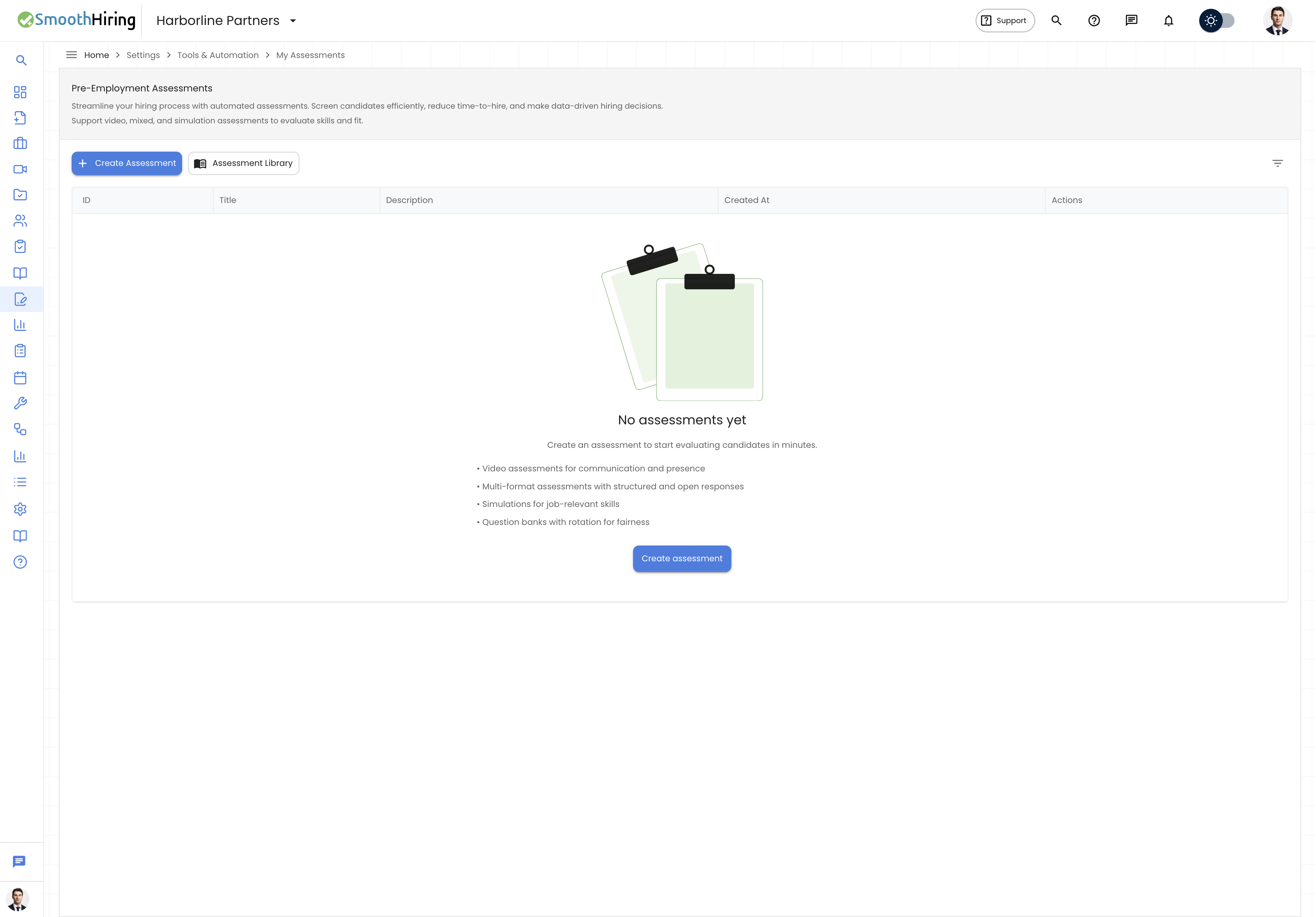
- Click the gear icon in the left sidebar to open Settings.
- Under Tools & Automation, select Assessments.
- You land on the My Assessments view by default.
Page Layout
The My Assessments page contains:
- Assessment Header — page title and contextual information
- Action Buttons — Assessment Library and Create Assessment buttons
- Filters — filter button and applied filter chips
- Assessment Table — paginated list of all your assessments
- Pagination Controls — page navigation and page size selector (10, 20, or 40)
Creating a New Assessment
Click the Create Assessment button (or Create Video Assessment if viewing video-only mode) to open the Create Assessment dialog.
Step 1: Details
| Field | Description |
|---|---|
| Assessment name | Required. Used in emails sent to candidates and in reports. |
| Role or job title | Optional. Helps keep the assessment focused on the role. |
| Assessment type | Choose from: General mixed assessment, Culture fit and contribution, or Video assessment. Auto-filled when using a template. |
| Template | Optional. Search and select a template from the Assessment Library to start with pre-built questions. |
| Short description | Optional free-text description of the assessment. |
When a template is selected, a Template summary section appears showing the category, question count, and estimated completion time.
Step 2: Settings
| Setting | Description |
|---|---|
| Total questions | How many questions each candidate receives. Only available for templates with question banks. |
| Timing | Untimed (no countdown) or Timed (enforced countdown). |
| Time limit | When timed, set the maximum duration in minutes (up to 180). |
An informational alert explains: "Total questions controls how many questions each candidate receives. Timed mode enforces a countdown; untimed mode has no timer or hidden deadline."
Step 3: Review (Security & Confirmation)
Configure security settings before finalizing:
| Security Setting | Description |
|---|---|
| Fullscreen required | Keeps candidates in full screen to reduce tabbing and external lookups |
| Tab tracking | Tracks tab switching and focus changes |
| Copy/paste blocked | Prevents copying questions or pasting prepared answers |
| Webcam checks | Captures periodic webcam snapshots to verify candidate presence |
| IP tracking | Records IP addresses for security auditing |
A final Assessment summary confirms all settings before creation. Click Create Assessment to finalize.
After successful creation, you are automatically navigated to the assessment's Questions editor to begin adding or reviewing questions.
Assessment Table
The assessment table displays your assessments with sorting, filtering, and action capabilities.
Table Columns
Each row in the table represents one assessment and typically shows:
- Title — the assessment name
- Type — Multi-Format, Video, Simulation, Predictive Survey, or Culture Fit
- Status — Active or Archived
- Category — internal grouping
- Tags — skill domain keywords
- Created by — the team member who created the assessment
- Estimated time — average completion time
- Created date — when the assessment was created
Row Actions
Each assessment row provides several actions:
| Action | Description |
|---|---|
| Click row | Opens the assessment's Questions editor |
| Send Test | Opens the email test dialog to send the assessment to a test recipient |
| Generates a printable version of the assessment | |
| Take Test | Opens a preview version of the assessment in a new browser tab so you can experience it as a candidate would |
| Delete | Removes the assessment (with confirmation dialog) |
Filtering Assessments
Click the Filters button to open the filter drawer with these options:
| Filter | Options |
|---|---|
| Search | Free-text search across titles, descriptions, and creator names with typeahead |
| Type | All, Multi-Format, Video, or Simulation |
| Status | Active (default), Archived, or All |
| Category | Filter by assessment category |
| Tag | Filter by skill domain tag |
| Created By | Search by creator name or email |
| Min Minutes | Minimum estimated completion time |
| Max Minutes | Maximum estimated completion time |
| Created After | Show only assessments created after a specific date |
| Created Before | Show only assessments created before a specific date |
After applying filters, filter chips appear above the table. Remove individual filters by clicking the × on each chip.
Sending a Test Assessment
The Send Test action lets you send an assessment to any email address for testing purposes.
- Click Send Test on any assessment row.
- In the dialog, fill in:
- Email — the recipient's email address (required)
- First Name — optional
- Last Name — optional
- Job — optionally link the test to a specific job (required for Predictive Survey assessments, with Active, Internal, and Expired jobs available grouped by status)
- Click Send.
- A success notification confirms the assessment was sent.
Note: Test sends consume one credit from your balance. If credits are exhausted, a "Limit Reached" dialog appears directing you to Purchase Credits.
Assessment Configuration
Clicking on an assessment row navigates you to the assessment editor with multiple configuration tabs:
Details Tab
Configure core assessment metadata:
- Category — internal grouping for reporting
- Best for roles — comma-separated role types
- Tags — comma-separated keywords for filtering
- Difficulty level — Easy, Medium, or Hard
- Total questions — number of questions each candidate receives
- Welcome Message — shown to candidates before they start
- Email Subject — subject line for invite emails
- Default Expiration (days) — days before the invite link expires
- Estimated time (minutes) — informational time shown to candidates (does not affect timer)
- Timing — Timed (enforced countdown) or Untimed
- Time limit (minutes) — enforced countdown when timed
- Hide resume upload — toggle to remove the resume upload prompt from the assessment start page
- Show percentage score in recruiter views — controls whether a single % score is displayed in summary cards
Security Tab
Toggle integrity checks:
- Fullscreen required — forces full-screen mode
- Tab switch tracking — logs when candidates leave the assessment window
- Copy/paste blocking — prevents clipboard operations
- Webcam verification — captures periodic snapshots
- IP tracking — records IP addresses
- Desktop only — blocks mobile and tablet devices (always on for Simulation assessments)
Auto-Save
All configuration changes auto-save after 800ms of inactivity. The save status indicator shows:
- "Auto-save on" — no changes pending
- "Unsaved changes" — changes waiting to auto-save (amber)
- "Saving..." — save in progress
- "All changes saved" — recent save confirmed (green)
Locked Assessments
Certain assessment types have locked configurations:
- Predictive Survey — configuration is locked to preserve validated scoring methodology
- Culture Fit — configuration is locked to preserve calibrated scoring
- Library content — assessments from locked library templates show: "This assessment uses locked library content. Edit questions by creating a custom variant."
Forking a New Version
If an assessment has already been sent to candidates, a status bar shows invitation statistics (invited, opened, started, completed). You can Fork a new version to create a copy that does not affect existing candidate results.
Archiving and Deleting Assessments
Archiving
When you delete an assessment, it is actually archived (soft delete). Archived assessments:
- No longer appear in the default "Active" filter
- Can be viewed by switching the Status filter to "Archived" or "All"
- Cannot be sent to new candidates
Pipeline Protection
If an assessment is currently attached to a hiring pipeline stage action, you cannot archive it directly. A warning dialog appears:
"Cannot modify [Assessment Name] because it is still attached to pipeline stages."
The dialog lists which pipeline stages use the assessment and provides a Go to Pipeline Settings button so you can remove the assessment action first.