

Sharing Candidate Reports with Your Team
Overview
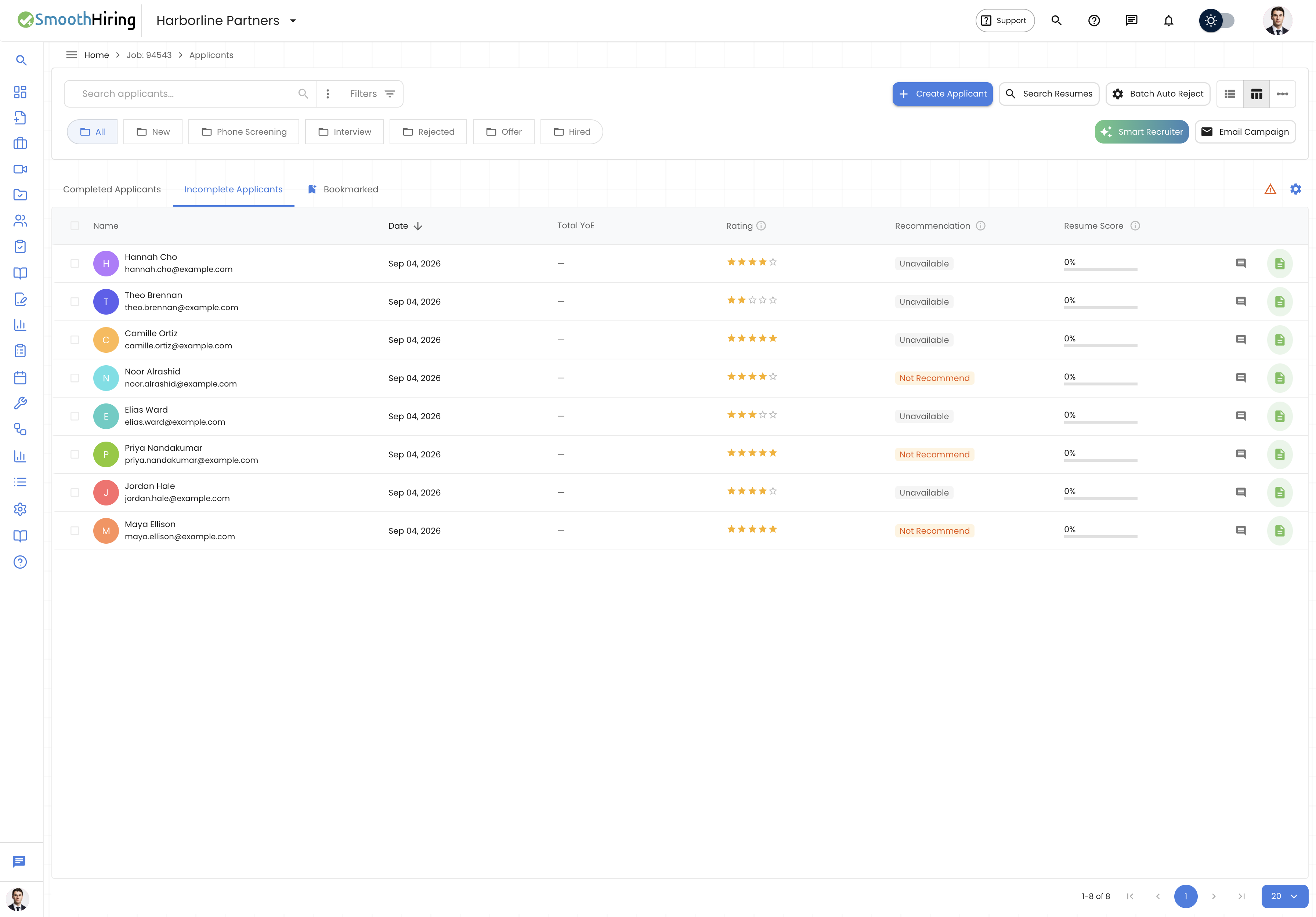
SmoothHiring's Shared Candidate Reports feature allows hiring teams to share comprehensive candidate profiles and assessment results with stakeholders who may not have a SmoothHiring account. Whether you need a department head's input on a finalist, want to share results with an external recruiter, or need executive sign-off before extending an offer, shared reports make collaboration seamless.
Shared reports provide a read-only view of candidate data through a secure, shareable link — no login required for the recipient.
Why Share Candidate Reports
Common scenarios for sharing reports:
- Hiring committee reviews — Share profiles with interview panelists before meetings
- Executive approval — Get sign-off from leadership who don't use the ATS daily
- External recruiters — Share candidate details with agency partners
- Client presentations — Staffing agencies sharing candidate shortlists with clients
- Cross-department input — Get feedback from future team members or stakeholders
- Compliance documentation — Share for record-keeping or audit purposes
Generating a Shareable Link
For Individual Candidates
- Navigate to the candidate's profile in the applicant pipeline
- Click the Share button (or the share icon) in the profile toolbar
- Configure sharing options:
- Report sections — Choose which sections to include
- Expiration — Set when the link should expire
- Access protection — Optionally add a PIN code for extra security
- Click Generate Link
- Copy the link and share it via email, chat, or any other channel
Quick Share
For fast sharing with default settings:
- Right-click a candidate in the pipeline view
- Select Quick Share from the context menu
- A link is immediately generated and copied to your clipboard
What the Shared Report Shows
Shared reports present candidate information in a clean, professional layout designed for easy review by non-technical stakeholders.
Report Sections
Candidate Overview
- Name and photo (if available)
- Current position and company
- Location
- Contact information (if sharing is enabled)
- Applied position and date
Professional Background
- Work experience timeline
- Education history
- Skills and certifications
- Resume download (if enabled)
Assessment Results
- Overall Score — The candidate's composite assessment score
- Personality Profile — Visual chart of personality dimensions
- Cognitive Abilities — Scores on aptitude tests
- Skills Assessment — Technical or role-specific test results
- Culture Fit — Alignment with company culture profile
AI Analysis Summary
- Smart Recruiter AI insights
- Strengths and potential concerns
- Role fit analysis
- Recommended interview focus areas
Interview Notes (if included)
- Interviewer feedback and ratings
- Structured interview responses
- Overall interview recommendations
Hiring Team Notes (if included)
- Internal notes and comments from the hiring team
- Tags and labels applied to the candidate
Configurable Visibility
When generating a shared link, you control exactly which sections are visible:
| Section | Default | Can Hide |
|---|---|---|
| Overview | Shown | No |
| Professional Background | Shown | Yes |
| Assessment Results | Shown | Yes |
| AI Analysis | Shown | Yes |
| Interview Notes | Hidden | Yes |
| Hiring Team Notes | Hidden | Yes |
| Contact Information | Hidden | Yes |
| Salary Expectations | Hidden | Yes |
Cohort Reports
Beyond individual candidate reports, SmoothHiring supports Cohort Reports — shareable views that compare multiple candidates side by side.
What is a Cohort Report
A cohort report groups multiple candidates for a position into a single, shareable comparison view. This is ideal for:
- Presenting a shortlist to hiring managers
- Comparing finalists across assessment dimensions
- Getting stakeholder input on which candidates to advance
Creating a Cohort Report
- Navigate to the job's applicant pipeline
- Select multiple candidates (checkbox selection)
- Click Create Cohort Report from the actions menu
- Configure the report:
- Report title — Name this comparison (e.g., "Senior Developer Finalists")
- Included metrics — Choose which assessment dimensions to compare
- Sort order — How candidates are initially ordered
- Notes — Add context for reviewers
- Generate and share the link
Cohort Report Features
- Side-by-side comparison — See candidates in columns for easy comparison
- Ranking visualization — Visual indicators of relative performance
- Dimension breakdown — Compare specific traits across candidates
- Stakeholder feedback — Recipients can leave comments or rankings
- Summary statistics — Average scores, ranges, and standout traits
Stakeholder Interaction
Recipients of cohort reports can:
- View all candidate profiles in the cohort
- Compare assessment scores visually
- Leave comments on individual candidates
- Rank candidates in order of preference
- Submit their feedback back to the hiring team
Security & Privacy
Link Security
Shared report links are designed with security in mind:
- Unique tokens — Each link contains a cryptographically random token
- Expiration dates — Links automatically expire after the configured period
- PIN protection — Optional PIN code required before viewing
- View tracking — See who accessed the report and when
- Revocation — Links can be revoked instantly at any time
Expiration Options
| Duration | Best For |
|---|---|
| 24 hours | Quick reviews with immediate turnaround |
| 7 days | Standard hiring committee review |
| 30 days | Extended evaluation periods |
| Custom | Specific deadline-based access |
| No expiration | Permanent access (use carefully) |
Privacy Considerations
- Candidate consent — Ensure your hiring process communicates that profiles may be shared with decision-makers
- Data minimization — Only include sections that are necessary for the reviewer's decision
- Access logging — All views of shared reports are logged for audit purposes
- GDPR compliance — Shared links respect data retention policies and candidate deletion requests
- No indexing — Shared report pages include noindex directives to prevent search engine discovery
Managing Active Links
To manage all shared links for a candidate:
- Open the candidate's profile
- Click Shared Links in the actions menu
- View all active and expired links
- Revoke any link that should no longer be accessible
- See view history for each link
Branding Shared Reports
Shared reports carry your organization's branding:
- Company logo appears at the top of the report
- Brand colors are used throughout the design
- Custom footer text can be added (e.g., confidentiality notice)
- The report URL uses your branded domain (if configured)
Notifications & Tracking
For the Sharer
- Receive notifications when someone views your shared report
- Track total views and unique viewers
- See when feedback is submitted on cohort reports
For Recipients
- No account required to view
- Clean, distraction-free reading experience
- Mobile-responsive layout for viewing on any device
- Option to print or save as PDF
Best Practices
- Set appropriate expiration dates — Don't leave links active indefinitely
- Use PIN protection for sensitive roles or executive positions
- Include context — Add a note explaining what feedback you're looking for
- Limit sections — Only share what's needed for the reviewer's decision
- Use cohort reports for shortlists rather than sending multiple individual links
- Review active links periodically and revoke those no longer needed
- Brand your reports — They represent your organization to external stakeholders
Frequently Asked Questions
Q: Can recipients edit the candidate's profile? A: No. Shared reports are always read-only. Recipients cannot modify any candidate data.
Q: Do I need a specific plan to use shared reports? A: Shared reports are available on Professional and Enterprise plans. Check your Feature Usage dashboard for limits.
Q: Can I see who clicked my shared link? A: Yes. View tracking shows when the link was accessed, but it cannot identify the specific person unless they authenticate.
Q: What happens when a link expires? A: The recipient sees a message indicating the link is no longer valid. No candidate data is shown.
Q: Can I re-share an expired link? A: You'll need to generate a new link. Expired links cannot be reactivated.