

Your Hiring Analytics Dashboard
My Analytics provides a comprehensive, data-driven view of your hiring performance. Track key metrics, visualize trends, identify bottlenecks in your pipeline, and make informed decisions to improve your recruitment outcomes — all from a single, customizable dashboard.
Navigating to My Analytics
- Direct URL:
/employer/analytics - Navigation: Click Analytics in the left sidebar.
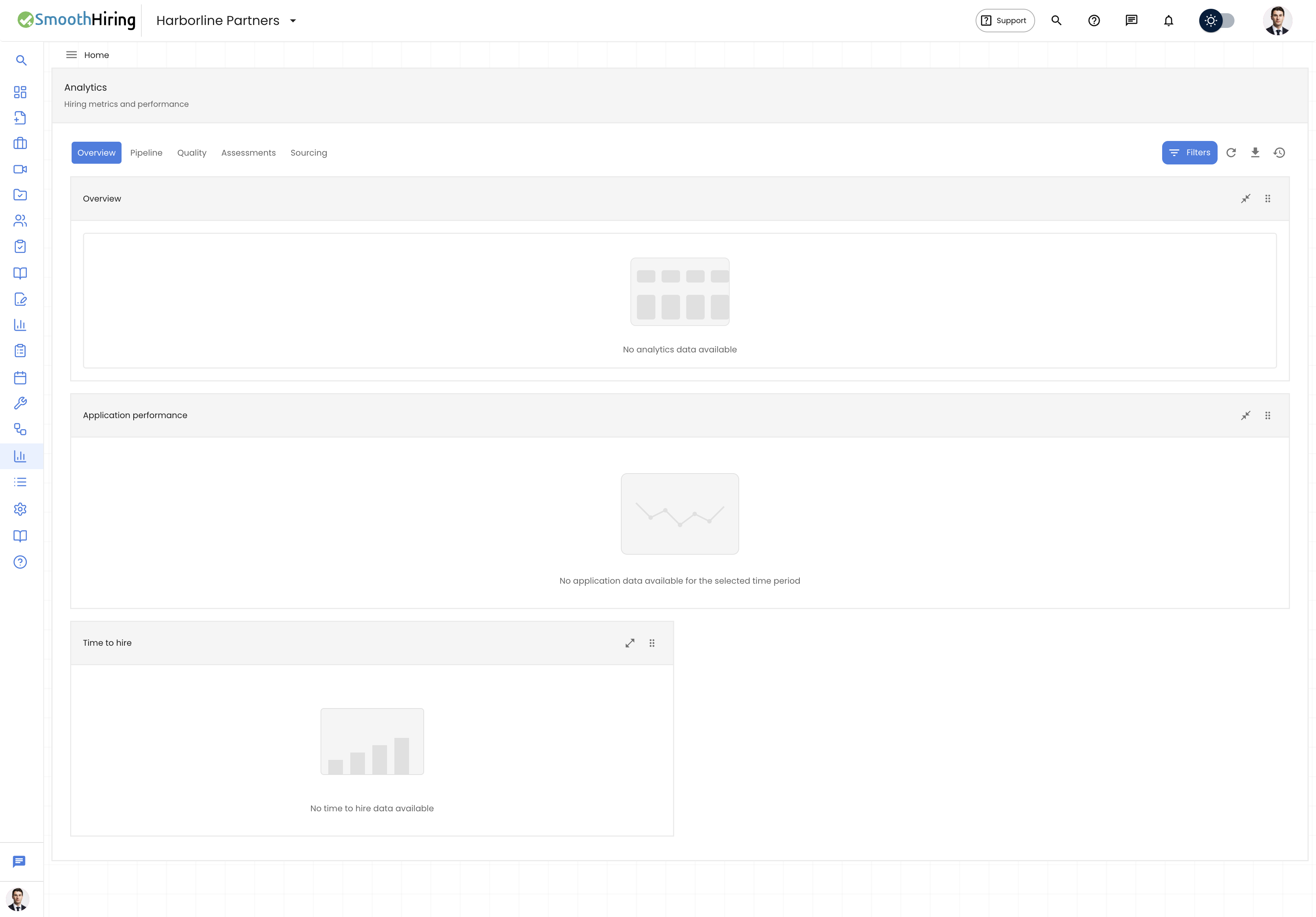
Analytics Dashboard Overview
The Analytics page features:
- Tabbed navigation for different metric categories
- Filtering controls to narrow data by job, time range, stage, and match type
- Draggable chart cards that can be rearranged to suit your workflow
- Resizable cards (toggle between half-width and full-width)
- Export functionality to download data as CSV
- Persistent layout — your custom arrangement is saved automatically
Analytics Tabs
The dashboard is organized into five tabs:
| Tab | Charts Included |
|---|---|
| Overview | Overview metrics, Application performance, Time to hire |
| Pipeline | Stage distribution, Conversion funnel |
| Quality | Match type & recruiter insights, Resume score, AI recommendation, Risk assessment |
| Assessments | Assessment performance (requires a specific job selected) |
| Sourcing | Geographic distribution, Applications by job, Applications by day |
Overview Tab
Key Metrics Cards
The Overview section displays four primary metrics with sparkline trend graphs:
| Metric | Description |
|---|---|
| Total Applicants | The total number of candidates who have applied across selected jobs/timeframe |
| Active Candidates | Candidates currently in your pipeline (not rejected or hired) |
| Hired | Number of candidates who have been moved to the "Hired" stage |
| Conversion Rate | Percentage of total applicants who were ultimately hired |
Each metric card includes:
- A trend sparkline showing recent performance
- A trend indicator arrow (↑ green for improvement, ↓ red for decline) compared to the previous period
- A percentage change from the prior period
Application Performance Chart
A line chart showing application volume over time. Useful for identifying:
- Spikes in application activity (often correlated with job board postings)
- Seasonal hiring patterns
- The impact of job description changes
Time to Hire
Visualizes how long it takes to move candidates from application to hire, broken down by stages. Helps identify where candidates are getting stuck in your pipeline.
Pipeline Tab
Stage Distribution
A visual breakdown showing how many candidates are in each pipeline stage:
| Stage | Description |
|---|---|
| New | Just applied, not yet reviewed |
| Reviewed | Screened but no action taken yet |
| Phone Screening | In phone interview stage |
| Interview | In formal interview stage |
| Offer | Offer extended |
| Hired | Successfully hired |
| Rejected | Rejected from the process |
Conversion Funnel
A funnel chart showing the drop-off rate between each stage. This is critical for identifying:
- Where you lose the most candidates
- Which stages have the lowest conversion rates
- Opportunities to improve your process
Quality Tab
Match Type & Recruiter Insights
Displays the distribution of candidates by their AI-determined match quality:
| Match Type | Description |
|---|---|
| Strong Match | Highly aligned with job requirements |
| Good Match | Well-aligned with most requirements |
| Fair Match | Partially aligned |
| Weak Match | Minimal alignment with requirements |
Resume Score Distribution
A chart showing how candidates' resumes score across your positions. Higher scores indicate better alignment between the candidate's experience and your job requirements.
AI Recommendation
Shows the distribution of SmoothHiring's AI recommendations for candidates — helping you understand how the system evaluates your applicant pool.
Risk Assessment
Displays risk level distribution across candidates, helping identify potential concerns flagged by the AI analysis.
Assessments Tab
When a specific job is selected, the Assessment Performance section shows:
- Assessment completion rates
- Score distributions
- Performance comparisons across candidates
Note: You must select a specific job (not "All jobs") to see assessment analytics.
Sourcing Tab
Geographic Distribution
A visualization showing where your candidates are located geographically. Useful for:
- Understanding your talent pool reach
- Identifying regions with strong candidate pools
- Planning targeted recruitment in specific areas
Applications by Job
A comparison chart showing application volume across different job postings. Quickly see which jobs are attracting the most (or fewest) candidates.
Applications by Day
Shows application patterns by day of week or date, helping you understand:
- Which days see the most applications
- The impact of posting timing on application volume
- Seasonal or weekly trends
Filtering Your Data
Click the Filters button to open the filters drawer:
Available Filters
| Filter | Options |
|---|---|
| Job | All jobs, or select a specific job (grouped by Active, Internal, Expired, Draft) |
| Time Range | Last 7 days, Last 30 days, Last 90 days, Last year, All time, or Custom range |
| Custom Date Range | Set specific start and end dates |
| Stage | Filter by one or more pipeline stages |
| Match Type | Filter by match quality (Strong, Good, Fair, Weak) |
Applying Filters
- Click Filters in the toolbar.
- Set your desired filter values.
- Click Apply to update all charts.
- Applied filters appear as chips below the toolbar for easy reference.
- Click the X on any chip to remove that specific filter.
- Click Clear to reset all filters.
Customizing Your Layout
Rearranging Charts
- Grab the drag handle (⋮⋮) on any chart card header.
- Drag it to a new position within the same tab.
- Drop it where you want it placed.
- Your layout is automatically saved.
Resizing Charts
- Click the expand/collapse icon on any chart card to toggle between half-width and full-width display.
- Full-width cards span the entire page; half-width cards sit side-by-side.
Resetting Layout
Click the Reset layout button (↺ icon) to restore the default chart arrangement and sizes.
Exporting Data
- Click the Export CSV button (↓ icon) in the toolbar.
- A CSV file downloads with the current filtered data.
- The filename includes the date (e.g.,
analytics-export-2026-05-26.csv).
The export respects your current filter settings — only the filtered data is included.
Refreshing Data
Click the Refresh button (↻ icon) to reload all analytics data with the current filters. Use this to see the latest numbers without navigating away from the page.
Quick Actions
When a specific job is selected, additional action buttons appear:
| Button | Action |
|---|---|
| Edit Job | Navigate to edit the selected job's details |
| View Candidates | Jump to the applicant list for the selected job |
Tips
Tip: Start with the Overview tab for a high-level picture, then drill into Pipeline and Quality tabs to identify specific issues.
Tip: Compare different time ranges to spot trends — switch from "Last 30 days" to "Last 90 days" to see if metrics are improving or declining.
Tip: Use the Conversion Funnel to find your biggest drop-off point. If most candidates drop at the interview stage, you may need to improve your interview scheduling process.
Tip: Export your analytics data monthly to track long-term hiring trends in a spreadsheet.
Tip: Rearrange charts so the metrics most important to you appear at the top of each tab.
Related Pages
- Dashboard — Quick summary metrics
- Job Boards — See where candidates discover your jobs
- My Scorecards — Interview evaluation data
- Hiring Coach — Get help interpreting your metrics