

Tracking Candidate Applications
SmoothHiring is designed to make the application process as simple and welcoming as possible for candidates. A smooth, fast application experience reduces drop-off and helps you attract more qualified talent. This guide covers how SmoothHiring optimizes the candidate journey from discovery to submission.
The Candidate Application Flow
When a candidate clicks Apply on a job posting, they move through a streamlined, multi-step application process:
Step 1: Email Validation
Candidates begin by entering their email address. SmoothHiring validates the email to:
- Check if the candidate already has an account (so they can log in and auto-fill their details)
- Prevent duplicate applications
- Ensure the email address is valid
Returning candidates can log in and have their profile details pre-filled, saving time.
Step 2: Sign Up / Log In
New candidates create an account with basic information:
- First Name
- Last Name
- Password
Returning candidates simply log in. SmoothHiring also supports:
- Google Sign-In — Apply with one click using a Google account
- LinkedIn Sign-In — Apply using LinkedIn credentials
Tip: Offering social sign-in options (Google, LinkedIn) can significantly reduce friction and increase application completion rates.
Step 3: Resume Upload
Candidates upload their resume. SmoothHiring supports:
- File upload — Drag and drop or click to browse (PDF, DOC, DOCX formats)
- Resume selection — Returning candidates can select from previously uploaded resumes
- Resume parsing — SmoothHiring automatically parses the resume to extract key information
The parsed resume data pre-fills candidate profile fields, reducing manual data entry.
Step 4: Additional Questions (Optional)
If the employer has configured additional questions for the job, candidates answer them at this step. Question types include:
- Short Answer — Open text responses
- Paragraph — Extended text responses
- Multiple Choice — Select one option
- Checkboxes — Select multiple options
- Dropdown — Select from a list
- Yes/No — Binary choice
- Numeric — Number input
- Date — Date picker
Tip: Keep additional questions to a minimum. Research shows that each additional question can reduce application completion rates by 5–10%.
Step 5: Questionnaires (Optional)
Some jobs include structured questionnaires for initial screening. These may include:
- Knockout questions — Must-answer questions that can automatically screen out unqualified candidates
- Skills assessments — Questions that gauge specific competencies
- Availability questions — Start date, schedule preferences, etc.
Step 6: EEO Questions (Optional)
If the employer has enabled Equal Employment Opportunity (EEO) compliance, candidates are presented with voluntary demographic questions. These questions are:
- Completely voluntary for candidates
- Confidential and stored separately from application data
- Used only for aggregate reporting purposes
- Not visible to hiring managers during the review process
EEO categories typically include:
- Gender
- Race / Ethnicity
- Veteran status
- Disability status
Step 7: Pre-Employment Assessments (Optional)
If configured, candidates may be asked to complete pre-employment assessments:
- Custom assessments created by the employer
- Skills tests specific to the role
- Predictive surveys measuring behavioral traits and culture fit
Step 8: Confirmation
After submitting, candidates see a confirmation page and receive a confirmation email. They can:
- Track the status of their application
- Access their candidate dashboard
- Apply to additional open positions
Configuring the Application Form
Adding Additional Questions
To add screening questions to your job posting:
- Navigate to Jobs in the left sidebar.
- Click on the job you want to edit, or create a new job.
- In the job creation/editing flow, find the Additional Questions step.
- Click Add Question to add custom screening questions.
- Choose the question type and configure answer options.
- Mark questions as Required or optional.
- Set up knockout criteria to auto-reject candidates who don't meet minimum requirements.
Configuring EEO Questions
To enable EEO data collection:
- During job creation, navigate to the EEO step.
- Toggle on the EEO questions you want to include.
- Questions will appear as voluntary prompts at the end of the application.
Important: EEO data is collected for compliance and reporting purposes. It is never shown to individual hiring managers and has no impact on candidate screening or selection decisions.
Attaching Assessments
To add pre-employment assessments:
- Navigate to Settings → Tools & Automation → Assessments.
- Create or select an existing assessment.
- Attach the assessment to specific jobs during job creation.
- Candidates will be invited to complete the assessment as part of their application.
Mobile-Friendly Applications
SmoothHiring's application flow is fully responsive and optimized for mobile devices:
- All application steps resize beautifully on phones and tablets
- Resume upload works from mobile devices (including cloud file pickers)
- Social sign-in buttons are touch-optimized
- Form fields are properly sized for mobile keyboards
Tip: Over 60% of job seekers browse jobs on their phones. Ensuring a mobile-friendly experience is critical for maximizing applications.
Candidate Experience Best Practices
Keep Applications Short
- Limit additional questions to 3–5 per job
- Only ask what's essential for initial screening
- Save detailed questions for later interview stages
Write Clear Job Descriptions
- Help candidates self-select with clear role requirements
- List "must-have" vs. "nice-to-have" qualifications
- Include salary range and benefits information when possible
Enable Social Sign-In
- Google and LinkedIn sign-in reduce friction
- Candidates can apply in significantly fewer clicks
Respond Quickly
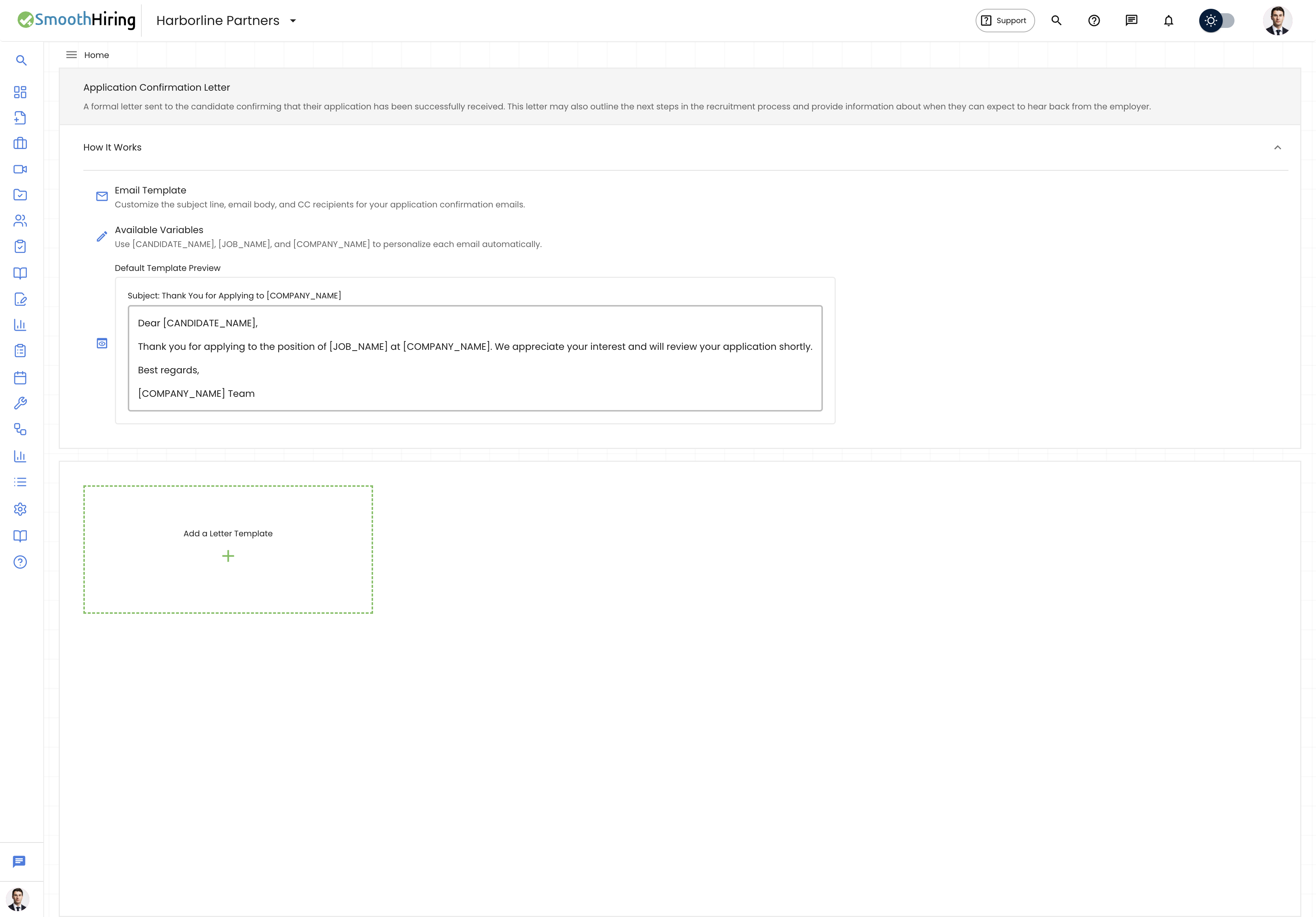
- Use automated email templates to acknowledge applications immediately
- Set up pipeline stage automations to keep candidates informed
- Candidates who hear back quickly have a more positive impression of your company
Use Your Careers Page
- A branded Careers Page with your logo, colors, and company story makes candidates feel confident they're applying to a legitimate, professional organization
- Add Employer Branding elements like testimonials, values, and benefits
Tracking Application Status
Candidates can track their application status through their candidate dashboard. From the employer side:
- Navigate to Jobs and click on a specific job.
- View all applicants in the Applicant Pipeline or Applicants List view.
- Candidates move through pipeline stages (e.g., Applied → Screening → Interview → Offer).
- Each stage transition can trigger automated emails to keep candidates informed.
Related Pages
- Careers Page — Build and customize your careers page
- Employer Branding — Colors, fonts, and SEO
- AI Interview Kit — Generate interview questions for candidates
- Team Collaboration — Collaborate with your team on candidate evaluations