

How to Create Email Templates in SmoothHiring
Email templates in SmoothHiring are pre-built, reusable email formats that streamline candidate communication throughout your hiring process. Instead of composing emails from scratch every time you need to contact an applicant, you can create polished templates with dynamic merge fields that automatically personalize each message.
Overview
SmoothHiring provides six distinct email template categories, each designed for a specific stage of the recruitment lifecycle:
| Template Type | Purpose |
|---|---|
| Application Confirmation | Confirms receipt of a candidate's application |
| Rejection Letter | Notifies candidates they were not selected |
| Offer Letter | Extends a formal job offer to a candidate |
| Interview Invitation | Invites candidates to an interview with scheduling details |
| Shortlist Notification | Informs candidates they have been shortlisted |
| Assessment Invitation | Invites candidates to complete an assessment |
Each template type can have multiple versions, allowing you to tailor messaging for different roles, departments, or scenarios. You can also designate one template per type as your Preferred template, which serves as the default when that template type is used.
Navigating to Email Templates
Email templates are spread across multiple areas in the sidebar depending on their type:
- Click Productivity in the left sidebar.
- Expand Communication.
- Select the template type you need:
- Rejection Letters →
/employer/settings/tools/templates/rejection-notification - Interview Letters →
/employer/settings/tools/templates/interview-notification - Thank You Letters →
/employer/settings/tools/templates/application-received
- Rejection Letters →
For additional template types (Offer Letters, Shortlist Notifications, Assessment Invitations), navigate via:
- Click Settings (gear icon) in the left sidebar.
- Go to Tools & Automation → Templates.
Creating a New Template
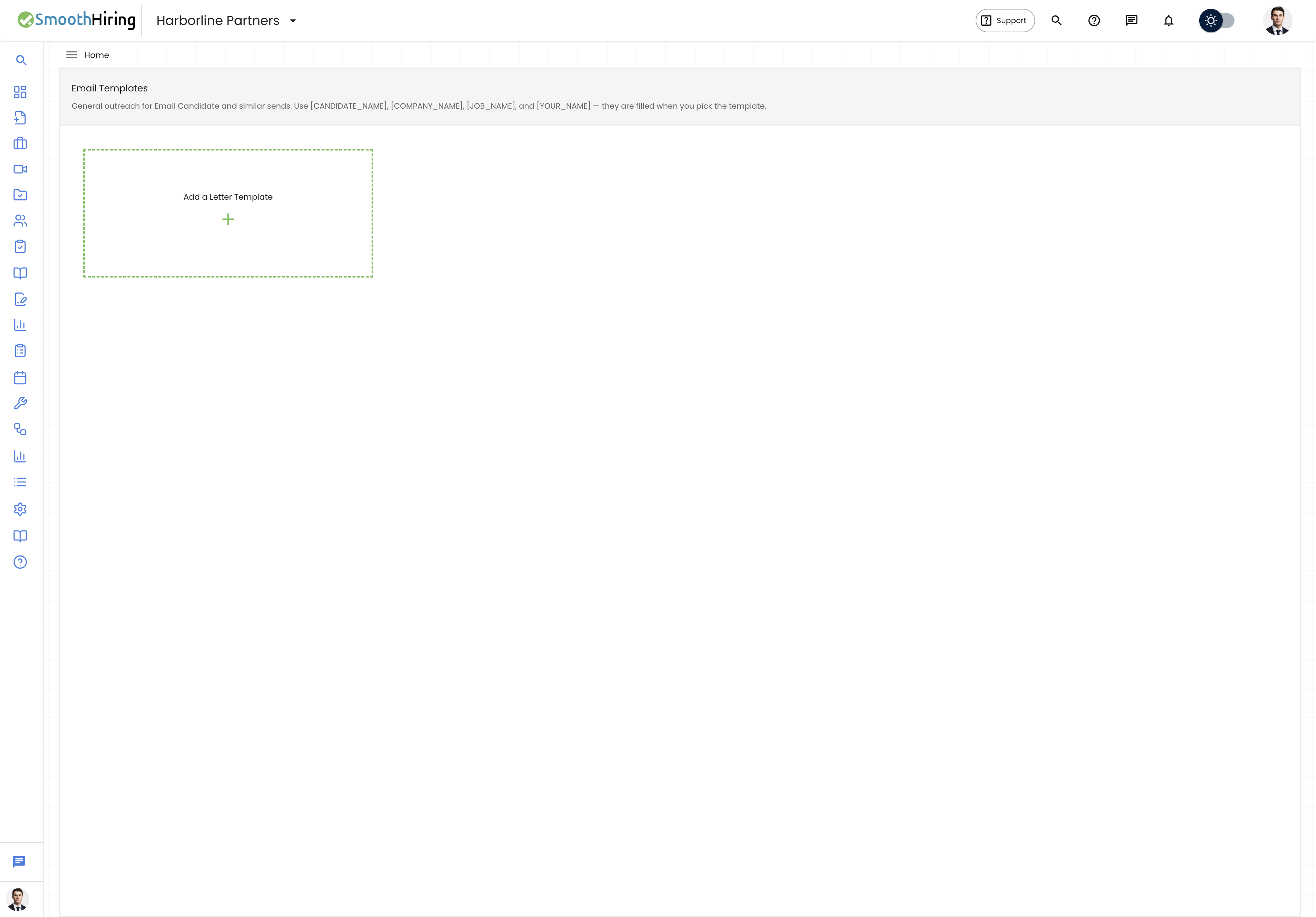
- Navigate to the desired template category page.
- Click the Add a Letter Template card (the dashed green border box with the + icon).
- A dialog will open with the following fields:
| Field | Description | Required |
|---|---|---|
| Template Name | A short, descriptive name for the template (e.g., "Standard Rejection") | Yes |
| Template Description | A brief summary of when to use this template | Yes |
| Subject | The email subject line recipients will see | Yes |
| CC Emails | Comma-separated email addresses to CC on every send | No |
| Set as Preferred | Toggle to make this the default template for its type | No |
| Email Body | The main content of the email, composed in a rich text editor | Yes |
Compose your email body using the rich text editor, which supports:
- Bold, italic, and underline formatting
- Bullet and numbered lists
- Links
- Text alignment
- Headers and block quotes
Insert merge fields by clicking the buttons below the editor:
- Insert [CANDIDATE_NAME] — Replaced with the candidate's full name
- Insert [COMPANY_NAME] — Replaced with your company name
- Insert [JOB_NAME] — Replaced with the job title
Click Add to save the template.
Tip: Merge fields are inserted at the current cursor position in the editor. Click where you want the field to appear before clicking the insert button.
Interview Templates: Special Behavior
Interview Invitation templates have a unique two-part editor layout:
- Intro Message — The content that appears before the interview details
- Interview Details (Auto-filled) — A locked section indicated by a dashed box with the placeholder
[INTERVIEW_DETAILS]. This is automatically populated with the candidate's interview date, time, and location when the email is sent. - Closing Message — The content that appears after the interview details
This design ensures interview logistics are always accurate while giving you full control over the greeting and closing sections.
Editing a Template
- Navigate to the template category page.
- Click on any existing template card, or click the Edit (pencil) icon.
- The same dialog opens pre-populated with the template's current values.
- Make your changes and click Save Changes.
Deleting a Template
- Navigate to the template category page.
- Click the Delete (trash) icon on the template card you want to remove.
- The template is immediately removed.
Warning: Deleting a template is permanent. If the template is currently in use by an automation or pipeline action, it will no longer be available for those workflows.
Setting a Preferred Template
Each template type supports one Preferred template, indicated by a green border and a star badge labeled "Preferred."
- Open or create a template.
- Toggle the Set as Preferred switch to on.
- Save the template.
When you set a new template as preferred, the previously preferred template is automatically demoted. The preferred template is used as the default when sending emails of that type.
Merge Fields Reference
| Merge Field | Replaced With | Available In |
|---|---|---|
[CANDIDATE_NAME] |
The candidate's first and last name | All template types |
[COMPANY_NAME] |
Your company name from account settings | All template types |
[JOB_NAME] |
The job title the candidate applied for | All template types |
[INTERVIEW_DETAILS] |
Auto-generated interview date, time, and location | Interview Invitation only |
How Templates Are Used
Email templates integrate with several SmoothHiring features:
- Manual sending — When rejecting, advancing, or communicating with candidates from the applicant list, you can select from your saved templates.
- Custom Hiring Pipeline — Templates can be attached as automated email actions on pipeline stages. See Automations.
- Email Campaigns — Campaign emails can be composed similarly. See Email Campaigns.
- Stage transitions — When moving candidates between pipeline stages, the system can send the appropriate template automatically.
Best Practices
- Create role-specific variations. A rejection letter for a senior engineering role should differ in tone from one for an internship.
- Keep subject lines clear. Candidates scan subject lines first — include the company name and purpose.
- Always preview before saving. Read through the full email with placeholders mentally replaced to check tone and flow.
- Use the Preferred flag. Set your most-used template as Preferred so your team always starts with the right default.
- Leverage CC fields. Add hiring managers or HR team members to CC for templates that require visibility.