

Connected Apps
: SmoothHiring Integrations
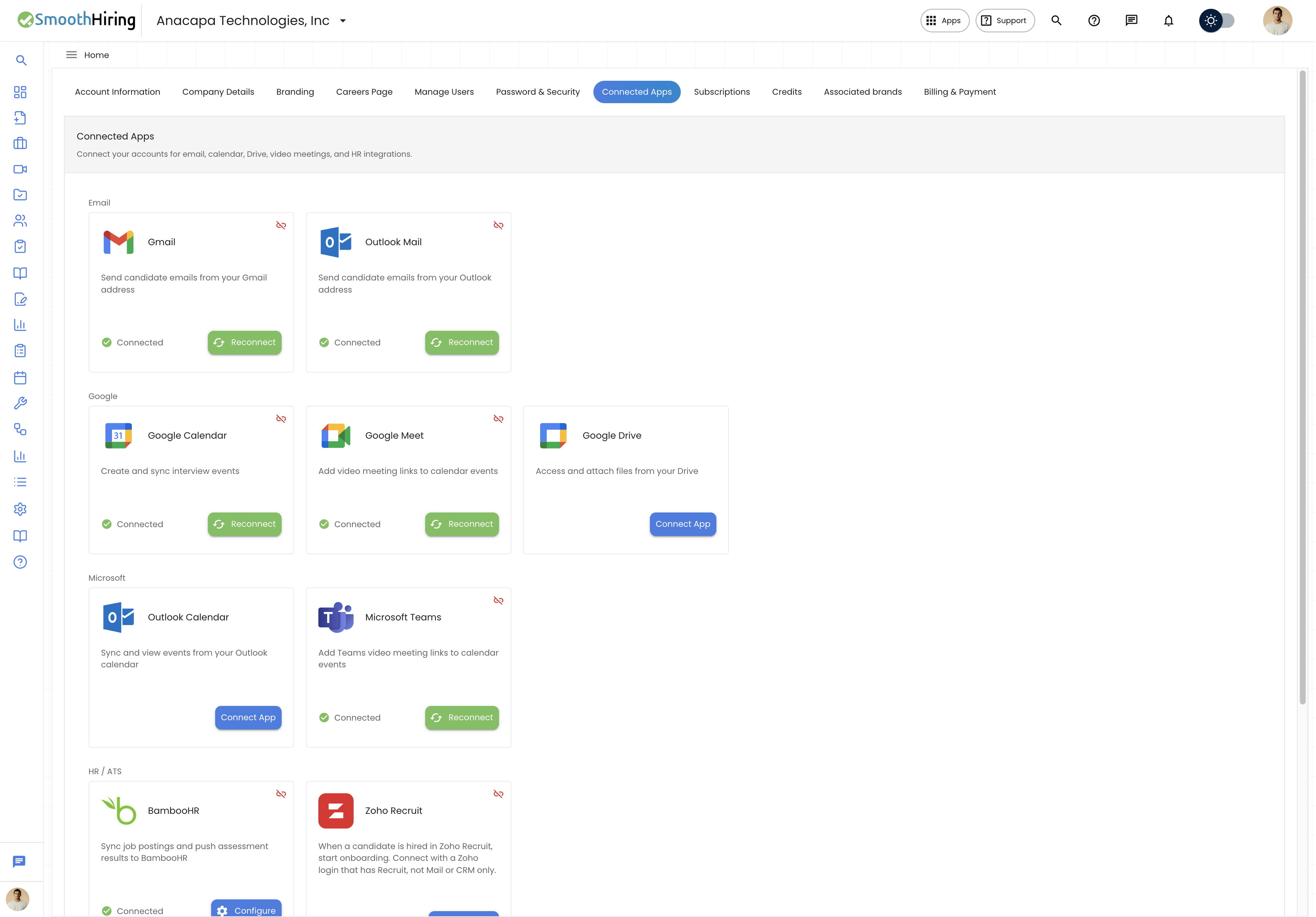
The Connected Apps page allows you to integrate SmoothHiring with external services like email providers, calendars, video conferencing tools, and HR systems. These integrations streamline your hiring workflow by connecting the tools you already use.
App guides
- Gmail
- Outlook Mail
- Google Calendar
- Google Meet
- Google Drive
- Outlook Calendar
- Microsoft Teams
- Zoom Video
- BambooHR
- Zoho Recruit
- DocuSign
Navigating to Connected Apps- Direct URL: /employer/settings/account/connected-apps
- Navigation: Click Settings in the left sidebar > Connected Apps tab.
Available Integrations
Connected Apps are organized into categories:
Email Integrations
| App | Description | What It Does |
|---|---|---|
| Gmail | Send candidate emails from your Gmail address | Allows you to send interview invitations, rejections, and communications using your personal Gmail account instead of a generic system address |
| Outlook Mail | Send candidate emails from your Outlook address | Same as Gmail but for Microsoft Outlook/Office 365 users |
Google Integrations
| App | Description | What It Does |
|---|---|---|
| Google Calendar | Create and sync interview events | Two-way sync of calendar events; interview schedules appear in your Google Calendar and vice versa |
| Google Meet | Add video meeting links to calendar events | Automatically generates Google Meet links for scheduled interviews |
| Google Drive | Access and attach files from your Drive | Attach documents from Google Drive to candidate communications or job postings |
Microsoft Integrations
| App | Description | What It Does |
|---|---|---|
| Outlook Calendar | Sync and view events from your Outlook calendar | Two-way sync of Outlook calendar events with SmoothHiring |
| Microsoft Teams | Add Teams video meeting links to calendar events | Automatically generates Teams meeting links for scheduled interviews |
Video & E-Sign
| App | Description | What It Does |
|---|---|---|
| Zoom | Schedule and join Zoom video meetings for interviews | Generates Zoom meeting links for interview invitations |
HR / ATS Integrations
| App | Description | What It Does |
|---|---|---|
| BambooHR | Sync job postings and push assessment results to BambooHR | Bi-directional sync between SmoothHiring and your BambooHR account for jobs and candidate data |
Connecting an App
General Connection Flow
- Navigate to Settings > Connected Apps.
- Find the app you want to connect.
- Click Connect on the app card.
- You'll be redirected to the app's authorization page (Google, Microsoft, etc.).
- Log in and grant SmoothHiring the requested permissions.
- You'll be redirected back to SmoothHiring with the connection confirmed.
- The app card will now show a "Connected" status.
Google Calendar Connection
- Click Connect on Google Calendar.
- Sign in with your Google account.
- Grant permission to view and manage calendar events.
- Once connected, your Google Calendar events appear on the Calendar page automatically.
Outlook Calendar Connection
- Click Connect on Outlook Calendar.
- Sign in with your Microsoft account.
- Grant permission to access your calendar.
- Once connected, Outlook events sync to your SmoothHiring calendar.
BambooHR Connection
BambooHR has a dedicated configuration page with multiple tabs:
| Tab | Description |
|---|---|
| Overview | Connection status and general settings |
| Job Sync | Configure which jobs sync between platforms |
| Assessment | Map assessment results to BambooHR fields |
Disconnecting an App
- Navigate to Settings > Connected Apps.
- Find the connected app.
- Click Disconnect or Revoke Access.
- Confirm the disconnection.
- The integration will stop syncing immediately.
Note: Disconnecting an app does not delete historical data that was already synced.
How Integrations Work Together
Email + Calendar + Video
When you schedule an interview:
- The event is created on your connected calendar (Google or Outlook).
- A video meeting link (Meet or Teams) is automatically attached.
- The interview invitation email is sent from your connected email (Gmail or Outlook).
This creates a seamless experience where candidates receive a professional email from your address with calendar and video links included.
Calendar Sync on the Dashboard
Connected calendars feed into the Dashboard Calendar widget and the full Calendar page, showing all your events in one unified view.
Connection Status
Each integration card shows its current status:
| Status | Meaning |
|---|---|
| Not Connected | The integration has not been set up |
| Connected | The integration is active and syncing |
| Error | There was a problem with the connection (re-authorization may be needed) |
Permissions and Access
- All roles (Owner, Admin, Recruiter, Hiring Manager, Observer) can access the Connected Apps page.
- Each user connects their own accounts — connections are personal, not company-wide.
- One user's Google Calendar connection does not affect other team members.
Tips
Tip: Connect both your email and calendar for the best interview scheduling experience. Candidates receive emails from your address with proper calendar invites.
Tip: If you switch email providers (e.g., from Gmail to Outlook), disconnect the old provider and connect the new one.
Tip: BambooHR integration is ideal for mid-size companies that want to push hired candidates directly into their HRIS without manual data entry.
Tip: If a connection stops working, try disconnecting and reconnecting. OAuth tokens can expire after extended periods.
Troubleshooting
| Issue | Solution |
|---|---|
| Calendar events not showing | Verify the connection is active; check that the calendar is toggled on in the Calendar sidebar |
| Email sending fails | Re-authorize the email connection; ensure your email provider hasn't revoked access |
| BambooHR sync errors | Check your BambooHR API credentials and permissions |
| "Authorization failed" error | Clear browser cookies and try connecting again |
Related Pages
- Calendar — View all synced calendar events
- Account Information — Manage your personal settings