

Managing Candidate Documents
SmoothHiring provides a comprehensive document management system that allows you to upload, organize, tag, and manage files directly within each applicant's profile. Whether you need to store offer letters, reference checks, certifications, or onboarding paperwork, the Documents tab keeps everything in one place alongside the candidate's application.
This guide covers uploading documents from your computer and Google Drive, organizing with tags, viewing and deleting files, and best practices for document management during the hiring process.
Overview
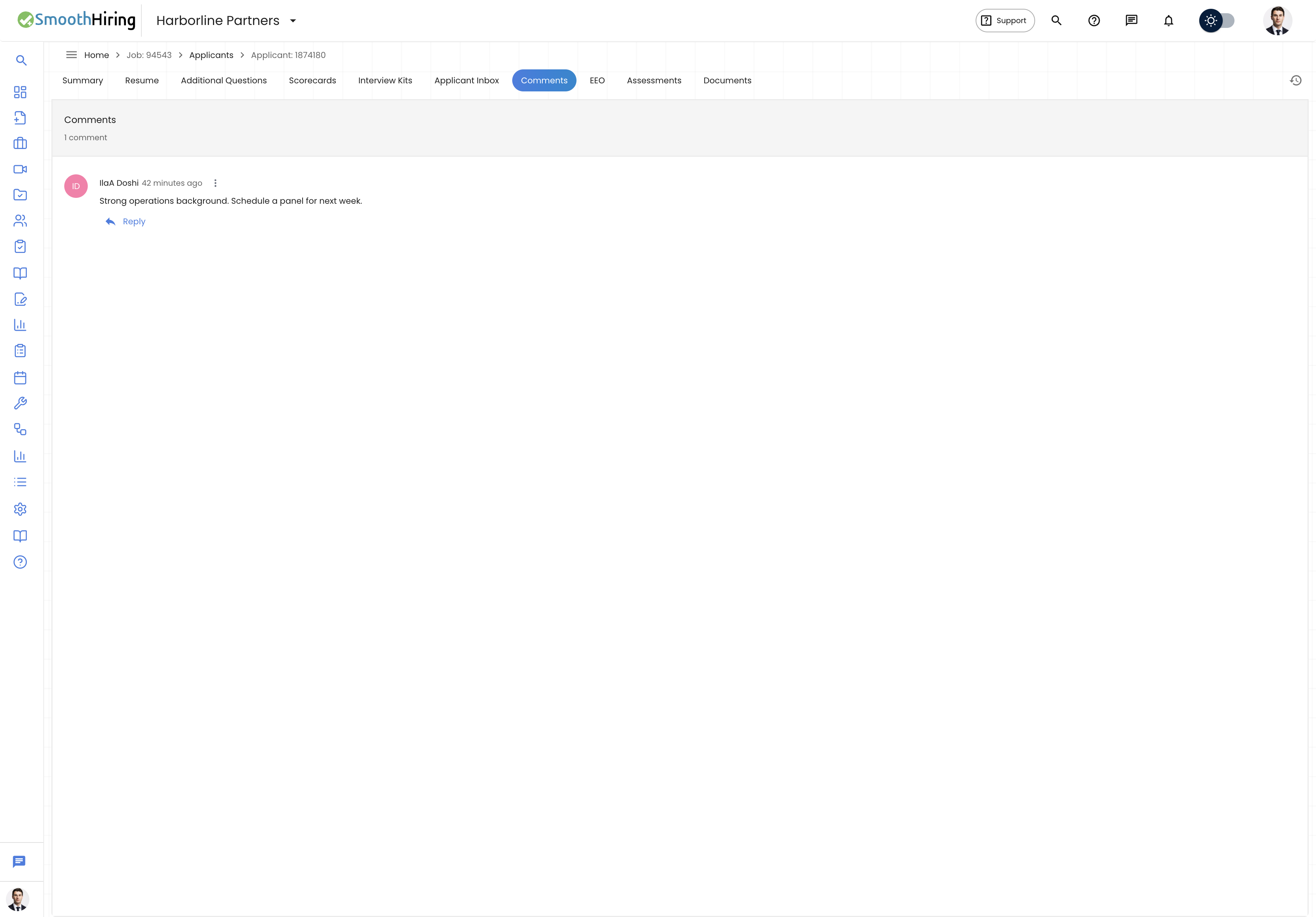
The Document Management feature in SmoothHiring gives each applicant a dedicated Documents tab within their profile. From this tab, you can:
- Upload files from your computer (up to 2 MB per file).
- Upload from Google Drive — Import files directly from your connected Google Drive account.
- Tag documents — Add comma-separated tags to categorize and filter documents.
- Search documents — Find files by name or tag using the search bar.
- Filter by tag — Click tag chips to filter the document list.
- View documents — Open files in a new browser tab via a secure, time-limited URL.
- Delete documents — Remove files you no longer need.
All documents are securely stored in Amazon S3 and associated with the specific candidate-job application.
Accessing the Documents Tab
To access an applicant's documents:
- Navigate to Applicants from the main sidebar.
- Select the job listing to view its applicant pipeline.
- Click on a candidate's name to open their Applicant Profile.
- Click the Documents tab in the profile view.
The Documents tab displays:
- An upload toolbar at the top with buttons for computer upload and Google Drive import.
- A search bar for filtering documents by name or tag.
- Tag filter chips showing all tags used across the candidate's documents.
- A list of all uploaded documents with file details and action buttons.
Uploading Documents
From Your Computer
- Open the candidate's Documents tab.
- Click the "Upload from computer" button in the top-right corner.
- A file picker dialog will open — select the file you want to upload.
- The file will upload automatically. A progress indicator shows while the upload is in progress.
- Once complete, a success notification appears, and the document is added to the list.
File requirements:
- Maximum file size: 2 MB per file.
- Supported file types: All common document formats including PDF, Word (.doc, .docx), Excel (.xls, .xlsx), images (.jpg, .png), and text files.
- Files exceeding the 2 MB limit will be rejected with an error message.
From Google Drive
SmoothHiring integrates with Google Drive, allowing you to import files directly without downloading them first.
Prerequisites:
- You must have Google Calendar or Google Drive connected in Settings → Connected Apps.
- The connection uses your Google account's refresh token for secure access.
To upload from Google Drive:
- Open the candidate's Documents tab.
- Click the "Upload from Drive" button (with the Google Drive icon).
- A dialog opens displaying up to 50 of your most recent Google Drive files.
- Click on a file to select it for upload.
- The file is downloaded from Drive and stored securely in SmoothHiring.
Google Drive notes:
- Google Docs, Sheets, and Slides are automatically converted to PDF during upload.
- The 2 MB file size limit applies to Drive files as well.
- If you see an error about permissions, reconnect Google Drive in Settings → Connected Apps.
- Files from shared drives may require additional permissions.
Organizing Documents with Tags
Tags help you categorize and quickly find documents across a candidate's profile. Tags are flexible, free-form labels that you define.
Adding Tags During Upload
Currently, tags are added after upload through the tag editing interface.
Editing Tags on Existing Documents
- Find the document in the list.
- Click the tag icon (label icon) on the right side of the document row.
- A dialog opens with a text field showing current tags.
- Enter tags as comma-separated values (e.g., "offer letter, signed, 2026").
- Click Save to apply the tags.
Tag Suggestions
Common tags used in hiring workflows include:
| Category | Example Tags |
|---|---|
| Document type | resume, cover letter, offer letter, contract |
| Status | signed, pending, draft, approved |
| Stage | onboarding, interview, reference check |
| Department | engineering, marketing, sales, HR |
| Compliance | I-9, W-4, NDA, background check |
| Custom | urgent, follow-up, manager review |
Filtering by Tag
When documents have tags, tag chips appear below the search bar:
- Click "All" to show all documents (default).
- Click a specific tag chip to filter and show only documents with that tag.
- Click the same tag again to remove the filter.
- Tags are collected from all documents for the current candidate.
Searching Documents
The search bar at the top of the Documents tab lets you find files by:
- File name — Search by any part of the document's file name.
- Tag — Search by tag text to find documents with matching tags.
Search is case-insensitive and filters results in real time as you type.
Viewing Documents
To view a document:
- Find the document in the list.
- Click the open icon (external link icon) on the right side of the document row.
- The document opens in a new browser tab using a secure, time-limited signed URL.
The signed URL is generated on demand and expires after a set period for security. If the URL has expired, simply click the open icon again to generate a fresh one.
Deleting Documents
To delete a document:
- Find the document in the list.
- Click the delete icon (trash icon, shown in red) on the right side.
- A confirmation dialog asks: "Delete this document?"
- Click OK to confirm deletion.
Important: Deletion is permanent. The file is removed from both the SmoothHiring database and the underlying S3 storage. Deleted documents cannot be recovered.
Document Details
Each document in the list displays the following information:
- File icon — A generic document icon.
- File name — The original file name as uploaded.
- File size — Displayed in human-readable format (B, KB, or MB).
- Tags — Any tags associated with the document are shown as small chips.
- Action buttons — Open, edit tags, and delete.
Storage and Security
How Documents Are Stored
- All uploaded documents are stored in Amazon S3 (Simple Storage Service) with encryption at rest.
- Each file is stored with a unique key that includes the applicant ID and a timestamp to prevent naming conflicts.
- File names are sanitized during upload to remove special characters.
Access Control
- Only authenticated users with access to the employer account can view, upload, or delete documents.
- Documents are tied to specific candidate-job application records.
- Viewing a document requires generating a signed URL, which provides temporary, secure access.
Data Retention
Documents remain stored as long as the candidate's application record exists. Consider your organization's data retention policies when managing documents, especially for candidates who are not hired.
Use Cases
During the Hiring Process
- Store reference letters — Upload reference check results or recommendation letters.
- Save certifications — Keep copies of required licenses, certifications, or credentials.
- Interview notes — Upload scanned or digital interview evaluation forms.
- Background checks — Store background check results for compliance.
During Onboarding
- Tax forms — Upload W-4, W-9, or state tax withholding forms.
- Employment eligibility — Store I-9 verification documents.
- Company policies — Upload signed acknowledgments of employee handbooks or policies.
- Benefits enrollment — Keep benefits election forms on file.
For Compliance
- Non-disclosure agreements — Store signed NDAs.
- Employment contracts — Keep executed employment agreements.
- Offer letters — Archive signed offer letters for your records.
- EEO documentation — Store any supplementary compliance documents.
Troubleshooting
"File size must not exceed 2MB" Error
If you see this error, the file you're trying to upload exceeds the 2 MB limit. To resolve:
- Compress the file using a tool like a PDF compressor.
- If it's an image, reduce the resolution or use a compressed format like JPEG.
- Split large documents into smaller sections.
"Google Drive not connected" Error
This error means your Google account is not linked to SmoothHiring:
- Go to Settings → Connected Apps.
- Connect your Google Calendar or Google Drive account.
- Return to the Documents tab and try again.
"Unable to access this file" Error (Google Drive)
This may occur if:
- The Google Drive file belongs to a shared drive you no longer have access to.
- Your Google connection has expired — reconnect in Settings.
- The file has restricted sharing settings.
Frequently Asked Questions
Q: What file types can I upload? A: SmoothHiring accepts all file types. Common formats include PDF, Word documents, Excel spreadsheets, images (JPEG, PNG), and text files.
Q: Can multiple team members upload documents to the same candidate? A: Yes, any team member with access to the employer account can upload and manage documents for any candidate.
Q: Can candidates upload documents themselves? A: During onboarding, candidates may be asked to submit documents. These are handled through the onboarding workflow and appear in the candidate's document list.
Q: How many documents can I upload per candidate? A: There is no hard limit on the number of documents per candidate. However, each file must be 2 MB or smaller.
Q: Are documents shared across jobs if a candidate applies to multiple positions? A: Documents are tied to a specific job application. If a candidate applies to multiple jobs, documents must be uploaded separately for each application.