

How to Build Your Career Page in SmoothHiring
Your Careers Page is the public-facing hub where candidates discover your company and browse open positions. SmoothHiring gives every employer a fully hosted, branded careers site at a unique URL — no web development required.
Your Careers Page URL
Every SmoothHiring account receives a dedicated careers page at:
https://[your-company].smoothhiring.com/careersThe subdomain is derived from your company website domain. For example, if your website is www.acme.com, your careers page will be https://acme.smoothhiring.com/careers.
Tip: You can copy your careers page URL from Settings → Account → Careers Page by clicking the copy icon next to the URL field. Share this link on your company website, social media, and email signatures.
Accessing Careers Page Settings
- Click Settings in the left sidebar (gear icon).
- Navigate to Account Settings.
- Click the Careers Page tab.
The Careers Page settings are organized into two sub-tabs:
| Tab | Purpose |
|---|---|
| Banners and Images | Upload your company logo and banner image |
| Layout Settings | Choose between Classic, Modern, or Custom layout |
Uploading Your Logo and Banner
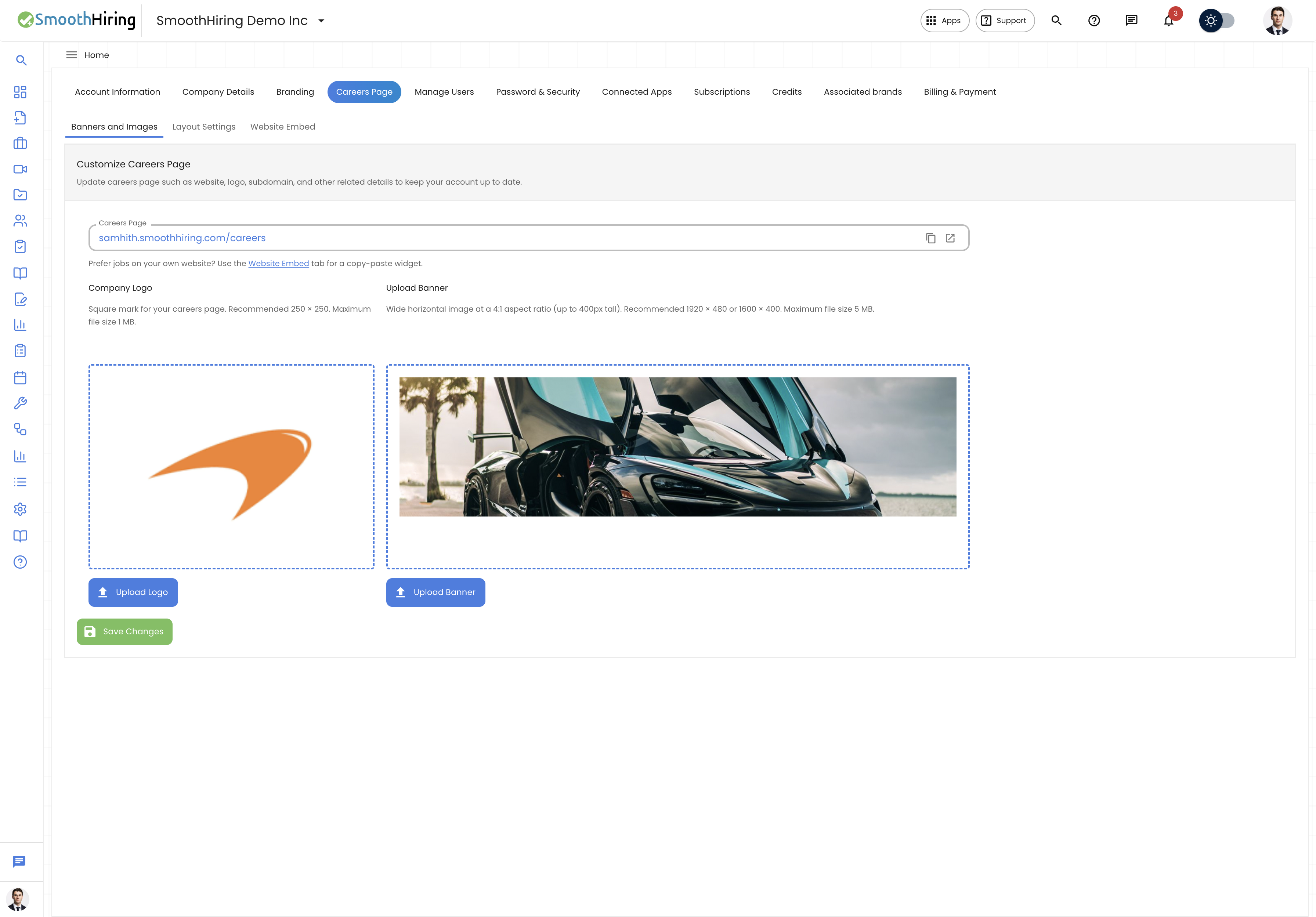
Company Logo
Your logo appears on the careers page header and helps candidates instantly recognize your brand.
- Go to Settings → Account → Careers Page → Banners and Images.
- Under Upload Logo, click Upload Logo.
- Select an image file (JPEG, PNG, or other image format).
- Click Save Changes.
Logo requirements:
- Recommended dimensions: 250 × 250 pixels
- Maximum file size: 1 MB
- The image will be compressed automatically if needed
Company Banner
The banner is a wide, full-width image displayed at the top of your careers page. It sets the visual tone for your employer brand.
- Under Upload Banner, click Upload Banner.
- Select a wide, horizontal image.
- Click Save Changes.
Banner requirements:
- Recommended dimensions: 1920 × 480 pixels or 1600 × 400 pixels
- Aspect ratio: 4:1 (height scales with screen width, up to 400px tall)
- Maximum file size: 5 MB
Tip: Use a photo of your team, office, or an on-brand illustration to make a strong first impression on candidates.
Choosing a Layout Style
SmoothHiring offers three layout options for your careers page. Navigate to Settings → Account → Careers Page → Layout Settings to choose:
Classic Layout
A simple, clean, minimalistic page design. Candidates see a list of jobs and click any job to view details and apply.
Best for: Companies that want a straightforward, no-frills careers page.
Modern Layout
An advanced layout featuring search functionality, filtering, and a side-by-side job details view. Candidates can explore jobs without navigating away from the listings.
Best for: Companies with many open positions across departments and locations.
Custom Layout
A drag-and-drop page builder giving you full creative control over every section. Build a rich, branded experience with content blocks.
Best for: Companies that want a highly branded, content-rich careers experience with sections like testimonials, perks, team photos, and more.
To select a layout:
- Go to Settings → Account → Careers Page → Layout Settings.
- Select Classic, Modern, or Custom.
- Click Save Changes.
Custom Page Builder
When you choose the Custom layout, you unlock access to the drag-and-drop Page Builder — a powerful tool for designing a fully branded careers experience.
Opening the Page Builder
- Go to Settings → Account → Careers Page → Layout Settings.
- Select Custom Layout.
- Click Open Page Builder (opens in a new tab).
Available Content Blocks
The Page Builder provides a rich library of content blocks organized by category:
Layout Blocks
| Block | Description |
|---|---|
| Section | Container with configurable padding and background |
| Columns | Multi-column layout (responsive, stacks on mobile) |
| Spacer | Adjustable vertical spacing |
| Divider | Horizontal line separator |
Hero & Marketing
| Block | Description |
|---|---|
| Hero | Full-width banner with headline, subheadline, and CTA button |
| Hero Split | Two-column hero with text on one side and image on the other |
| Announcement Banner | Highlighted banner message (e.g., "We're hiring!") |
| Stats Row | Display key company stats (e.g., "50+ Countries", "500+ Employees") |
Content Blocks
| Block | Description |
|---|---|
| Rich Text | Free-form HTML content editor |
| Headline + Subtext | Section heading with supporting text |
| Quote | Styled quotation with attribution |
| Icon Feature List | Grid of features with icons (e.g., "Why Join Us") |
| Timeline / Hiring Steps | Visual timeline of your hiring process |
| FAQ | Expandable question-and-answer section |
| Tabs | Tabbed content sections (e.g., by department) |
| Video Embed | Embedded video from YouTube or Vimeo |
| Image | Single image with optional caption |
| Gallery | Multi-image grid |
| CTA Strip | Call-to-action banner |
| Button Group | Group of action buttons |
| Logo Strip | Row of partner/client logos |
Jobs
| Block | Description |
|---|---|
| Job Board | Live job listings with search, filters, and sorting |
| Featured Jobs | Showcase specific featured roles |
| Job Categories | Browse jobs organized by team or department |
People & Trust
| Block | Description |
|---|---|
| Team Grid | Grid of team member photos and names |
| Testimonials | Employee quotes and stories |
| Values | Company values with icons and descriptions |
| Perks & Benefits | Grid of benefits (health, PTO, learning budget, etc.) |
| Awards & Badges | Display company awards and recognitions |
| Employer Story | About section with text and image |
Social & Footer
| Block | Description |
|---|---|
| Social Links | Social media profile links |
| Footer Mini | Compact page footer with copyright and links |
| Contact / Talent Email | "Don't see the right role?" contact section |
Advanced
| Block | Description |
|---|---|
| Embed (iframe) | Embed external content |
| External ATS Apply CTA | Link to an external ATS careers portal |
Using the Page Builder
- Add blocks from the block palette on the left.
- Drag and drop blocks to reorder them.
- Click any block to open its inspector and edit properties (text, images, colors, links).
- Preview your page with the live preview panel.
- Save your changes when done.
Tip: Use the
{{company_name}}placeholder in text blocks — it will automatically be replaced with your company name on the live page.
Publishing Jobs to Your Careers Page
Jobs are automatically displayed on your careers page when published. You can control which jobs appear on your careers page during job creation:
- When creating or editing a job, look for the Publish to Careers Page option.
- Toggle it on to display the job on your careers page.
- Toggle it off to keep the job internal or posted only to external job boards.
Sharing Your Careers Page
There are several ways to share your careers page with potential candidates:
- Link on your website: Add a "Careers" link on your company website pointing to your SmoothHiring careers URL
- Social media: Share the link on LinkedIn, Facebook, Twitter, and Instagram
- Email signatures: Add the careers page link to employee email signatures
- Job ads: Include the careers page URL in any job-related marketing
Related Pages
- Employer Branding — Customize colors, fonts, and SEO settings
- Candidate-Friendly Applications — Optimize the application experience
- Integrations — Connect external tools to your hiring workflow