

Form Templates
for Recruiting WorkflowsForm Templates in SmoothHiring provide the structural foundation for questionnaires — the custom application forms that candidates complete when applying for jobs. This page explains how to manage, organize, and configure form templates at the account level.
Overview
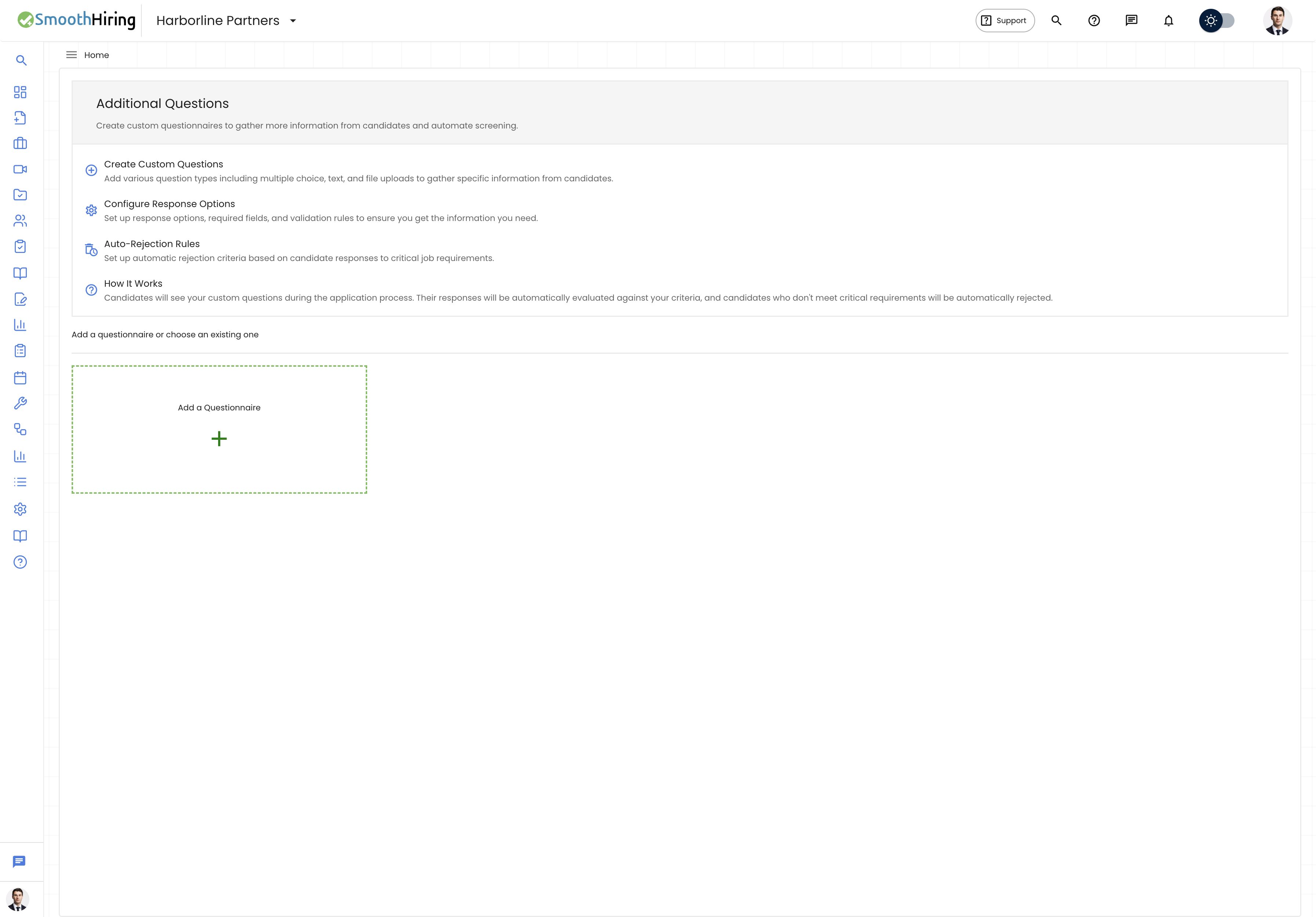
Form Templates are the reusable containers that hold your questionnaire questions. Each form template has a title, a collection of ordered questions, and a preferred status. Form templates can be:
- Created and managed from the settings area
- Attached to specific jobs during job creation
- Previewed to see the candidate experience
- Edited inline with drag-and-drop question reordering
- Set as preferred for automatic selection
Note: Form Templates and Questionnaires refer to the same feature. "Questionnaires" describes the candidate-facing experience, while "Form Templates" describes the administrative management of these forms.
Navigating to Form Templates
- Click Productivity in the left sidebar.
- Expand Automation.
- Click Questionnaires.
This takes you to /employer/settings/tools/templates/form-templates.
The Form Templates List
The main page displays all your existing form templates in a list view. Each form entry shows:
| Element | Description |
|---|---|
| Title | The form template name |
| Preview button (eye icon) | Opens a preview dialog showing the candidate view |
| Edit button (pencil icon) | Navigates to the form editor |
| Delete button (trash icon) | Removes the form template |
Below the list, an Add a Questionnaire card allows you to create a new template.
Creating a Form Template
- Click the Add a Questionnaire card or button.
- You are navigated to
/employer/settings/tools/templates/form-templates/new. - In the editor:
- Enter a Questionnaire Title (required).
- Optionally toggle Preferred Template on.
- Add questions using Add Question or Suggested buttons.
- Configure each question's type, options, required status, and auto-reject settings.
- Reorder questions by dragging.
- Click Create Questionnaire to save.
For detailed instructions on adding and configuring questions, see Questionnaires.
Editing a Form Template
- Click the Edit (pencil) icon on the form card, or click anywhere on the form card.
- You are navigated to
/employer/settings/tools/templates/form-templates/edit/{formId}. - The editor loads with all existing questions pre-populated.
- Make your changes:
- Rename the form
- Add, edit, or remove questions
- Reorder questions via drag-and-drop
- Modify options and auto-reject settings
- Click Update Questionnaire to save.
Tip: If you navigate away with unsaved changes, the system does not currently warn you. Be sure to save before leaving.
Deleting a Form Template
- Click the Delete (trash) icon on the form card.
- A confirmation dialog appears: "Are you sure you want to delete [form name]?"
- Click Confirm to delete or Cancel to keep it.
Warning: Deleting a form template is permanent. If this form is currently attached to a live job, candidates will no longer see these questions. Consider editing the form instead of deleting it if it's in active use.
Previewing a Form Template
- Click the Preview (eye) icon on any form card.
- A dialog opens showing the questions exactly as candidates would see them.
- Close the dialog when you are done reviewing.
This is useful for quality-checking your questionnaire before attaching it to a job.
Attaching Forms to Jobs
Form templates connect to jobs through the job creation or editing flow:
- When creating or editing a job, navigate to the Additional Questions step.
- Your existing form templates appear with toggle switches.
- Toggle on the form you want to attach to this job.
- Toggle off to detach a form.
- Only one form can be active per job at a time. Selecting a new form deselects the previous one.
The currently selected form is also accessible from the job's form template picker.
Preferred Templates
Set a form as preferred to make it the default selection when creating new jobs:
- Open the form editor (create or edit).
- Toggle Preferred Template in the title bar.
- Save the form.
Only one form can be preferred at a time. Setting a new preferred form automatically removes the preferred status from the previous one.
Supported Question Types
Form templates support 10 question types. See Questionnaires for the full reference table and details on each type.
Best Practices
- Start with suggested questions. The suggested questions library provides battle-tested screening questions you can add with one click.
- Keep forms concise. Long forms reduce application completion rates. Focus on must-have screening criteria.
- Use the preferred flag. If your hiring process uses the same screening questions for most roles, set that form as preferred to save time during job creation.
- Preview before publishing. Always check the candidate view before attaching a form to a live job.
- Version your forms. If you significantly change a form that's attached to an active job, consider creating a new form instead of editing the existing one, to avoid confusion with in-progress applications.