

How AI Scores Video Assessment Responses
SmoothHiring provides AI-powered analysis of video assessment responses to help recruiters evaluate candidates more efficiently and consistently. This page explains how AI review works for video assessments and how to use it in your hiring process.
What Is AI Video Assessment Review?
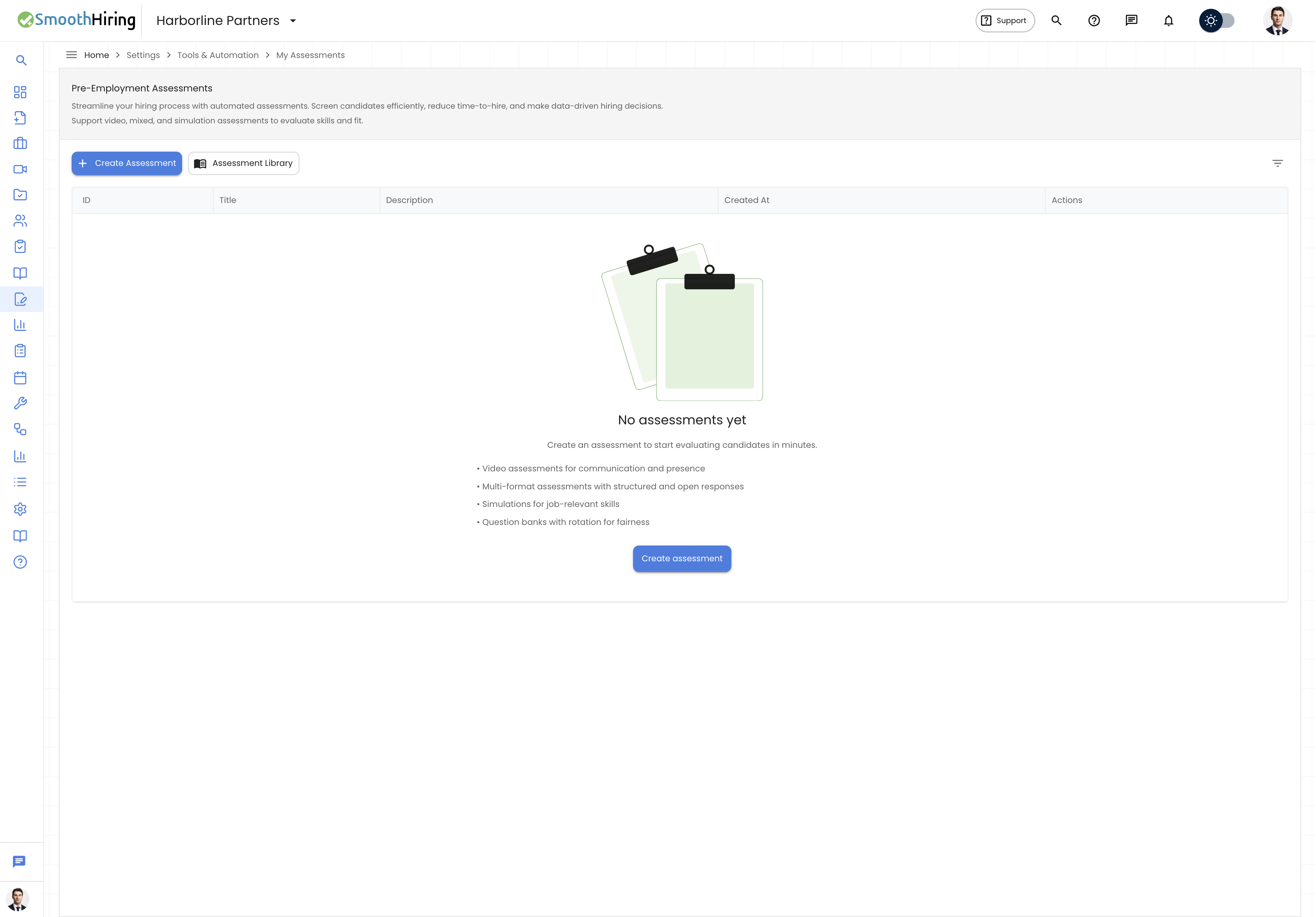
When candidates complete video assessments, SmoothHiring's AI analyzes their recorded responses to provide structured evaluations. This goes beyond simply watching videos — the AI considers communication clarity, content relevance, confidence, and alignment with the role requirements.
How It Works
Automatic Processing
After a candidate completes and submits a video assessment:
- Video responses are processed — each recorded answer is analyzed by SmoothHiring's AI
- Transcription — the AI generates a text transcript of the candidate's spoken responses
- Content analysis — the AI evaluates the substance and relevance of each answer
- Communication assessment — verbal communication skills, clarity, and professionalism are assessed
- Signal generation — an overall assessment signal is generated
AI Analysis Components
The AI review produces several types of insights:
| Component | Description |
|---|---|
| Analysis summary | A narrative assessment of the candidate's overall video performance |
| Strengths | Specific areas where the candidate demonstrated strong capabilities |
| Risks | Potential concerns or areas that warrant further investigation |
| Next steps | Recommended actions for the recruiter based on the AI analysis |
| Overall signal | An assessment signal (Strong, Positive, Mixed, Caution, Weak) |
Reviewing AI-Analyzed Video Assessments
From the Applicant Profile
- Navigate to the applicant's profile.
- Open the Assessments tab.
- Click on the completed video assessment card.
- The Summary tab displays:
- AI-generated assessment signal chip
- Performance metrics (pool standing, completion stats)
- Candidate Insights Panel with AI analysis
- Decision Guidance with strengths, concerns, and recommendations
Summary Tab Details
The summary view for a video assessment includes:
- Assessment Signal — color-coded chip indicating the AI's overall evaluation
- Pool Standing — how this candidate compares to others who took the same assessment
- Completion — number of questions answered vs. total
- Quick Stats — total time, average time per question, video answers count, text answers count
- Integrity — whether any security concerns were flagged
Questions Tab
The Questions tab shows each video question with:
- The question text displayed above
- The candidate's recorded video response embedded for playback
- Video-type questions are marked with a camera icon in the question tabs
- Questions are navigated using tabs (Q1, Q2, Q3, etc.) at the top
Report Tab
The Report tab contains:
- An embedded PDF report that can be viewed inline
- A Download button to save the report for sharing
- Report generation status indicator (Ready, Generating, Failed, Loading)
- The report includes AI-generated insights, scoring details, and recommendations
One-Way Video Assessment Modal
SmoothHiring provides a dedicated One-Way Video Assessment Modal for focused video review:
- Opens in a clean, distraction-free interface
- Allows you to review video responses sequentially
- Provides playback controls for each video response
- Can be accessed from the applicant profile
AI Insights Panel
The Candidate Insights Panel appears within the assessment summary and contains:
- AI Status — indicates whether AI analysis was successful, is pending, or failed
- AI Signal — the AI's assessment signal displayed as a visual indicator
- Analysis text — a detailed narrative assessment from the AI
- Strengths list — bullet points of identified strengths
- Risks list — bullet points of identified risks
- Next steps — specific recommendations for the hiring process
Integrity Monitoring for Video Assessments
Video assessments include the same integrity monitoring as other assessment types:
- Tab switch tracking — detects when candidates navigate away from the assessment
- Fullscreen exits — monitors fullscreen compliance
- Integrity timeline — visual representation of when integrity events occurred during the assessment
- Exportable integrity events — download a CSV of all integrity events for detailed review
The Integrity tab in the assessment detail view provides:
- A chronological list of all integrity events
- Event types and timestamps
- An Export button to download events as CSV
Decision Guidance for Video Assessments
The Decision Guidance section synthesizes both AI analysis and traditional scoring:
- Label — overall recommendation (e.g., "Strong Candidate", "Proceed with Caution")
- Color indicator — green (success), amber (warning), or red (concern)
- Summary — narrative explanation of the guidance
- Strengths — green-highlighted areas of strong performance
- Concerns — amber-highlighted areas for review
- Recommended Actions — numbered steps for the recruiter
Quick Actions
From the decision guidance panel, quick action buttons let you navigate to:
- Interview Kits — prepare interview questions based on assessment results
- Scorecards — fill out structured evaluation scorecards
- Profile — return to the candidate's full profile
- Other Assessments — if the candidate has multiple assessments, quickly switch between them
Best Practices for AI Video Review
- Review AI analysis alongside the actual video — AI insights are a supplement, not a replacement for human judgment
- Use the Report for sharing with hiring managers who may not have platform access
- Check integrity flags before making decisions — high integrity concern may indicate the assessment environment was compromised
- Compare against pool standing — a candidate's score is most meaningful in the context of how others performed