

Video Assessments
: Setting Up Async Video InterviewsVideo Assessments in SmoothHiring allow you to create assessments where candidates record video responses to your questions. This gives you the ability to evaluate communication skills, professionalism, body language, and role-specific competencies in a way that written responses cannot capture.
Accessing Video Assessments
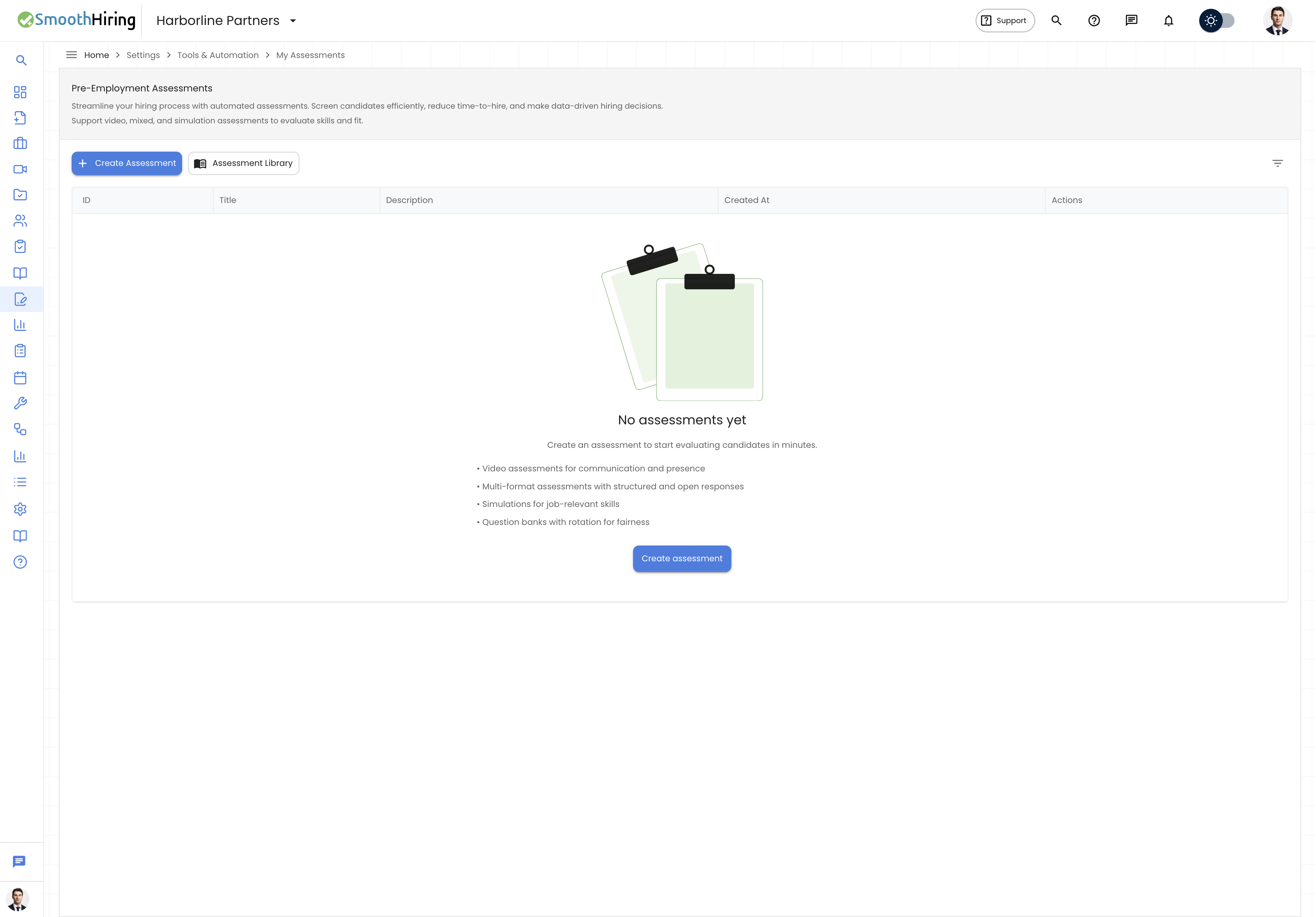
- Navigate to Settings → Tools & Automation → Video Assessments.
- This page shows only video-type assessments, filtered from the full assessment list.
Alternatively, you can view video assessments alongside all other types on the My Assessments page by using the Type filter set to "Video".
Page Layout
The Video Assessments page displays:
- A header with the Video Assessments title and camera icon
- A description: "Create and manage video-based assessments for candidates. These assessments allow candidates to record video responses to your questions."
- The standard assessments table interface, pre-filtered to show only video assessments
Creating a Video Assessment
- Click Create Video Assessment.
- The Create Assessment dialog opens with the assessment type pre-set to Video Assessment.
- Follow the standard three-step creation flow:
- Step 1: Details — set the assessment name, optional role/job title, select a video template from the library (optional), and add a description
- Step 2: Settings — configure timing and question count
- Step 3: Review — set security options and review the summary
- Click Create Assessment to finalize.
Video Question Types
Video assessments support questions where candidates:
- Record themselves answering a prompt using their webcam and microphone
- May have a preparation time before recording begins
- Have a maximum recording duration per question
- Can re-record their response (if permitted by your settings)
Managing Video Assessments
All standard assessment management features apply to video assessments:
Available Actions
| Action | Description |
|---|---|
| Click row | Open the assessment's question editor to add, edit, or reorder video questions |
| Send Test | Send the video assessment to a test email address to preview the candidate experience |
| Generate a printable preview of the assessment questions | |
| Take Test | Open the assessment in a new tab to experience it as a candidate would, including video recording |
| Delete | Archive the assessment (with confirmation) |
Filtering
The same filtering options are available as on the main Assessments page, but the Type filter is locked to "Video":
- Search — search by title, description, or creator
- Status — Active, Archived, or All
- Category — filter by category
- Tag — filter by skill domain tag
- Created By — filter by creator
- Duration range — filter by estimated completion time
- Date range — filter by creation date
Video Recording in Assessments
Candidate Experience
When a candidate opens a video assessment:
- They see a welcome page with the assessment description and instructions
- The system requests camera and microphone permissions
- For each video question:
- The question text is displayed prominently
- A video recording interface appears
- The candidate clicks Record to begin their response
- A timer shows remaining recording time
- The candidate clicks Stop when finished
- They can preview their recording and optionally re-record
- After answering all questions, the candidate submits the assessment
Technical Requirements
Candidates need:
- A device with a working webcam and microphone
- A modern web browser (Chrome, Firefox, Edge, or Safari)
- A stable internet connection for video upload
- Desktop access is required if the Desktop only security setting is enabled
Reviewing Video Responses
When reviewing a completed video assessment from an applicant's profile:
- Navigate to the applicant's Assessments tab.
- Click on the completed video assessment card.
- The Questions tab shows each question with:
- The question text
- The candidate's recorded video response (playable inline)
- A video icon indicator for video-type questions
- Navigate between questions using the question tabs (Q1, Q2, Q3, etc.)
One-Way Video Assessment Modal
SmoothHiring also supports a One-Way Video Assessment Modal for reviewing video responses in a focused view. This modal can be accessed from the applicant profile and presents video responses in a clean, distraction-free interface.
Video Assessment Security
Video assessments support the same security features as other assessment types:
| Setting | Video-Specific Behavior |
|---|---|
| Fullscreen required | Keeps the candidate in fullscreen during the entire assessment |
| Tab switch tracking | Logs when candidates leave the assessment window between questions |
| Copy/paste blocking | Prevents copying question text |
| Webcam verification | Already active since video recording requires the webcam |
| IP tracking | Records the candidate's IP address |
| Desktop only | Recommended for video assessments to ensure reliable recording |
Video Assessment Credits
Video assessments consume credits in the same way as other assessment types — one credit per assessment invitation sent to a candidate. See Purchase Credits for details.
Best Practices
- Keep questions concise — candidates should be able to understand and respond to each question within the allotted recording time
- Set appropriate recording limits — 1–3 minutes per question is typical for most roles
- Enable desktop-only mode — video recording quality is generally better on desktop devices
- Test before sending — use the Take Test action to verify the candidate experience, including camera and microphone functionality
- Combine with written questions — consider using a Multi-Format assessment that includes both video and written questions for a more complete evaluation