

Hiring Team Collaboration in SmoothHiring
Hiring is a team effort. SmoothHiring provides powerful collaboration features that keep your entire hiring team aligned — from recruiter to hiring manager to interviewer. Share candidate evaluations, leave notes, collaborate on scorecards, and manage access levels to create an efficient, transparent hiring process.
Overview
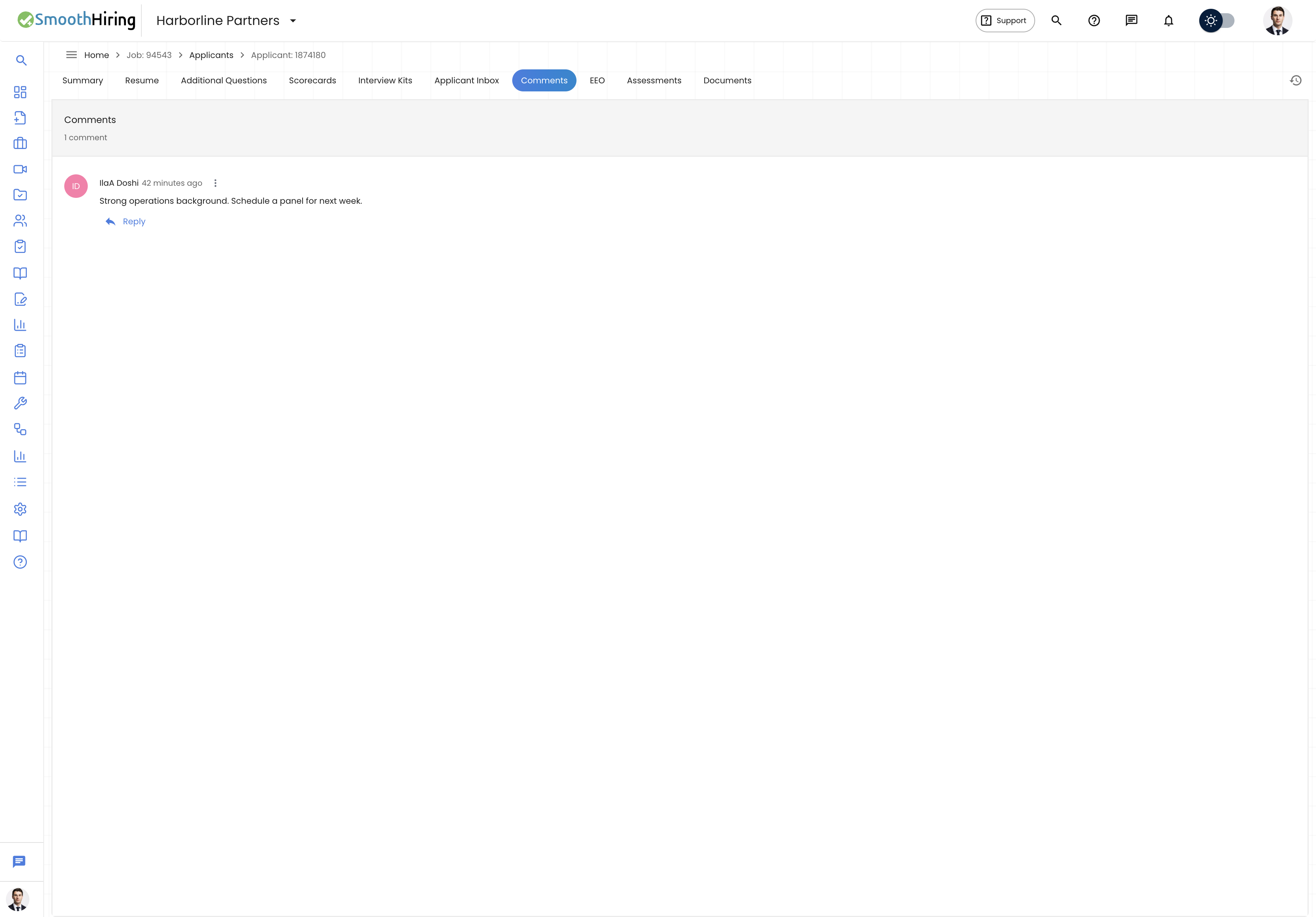
SmoothHiring's team collaboration features include:
- User Roles & Access Levels — Control who can see and do what
- Shared Candidate Profiles — Everyone on the hiring team can view candidate information
- Interview Scorecards — Structured, independent evaluations from multiple interviewers
- Notes & Comments — Add internal notes to candidate profiles
- Activity Logs — Track all actions taken on a candidate
- Email Notifications — Keep the team informed of pipeline changes
- Task Management — Assign and track hiring-related tasks
- Shared Reports — Share candidate evaluation reports
User Roles & Access Levels
SmoothHiring uses a role-based access control system to ensure team members see only what they need.
Available Roles
| Role | Description |
|---|---|
| Owner | Full control over the account, billing, settings, and all hiring activities |
| Admin | Manage settings, users, and hiring workflows. Can't modify billing. |
| Hiring Manager | Manage assigned jobs, review candidates, conduct interviews |
| Recruiter | Source candidates, manage pipelines, communicate with applicants |
| Interviewer | Limited access to view and evaluate assigned candidates |
Managing Users
Adding a User
- Navigate to Settings → Account → Manage Users.
- Click Add User.
- Fill in the user details:
- First Name and Last Name
- Email Address
- Role — Select from Owner, Admin, Hiring Manager, Recruiter, or Interviewer
- Click Save or Invite.
- The user receives an email invitation to join your SmoothHiring account.
Editing User Roles
- Go to Settings → Account → Manage Users.
- Find the user in the list.
- Click on their name or the edit action.
- Change their Role as needed.
- Save the changes.
Removing a User
- Go to Settings → Account → Manage Users.
- Find the user to remove.
- Click the Remove or Delete action.
- Confirm the removal.
Tip: Regularly review your user list and remove access for team members who have left the organization or are no longer involved in hiring.
Candidate Notes
Add internal notes to any candidate's profile to share observations, feedback, and action items with your team.
Adding a Note
- Navigate to a candidate's Applicant Profile.
- Find the Notes section or tab.
- Click Add Note.
- Type your observation, feedback, or action item.
- Click Save.
Note Best Practices
- Keep notes professional and objective — they may be discoverable in legal proceedings
- Focus on job-related observations only
- Use notes to document specific examples from interviews
- Tag team members using @mentions when you need their attention
- Date your notes for reference
Interview Scorecards
Scorecards provide a structured way for multiple interviewers to independently evaluate candidates against consistent criteria.
Creating a Scorecard
- Navigate to the Scorecards section from your main navigation.
- Click Create Scorecard.
- Define evaluation criteria (e.g., Technical Skills, Communication, Culture Fit, Problem Solving).
- Set a rating scale for each criterion (e.g., 1–5 stars).
- Add prompts or guidance for each criterion to help interviewers evaluate consistently.
- Save the scorecard.
Using Scorecards
- After conducting an interview, open the candidate's profile.
- Find the Scorecard section.
- Rate the candidate on each criterion.
- Add comments explaining your ratings.
- Submit your scorecard.
Reviewing Team Scorecards
Hiring managers and admins can view all submitted scorecards for a candidate:
- See individual ratings from each interviewer
- View average scores across all evaluations
- Read interviewer comments for context
- Identify areas of consensus and disagreement
- Make more data-driven hiring decisions
Tip: Ask interviewers to complete scorecards immediately after the interview while the conversation is fresh. Set a 24-hour deadline for scorecard submission.
Shared Candidate Reports
SmoothHiring allows you to generate and share comprehensive candidate evaluation reports:
- Open a candidate's profile.
- Navigate to the Shared Report section.
- The report compiles:
- Resume and application details
- Assessment scores and results
- Interview scorecards and feedback
- AI-generated insights and analysis
- Skills and career profile
- Share the report link with stakeholders who need to review the candidate.
Task Management
Assign and track hiring-related tasks to keep your team organized:
Creating a Task
- Click Create Task from the dashboard or candidate profile.
- Set a task title (e.g., "Schedule second interview with John Smith").
- Assign the task to a team member.
- Set a due date.
- Add any relevant notes or details.
- Save the task.
Managing Tasks
- View all tasks from the Task Management section.
- Filter by assignee, due date, or status.
- Mark tasks as complete when finished.
- Overdue tasks are highlighted for follow-up.
Activity Logs
Every action taken on a candidate is automatically logged:
- Application received
- Pipeline stage changes
- Emails sent and received
- Notes added
- Scorecards submitted
- Interview scheduled, completed, or cancelled
- Offer created, sent, signed
Activity logs provide a complete audit trail for each candidate, supporting both transparency and compliance.
Email & Notifications
Automated Notifications
SmoothHiring sends automatic notifications to team members for key events:
- New application received
- Candidate moved to a new pipeline stage
- Interview scheduled or updated
- Scorecard submitted
- Task assigned or due
- Offer status changes
Email Campaigns
For candidate communication, SmoothHiring supports email campaigns:
- Send bulk emails to candidates at specific pipeline stages
- Use email templates for consistent messaging
- Track open rates and responses
Collaboration Best Practices
- Define clear roles — Ensure each team member understands their access level and responsibilities
- Use scorecards consistently — Same criteria for all candidates in the same role
- Document everything — Notes and scorecards create a defensible hiring record
- Communicate proactively — Use @mentions and task assignments to keep things moving
- Review regularly — Hold weekly hiring syncs to discuss pipeline and candidate status
Related Pages
- Compliance & Security — Access controls and data security
- AI Interview Kit — Prepare interview questions
- Zoom & Video Meetings — Schedule team interviews
- Email & Calendar Integration — Communication tools