

Managing Candidates
in SmoothHiringYour applicant list is the command center for every open role. From here you can view, search, filter, sort, and take action on every candidate who has applied—or been added manually—to a job posting. This guide covers every feature available in the Applicants view so you can move quickly from first application to final decision.
Accessing the Applicants List
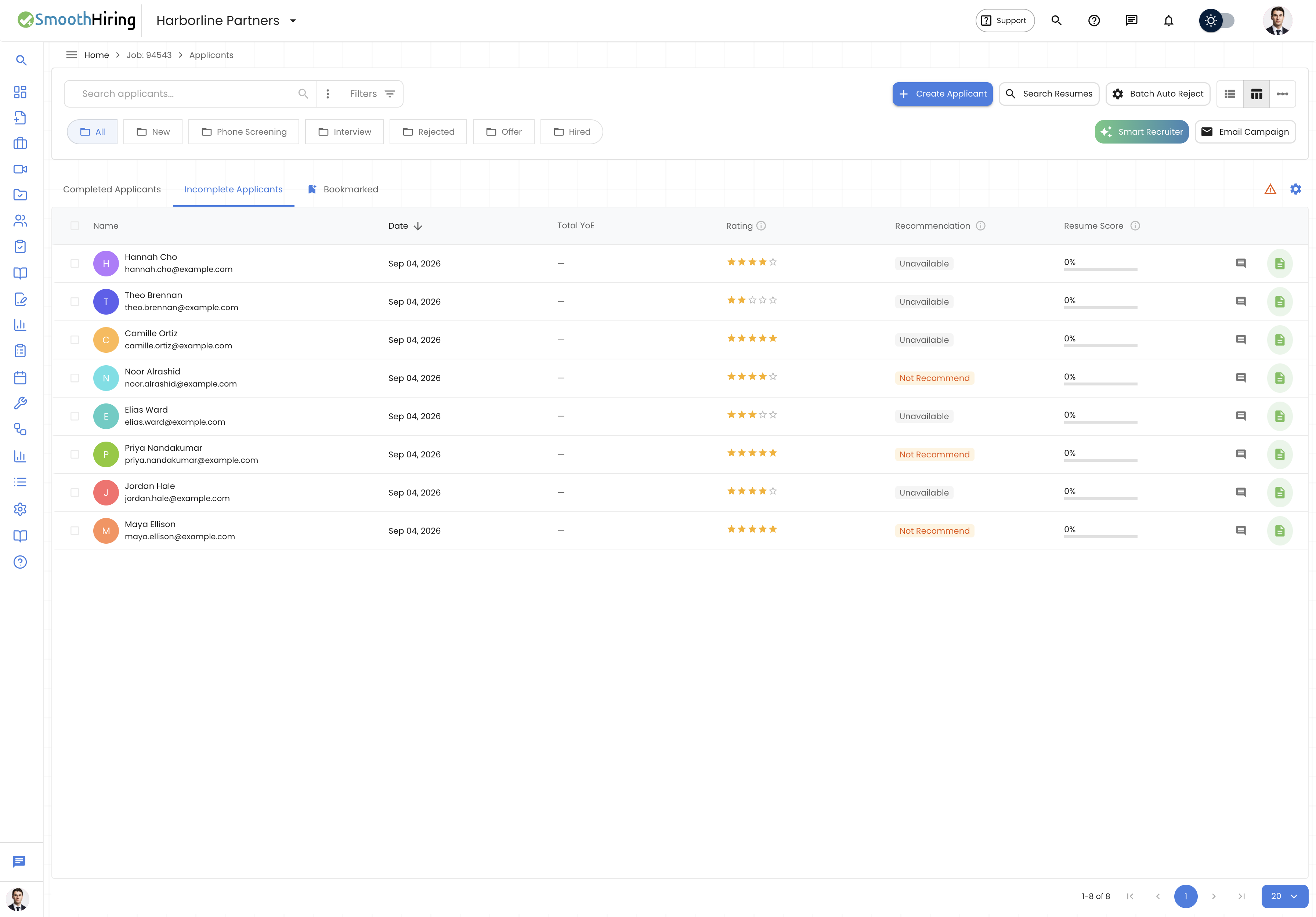
- From the left sidebar, click Jobs.
- Select the job posting you want to manage.
- Click the Applicants tab (or navigate directly to
/employer/applicants/{jobId}).
You will land on the main applicants list, which shows all candidates for the selected job organized by their current pipeline stage.
Layout Options
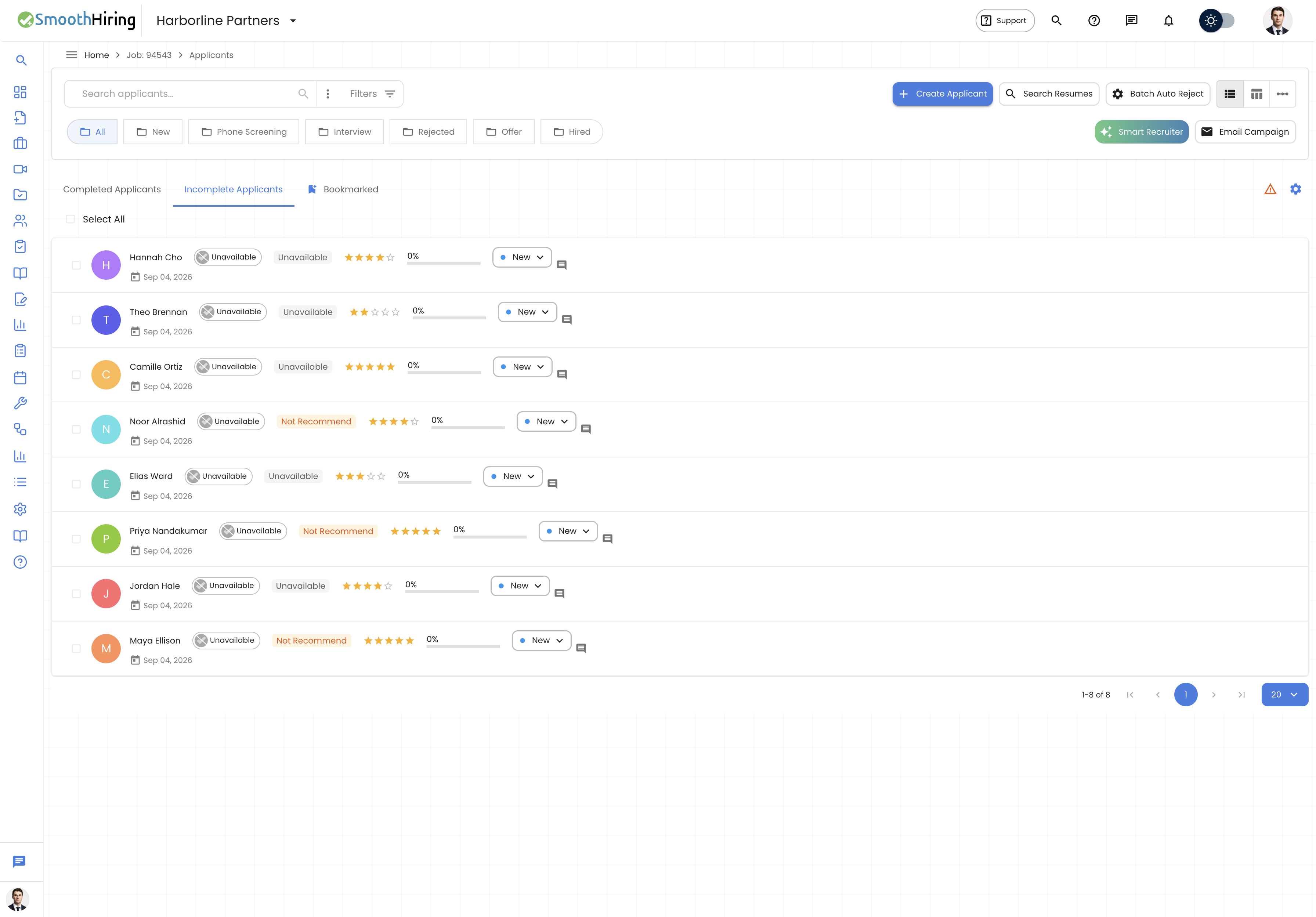 The toolbar provides three layout views. Toggle between them using the icon buttons at the top-right of the toolbar:
| View | Icon | Description |
|---|---|---|
| List | Stacked lines icon | Default card-style list with expandable details |
| Table | Grid icon | Spreadsheet-style view with sortable columns |
| Pipeline | Linear flow icon | Kanban-style board grouped by stage |
Tip: Use the Table view when you need to compare many candidates side-by-side on specific fields like resume score, rating, or years of experience.
Searching & Filtering Applicants
Quick Search
The search bar at the top left allows you to search by name or email. Type your query and press Enter or click the search icon.
- Click the three-dot menu (⋮) next to the search bar to enable Include incomplete applicants—this also surfaces candidates who started but have not finished their application.
Stage Folders
Below the search bar is a row of quick-access stage folders:
- All – Show every applicant regardless of stage
- New – Freshly applied, not yet reviewed
- Phone Screening – Moved to phone screen
- Interview – In first or final interview stages
- Rejected – Rejected, not qualified, or auto-rejected
- Offer – Job has been offered
- Hired – Officially hired
Click any folder to instantly filter to that stage group.
Advanced Filters
Click the filter icon (funnel) within the search bar to open the Advanced Filters panel. Filters include:
| Filter Type | Fields Available |
|---|---|
| Keyword | Search resume text by keyword with AND/OR logic and minimum strength |
| Numeric | Resume score, rating, years of experience (with operators: >, >=, <, <=, =, between) |
| Text | Resume text, job fit, stage, current job title, employer, skills, certifications, education, location, awards, previous experience, tags |
| Boolean | Is bookmarked, has received rejection email, offer letter, or interview email |
| Additional Questions | Filter by responses to custom screening questions |
| Date | Application completed date, stage modified date (date range) |
You can combine multiple filter groups using AND or OR logic. Each filter group can contain multiple conditions.
Tip: The active filter context appears below the toolbar showing exactly what filters are applied and how many candidates match. Click the X beside any filter to remove it.
Viewing Candidate Details### From the List View
Each applicant row shows:
- Avatar & Name – Initials-based colored avatar with full name
- Job Fit Chip – Color-coded chip (Strong Fit, Good Fit, Fair Fit, Weak Fit, Distortion)
- Smart Fingerprint Recommendation – AI-based recommendation with reasoning tooltip
- Star Rating – Recruiter-assigned rating (1–5 stars)
- Resume Score Gauge – Circular progress indicator showing resume match percentage
- Stage Dropdown – Current stage with ability to change
- Date Applied – When the application was completed
Opening the Full Profile
Click anywhere on the applicant row, or click the profile icon (contact page icon) to navigate to the full applicant profile at /employer/job/{jobId}/applicant/{applicantId}/details.
The full profile includes:
- Professional Summary – Name, email, current title, employer, experience, education
- Job Fit Details – JobFingerprint™ visual showing how the candidate maps to role requirements
- AI Recommendation – AI-generated summary and recommendation
- Behavioral Insights – Personality and behavioral assessment results
- Skills – Extracted and assessed skills
- Assessments Tab – All completed assessments with scores
- Comments – Team collaboration notes
Creating Applicants Manually
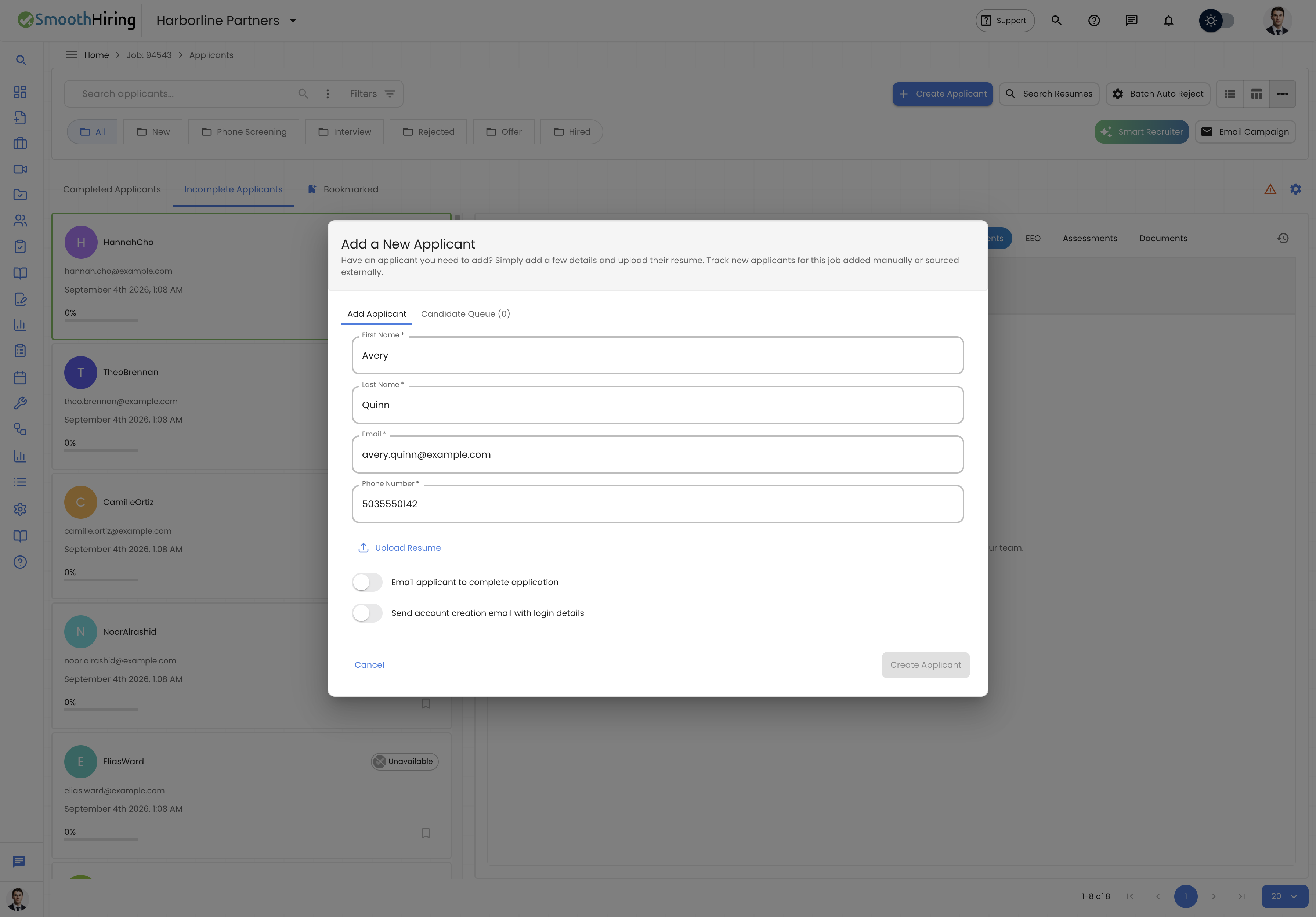 To add a candidate who applied outside the system (e.g., via email, job fair, or sourced directly):
- Click Create Applicant in the toolbar.
- Fill in the required fields:
- First Name
- Last Name
- Phone Number
- Resume (upload PDF or Word document)
- Optionally enable:
- Email applicant to complete application – Sends them a link to finish any remaining steps
- Email applicant of account creation – Notifies them their profile was created
- Click Submit.
The system will process the resume through three steps:
- Creating the applicant record
- Analyzing the resume (AI extraction of skills, experience, education)
- Calculating the resume match score
Candidate Queue
After submitting, switch to the Candidate Queue tab in the dialog to monitor processing status. The queue shows:
- Pending – Waiting to be processed
- Processing – Currently being analyzed
- Completed – Finished processing
- Failed – Any errors during processing
Changing Candidate Stages
From the List
Click the stage dropdown button on any applicant row. A menu appears with two sections:
Default Stages:
- New (blue dot)
- Not Qualified (grey dot)
- Phone Screening (purple dot)
- Interview (orange dot)
- Final Interview (red-orange dot)
- Rejected (red dot)
- Auto Rejected (grey dot)
Custom Stages (if configured):
- Any stages you have created in your Custom Hiring Pipeline appear in a second column.
Stage Transition Actions
When you move a candidate to a stage that has configured actions (e.g., send an email, invite to assessment), a Stage Transition Dialog will appear showing the actions that will be triggered. Confirm to proceed.
Rejecting a Candidate
When you select Rejected, a Rejection Email Dialog opens giving you the option to:
- Send a rejection email with a customizable subject, body, CC, and BCC
- Choose to reject without sending an email
Rating Candidates
Click the star rating widget on any applicant to assign a 1–5 star rating. Ratings persist and can be used for filtering and sorting.
Bookmarking Candidates
Click the bookmark icon (ribbon) to bookmark important candidates. Bookmarked candidates:
- Are visually highlighted with a filled bookmark icon
- Are excluded from batch auto-reject operations by default
- Can be filtered using Boolean filters
Bulk Selection & Actions
Selecting Multiple Candidates
- Check the Select All checkbox at the top to select all visible candidates
- Check individual checkboxes to select specific candidates
- The selection persists as you scroll
Available Bulk Actions
With candidates selected, you can access bulk operations through the toolbar including stage changes and email campaigns.
Sorting
Click column headers in the Table view to sort by:
- Name (first_name) – Alphabetical
- Date (created_at) – Application date
- Resume Score – Numeric score
- Rating – Star rating
Toggle between ascending and descending by clicking the same header again.
Exporting Applicant Data
Applicant data can be exported to Excel format. The export includes:
- First Name, Last Name, Email
- Candidate ID, Candidate Employer Job ID, Employer Job ID
- Application Completed At
- Rating, Match Type, Distortion Count, Comment Total
Related Pages
- Candidate Screening – Learn about screening questions and assessment criteria
- Custom Hiring Pipeline – Configure stages and automated actions
- Batch Auto Reject – Bulk reject candidates based on criteria
- Smart Resume Search – Search through all resumes by content
- Fit Score & Ranking – Understand how candidates are scored and ranked
- Passive Candidates & Sourcing – Manage sourced and talent-pool candidates
- Employee Referrals – Track referred candidates