

Using Scorecard TemplatesScorecard Templates in Smooth
Hiring provide structured evaluation forms that interviewers use to rate candidates on consistent, predefined criteria. By standardizing how candidates are assessed, scorecards reduce bias, improve hiring decisions, and make it easier to compare candidates objectively.
Overview
A scorecard template defines the structure of an interview evaluation. Each template consists of:
- Categories — Groupings of related evaluation criteria (e.g., "Technical Skills", "Communication", "Culture Fit")
- Questions — Specific evaluation items within each category
- Weights — Relative importance of each category toward the overall score
- Question types — Rating scales, free text, or multiple choice
When a candidate reaches an interview stage, interviewers complete the scorecard to provide structured feedback. Scores are aggregated to help hiring teams make data-driven decisions.
Navigating to Scorecard Templates
Method 1 — Via sidebar:
- Click Scorecards in the Core section of the left sidebar.
Method 2 — Via Settings:
- Click Settings → Tools & Automation → Templates → Scorecard Templates.
This takes you to /employer/settings/tools/scorecard-templates.
The Scorecard Templates List
The main page displays all scorecard templates in a table with the following columns:
| Column | Description |
|---|---|
| Scorecard Name | The template name |
| Description | A brief description of the scorecard's purpose |
| Categories | Number of evaluation categories |
| Questions | Total number of questions across all categories |
| Created By | The team member who created the template (with avatar) |
| Created At | Creation date |
| Updated At | Last modification date |
| Status | Active or Inactive |
| Actions | Preview, Edit, and Delete buttons |
Above the table:
- Create scorecard button — Opens the template creation form
- Search field — Filter templates by name
Creating a Scorecard Template
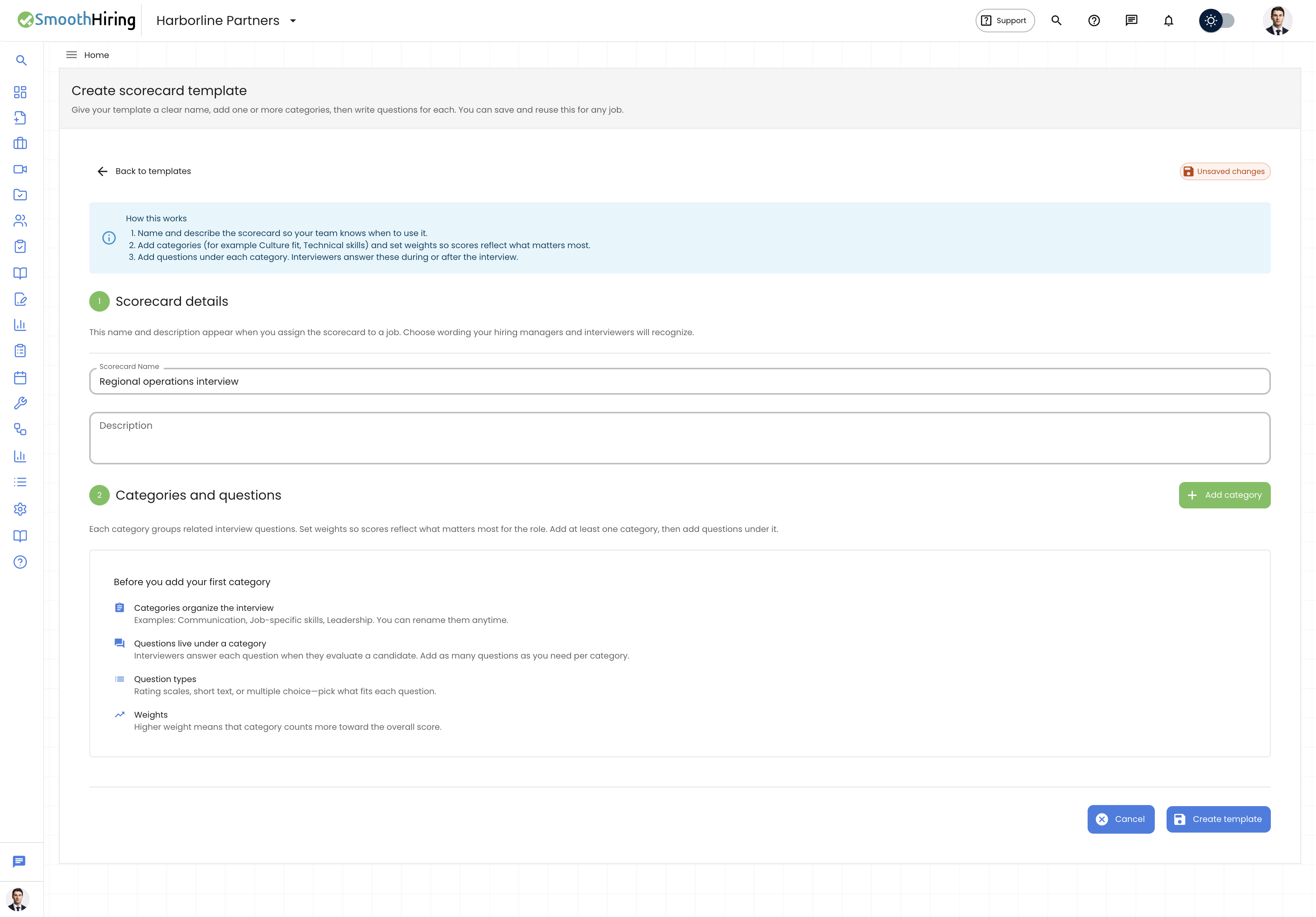
- Click Create scorecard on the templates list page.
- You are navigated to
/employer/settings/tools/scorecard-templates/create.
Step 1: Scorecard Details
| Field | Description | Required |
|---|---|---|
| Scorecard Name | A descriptive name (e.g., "Software Engineer Interview Scorecard") | Yes |
| Description | Brief description of what this scorecard evaluates | No |
Step 2: Categories and Questions
Categories organize your evaluation into logical groups. Within each category, you add specific questions interviewers will answer.
Adding a Category
Click Add category.
Fill in:
- Category Name — e.g., "Technical Skills" (required)
- Description — e.g., "Evaluates coding ability and system design" (optional)
- Weight — A decimal value (e.g., 1.0) indicating relative importance. Higher weights mean this category contributes more to the overall score (required, must be > 0)
Each category can be collapsed or expanded using the Show section / Hide section button.
Adding Questions to a Category
- Within a category, click Add question.
- Configure the question:
| Field | Description |
|---|---|
| Question Text | The evaluation prompt interviewers will answer (required) |
| Question Type | Rating, Text, or Multiple Choice |
| Rating Scale | For rating questions: the maximum score (2-10, default 5) |
| Options | For multiple choice: the answer choices (minimum 2 required) |
- To remove a question, click the Remove button next to it.
Question Types
| Type | Description | Configuration |
|---|---|---|
| Rating | Interviewers rate on a numeric scale | Set the scale (e.g., 1-5, 1-10) |
| Text | Interviewers provide free-form written feedback | No additional config |
| Multiple Choice | Interviewers select from predefined options | Add at least 2 options |
Saving
Click Create template (or Save template when editing) to save. The system validates that:
- The scorecard has a name
- At least one category exists
- Each category has a name and weight > 0
- Each category has at least one question
- Each question has text
- Rating questions have a scale >= 2
- Multiple choice questions have >= 2 options
If validation fails, the affected categories are automatically expanded and error messages are displayed inline.
Editing a Scorecard Template
- On the templates list, click Edit on the template row.
- You are navigated to
/employer/settings/tools/scorecard-templates/edit/{templateId}. - The editor loads with all existing categories and questions.
- Make your changes and click Save template.
Note: An Unsaved changes badge appears in the header when you have modifications that haven't been saved. The system also warns you if you try to navigate away with unsaved changes.
Previewing a Scorecard Template
Click Preview on the template row to view the scorecard in a read-only format at /employer/settings/tools/scorecard-templates/view/{templateId}.
Deleting a Scorecard Template
- Click Delete on the template row.
- A confirmation dialog appears with a warning.
- Click Delete scorecard to confirm.
Warning: If the scorecard template has been used in interviews (i.e., submissions exist), it cannot be deleted. In this case, you can only make the template Inactive to prevent new usage while preserving historical data.
Undo Deletions
When editing a template, deleting categories or questions can be undone:
- After deleting a category or question, an Undo last deletion button appears in the header.
- Click it to restore the most recently deleted item.
- Undo history is cleared when you save the template.
Using Scorecards in the Hiring Pipeline
Scorecards integrate with the Custom Hiring Pipeline:
On any pipeline stage, click Add Scorecard to attach a scorecard action.
Configure the scorecard action:
- Scorecard Template — Select from your active templates
- Deadline (hours) — How long interviewers have to complete the scorecard (default: 48 hours)
- Auto-create Submissions — When enabled, submissions are automatically created for preselected interviewers
- Preselected Interviewers — Choose team members who are automatically assigned
- Notification Emails — Email addresses notified when scorecards are assigned or completed
When a candidate enters the stage, the system:
- Creates a scorecard submission using the selected template
- (If auto-create is on) Assigns it to the preselected interviewers
- Sends email notifications to assigned interviewers
- Tracks completion status and deadline
Best Practices
- Align categories with job requirements. Map scorecard categories to the key competencies listed in the job description.
- Use consistent rating scales. Standardize on a single scale (e.g., 1-5) across all templates to make comparisons easier.
- Set meaningful weights. If technical skills are twice as important as communication for a role, set the weight accordingly (e.g., 2.0 vs 1.0).
- Write behavioral questions. Ask "How did the candidate demonstrate X?" rather than "Is the candidate good at X?"
- Include a text question per category. Free-form text fields capture nuance that rating scales miss.
- Create role-family templates. Build templates for engineering, sales, marketing, etc., then customize for specific positions.
- Keep templates active. Only set templates to Inactive when they are truly no longer needed. Templates in use by existing jobs should remain active.