

Email & Calendar Integration
SetupSmoothHiring integrates with your email and calendar services to keep all hiring communication and scheduling centralized. Send emails from your work address, sync interview events with your calendar, and manage everything without leaving the platform.
Supported Email Providers
| Provider | Description |
|---|---|
| Gmail | Send candidate emails from your Gmail / Google Workspace address |
| Outlook Mail | Send candidate emails from your Outlook / Office 365 address |
Supported Calendar Providers
| Provider | Description |
|---|---|
| Google Calendar | Two-way sync for interview events |
| Outlook Calendar | Two-way sync for interview events |
| SmoothHiring Calendar | Built-in calendar for scheduling (no integration required) |
Connecting Email
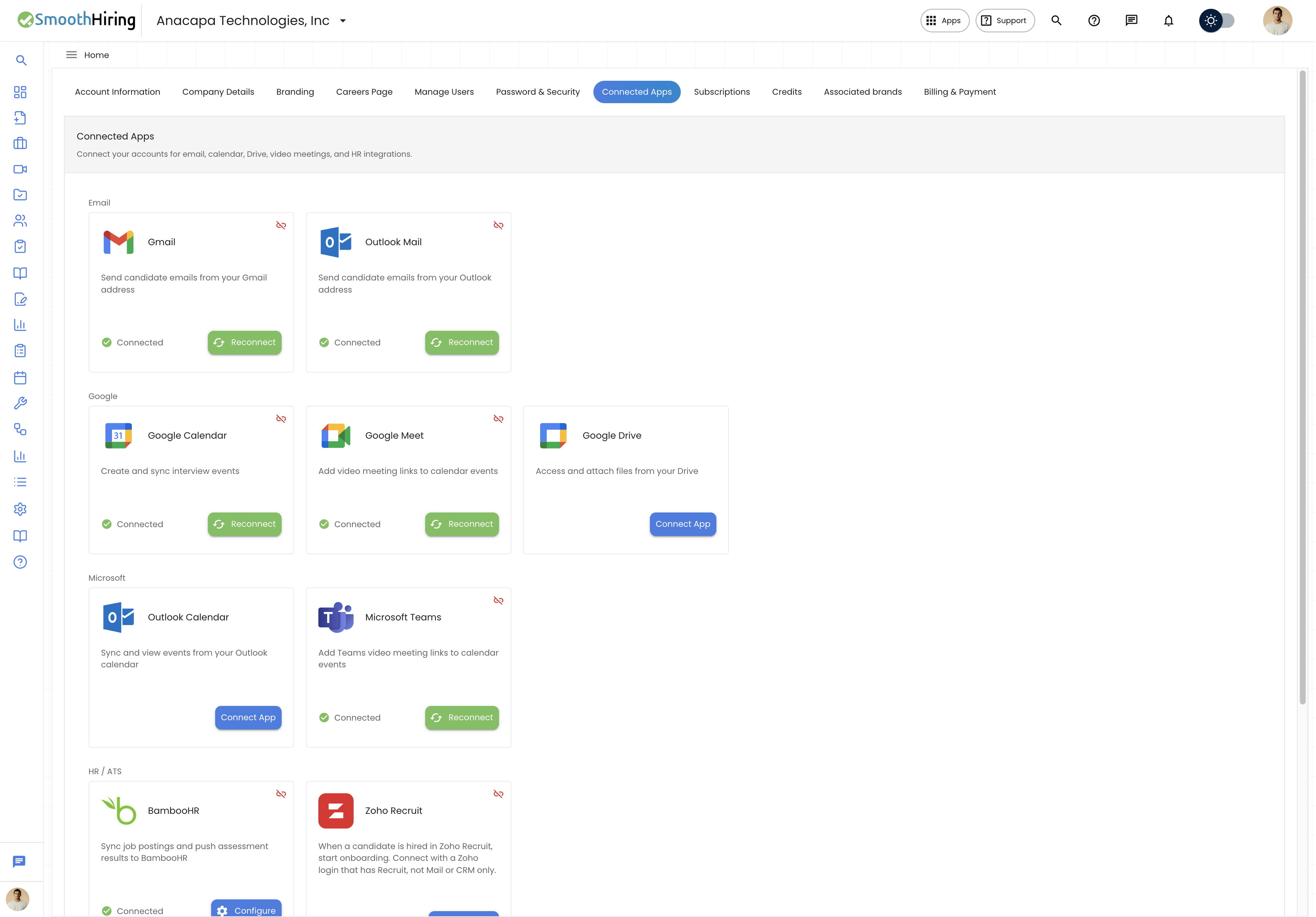
Gmail Setup
- Navigate to Settings → Account → Connected Apps.
- Find the Gmail card under the Email section.
- Click Connect.
- Sign in to your Google account (use your work email).
- Grant SmoothHiring permission to send emails on your behalf.
- Once connected, you'll see a green Connected badge.
Outlook Mail Setup
- Navigate to Settings → Account → Connected Apps.
- Find the Outlook Mail card under the Email section.
- Click Connect.
- Sign in to your Microsoft account.
- Grant SmoothHiring the required permissions.
- Once connected, you'll see a green Connected badge.
Using Email Features
Sending Emails to Candidates
Once your email is connected:
- Open a candidate's Applicant Profile.
- Click the Email action or navigate to the email section.
- Compose your message using the rich text editor.
- The email is sent from your connected email address (not from a generic SmoothHiring address).
- Candidates see your name and email address as the sender.
Email Templates
Create and use email templates for common communications:
- Navigate to Settings → Tools & Automation → Email Templates.
- Browse existing templates or create new ones.
- Templates are available for:
- Application acknowledgment — Thank candidates for applying
- Interview scheduling — Confirm interview details
- Follow-up — Post-interview communication
- Rejection — Professional decline notifications
- Offer letters — Formal offer communication
- Use merge fields to personalize templates with candidate and job data.
Email Campaigns
Send targeted emails to groups of candidates:
- Navigate to the Email Campaign section.
- Select target candidates (by job, pipeline stage, or custom filter).
- Choose or create an email template.
- Schedule or send immediately.
- Track open rates and response metrics.
Tip: Always use your connected work email for candidate communication. Emails sent from your actual address have significantly better open rates than generic system emails.
Connecting Calendars
Google Calendar Setup
- Navigate to Settings → Account → Connected Apps.
- Find the Google Calendar card under the Google section.
- Click Connect.
- Authorize SmoothHiring to access your Google Calendar.
- Once connected, interview events sync bidirectionally.
Outlook Calendar Setup
- Navigate to Settings → Account → Connected Apps.
- Find the Outlook Calendar card under the Microsoft section.
- Click Connect.
- Sign in and authorize calendar access.
- Interview events will sync with your Outlook Calendar.
SmoothHiring Calendar
SmoothHiring includes a built-in calendar that works without any external integration:
- View all scheduled interviews in one place
- Manage interview availability
- Track upcoming and past interviews
Using Calendar Features
Scheduling Interviews
- Open a candidate's profile.
- Click Schedule Interview.
- The interview scheduling dialog guides you through:
- Select date and time — Choose from available time slots
- Set duration — Specify the interview length
- Add attendees — Include team members as interviewers
- Choose meeting type — Select Google Meet, Teams, Zoom, or in-person
- Add notes — Include preparation instructions or agenda
- Click Schedule to create the event.
Interview Self-Scheduling
Allow candidates to choose their own interview time:
- When scheduling, toggle on Self-Schedule.
- Provide multiple time slot options.
- The candidate receives an email with available times.
- They select their preferred slot.
- The interview is automatically confirmed and calendar events are created.
Calendar Sync Details
| Feature | Google Calendar | Outlook Calendar |
|---|---|---|
| Create events from SmoothHiring | ✓ | ✓ |
| Sync events bidirectionally | ✓ | ✓ |
| Check interviewer availability | ✓ | ✓ |
| Auto-add video meeting links | ✓ (with Meet) | ✓ (with Teams) |
| Update events from SmoothHiring | ✓ | ✓ |
| Delete/cancel from SmoothHiring | ✓ | ✓ |
Interview Dashboard
The Interview Dashboard provides a centralized view of all interview activity:
- Upcoming interviews — All scheduled interviews across all jobs
- Today's interviews — Quick view of today's schedule
- Interview widgets — Summary statistics and quick actions
- Candidate details — Click any interview to view the candidate's profile
Navigate to the Interview Dashboard from the main navigation sidebar.
Troubleshooting
Email Issues
| Issue | Solution |
|---|---|
| Can't send emails | Verify your email is connected in Settings → Connected Apps |
| Emails going to spam | Add SmoothHiring to your email provider's safe sender list |
| Wrong sender address | Disconnect and reconnect with the correct account |
| Authorization expired | Go to Connected Apps and click Reconnect |
Calendar Issues
| Issue | Solution |
|---|---|
| Events not appearing | Verify calendar is connected and authorized |
| Wrong calendar | Disconnect and reconnect, selecting the correct calendar |
| Time zone mismatch | Check your SmoothHiring time zone settings |
| Duplicate events | This can happen during reconnection — delete duplicates manually |
Related Pages
- Integrations — Overview of all integrations
- Zoom Video — Zoom interviews
- Google Meet — Meet interviews
- Microsoft Teams — Teams interviews
- Team Collaboration — Coordinate with your hiring team
- Candidate-Friendly Applications — Candidate communication