

What Is Offer Management in SmoothHiring?
SmoothHiring's Offer Management module streamlines the process of extending job offers to candidates. Create, send, and track offer letters with integrated e-signature capabilities powered by DocuSign. From compensation details to signed acceptance, manage the entire offer lifecycle within your ATS.
Overview
The offer management workflow in SmoothHiring follows these steps:
- Create an offer letter for a selected candidate
- Configure compensation details and offer terms
- Send the offer for employer and candidate e-signatures
- Track signature status and completion
Creating an Offer Letter
To create an offer letter for a candidate:
- Navigate to Jobs in the left sidebar.
- Click on the relevant job posting.
- Open the candidate's Applicant Profile.
- Move the candidate to the Offer stage in the pipeline (or click the offer action).
- Click Create Offer Letter.
Offer Letter Contents
When creating an offer, you can configure the following:
| Field | Description |
|---|---|
| Job Title | The official title for the offered position |
| Department | Department or team the candidate will join |
| Start Date | Proposed employment start date |
| Compensation | Base salary, pay frequency, and currency |
| Additional Compensation | Bonuses, equity, signing bonuses, commission |
| Employment Type | Full-time, part-time, contract, etc. |
| Work Location | On-site, remote, or hybrid arrangement |
| Offer Expiration | Deadline for the candidate to respond |
| Custom Terms | Any additional offer terms or conditions |
Additional Compensation
SmoothHiring supports multiple compensation components:
- Base Salary — Annual or hourly base pay
- Signing Bonus — One-time bonus upon signing
- Annual Bonus — Performance-based annual bonus
- Commission — Sales or performance commissions
- Equity / Stock Options — Equity compensation details
- Relocation Assistance — Relocation package details
- Other — Custom compensation components
Offer Letter Templates
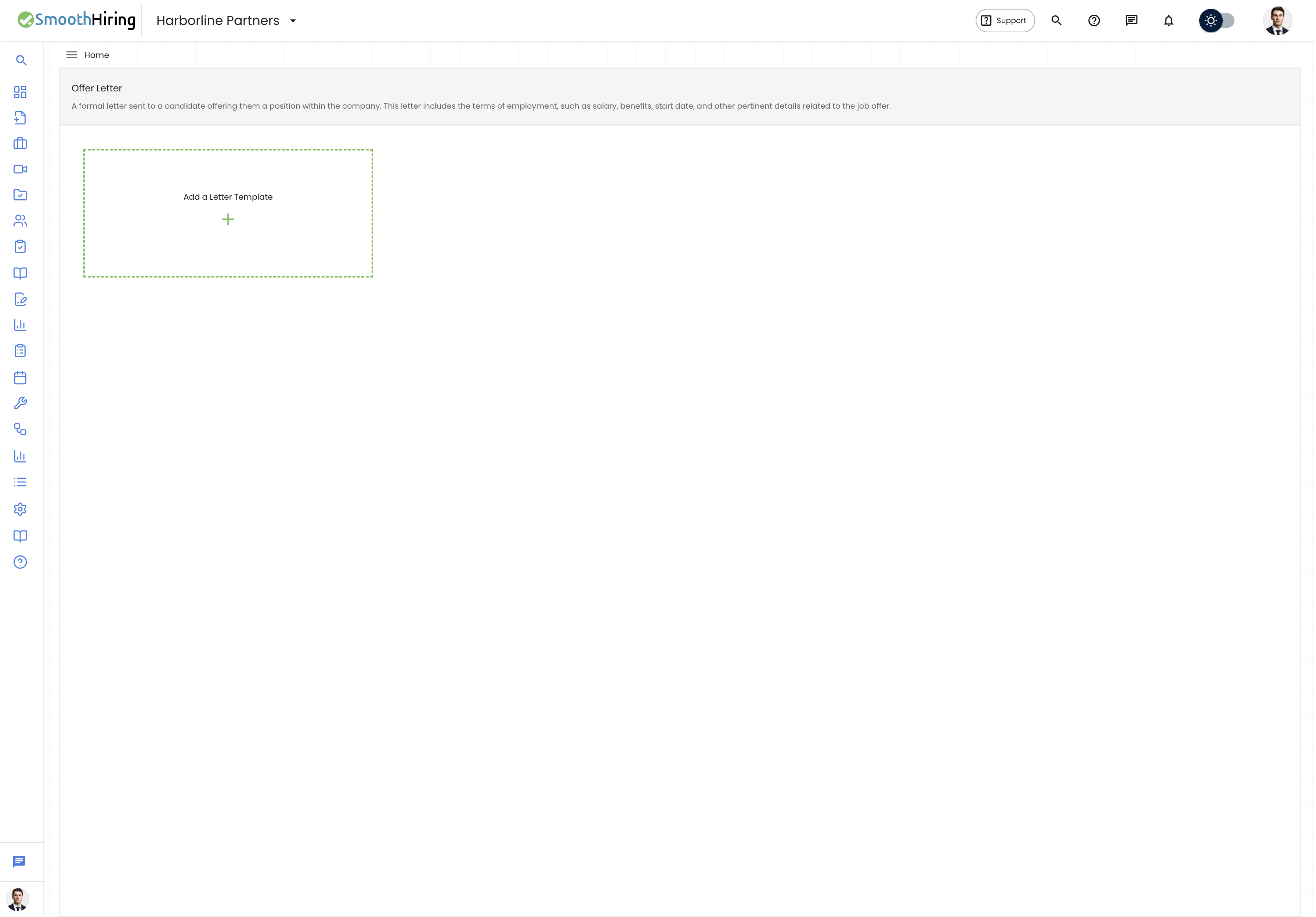
SmoothHiring provides offer letter templates that you can customize with your company's specific terms and branding.
Using Templates
- Navigate to Settings → Tools & Automation → Email Templates.
- Click on the Offer Letter template category.
- Select an existing template or create a new one.
- Edit the template content using the rich text editor.
- Use merge fields to auto-populate candidate and offer details.
Available Merge Fields
Merge fields automatically insert candidate and offer data into your letter:
{{candidate_name}}— Candidate's full name{{job_title}}— Offered position title{{start_date}}— Proposed start date{{salary}}— Base compensation amount{{company_name}}— Your company name{{hiring_manager}}— Hiring manager's name
Tip: Create multiple offer letter templates for different role types (full-time, contract, executive) so your team can quickly select the right one. See Offer Letter Templates for details.
E-Signatures with DocuSign
SmoothHiring integrates with DocuSign for legally binding electronic signatures on offer letters.
Connecting DocuSign
- Go to Settings → Account → Connected Apps.
- Find DocuSign in the integration list.
- Click Connect and authorize SmoothHiring to access your DocuSign account.
- Once connected, you'll see a green Connected indicator.
Signature Workflow
The e-signature process follows this order:
- Employer Signature — The authorized company representative (hiring manager or HR) signs the offer letter first.
- Candidate Signature — The candidate receives the offer letter via email and signs electronically.
- Completion — Once both parties have signed, the offer is marked as complete. Both parties receive a copy of the fully executed document.
Tracking Signature Status
You can track the signature status from the candidate's profile:
| Status | Meaning |
|---|---|
| Draft | Offer created but not yet sent for signatures |
| Pending Employer Signature | Awaiting the employer's signature |
| Pending Candidate Signature | Employer has signed; awaiting candidate |
| Completed | Both parties have signed |
| Declined | Candidate declined the offer |
| Expired | Offer expired before candidate responded |
Managing Offers
Viewing All Offers
To see all offers across your organization:
- Navigate to the job's applicant list.
- Filter by the Offer pipeline stage.
- View offer status for each candidate.
Rescinding or Modifying an Offer
If you need to modify or rescind an offer:
- Open the candidate's profile.
- Navigate to their offer details.
- Create a revised offer letter with updated terms.
- The new offer supersedes the previous one.
Important: Once a candidate has signed an offer, modifications require a new offer letter to be created and signed by both parties.
Offer Best Practices
- Move quickly — Top candidates often have multiple offers. Send offers within 24–48 hours of the final interview.
- Include all details — A comprehensive offer letter reduces back-and-forth negotiation.
- Set a reasonable expiration — Give candidates 3–5 business days to respond.
- Communicate personally — While the system sends automated emails, a personal phone call from the hiring manager before the formal offer builds excitement.
- Track offer acceptance rates — Monitor your offer-to-hire conversion rate to identify issues in your compensation or candidate experience.
Related Pages
- Offer Letter Templates — Create and manage offer letter templates
- Onboarding — Set up onboarding for accepted offers
- Integrations — Connect DocuSign for e-signatures
- Compliance & Security — Legal and compliance considerations