

Using Batch Auto Reject
The Batch Auto Reject feature allows you to efficiently reject multiple candidates at once based on configurable criteria. Instead of manually reviewing and rejecting each low-fit candidate, you can define rules and let the system identify and process rejections in bulk—saving hours of administrative time on high-volume roles.
Accessing Batch Auto Reject
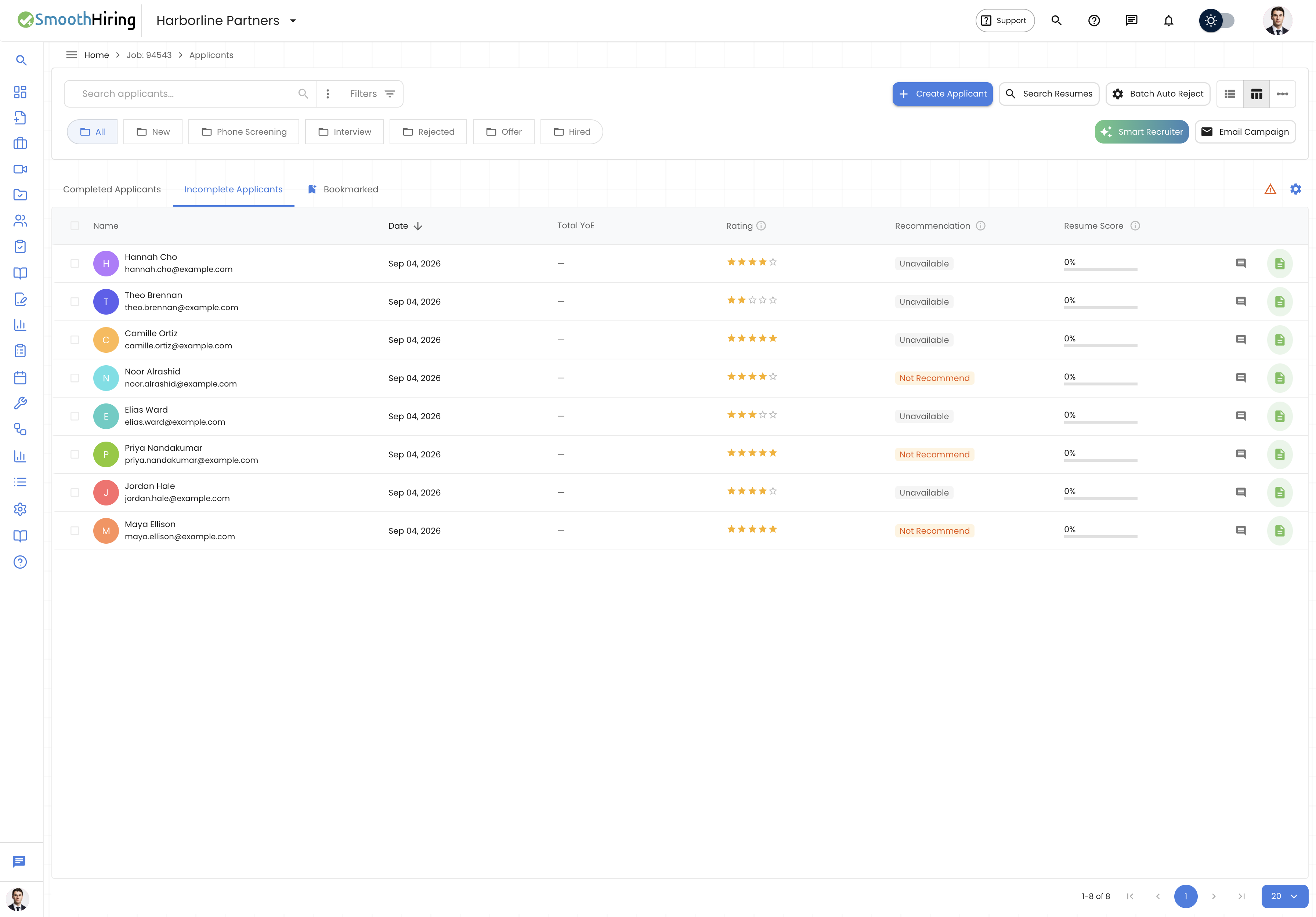
There are two places to manage auto-reject:
From the Applicants List:
- Navigate to any job's applicant list
- Click Batch Auto Reject in the toolbar
- This takes you to
/employer/applicants/{jobId}/batch-auto-reject
Setting Up Criteria Templates:
- Go to Settings → Tools & Automation → Automation → Auto Reject
- Navigate to
/employer/settings/automation/auto-reject/criteria - Here you create and manage reusable reject criteria templates
How Batch Auto Reject Works
The process follows a 4-step wizard:
Step 1: Select Criteria
Choose a pre-configured criteria template or proceed to create custom filters.
Each template card shows:
- Criteria Name – Descriptive name of the template
- Description – What the template targets
- Score threshold – The resume score cutoff
- Fit categories – Which fit levels are included
- Date Created – When the template was made
- Preferred badge – Your default/preferred template (marked with a star)
Click a template card to select it (highlighted with a colored border).
Tip: If no templates exist yet, click the link to create one in Settings → Automation → Auto Reject.
Step 2: Modify Criteria
After selecting a template, customize the criteria for this specific batch operation:
1. Resume Score & Job Fit
| Field | Description |
|---|---|
| Resume Score Threshold (%) | Reject candidates with a resume score below this percentage (e.g., entering "20" rejects candidates scoring below 20%) |
| Job Fit (reject these) | Select which fit levels to reject. Options: Strong Fit, Good Fit, Fair Fit, Weak Fit, Distortion |
2. Scope
| Field | Description |
|---|---|
| Stages | Limit rejection to specific stages only. Leave empty to include all stages. Select from: New, Not Qualified, Phone Screening, Interview, Final Interview, Rejected, Auto Rejected |
| Exclude Bookmarked | Toggle ON (default) to protect bookmarked candidates from auto-rejection |
3. Experience
| Field | Description |
|---|---|
| YOE Min | Only reject candidates with fewer than this many years of experience |
| YOE Max | Only reject candidates with more than this many years of experience |
4. Advanced Filters
For more complex criteria, use the full Advanced Filter UI which supports:
- Keyword filters with AND/OR logic
- Numeric filters (resume score, rating, years of experience)
- Text filters (resume content, skills, education, location, certifications, tags)
- Boolean filters (bookmarked, received emails)
- Additional question response filters
Important: If you add Advanced Filters, they replace the preset criteria—the system uses one or the other, not both simultaneously.
Step 3: Preview
Before executing, the system runs a dry run to show exactly which candidates would be rejected.
The preview displays:
- Count summary – "X of Y applicants would be moved to Auto Rejected"
- Candidate table with columns:
- Name
- Current Stage
- Job Fit (chip)
- Resume Score
- Recommendation
- Years of Experience
- Current Job Title / Employer
- Rating
You can click any candidate row to open their full profile in a new view.
Click Preview matches to refresh if you've changed criteria.
Step 4: Batch Reject
The final confirmation step shows:
- The criteria summary one more time
- The count of affected candidates
- A prominent red "Batch Reject (Without Sending Email)" button
Important: Batch auto-reject does not send rejection emails to candidates. They are silently moved to the "Auto Rejected" stage. If you want to notify them later, use an Email Campaign.
Confirmation Dialog
After clicking the reject button, a confirmation dialog appears showing:
- A warning that matched candidates will be rejected
- The candidate list one more time
- The criteria summary
- Cancel and Confirm buttons
Click Confirm to execute the batch rejection.
Criteria Templates
Creating a Template
- Go to Settings → Tools & Automation → Automation → Auto Reject → Criteria
- Click Add Criteria
- Configure:
- Criteria Name – e.g., "Low-fit Junior Reject"
- Description – e.g., "Rejects weak/distortion fits with low resume scores"
- Resume Score Threshold – Minimum acceptable score
- Selected Fits – Which fit categories to reject
- Only Stages – Restrict to specific stages (optional)
- Exclude Bookmarked – Whether to protect bookmarked candidates
- YOE Range – Min/max years of experience (optional)
- Recommendation – Optionally target "Not Recommended" candidates only
- Additional Question Filters – Filter by screening question responses
Setting a Preferred Template
Mark one template as Preferred (starred) to make it the default selection when starting batch reject. The preferred template is auto-selected when you open the batch reject wizard.
Editing and Deleting Templates
- Click a template to edit its fields
- Use the delete option to remove templates you no longer need
- Changes to templates don't affect past batch rejections
What Happens After Batch Rejection
- Affected candidates are moved to the Auto Rejected stage
- Their stage shows a grey "Auto Rejected" dot in the list
- They are separated from manually rejected candidates
- No notification email is sent to the candidates
- A success notification confirms how many candidates were processed
- The applicant list refreshes automatically
Safety Features
| Feature | Protection |
|---|---|
| Exclude Bookmarked | Candidates you've bookmarked are protected by default |
| Dry Run Preview | See exactly who will be affected before committing |
| Confirmation Dialog | Extra confirmation step prevents accidental bulk rejections |
| No Email Sent | Candidates aren't notified, giving you time to reconsider |
| Stage Restriction | Can limit to only "New" stage to avoid rejecting candidates already in interviews |
Best Practices
Set up criteria templates early – Having predefined templates makes the process faster and more consistent across jobs.
Always preview before confirming – Even if you trust your criteria, review the preview to catch any unexpected matches.
Use Exclude Bookmarked – If there's ever a candidate you're unsure about, bookmark them first—they'll be protected from batch operations.
Start conservative – Set a low resume score threshold initially (e.g., 10-15%) and adjust upward after reviewing results.
Combine with Stage scope – Only auto-reject from the "New" stage to ensure candidates who've progressed aren't accidentally removed.
Follow up with Email Campaigns – After batch rejecting, consider sending a professional rejection email campaign to maintain your employer brand.
Related Pages
- Managing Candidates – Understanding the applicant list and stages
- Fit Score & Ranking – How resume scores and fit levels are calculated
- Custom Hiring Pipeline – Stage configuration
- Candidate Screening – How screening criteria relate to auto-reject