

Employer Branding
in SmoothHiring: Build a Brand Candidates TrustYour Employer Branding settings control the visual identity of your careers page and candidate-facing content. Customize your company theme, typography, SEO settings, and social media links to create a cohesive, professional brand experience that attracts top talent.
Accessing Branding Settings
- Click Settings in the left sidebar.
- Navigate to Account Settings.
- Click the Branding tab.
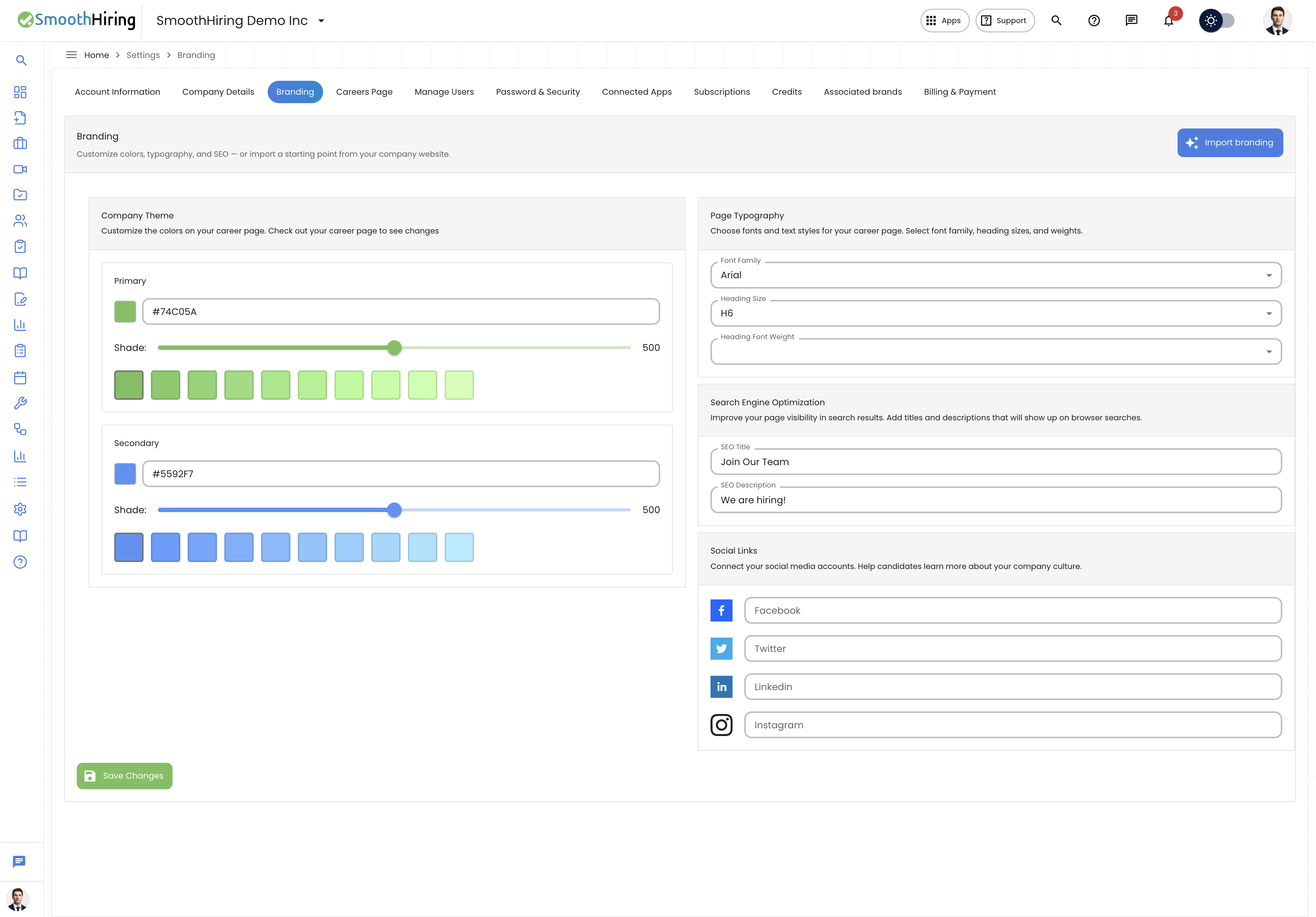
The Branding page includes the following sections:
- Company Theme — Primary and secondary brand colors
- Page Typography — Font family, heading size, and weight
- Search Engine Optimization — SEO title and description
- Social Links — Social media profile URLs
Company Theme (Colors)
Brand colors define the visual tone of your careers page. SmoothHiring uses a two-color system:
Setting Your Primary Color
The primary color is used for buttons, links, headings, and key interactive elements on your careers page.
- Go to Settings → Account → Branding.
- Under Company Theme, find the Primary color picker.
- Click to open the color picker and select your brand's primary color.
- You can also type a hex code directly (e.g.,
#2563EB). - Choose from pre-set shade variations for convenience.
- Click Save Changes.
Setting Your Secondary Color
The secondary color is used for accent elements, backgrounds, and supporting design elements.
- Under Company Theme, find the Secondary color picker.
- Select your desired accent color.
- Click Save Changes.
Tip: Use your official brand colors to maintain consistency between your careers page and your company website. Most brand guidelines specify hex codes — enter them directly for precision.
Page Typography
Typography controls the fonts and text styling used across your careers page. A consistent typographic style reinforces your brand identity.
Font Family
SmoothHiring offers a wide selection of fonts, including:
System Fonts (Web Safe): Arial, Verdana, Times New Roman, Georgia, Helvetica, Segoe UI, and more.
Google Fonts: Roboto, Montserrat, Open Sans, Lato, Poppins, Raleway, Inter, DM Sans, Space Grotesk, Playfair Display, and 80+ additional options.
To set your font:
- Go to Settings → Account → Branding.
- Under Page Typography, open the Font Family dropdown.
- Search for or select your preferred font.
- Click Save Changes.
Heading Size
Control the default heading size used across your careers page.
- Under Page Typography, open the Heading Size dropdown.
- Select from H1 (largest) through H6 (smallest).
- Click Save Changes.
Heading Font Weight
Adjust the visual weight (boldness) of your headings.
- Under Page Typography, open the Heading Font Weight dropdown.
- Select a weight from 100 (thin) to 900 (extra bold).
- Click Save Changes.
| Weight | Appearance |
|---|---|
| 100–200 | Thin / Extra Light |
| 300 | Light |
| 400 | Regular (normal) |
| 500 | Medium |
| 600 | Semi Bold |
| 700 | Bold |
| 800–900 | Extra Bold / Black |
Tip: Most companies use 600 or 700 for headings to make them stand out. Pair a bold heading with a regular (400) body font for readability.
Search Engine Optimization (SEO)
SEO settings improve your careers page's visibility in search engine results (Google, Bing, etc.). When candidates search for jobs at your company, well-configured SEO settings help your page appear higher in results.
SEO Title
The SEO title appears as the clickable headline in search engine results and browser tabs.
- Go to Settings → Account → Branding.
- Under Search Engine Optimization, enter your SEO Title.
- Click Save Changes.
Best practices for SEO titles:
- Keep it under 60 characters
- Include your company name and "Careers" or "Jobs"
- Example:
Acme Corp Careers — Join Our Team
SEO Description
The SEO description appears as the text snippet below the title in search results.
- Enter your SEO Description (up to 160 characters recommended).
- Click Save Changes.
Best practices for SEO descriptions:
- Summarize what makes your company a great place to work
- Include keywords like "careers," "jobs," "hiring," and your industry
- Example:
Explore open positions at Acme Corp. We're hiring engineers, designers, and marketers across North America. Competitive pay, great benefits, and flexible work.
Social Media Links
Add links to your company's social media profiles. These appear on your careers page, allowing candidates to learn more about your company culture.
Supported platforms:
| Platform | Field |
|---|---|
| Your company Facebook page URL | |
| Your company X (Twitter) profile URL | |
| Your company LinkedIn page URL | |
| Your company Instagram profile URL |
To add social links:
- Go to Settings → Account → Branding.
- Under Social Links, enter the full URL for each platform.
- Click Save Changes.
Tip: Candidates frequently check company social media before applying. Active, engaging social profiles can significantly boost application rates.
How Branding Applies Across Layouts
Your branding settings apply consistently across all three careers page layout styles:
| Setting | Classic Layout | Modern Layout | Custom Layout |
|---|---|---|---|
| Colors | Buttons, links, accents | Buttons, filters, accents | All blocks use brand colors |
| Typography | Headings, body text | Headings, body text | All text blocks use brand fonts |
| Logo | Header | Header | Header and custom blocks |
| Banner | Top of page | Top of page | Hero blocks can use banner |
| Social Links | Footer | Footer | Social Links block |
Tip: When using the Custom Layout, set your branding first under Settings → Account → Branding and your images under Settings → Account → Careers Page, then build your layout in the Page Builder. The builder inherits your brand settings automatically.
Previewing Your Changes
After saving your branding changes, preview your careers page:
- Go to Settings → Account → Careers Page → Banners and Images.
- Click the external link icon next to your careers page URL to open it in a new tab.
- Verify that colors, fonts, and social links appear as expected.
Tip: Open your careers page in an incognito/private browser window to see exactly what candidates will see.
Related Pages
- Careers Page — Layout options and page builder
- Candidate-Friendly Applications — Application form design
- Company Information — Edit company name, website, and location