

Using Your SmoothHiring Dashboard
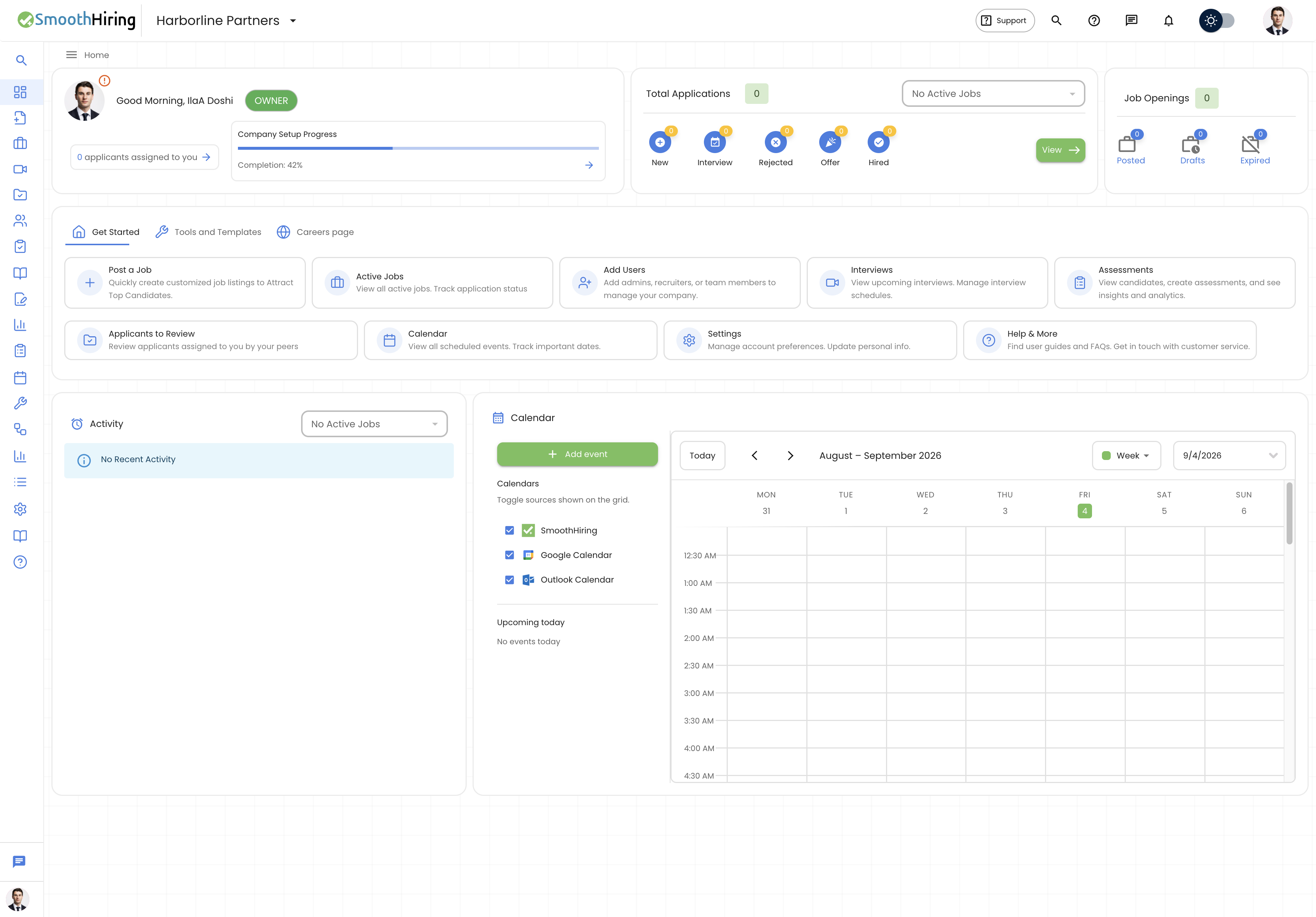
Your Dashboard is the first thing you see when you log in to SmoothHiring. It provides a comprehensive, real-time overview of your hiring activity, helping you stay on top of candidates, jobs, interviews, and team tasks — all from a single screen.
Navigating to the Dashboard- Direct URL: /employer/dashboard
- Navigation: Click your company logo or the Dashboard icon in the left sidebar.
After logging in, you are automatically taken to the Dashboard.
Dashboard Layout Overview
The Dashboard is organized into distinct widget sections, each designed to surface the most important hiring information at a glance. Below is a breakdown of every widget and what it offers.
Welcome Widget
At the top of the Dashboard, the Welcome Widget greets you by name with a time-of-day message (Good Morning, Good Afternoon, or Good Evening) based on your configured timezone.
| Element | Description |
|---|---|
| Profile Avatar | Displays your profile photo or initials with a colored background |
| Role Badge | Shows your current role (Owner, Admin, Recruiter, Hiring Manager, or Observer) |
| 2FA Warning | If two-step authentication is not enabled, a warning icon appears on your avatar |
| Applicants Assigned | A chip showing the count of applicants assigned to you for review |
Setup Progress Indicators
If your account or company profile is incomplete, progress bars appear:
- Account Setup Progress — Tracks completion of your name, email, and timezone. Click the arrow to go directly to Account Information settings.
- Company Setup Progress — Tracks completion of company name, website, state/province, city, company description, logo, and phone number. Click the arrow to go to Company Details settings.
Tip: Complete both setup progress bars to 100% to ensure your job postings display correct company information and your profile is fully configured.
Total Applications (Applicant Summary Widget)
This widget provides a snapshot of your hiring pipeline for a specific job.
How to Use
- Select a job from the Select a Job dropdown (defaults to your most recent active job).
- View the stage breakdown displayed as icon badges:
| Stage | Description |
|---|---|
| New | Candidates who have just applied |
| Interview | Candidates in phone screening or interview stage (combined count) |
| Rejected | Candidates who have been rejected |
| Offer | Candidates who have received an offer |
| Hired | Candidates who have been hired |
- Click the View button to navigate directly to the full applicant list for that job.
The total applications count is displayed as a green chip at the top of the widget.
Job Openings Widget
The Job Openings widget shows a quick count of your jobs by status:
| Status | Description |
|---|---|
| Posted | Active jobs currently accepting applications |
| Drafts | Jobs saved as drafts but not yet published |
| Expired | Jobs that have passed their closing date |
Click any status icon to navigate directly to that job list view.
Quick Action Tiles
The Quick Action Tiles section provides one-click access to the most common tasks in SmoothHiring. It is organized into tabs:
Get Started Tab
| Tile | Action |
|---|---|
| Post a Job | Navigate to the job creation wizard |
| Active Jobs | View all currently posted jobs |
| Add Users | Go to user management settings |
| Interviews | Open the interview dashboard |
| Assessments | View assessment results and create assessments |
| Applicants to Review | Review applicants assigned to you |
| Calendar | Open the full calendar view |
| Settings | Go to account settings |
| Help & More | Access help guides and customer support |
Tools Tab
| Tile | Action |
|---|---|
| Questionnaire Templates | Create screening questionnaires |
| Application Confirmation Template | Set up auto-reply emails |
| Rejection Templates | Create professional rejection emails |
| Interview Templates | Design interview invitation templates |
| Auto Reject Criteria | Configure automatic rejection rules |
Careers Page Tab
| Tile | Action |
|---|---|
| View Your Careers Page | Preview your public careers page |
| Customize Careers Page | Edit branding, logos, and layout |
Recent Activity Widget
The Activity widget shows a real-time feed of candidate movements through your hiring pipeline for a selected job.
What It Shows
Each activity entry displays:
- Timestamp — Day of week and time the activity occurred
- Candidate Avatar — Initials with a color-coded background
- Activity Message — A human-readable description (e.g., "John Smith has applied to Software Engineer")
- Stage Chip — The candidate's current pipeline stage with a color indicator
- Open Link — Click the icon to navigate directly to that candidate's profile
Activity Messages by Stage
| Stage | Example Message |
|---|---|
| New | "Jane Doe has applied to Marketing Manager" |
| Reviewed | "Jane Doe has been reviewed" |
| Interview | "Jane Doe is scheduled to be interviewed" |
| Second Interview | "Jane Doe 2nd interview has been scheduled" |
| Offer | "Jane Doe was given an offer for Marketing Manager" |
| Hired | "Jane Doe was hired for Marketing Manager" |
| Phone Screening | "Jane Doe has been scheduled for a phone interview" |
| Rejected | "Jane Doe was rejected from Marketing Manager" |
| Not Qualified | "Jane Doe has been categorized as not qualified" |
| Auto Rejected | "Jane Doe has been auto rejected" |
Activities are sorted by the most recent first, using the stage modification date.
Dashboard Calendar Widget
An embedded calendar appears on the Dashboard showing your upcoming interviews and events. This is a compact version of the full Calendar feature.
The calendar displays:
- SmoothHiring interviews (scheduled, requested, accepted)
- Google Calendar events (if connected)
- Outlook Calendar events (if connected)
Click the calendar title or navigate to /employer/calendar for the full-featured calendar view.
Tips for Using the Dashboard Effectively
Tip: Use the job selector dropdowns in the Applicant Summary and Recent Activity widgets to monitor different positions throughout the day.
Tip: If you see the 2FA warning badge on your avatar, navigate to Password & Security to enable two-step verification and protect your account.
Tip: The Dashboard automatically refreshes data when you navigate back to it, so you always see the latest information.
Related Pages
- Calendar — Full calendar view with all integrations
- My Scorecards — Review scorecards assigned to you
- Account Information — Complete your profile setup
- Company Details — Finish company setup
- Manage Users — Add team members
- My Analytics — Detailed hiring metrics and reports