

Sending Text Messages to Candidates
SmoothHiring includes a built-in SMS text messaging feature that lets you communicate directly with candidates from within the applicant profile. Powered by Twilio, this feature enables fast, personal outreach—ideal for scheduling interviews, following up on applications, or answering quick questions without leaving the platform.
This guide covers everything you need to know about sending, receiving, and managing text messages in SmoothHiring.
Overview
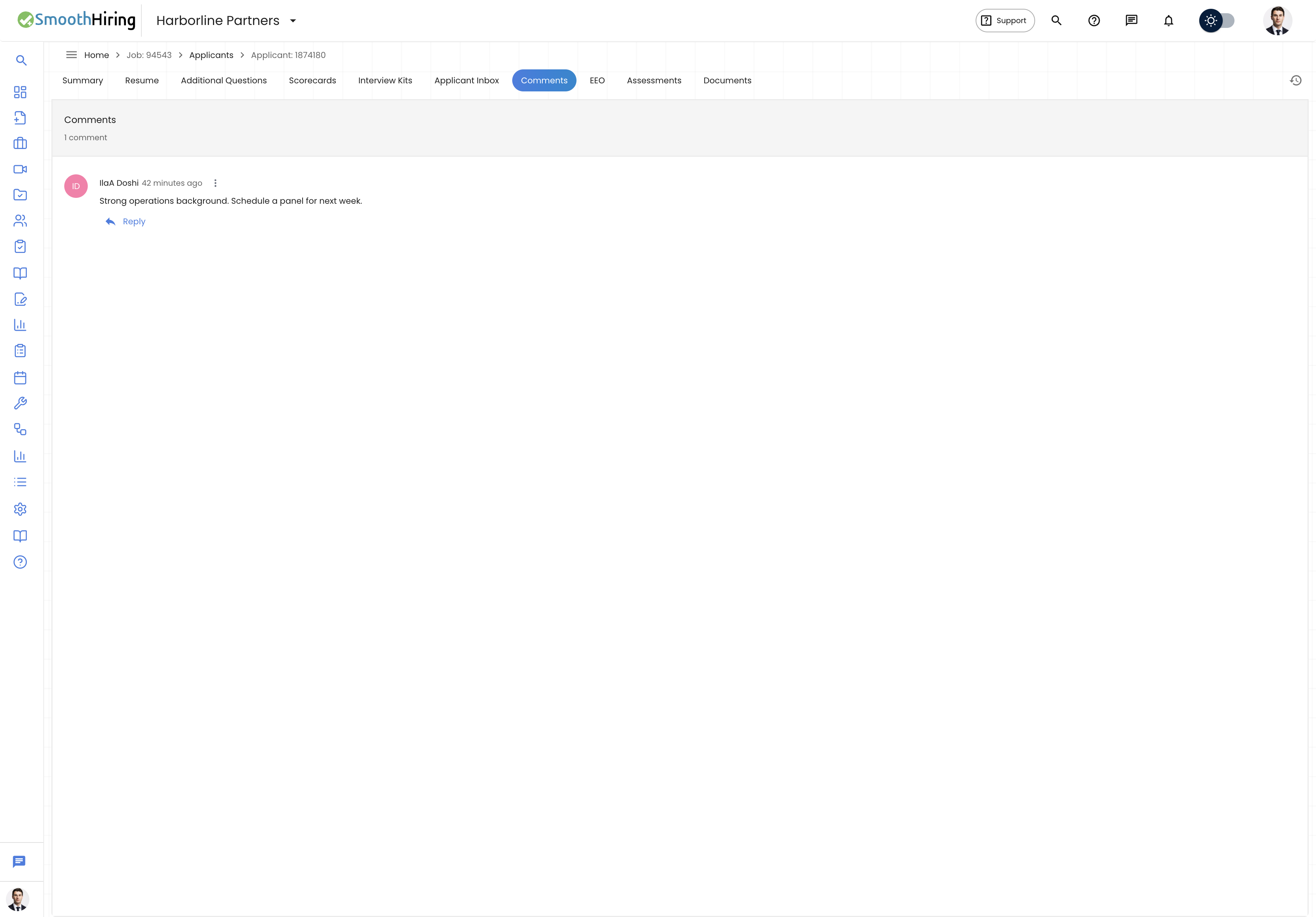
Text messaging in SmoothHiring provides a real-time, two-way communication channel between your hiring team and candidates. Messages are tied directly to each candidate's application record, so your entire conversation history is preserved alongside their profile, resume, assessments, and other hiring data.
Key capabilities include:
- Outbound messaging — Send text messages to candidates directly from their applicant profile.
- Inbound messaging — Receive and view candidate replies in the same conversation thread.
- Message threads — All messages are organized chronologically and grouped by date for easy reading.
- Unread tracking — Inbound messages are tracked with an unread count badge so you never miss a reply.
- Suggested messages — Pre-written message templates help you start conversations quickly.
- Candidate context — The messaging panel displays the candidate's phone number, current job title, years of experience, and other AI-extracted details alongside the conversation.
Prerequisites
Before you can send text messages to a candidate, the following conditions must be met:
Phone number on file — The candidate must have a valid phone number associated with their profile. SmoothHiring pulls phone numbers from two sources:
- The candidate's account profile (mobile number provided during application).
- The AI-extracted phone number from the candidate's resume.
Valid phone format — The phone number must be a valid 10–15 digit number. SmoothHiring automatically formats numbers for delivery (e.g., a 10-digit US number is formatted as +1XXXXXXXXXX).
Text message consent — SmoothHiring tracks whether candidates have opted in to receive text messages. This consent flag is displayed in the messaging interface.
If a candidate does not have a phone number or has not opted in, a warning banner will appear in the messaging panel indicating that text messages cannot be sent.
Accessing Text Messages
To access the text messaging feature for a specific candidate:
- Navigate to Applicants from the main sidebar.
- Select the job listing to view its applicant pipeline.
- Click on a candidate's name to open their Applicant Profile.
- In the profile view, look for the Text Messages tab.
- Click the tab to open the messaging panel.
The messaging panel is divided into two sections:
- Left panel (Applicant Details) — Shows the candidate's name, phone number, experience summary, and unread message count.
- Right panel (Conversation) — Displays the full message thread with a text input field at the bottom.
Sending a Text Message
Composing a New Message
- Open the candidate's Text Messages tab as described above.
- In the message input field at the bottom of the conversation panel, type your message.
- Press Enter or click the Send button (arrow icon) to send the message.
- The message will appear in the conversation thread with a "Recruiter" label and a checkmark icon indicating successful delivery.
Using Suggested Messages
When starting a new conversation (no prior messages), SmoothHiring displays three suggested message templates:
- "Hi! We're impressed with your application. Would you be available for an interview next week?"
- "Hello! Thanks for applying. When would be a good time to discuss the role?"
- "Hi there! We'd love to learn more about your experience. What's your availability like?"
Click any suggested message to populate the input field, then edit as needed before sending.
Keyboard Shortcuts
- Enter — Send the message immediately.
- Shift + Enter — Insert a new line without sending (for multi-line messages).
Receiving and Reading Messages
Inbound Messages
When a candidate replies to your text message, their response is automatically captured and displayed in the conversation thread. Inbound messages appear with the candidate's name and avatar on the left side of the chat.
SmoothHiring processes incoming messages through a Twilio webhook. The system automatically:
- Identifies the sender by matching the incoming phone number to candidate records.
- Associates the message with the correct candidate-job application.
- Stores the message with direction marked as "inbound."
Unread Message Indicators
Inbound messages that haven't been read are tracked with an unread count badge. This count appears in the applicant details panel next to the messaging section.
When you open the text messages tab for a candidate, all unread messages for that conversation are automatically marked as read.
Message Thread Organization
Messages in SmoothHiring are organized for easy scanning:
Date separators — Messages are grouped by date with clear labels:
- "Today" for today's messages.
- "Yesterday" for yesterday's messages.
- Full date format (e.g., "Monday, January 15, 2026") for older messages.
Timestamps — Each message shows a timestamp:
- Messages less than 24 hours old show the time only (e.g., "2:30 PM").
- Older messages show the date and time (e.g., "Jan 15, 2:30 PM").
Sender identification — Each message bubble shows an avatar and label indicating whether the sender was the "Recruiter" or the candidate (shown by name).
Delivery status — Outbound messages display a checkmark icon when successfully sent.
When to Use SMS vs. Email
Both SMS and email are available for candidate communication in SmoothHiring. Here's guidance on when each channel is most effective:
Use SMS When:
| Scenario | Why SMS Works Better |
|---|---|
| Scheduling interviews | Quick back-and-forth is easier via text |
| Time-sensitive updates | SMS has a ~98% open rate vs. ~20% for email |
| Brief follow-ups | Short messages like "Are you still available?" |
| Candidates not responding to email | SMS often reaches candidates who miss emails |
| Confirming logistics | Address, parking, video link reminders |
| Blue-collar or hourly roles | Many hourly candidates prefer text over email |
Use Email When:
| Scenario | Why Email Works Better |
|---|---|
| Detailed job information | Longer content with formatting |
| Formal offer letters | Professional documentation |
| Sending attachments | Documents, PDFs, contracts |
| Rejection notifications | Sensitive communications that need careful wording |
| Bulk communications | Email campaigns to multiple candidates |
| Compliance documentation | Creates a formal paper trail |
Best Practices for SMS
- Keep it professional — While SMS is more casual than email, maintain a professional tone.
- Be concise — Text messages should be short and to the point (under 160 characters when possible).
- Identify yourself — Always mention your name and company in the first message.
- Respect hours — Avoid sending texts outside of business hours (8 AM – 8 PM in the candidate's timezone).
- Get consent first — Only text candidates who have opted in to receive SMS communications.
Managing Message History
Viewing Past Conversations
All text messages are permanently stored and associated with the candidate's job application. To review past conversations:
- Open the candidate's applicant profile.
- Navigate to the Text Messages tab.
- Scroll through the conversation history, which is displayed in chronological order.
Message Data Stored
For each message, SmoothHiring stores the following information:
- Message content — The full text of the message.
- Direction — Whether the message was inbound (from candidate) or outbound (from recruiter).
- Sender/recipient phone numbers — For audit and compliance purposes.
- Delivery status — The Twilio delivery status (queued, sent, delivered, failed).
- Timestamp — When the message was sent or received.
- Read status — Whether the employer has read an inbound message.
- Message SID — A unique Twilio identifier for tracking and troubleshooting.
Troubleshooting
"Invalid phone number format" Error
This error appears when the candidate's phone number on file is not a valid 10–15 digit number. To resolve:
- Check the candidate's profile for their phone number.
- Ensure the number contains only digits (no letters or special characters beyond standard formatting).
- If the number was extracted from a resume, verify it was parsed correctly.
"Candidate does not have a phone number" Warning
If you see this warning, the candidate either:
- Did not provide a phone number during application.
- Has a resume that does not contain a phone number the AI could extract.
You cannot send text messages to candidates without a phone number. Consider reaching out via email instead.
Message Failed to Send
If a message fails to send:
- Verify the phone number is correct and active.
- Check that the number is a mobile number (landlines cannot receive SMS).
- The candidate may have blocked the sending number.
- Try resending the message after a few minutes.
Frequently Asked Questions
Q: Can I send text messages to multiple candidates at once? A: Currently, text messaging is one-to-one. You send messages from individual candidate profiles. For bulk outreach, use the email campaign feature instead.
Q: Are text messages included in the candidate's activity log? A: Text message conversations are maintained in the dedicated Text Messages tab. The activity log tracks other actions like stage changes, comments, and ratings.
Q: Is there a character limit for text messages? A: There is no hard character limit in SmoothHiring, but standard SMS messages are 160 characters. Longer messages may be split into multiple SMS segments by the carrier.
Q: Can candidates opt out of text messages? A: Yes, candidates can reply "STOP" to opt out of receiving text messages, which is handled at the carrier level.
Q: Does SmoothHiring support MMS (picture messages)? A: Currently, SmoothHiring supports text-only SMS messages. MMS with images or attachments is not supported at this time.